Product Updates | March 23rd, 2023
Insights
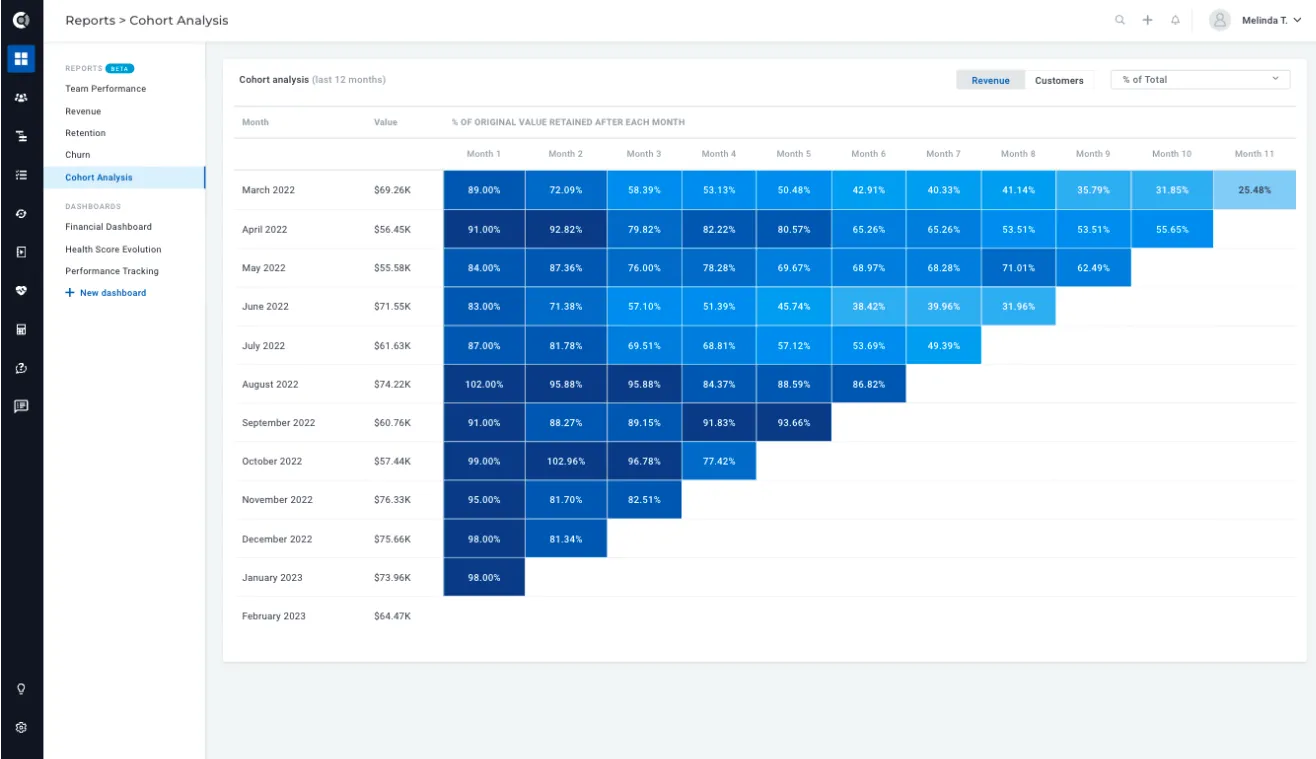
Cohort Analysis report: New standard report for cohort analysis to observe the 12-month evolution of new customers per monthly cohort. More details about the report calculation can be found here.
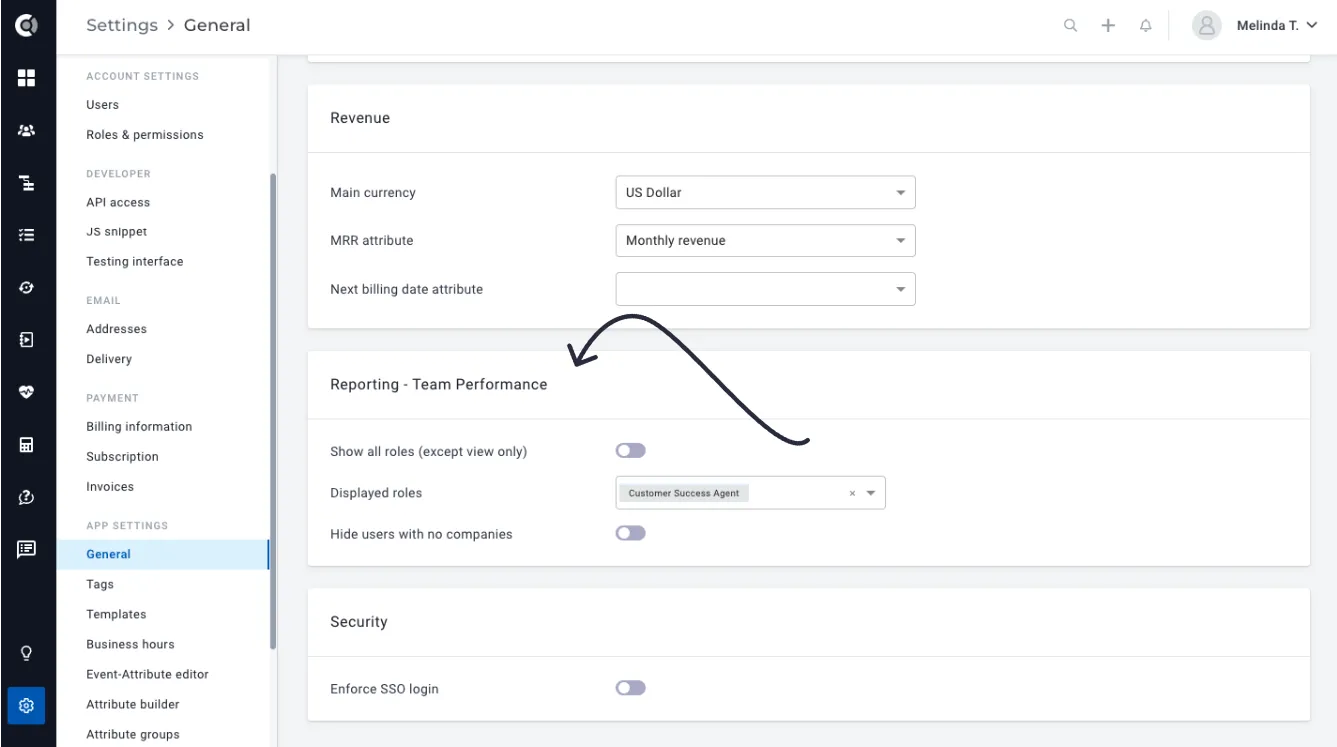
Team Performance Enhancements: You can now choose which team members should be tracked under the Team Performance table. All roles will be selected by default. Toggle off the show all roles (except view only) option, and the display roles section will appear. You will be able to select the roles to be displayed in the table. You can also hide users who do not have companies assigned (they are not assigned as CSMs nor as Account Managers).
Customer 360
Grouping Attributes: Attributes can now be grouped under different categories for both Company 360 and People 360 Dashboards.
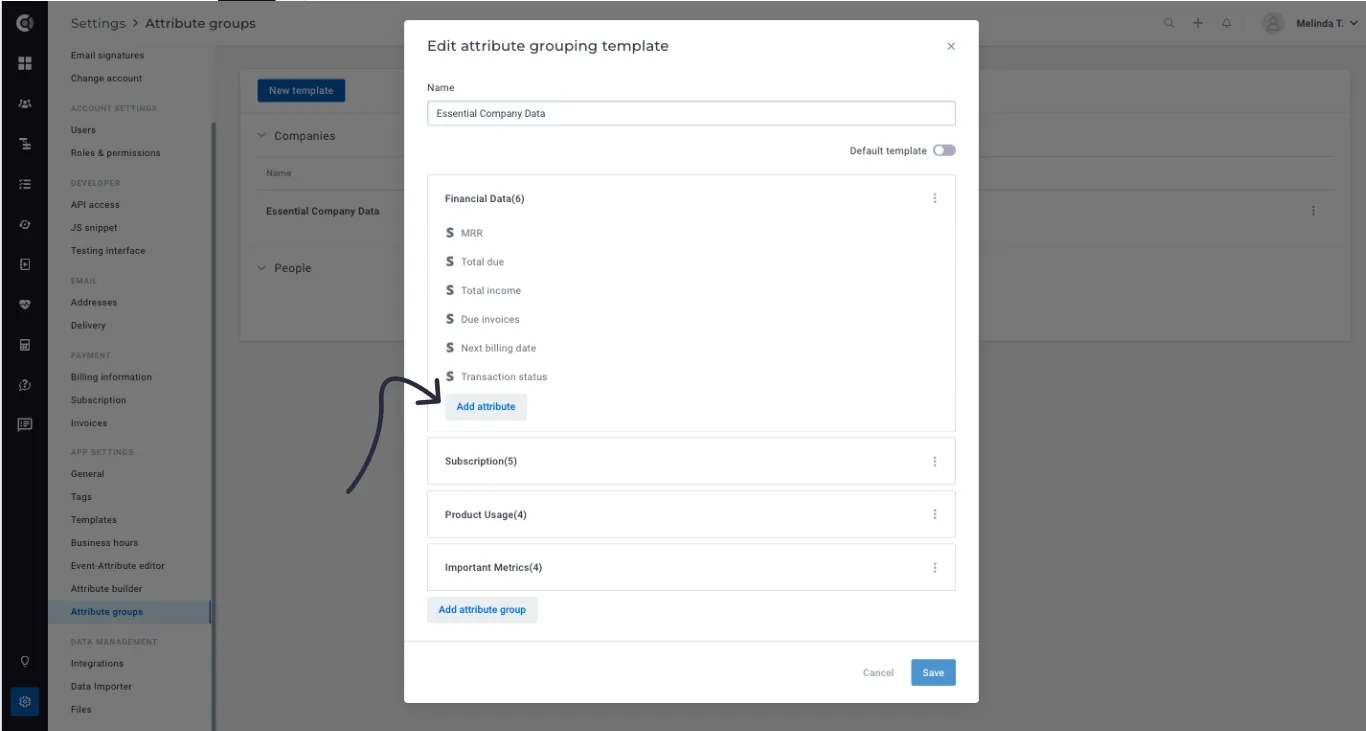
The first step is to define the attribute grouping templates (Settings – Attribute Groups) and the attribute groups that each template should contain.
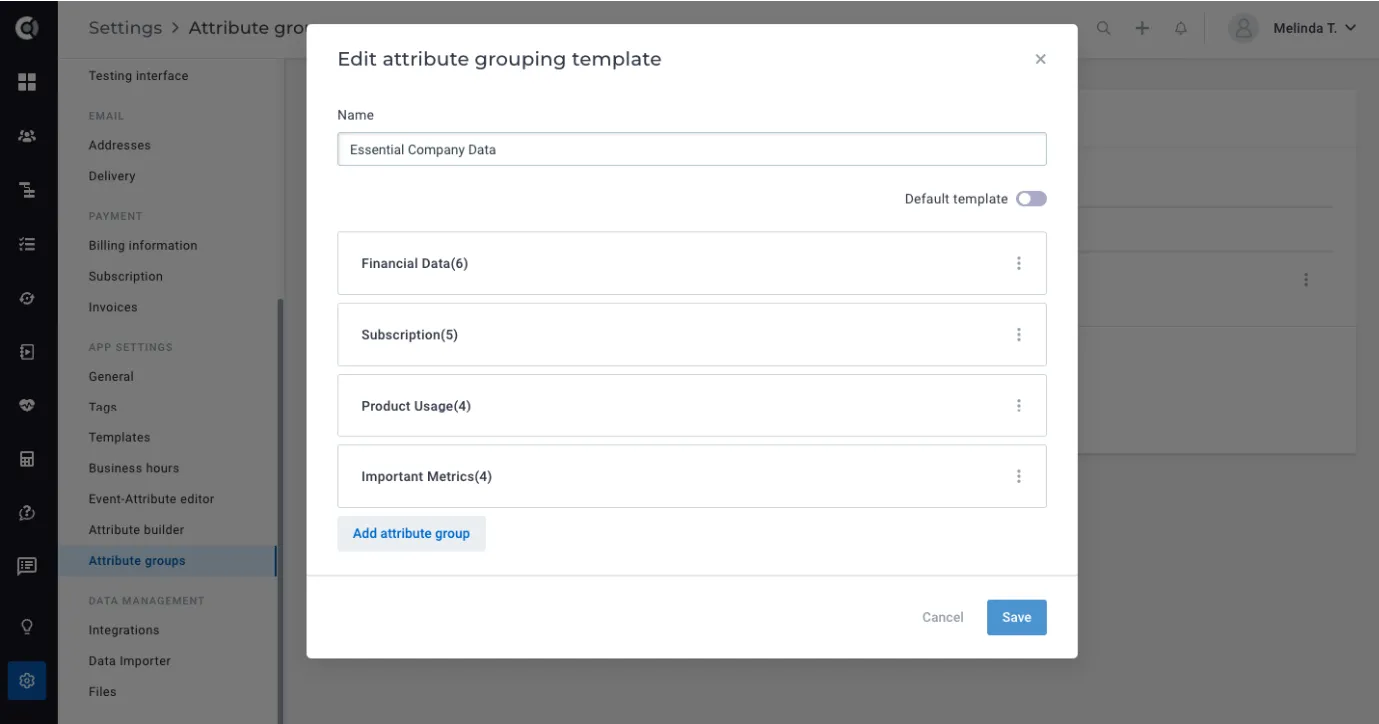
Then each group will be populated with attributes by clicking on Add attribute.
These templates will be available under the Customer 360 Dashboard, so users can toggle between them and see only relevant groups of attributes.
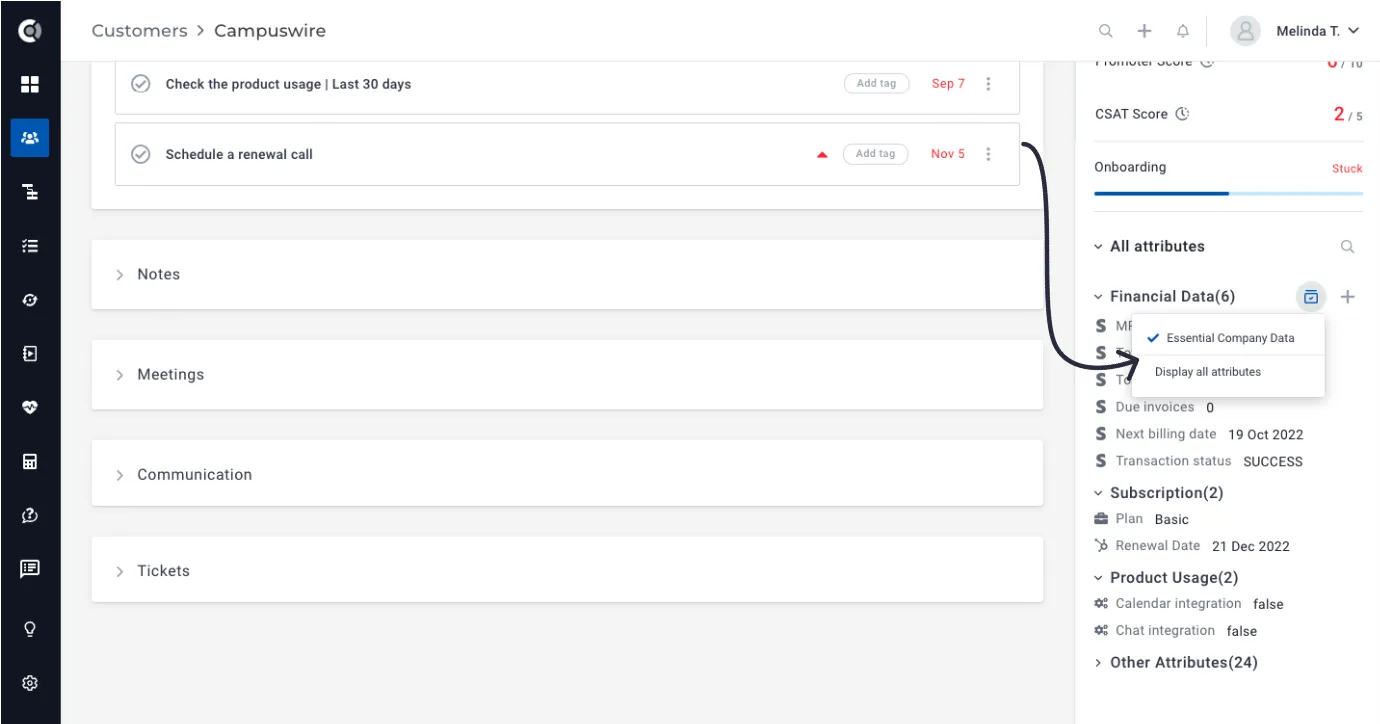
Observation: The ability to drag and drop attributes was moved from the Customer 360 page to the Attribute Group section under Settings. The displayed order of attributes can now be changed by dragging and dropping them into the groups you define for each view. This way, the changes are applied to all Custify users who open the view. The attributes that are not populated will not show up on the customer page, even if they are part of the template defined.
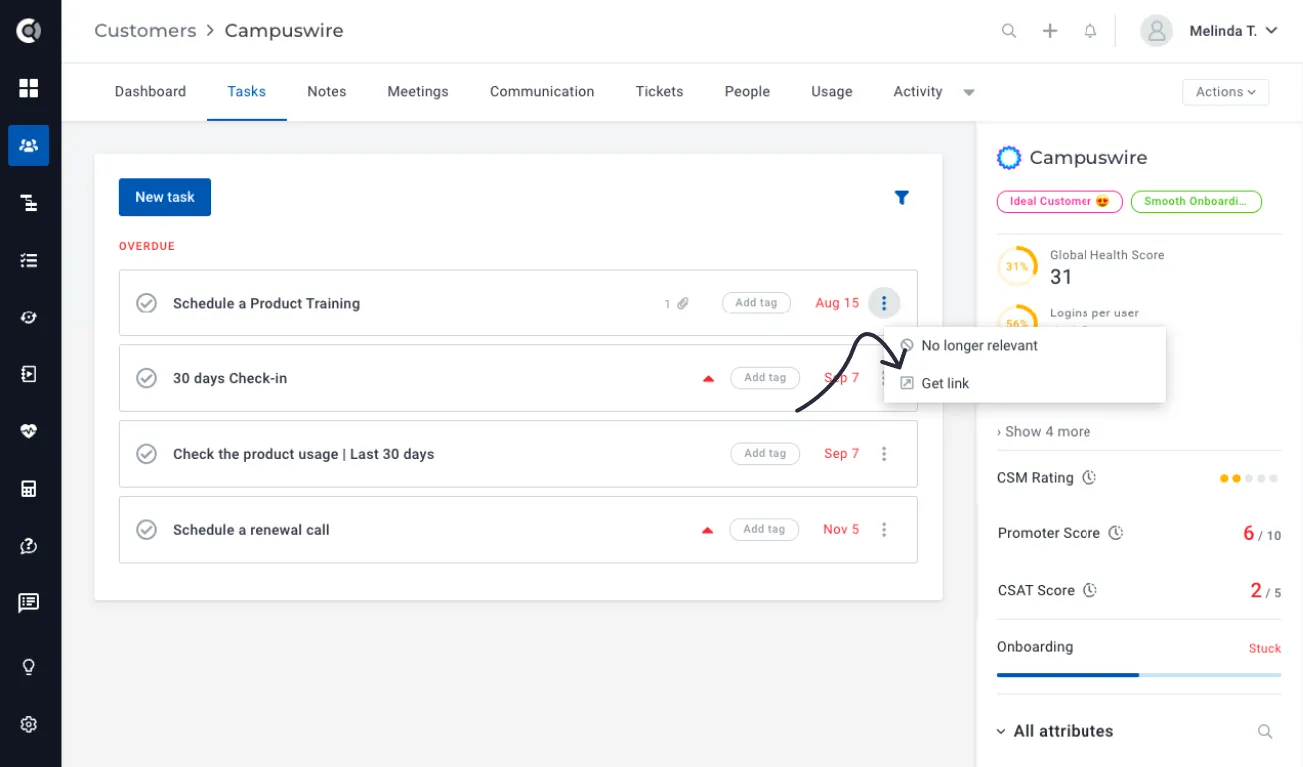
Get links for notes and tasks: Create links to specific notes and tasks that you are adding, so you can easily reference them in your conversations or in other notes and tasks.
Tasks
Save tasks filters as views: Similar to the customer list views, task’ filters can now be saved under public / private views. Select the filters you need, then click on Add current view to save it. Click on Manage views to edit, share or delete a view.
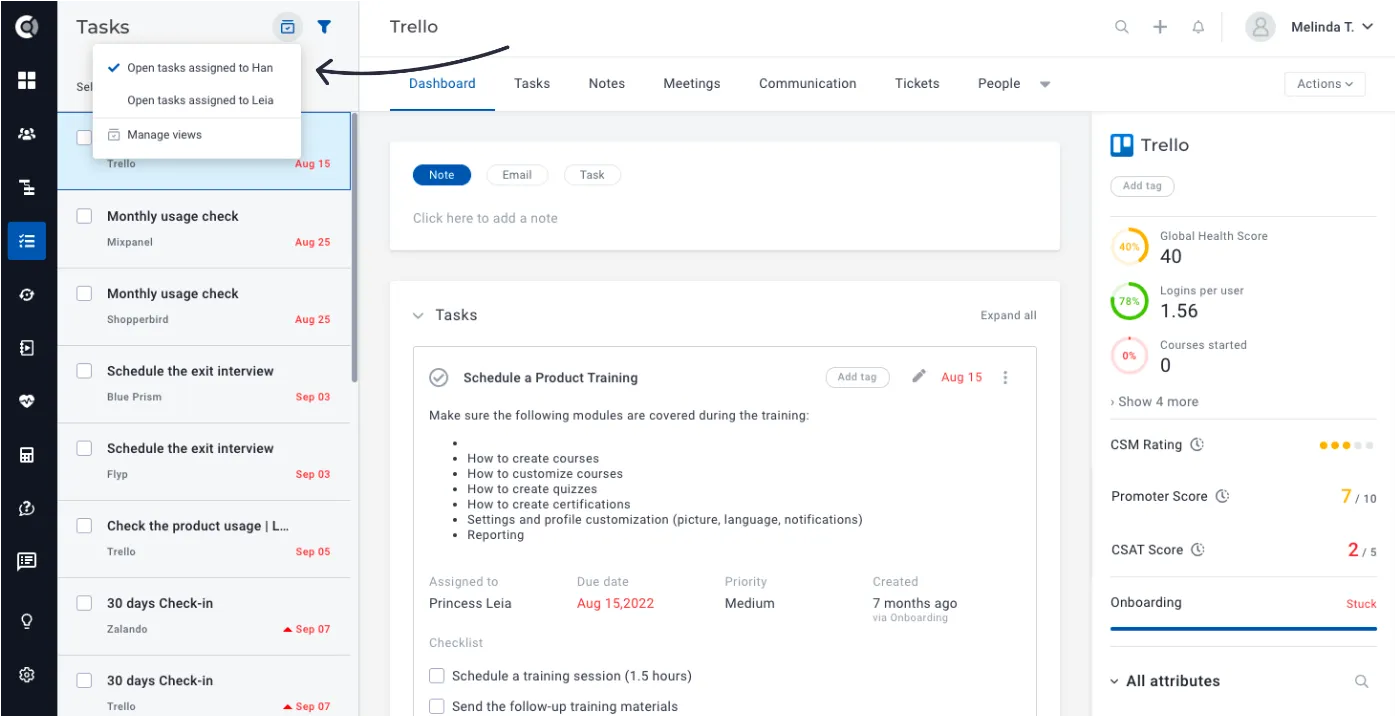
Observation: Under Settings – Roles & Permissions, you will find new permission for Tasks Management – Manage Public Views, so you can control who manages the tasks views that you define.
Lifecycles
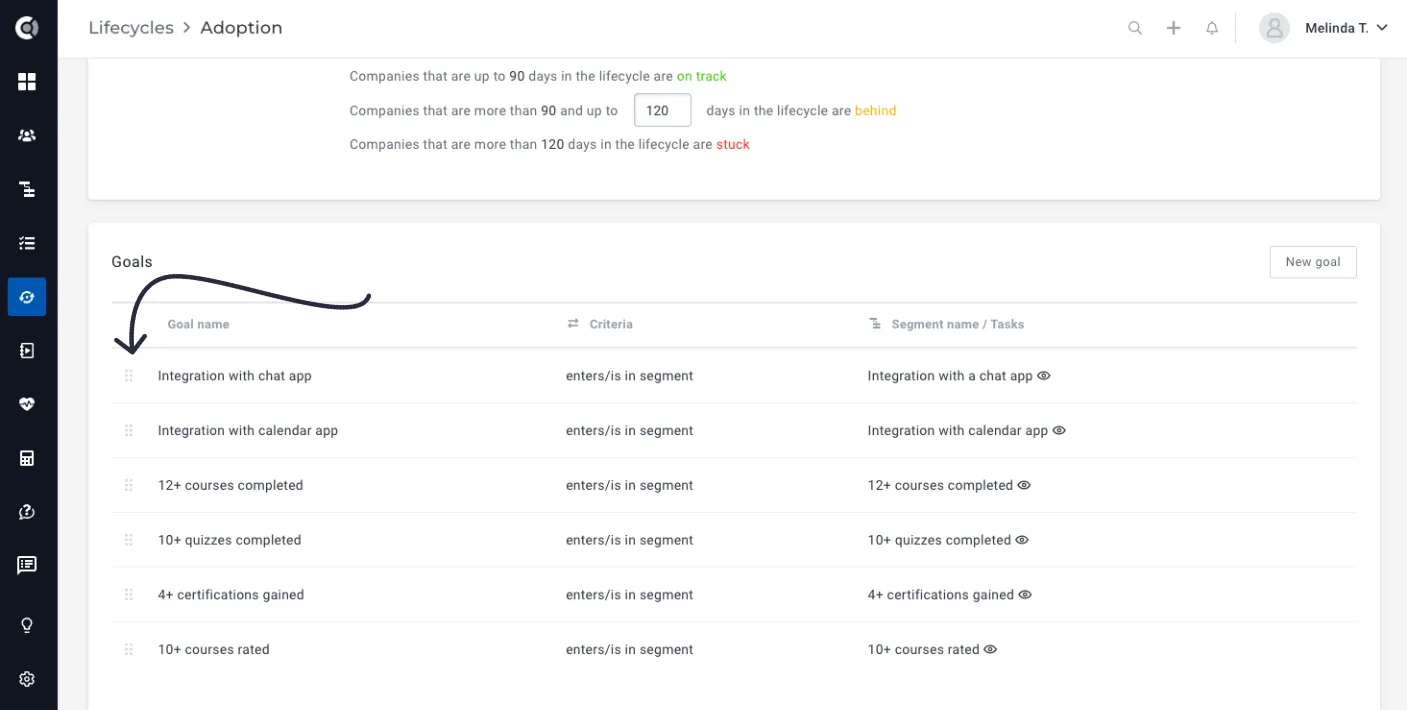
Rearrange Goals: Goals under lifecycles can now be rearranged. Drag and drop them to arrange them in the desired order, which will also be kept when displaying the lifecycle progress on the Customer 360 Dashboard.
Calculated Metrics
Financial Data Functions: The details listed under the Financial Data tab can now be accessed through Calculated Metrics. You can build calculations based on Deals, Subscription, or Invoices details.
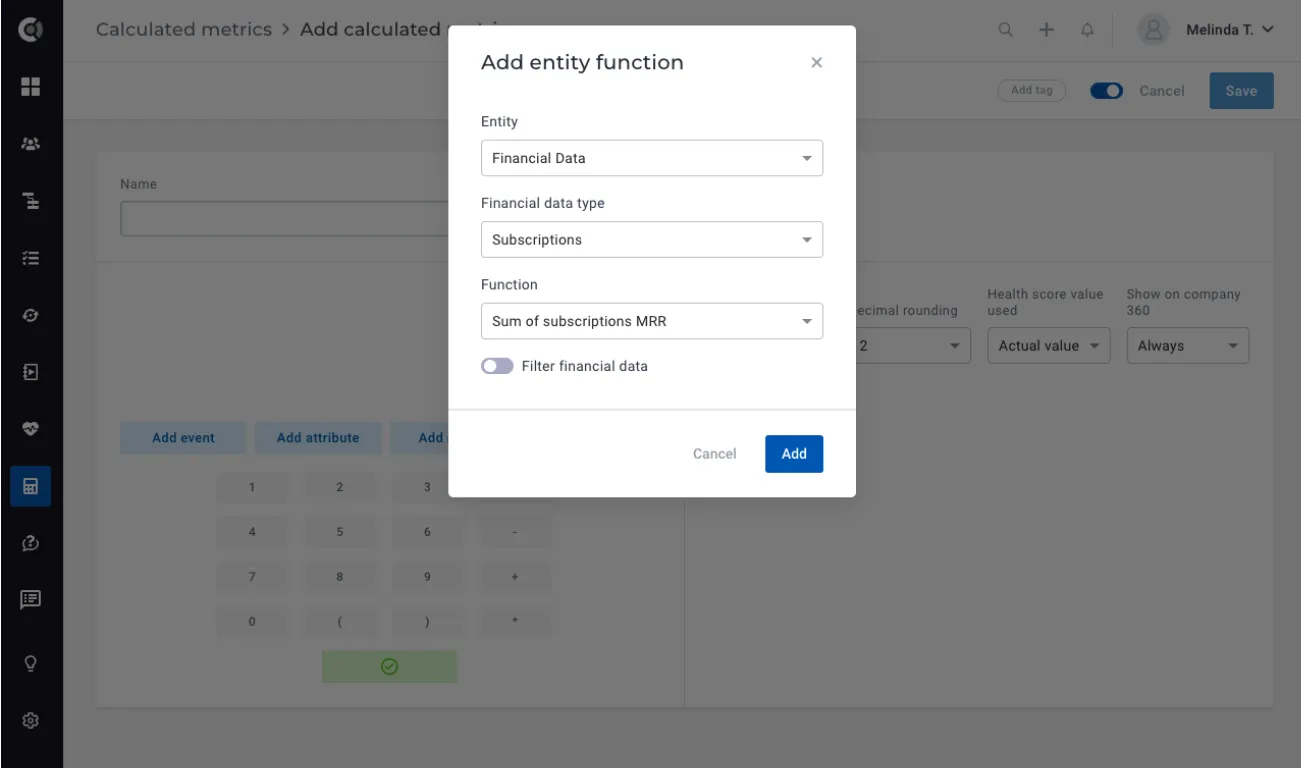
Available functions and filters:
Deals:
- Functions (all functions can be filtered):
- Count of deals
- Sum of deals value
- Days since last closed deal
- Days since last won deal
- Days since last lost deal
- Days since first closed deal
- Days since first won deal
- Days since first lost deal
- Available filters:
- Status (apply the formula only for deals with a specific status)
Subscriptions:
- Functions (all functions can be filtered):
- Count of subscriptions
- Sum of subscriptions MRR
- Average subscriptions MRR
- Sum of total paid
- Sum of total due
- Count of due invoices
- Available filters:
- Status
- Last invoice status
- Last transaction status
- Plan
Invoices:
- Functions:
- Count of invoices
- Sum of total
- Sum of amount paid
- Days since last paid
- Days since last invoices
- Available filters:
- Status.
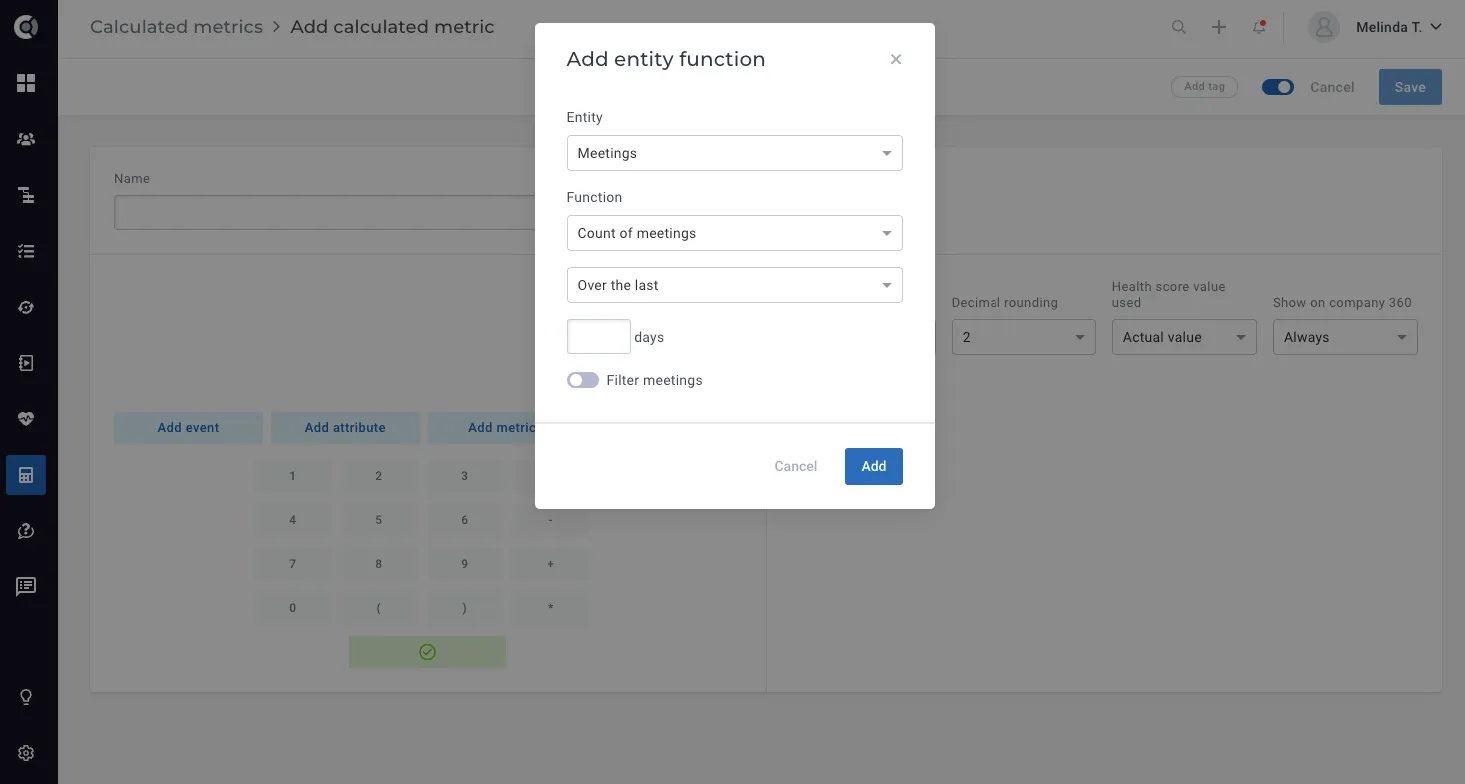
Count Meetings: You can now count the number of meetings imported (from Google Calendar) for each customer and turn these values into metrics.
Integrations
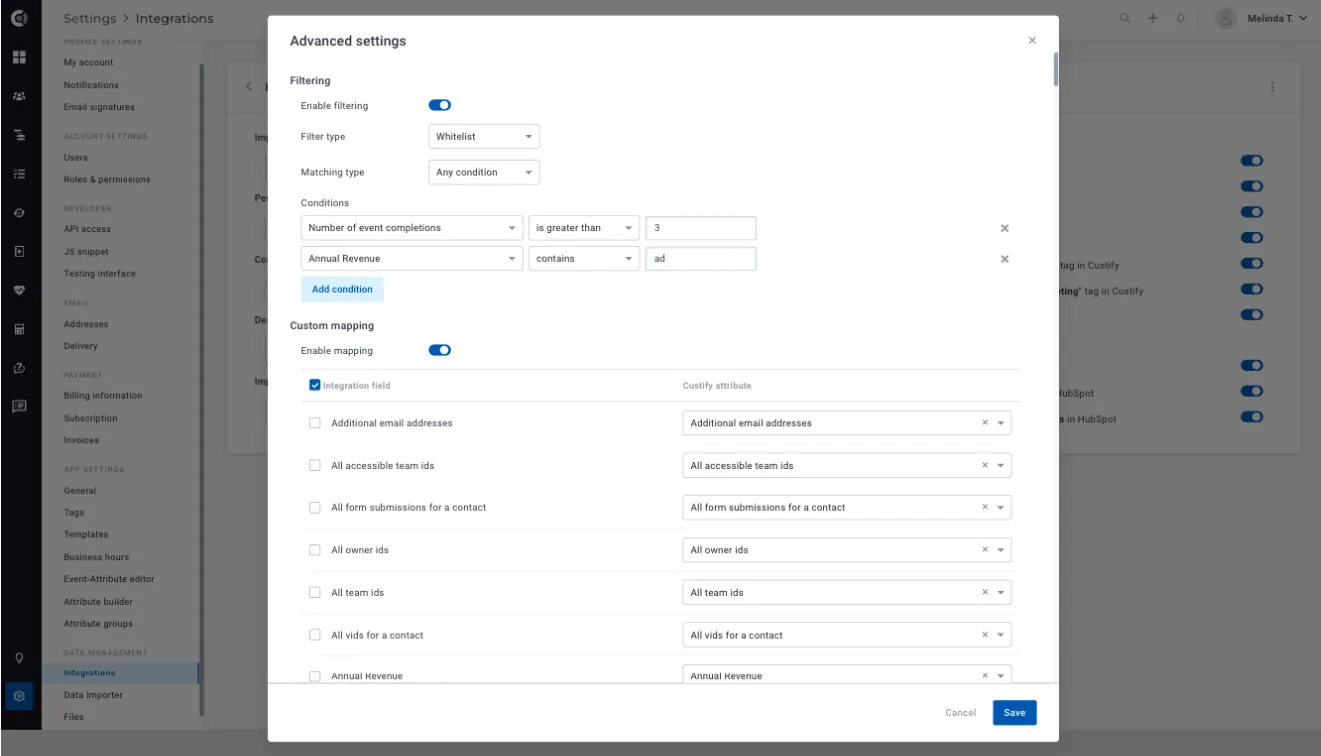
Hubspot Filtered and Selective sync: Choose what companies, people, or deals should be imported to Custify. Select the desired attributes and map them to other existing Custify attributes, so you will only import/map relevant Hubspot data.
The new Advanced Settings apply to both Full and Enhance integration modes. By default, the sync will bring in all the entities that you match from Hubspot. For advanced filtering/attribute selection, click on Advanced Settings (available for Companies, People or Deals).
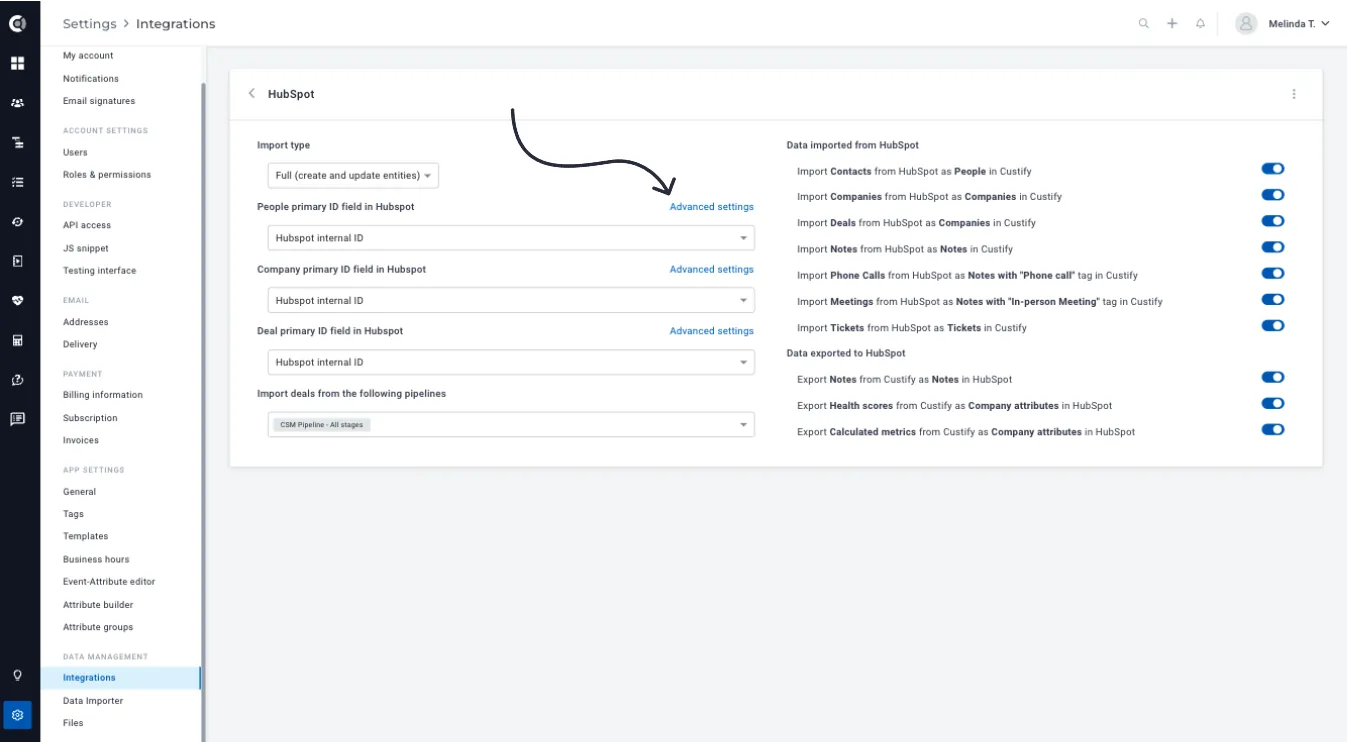
Once the filtering is enabled, you can customize the following options:
- Filter type: can be whitelist (import all the entities that respect all the conditions set below) or blacklist (import all the entities that do not respect the conditions set below);
- Matching type: all conditions or any conditions (AND / OR logic);
- Conditions: choose what Hubspot filtering rules to apply to only import the companies/people/deals that meet/do not meet those conditions;
- Custom mapping: select which attributes should be imported from Hubspot (you have the option to select all and deselect all) and to which fields they should be mapped. You can choose to match them to existing Custify attributes or to create new attributes.
- Import unknown (new) fields to their default mappings: this option allows you to control what happens with the new attributes that you add to Hubspot after enabling the integration in Custify. You can choose to import them or not.
Observation: If the Hubspot integration is already enabled for your account, after performing any changes, a full reimport will be needed. When applying filters, the data previously imported will not be updated anymore, but it will not be deleted. This is because deleting data when applying filters is not a best practice.
General
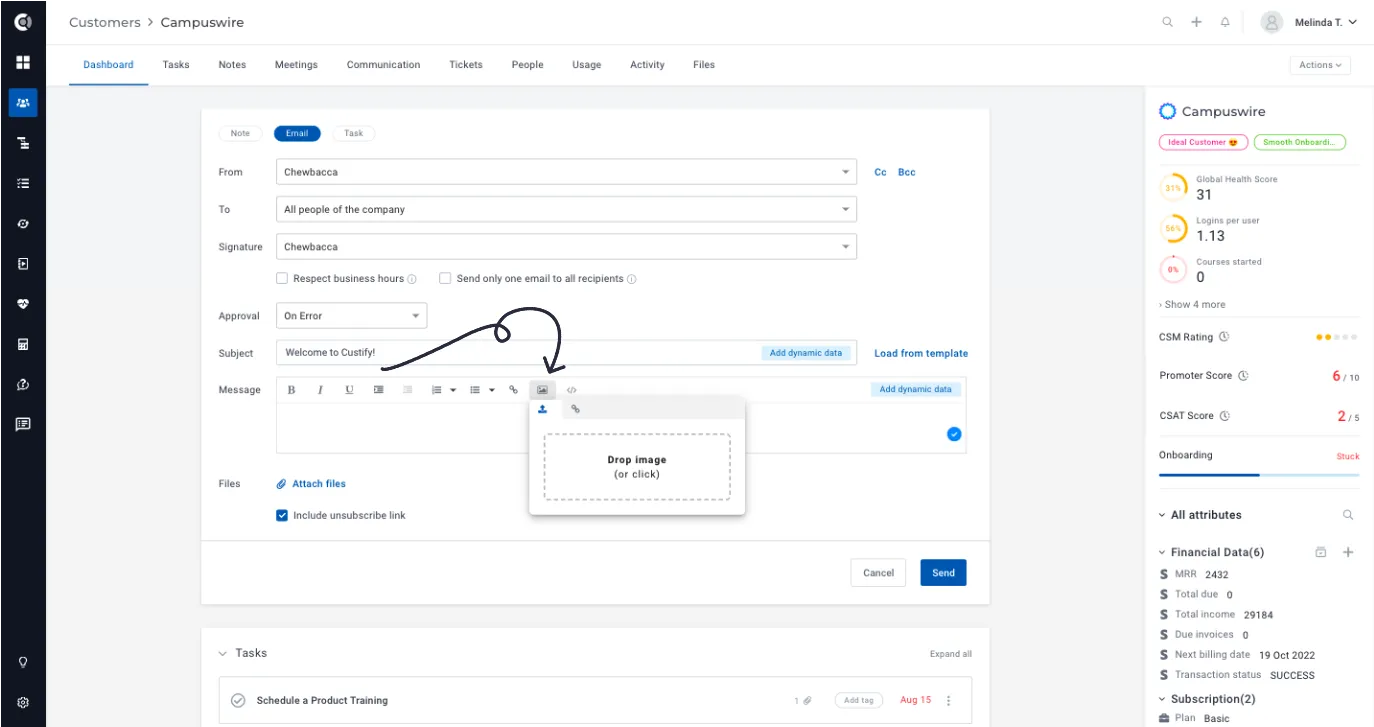
Email editor enhancements: Add images to emails. This can be done either from the Customer 360 Dashboard or from Playbooks.
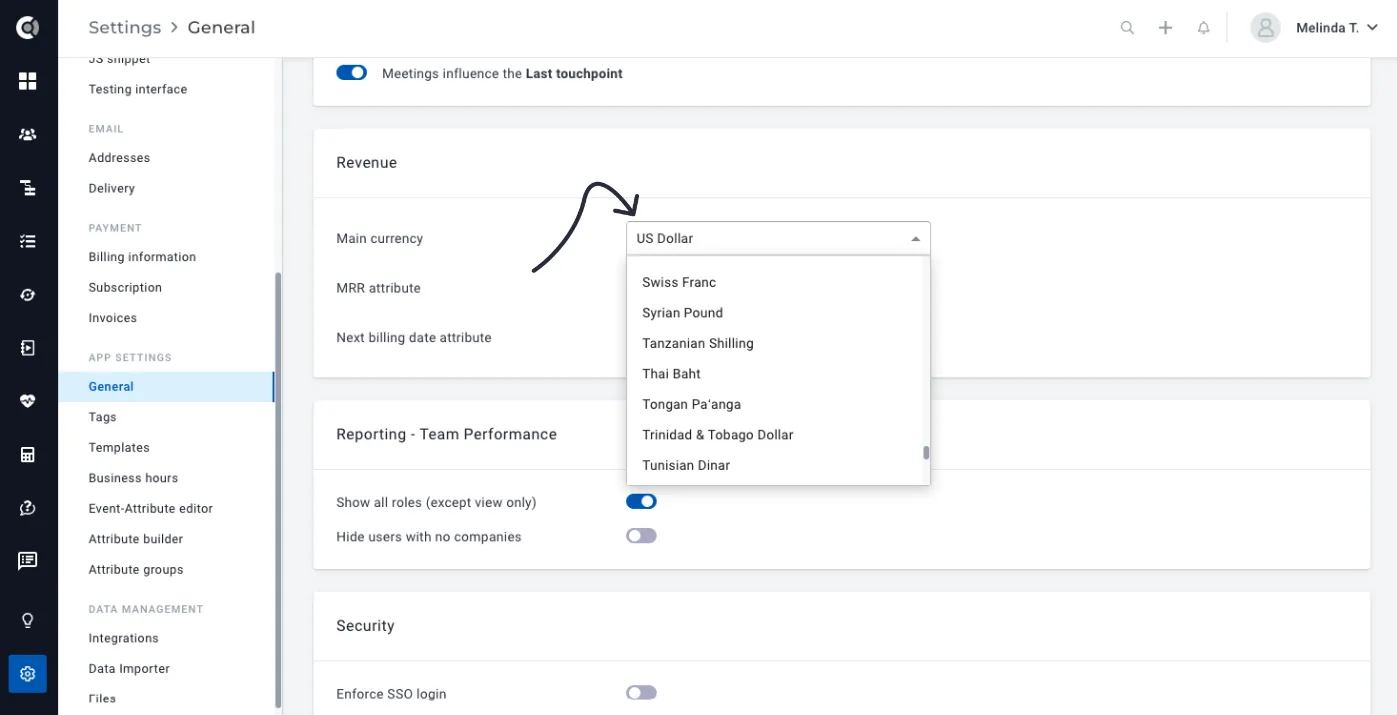
Enhanced Currencies List: Many new currencies are listed under the Revenue section in General Settings.
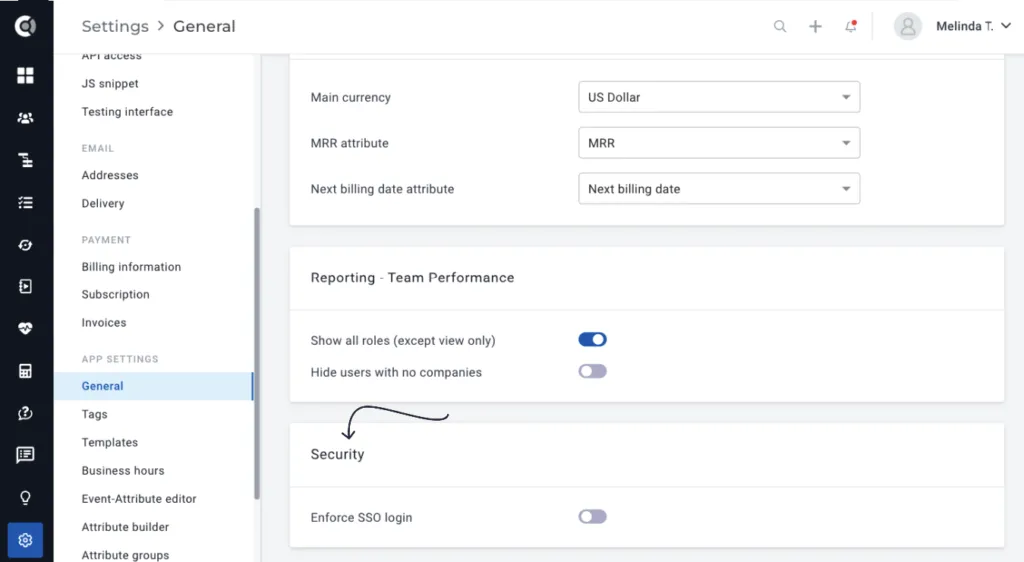
Enforce SSO: Admins can now enforce the SSO authentication at the account level.