Playbooks
Save time by automating your customer success workflows.
Overview: Playbooks for companies
Flexible workflows make your automation options nearly endless. Create playbooks that automatically:
- Send welcome and onboarding emails
- Assign customers to team members
- Send messages to customers with low engagement
- Implement personalized renewal processes
- Notify you in response to your customer’s behavior
Defining Playbooks
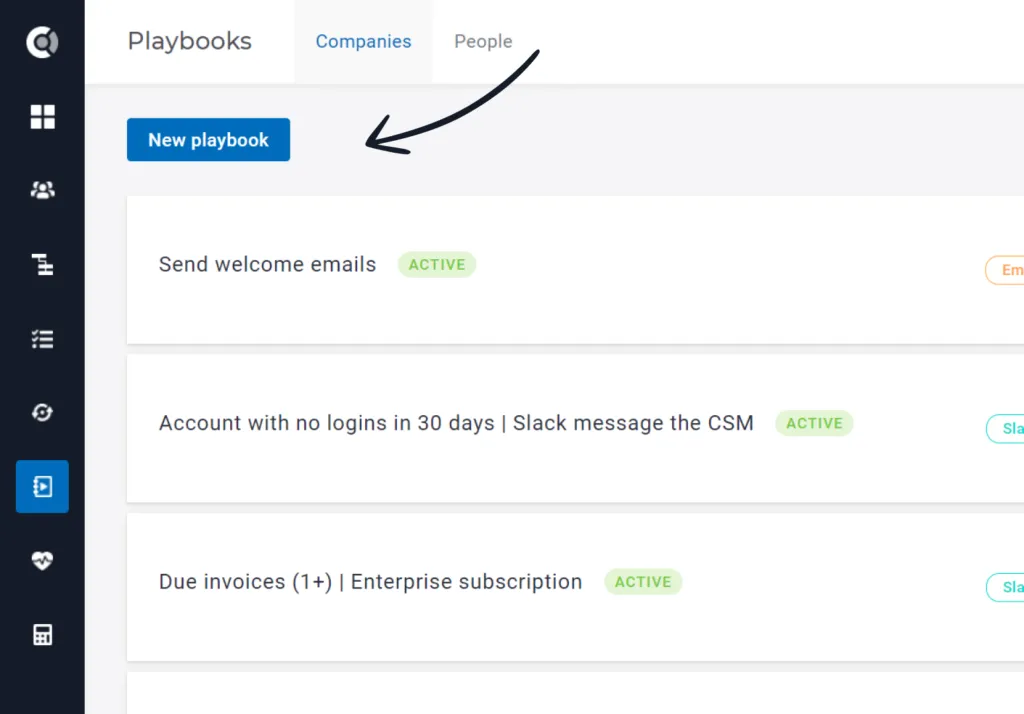
To create a new playbook, navigate to the Playbooks tile in the main menu and then click New playbook. Or use the global shortcut ( ➕) to create a new playbook from anywhere in the app.
To set up the playbook, you need to define the following:
- Name: The unique name of the playbook you define.
- Description: Optional, but helps organize your playbooks.
- Show in 360 ✅: If you select this option, the playbook will be displayed on the Customer 360 profile, but only for those who have completed the playbook or are in progress.
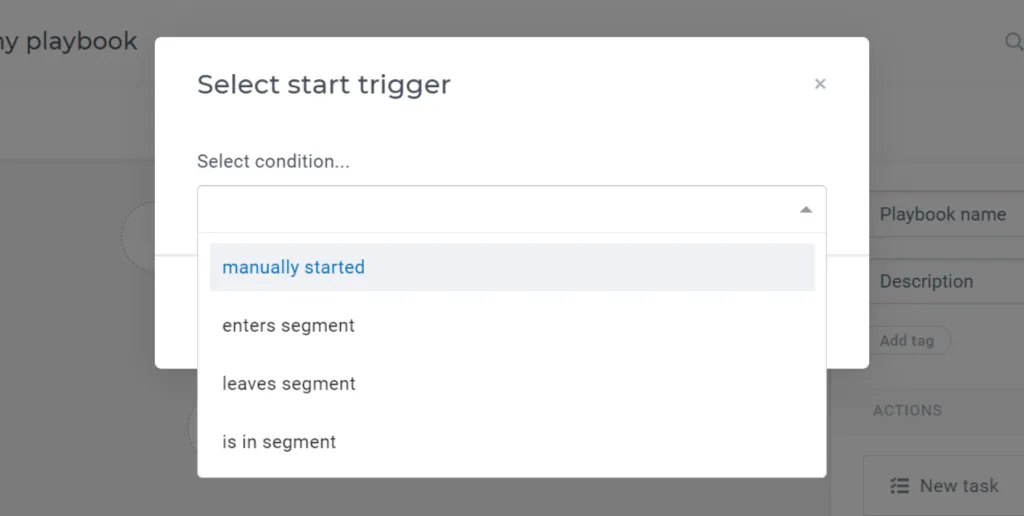
- Start Trigger: We provide you with a set of trigger conditions to help automate your processes (see our recommendations below ⬇).
- Flow steps: Combine actions with wait times and wait conditions to create flexible playbook automations.
To set up the playbook, you need to define the following:
Start trigger | When can you use it? |
|---|---|
Manually started | Whenever you have a sequence of actions that should happen, but you can’t define a pattern to trigger them. Let’s say you have a list of tasks that you want to assign to yourself or other team members after you have a particular conversation with a customer. Just manually add that customer to the playbook and the task list will be created. |
Enters segment | Great for triggering alerts or sending automated emails. Want to be notified when a customer hasn’t logged in in the last 30 days? On Slack? By email? The choice is yours! This is the start trigger you’re looking for. |
Leaves segment | It’s inevitable that there will be customers who unsubscribe from your product. You can choose to send them a thank you email or an exit survey to find out why they opted out. Create a playbook for all customers who leave the Active Paying Account segment and turn this unpleasant event into a learning opportunity for everyone in the company. |
Is in segment | Do you plan to assign CSMs based on time zones, subscription type, or other criteria? Let’s say you want to assign Anne to all customers in Europe. Create a segment for them and a playbook that assigns Anne to all existing European customers. The trigger Is In Segment will assign Anne not only to the existing customers but also to those who will enter this segment. |
Scheduled | Playbooks can be set to run daily/weekly/monthly, the start date and end date being also customizable. Whether you want to automatically create a task to schedule a monthly meeting with your customers or send them a quarterly survey, you can now do it using Scheduled Playbooks. Once you click on the “Scheduled” option, you will be prompted to select who you want this trigger to apply to (which customer segment), when you want it to start and when you want it to end, and also to select whether you want this to be recurring. If the playbook will be recurring, you will also have to select how often you want the playbook to run. |
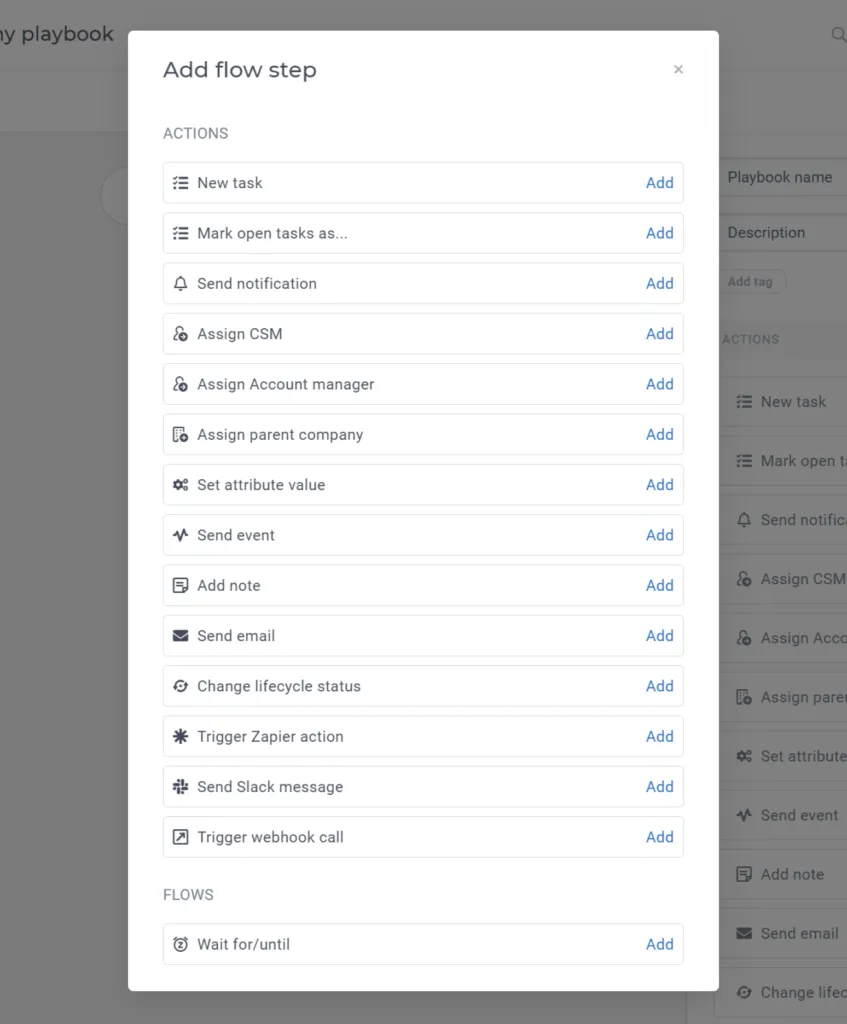
When it comes to playbook actions, you can combine any of the actions and/or wait conditions as you wish. To define an action, you can drag and drop it from the list of actions (right pane) or press the ➕ button.
ACTIONS
☑ New task Tasks are to-dos created for customers and assigned to the CS team. With this action, you can ensure that the CS team performs specific activities for customers who display certain behaviors. 🔄 Mark open tasks as Do you want to handle the tasks created in bulk? You have two options: mark open tasks as done or mark them as no longer relevant for all customers joining this playbook. 🔔 Send notification Help your team start with the most important and urgent things first. Use this action to send in-app notifications 🔔 triggered by customer behavior that requires immediate action. 👨💼 Assign CSM / Assign Account manager Automatically assign a CSM and/or Account Manager to all customers who meet certain criteria. 🏦 Assign parent company If you use a hierarchical structure for your customers, you can automatically link new or existing customers to another parent company. ☸ Set attribute value With this action, you can automatically set the value of an attribute for customers that match your rules. 🖇Send event Similar to attributes, you can use this action to expand the list of events you send at the customer level. 📝Add note Similar to task creation, notes can be created to expand the information you keep for each of your customers.
Popular use: Are you running A/B tests for a specific group of customers? Use a playbook to add a note on their profile and track any changes in how they perceive your product.
📧 Send email Welcome emails, congratulations or email reminders for the customers who are not yet using one of the main features they paid for? Use this action to send an email or a sequence of emails with wait times in between. Check out the variety of customization options we offer to make sure you send the right email at the right time. ♻ Change lifecycle status Lifecycles are automated in their own way, but for exceptions, you can add or remove customers from a lifecycle. ✳ Trigger Zapier action At Custify, we love streamlining processes. That’s why we have native integrations with many of your favorite apps, and we use Zapier for many others. Define the step name in a Playbook and do the rest of the magic in Zapier. ☁ Send Slack message Want to receive instant Slack messages and take action when one of your customers is at risk or has just reached an important milestone? Low activity, due invoices, poor NPS, or about to upsell? Use this action to send notifications to yourself or to a Slack channel.
Pro-tip: Make sure you segment your customers properly before you start sending messages. You probably don’t want 100 Slack messages per day, so you can think about segmenting your customers before turning on notifications. Let’s say you define this playbook for only your top customers: Premium subscribers, high MRR, key customers. What about the rest? Use in-app notifications, tasks, dashboard reports, or track their activity using health scores or segments.
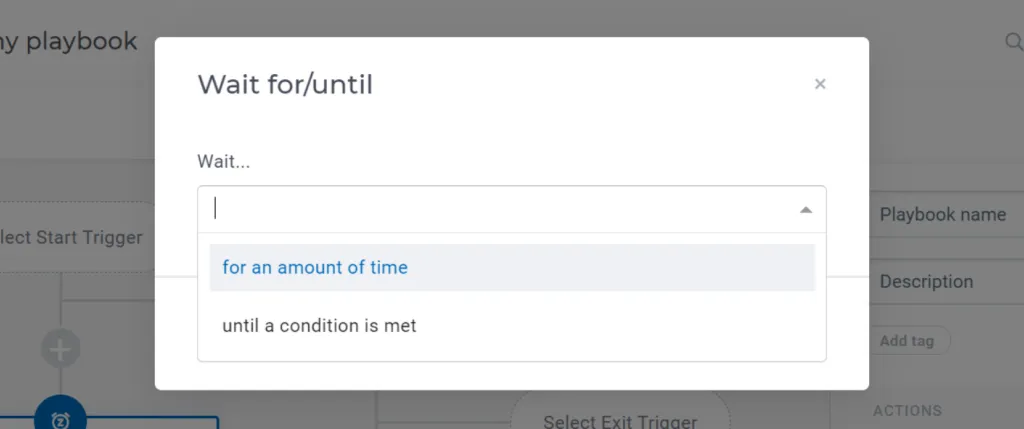
↗ Trigger webhook call You can use a webhook call to trigger a popup or change the appearance of a button in your application. FLOWS ⏱ Wait for/until You can choose to delay triggering actions, which gives your team or customers time to better understand and improve the process. Do you plan to send emails to customers who just signed up? If you plan to send 6 emails, you probably don’t want to send them all at once, so use this feature to schedule them every few days. The waiting time can be either:
- An amount of time
- Until a condition is met
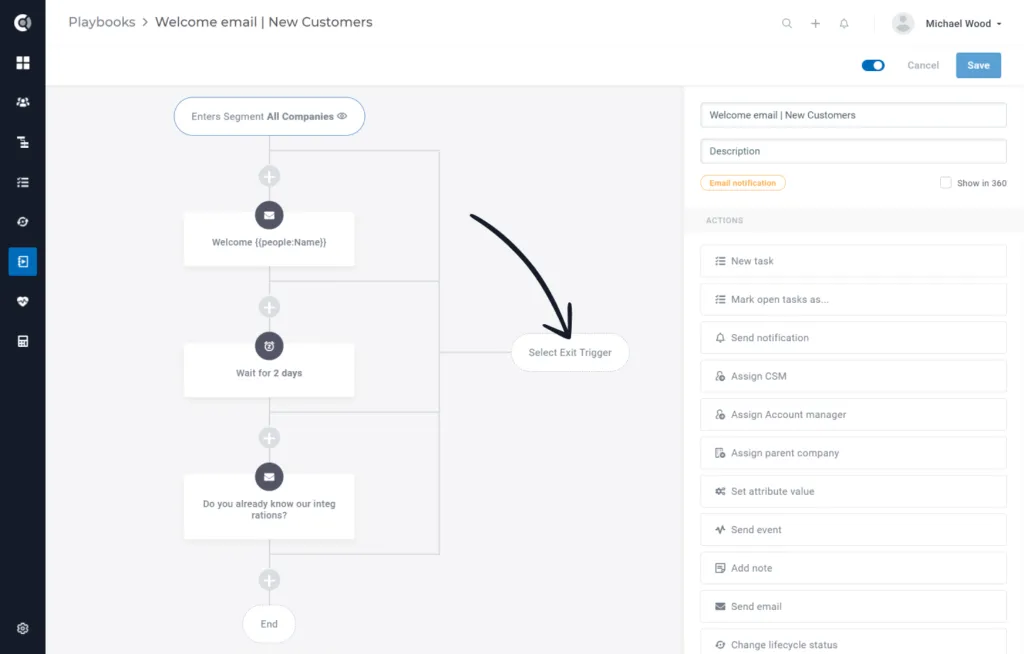
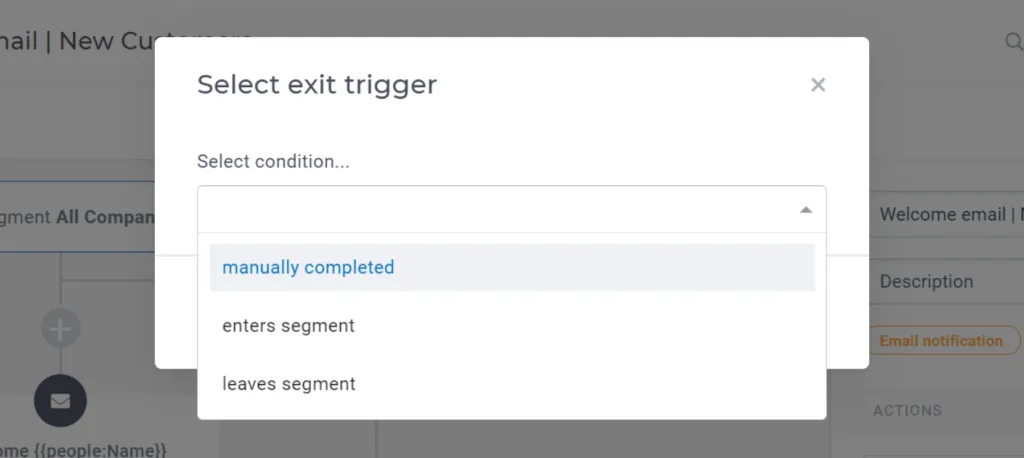
Once you’ve set wait times for your playbooks, you can also set exit triggers. Let’s say you discover that 30% of your customers aren’t using Feature X. They probably forgot or don’t know how to use it, so you decide to send them an email with some details. You can also send a second email in 7 days, but only to those who haven’t activated Feature X yet. So that’s why you set an exit trigger: Once you’ve activated Feature X, you’re no longer part of this Playbook. This way you avoid sending redundant emails.
Branching Playbooks
Playbooks in Custify also allow you to build branches, based on different conditions. For more details and use cases, check this article.
Entity triggers (for example, Note created or Task created) include a Created By condition that lets you scope the trigger to specific people. Alongside the existing options for individual users and integrations, you can now select dynamic role-based values: CSM, Account Manager, and any custom manager roles you have configured (such as Implementation Manager).
The dynamic value is resolved at runtime against the company tied to the entity. If you pick CSM, the trigger only fires when the assigned CSM on that account is the one who created the note or task — notes from other teammates are ignored. A typical use case is a churn-risk flow that only runs when the assigned CSM tags a note with churn risk.
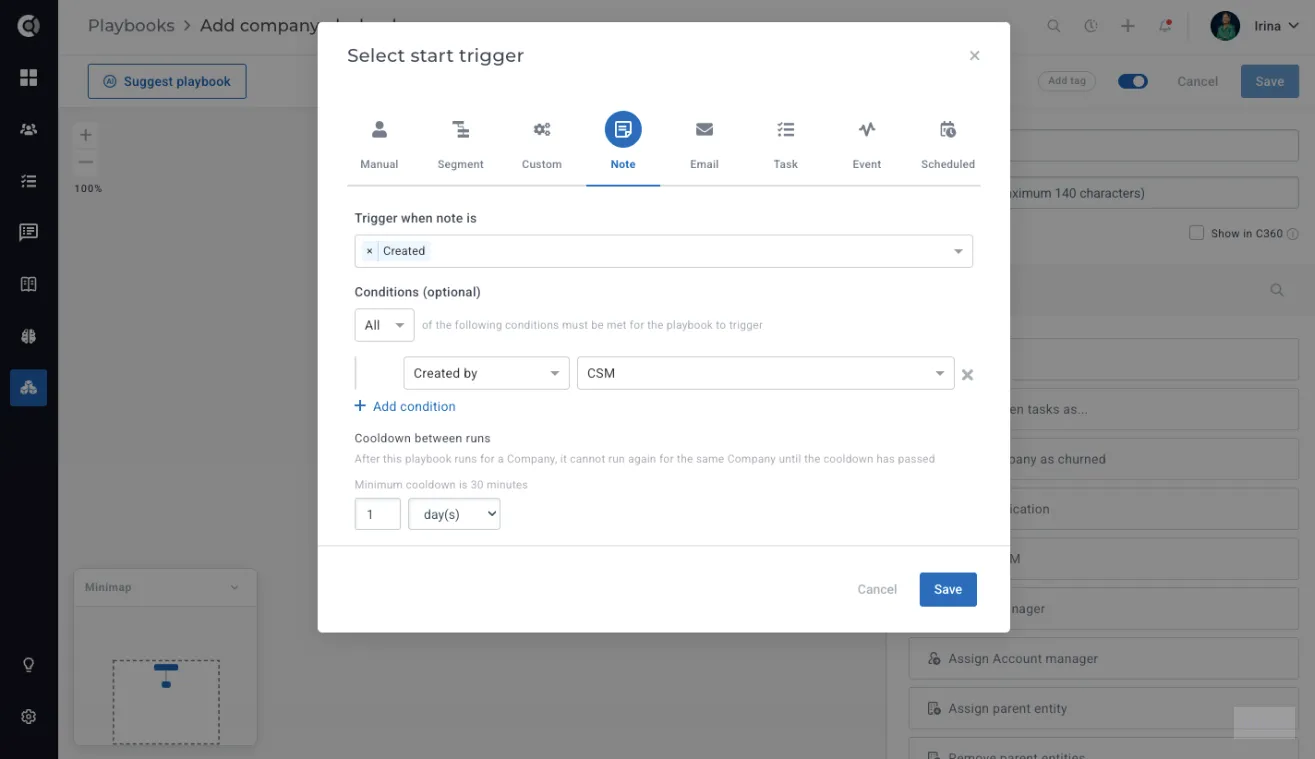
The dynamic options are only available on company playbooks — they are hidden on people playbooks, where account-level role assignments do not apply.
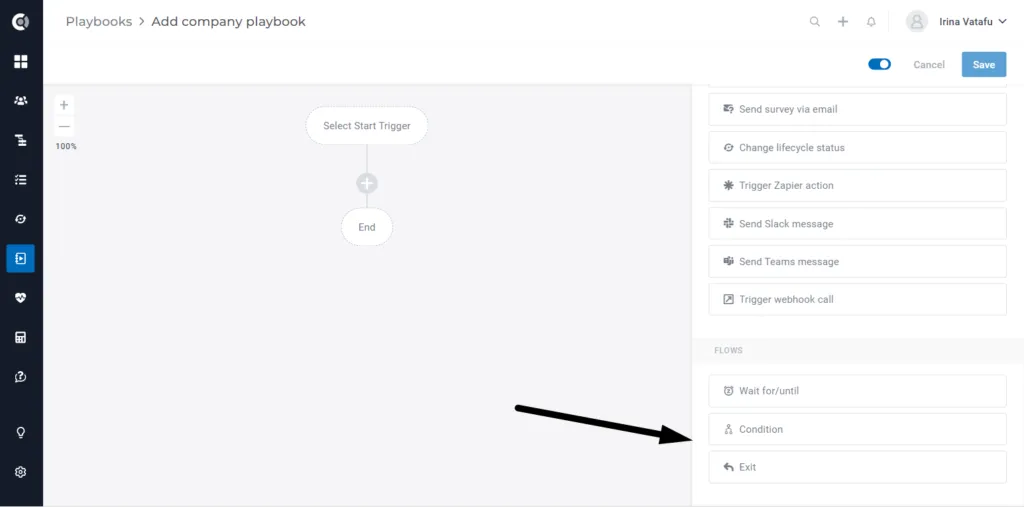
⤵️Condition
Use conditions to build different workflows inside a single playbook. Under the same playbook trigger, you can have different action chains depending on the logic you define.
Conditions can be based on:
- Segment logic | If the customer is in segment A, perform action X.
- Attribute condition | If attribute B is [value], perform action Z.
🚫Exit
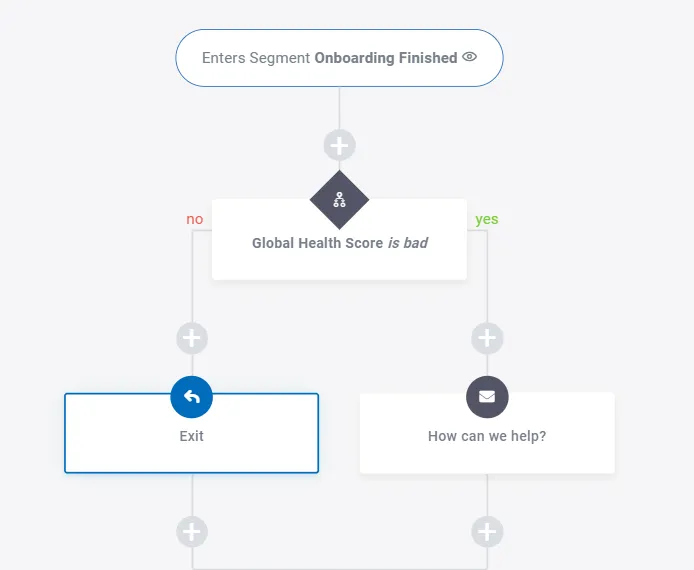
After you define the Conditions in the playbook, you can use the Exit action to trigger the end of the flow.
Example: if the condition is met, follow the action flow; if not, exit the playbook.
Tracking Playbooks
Viewing customers with an active Playbook
You’re done setting up a playbook! What’s next? Filter, monitor, and keep track of customers who have completed all steps of a playbook or just some of them.
Once you save a playbook, you’ll immediately see the number of customers that are part of it. The number is actionable, so click on it to see details about these customers.
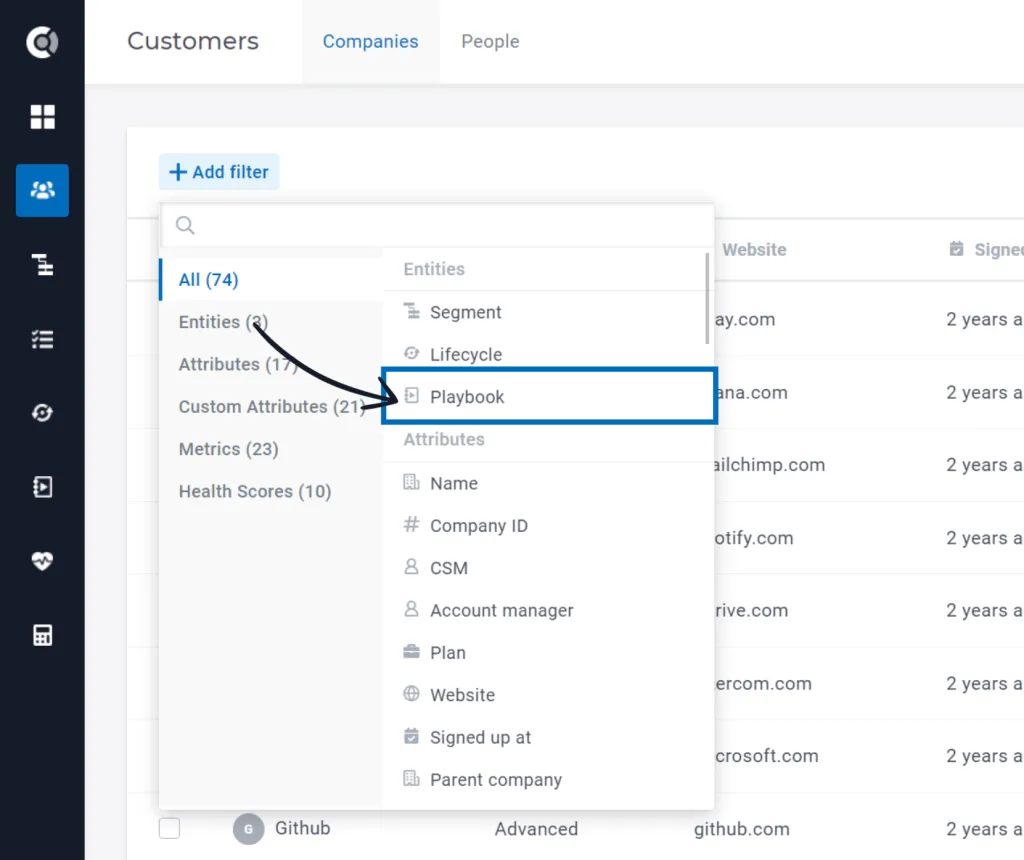
Or go to the Customer List View (left menu) and use the playbook as a filter. Get a list of all customers who have completed or are in process of completing a specific playbook.
Viewing all current & past Playbooks for a customer
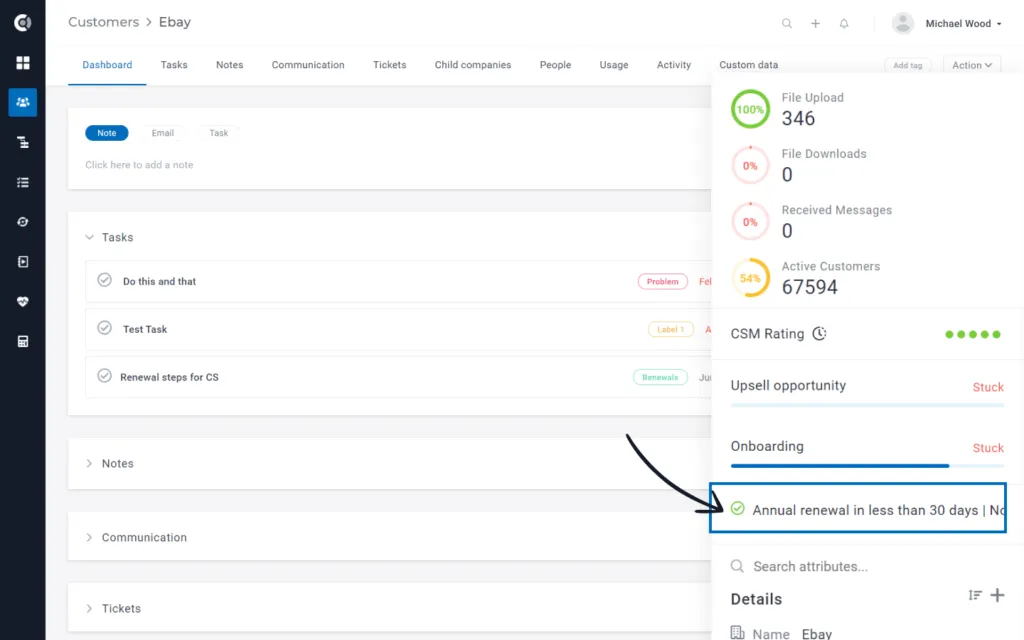
If you opt for displaying the playbooks in the Customer 360° Profile, you can now review them for each customer. Go to a customer’s profile and check the right pane to see:
- To which playbooks they belong
- The status (✔ completed or ⏱ in progress)
- How many times they have completed each playbook
Do you have customers who have completed the Due Invoices playbook three times this year? This is probably not a good sign.
Removing/adding a company to a Playbook
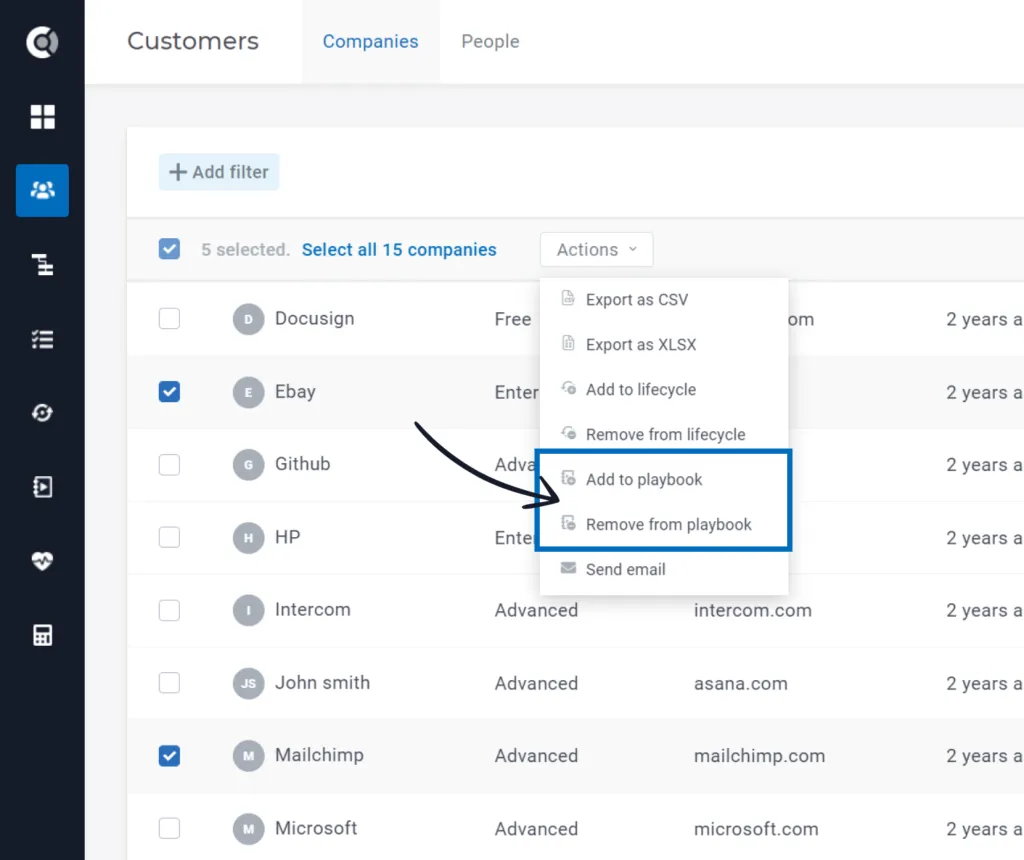
Automating processes based on patterns and strict rules is great! But there will always be exceptions and outliers, so we allow you to manually add customers to a playbook or remove them when the playbook is no longer relevant for them.
You can do this for multiple customers at once using the action button, which is activated when you select at least one customer.
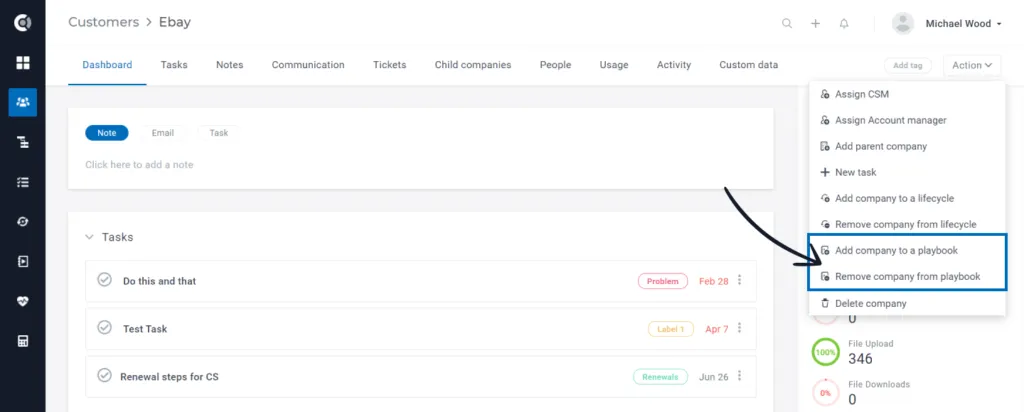
Or you can do it for individual companies, directly from the Customer 360° Profile. Click the Action button in the top right corner, select the desired Add/Remove action from a playbook, and select the correct playbook. Confirm and enjoy the power of automation!
Observation: Removing a company from a playbook has 2 effects: The playbook is shown as completed, no matter how many steps have been taken. No further action steps from this playbook are applied to the customer.
Example: You want to remove a customer from a playbook that sends a sequence of 4 reminder emails with a delay of 7 days in between. The first email has already been sent. If you remove the customer now, the other 3 emails will not be sent.
Managing Playbooks
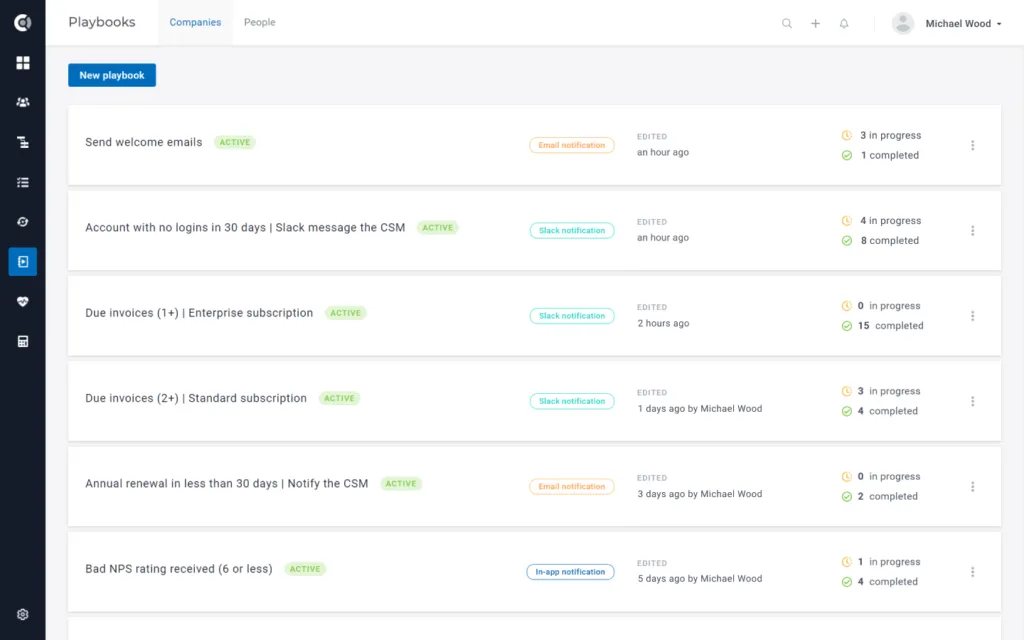
Managing playbooks is easy – go to the playbook menu and click on the playbook name to see the defined actions. You can also click on the 3 dots to edit, duplicate or delete a playbook.
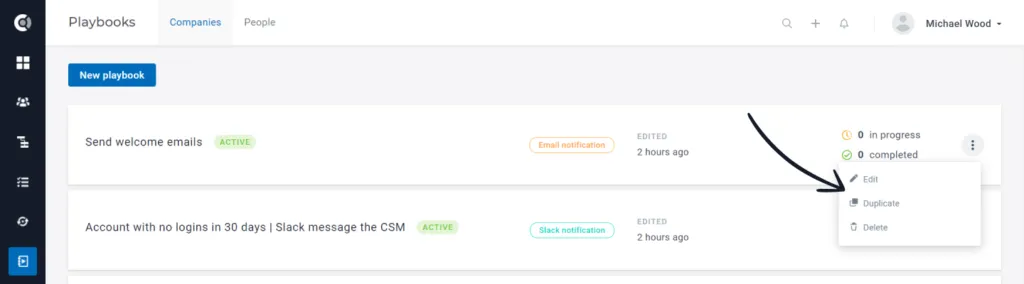
And that’s not all. We’ve added a few more features to help you manage, analyze, and organize your automations: :
- Mode (ACTIVE / INACTIVE): Get a quick overview of the status of each playbook.
- Tags: Add one or more tags to organize your playbooks
- Edited / Created: If a playbook has never been edited, you’ll see who created it and when. Otherwise, see who edited a playbook and when.
- Status: Here you can see how many of your clients have completed a playbook and how many are still in progress. Click to get the list of clients for each status.
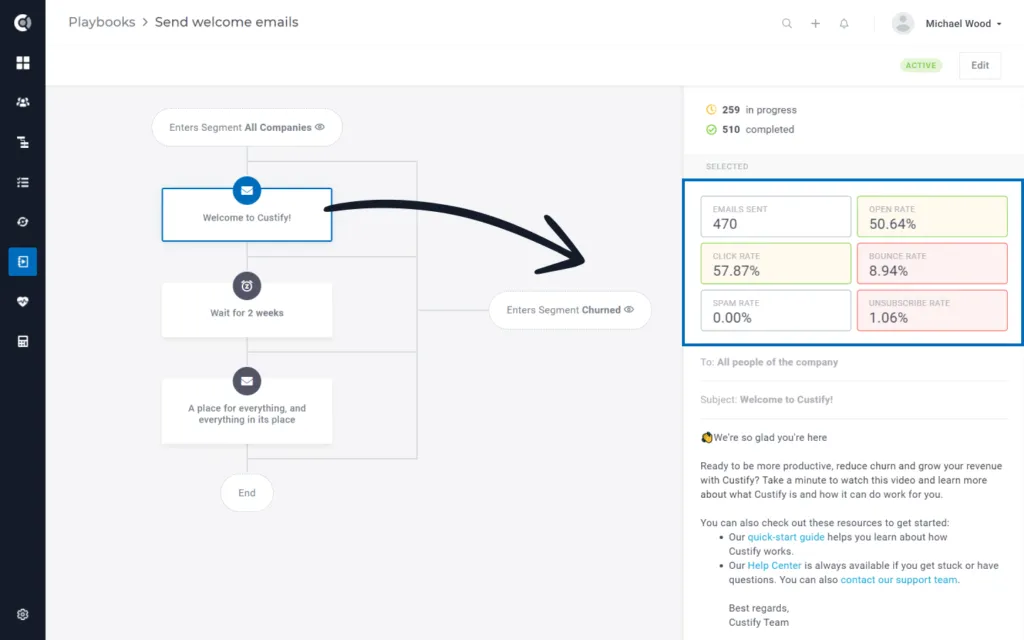
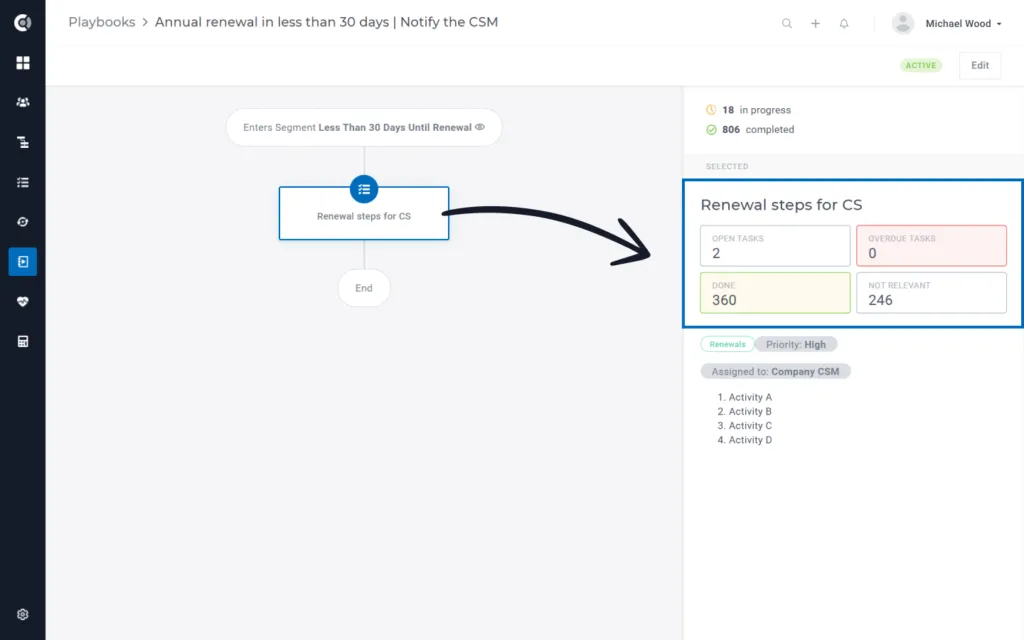
Pro-tip: Open a playbook and click on an action step to get insights and statistics specific to that step. Get the open and spam rate for emails, the number of open and overdue tasks for tasks, or how many customers are in a wait step.
Overview: Playbooks for people
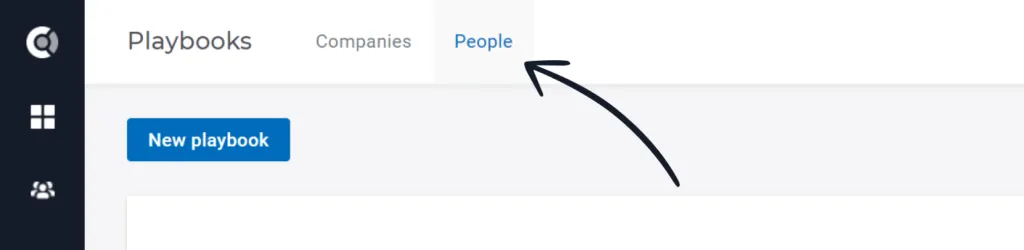
Similar to company playbooks, people playbooks can be defined to add automations based on a specific user’s behavior.
The logic is similar, you select a start trigger that is either manual or based on a people segment. Then add one or more action steps from the list and add delays if you want to give users time to correct or improve.
The actions are similar to the ones defined for companies, only limited to what you can do for users directly. For example, you can’t assign a CSM to a user, but you can email them or send yourself a notification when they do something.
Custify Template Library (Beta)
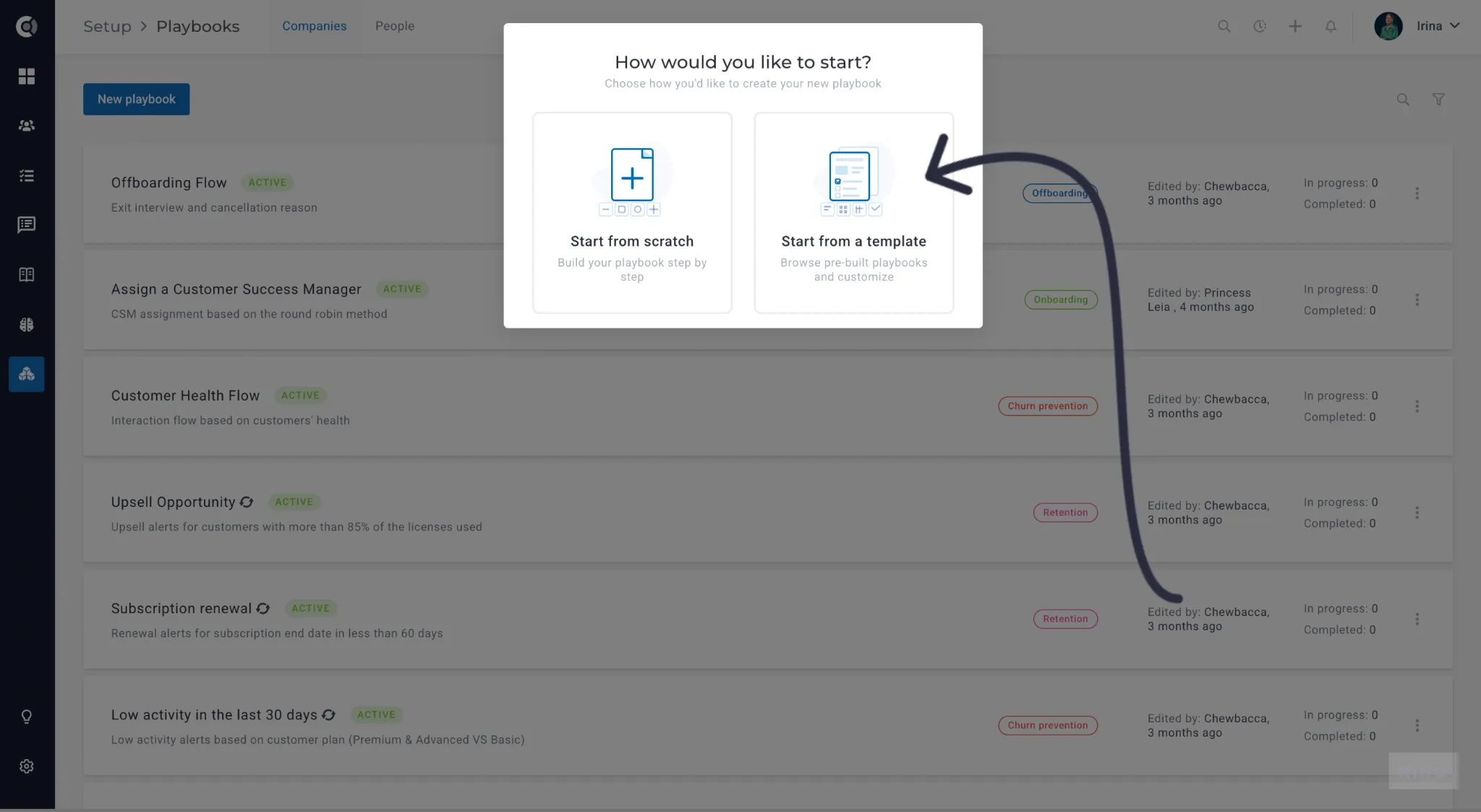
When creating a new entity, you can choose to build from scratch or start from a template — a great way to move faster while drawing inspiration from industry best practices.
Browse by category, or filter by use case (Onboarding, Renewal, Churn Prevention) and CS motion type (SaaS B2B, PLG) to find the right fit. Click Use Template to load it directly into the matching editor — pre-populated and ready to customize.
Nothing is saved until you click Save — so you can explore, adjust, and preview completely risk-free before committing to anything.