Customer Portal
The Customer Portal empowers Customer Success Managers and Account Managers to effectively engage with their clients, facilitate seamless collaboration, and deliver invaluable insights.
With this platform, CSMs can now conveniently share their tasks and notes with customers via external links, allowing them to gain visibility into the efforts invested by the CSM in their accounts, as well as the necessary actions required on their part.
Get Started with the Customer Portal
In this section, we’ll briefly cover the key features and concepts within the Customer Portal that you should know to successfully use the platform.
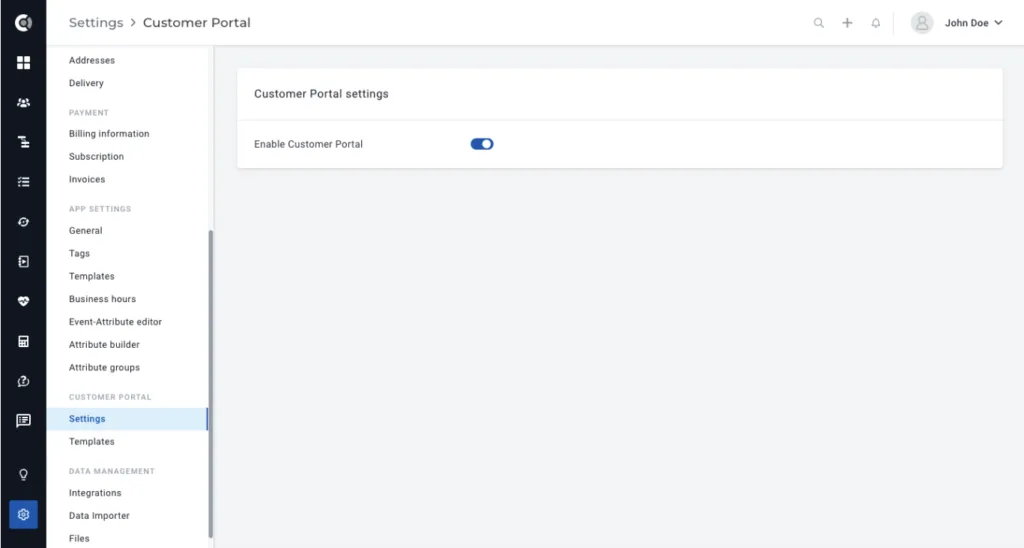
The Customer Portal feature will be disabled by default. To initiate the activation process of the Customer Portal, contact your designated Customer Success Manager (CSM) and express your interest in enabling this feature for your account.
Be aware that availability of this feature may vary depending on your pricing plan. Your CSM will tell you more about this feature’s availability and functionality.
Once the feature is enabled at the account level, it will be visibly marked as active within the Customer Portal Settings.
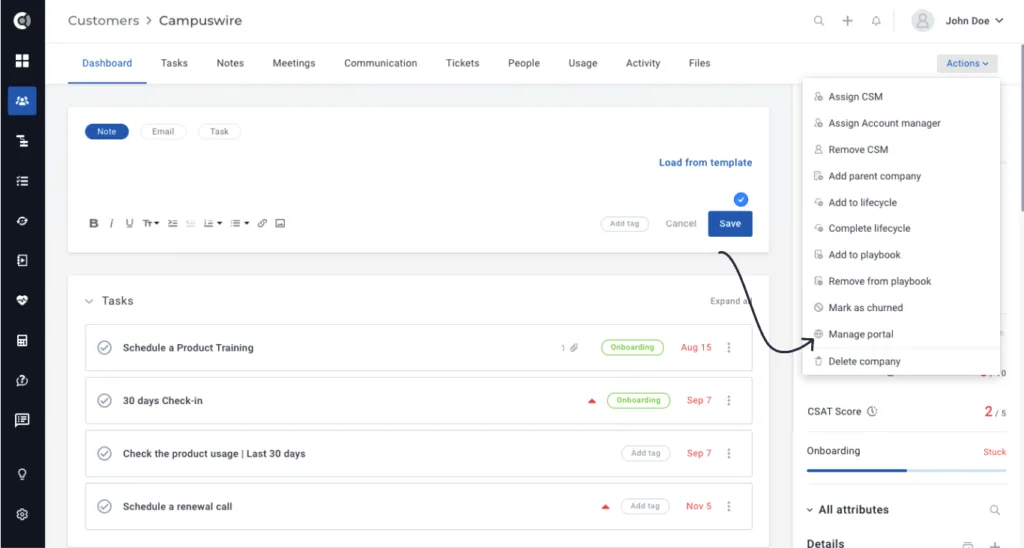
Upon successfully activating the Customer Portal feature, you will be able to define your portal templates. Once you have at least one template created, a new option will appear under the Actions section within the Customer 360° Profile. This option allows you to either Activate or Manage the portal.
Setting up the Customer Portal
Defining the Templates
To start using the portal, the first step will be to define your templates. Go to Settings ➡️ Customer Portal ➡️ Templates and build a New Template.
When creating a new template, you can choose to build from scratch or start from a predefined template — a great way to move faster while drawing inspiration from industry best practices.
When choosing the Custify templates, you can browse by category or filter by use case (Onboarding, Renewal, Churn Prevention) and CS motion type (SaaS B2B, PLG) to find the right fit. Click Use Template to load it directly into the matching editor — pre-populated and ready to customize.
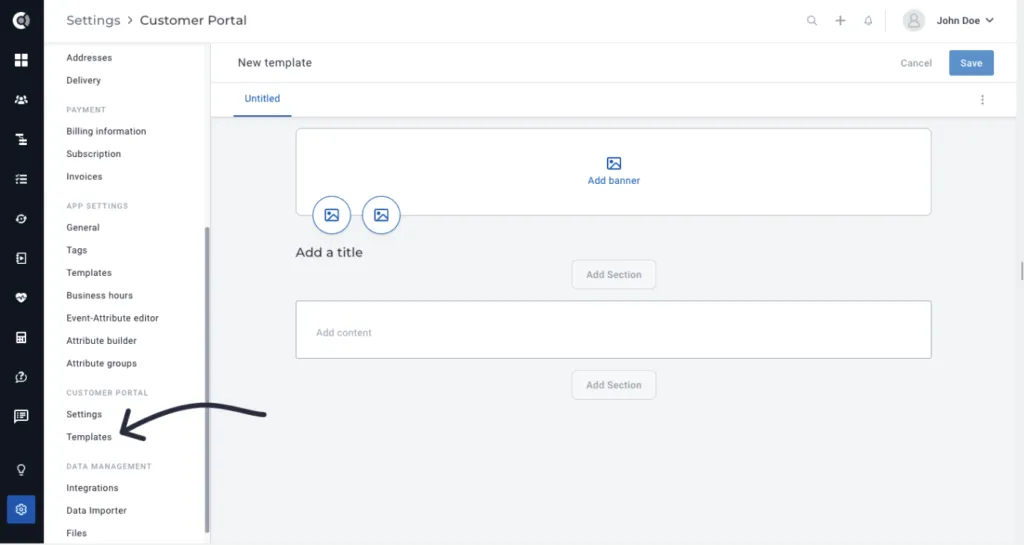
You can build your own design by adding your banners, logos and pictures, and by starting defining the template sections.
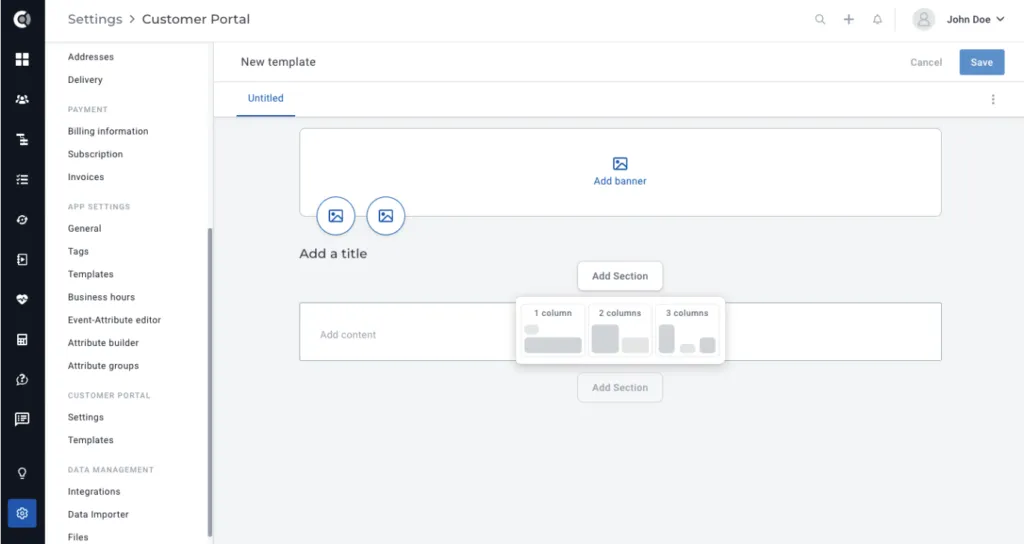
Observation: The recommended size for the banner picture is width:900px, height:124px.
Sections can be removed, or you can decide on a different order by adding other sections in between the ones that were already added. The navigation on top can be shown or hidden. It contains shortcuts to the portal sections.
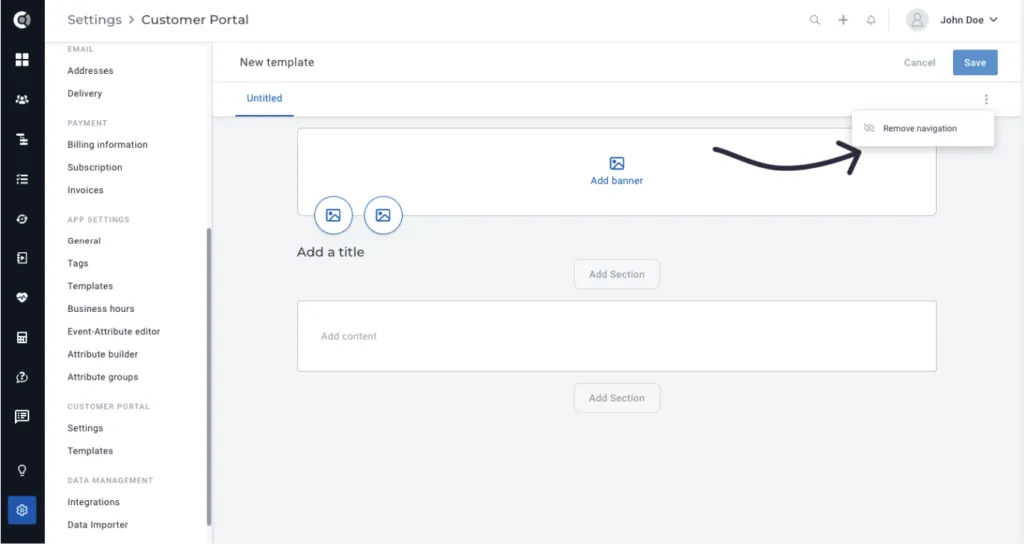
After adding a section, you will be able to Add content. There are multiple available content types:
Text: Add custom text to the portal page to better explain the context behind the information you’re sharing with your customers. You can also customize the page through formatting, different fonts, or inserting links, images and dynamic data.
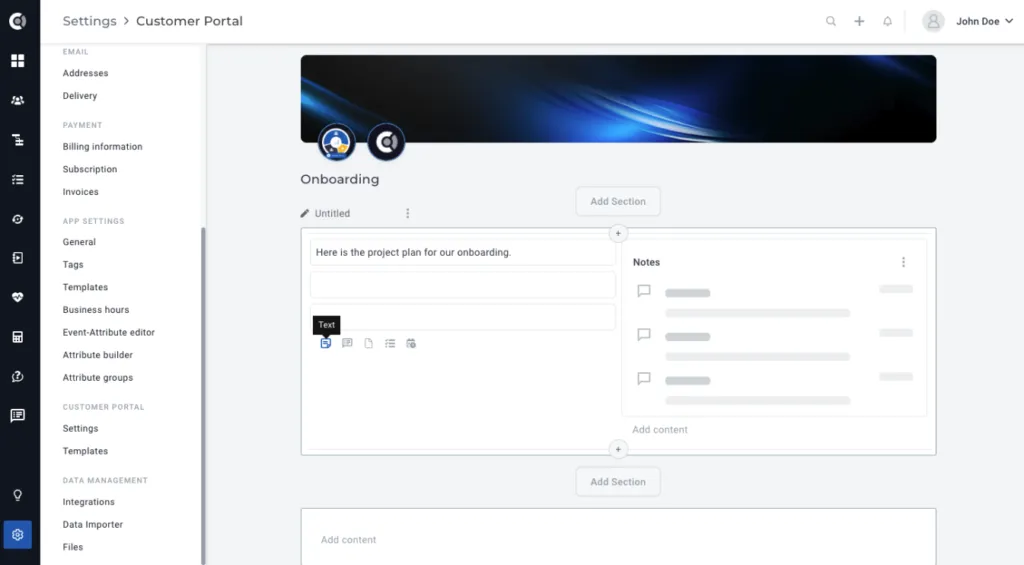
Notes: Share your notes with your customers to keep them informed about the progress and the next steps. You can select which notes to upload: notes with specific tags, notes without any tags, or all the notes. Also, you can choose the number of notes to upload and the display behavior (collapsed/expanded). Upon setup, all the notes for the customer that meet the selected criteria will be automatically uploaded to the customer portal.
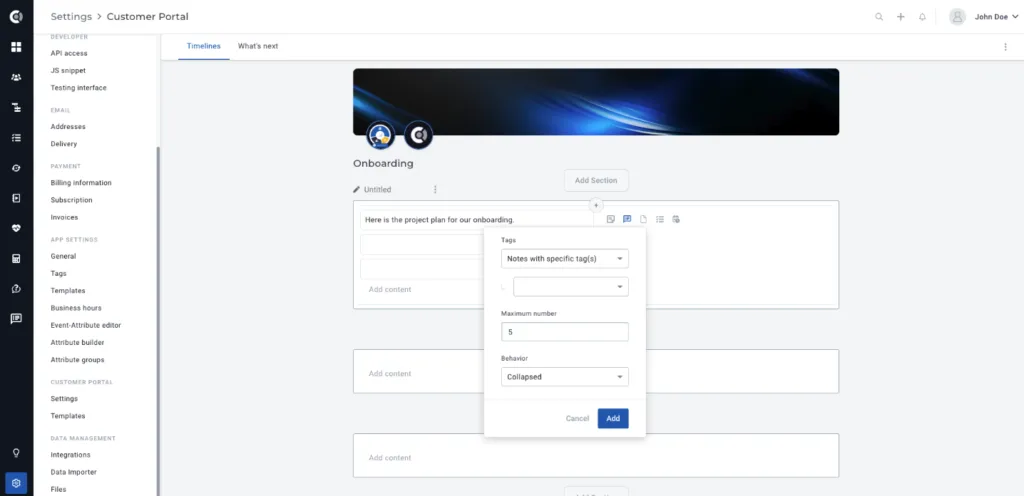
Files: Upload files that you want to share with your customers, so they can download and review on demand. The files will first be uploaded to their customer profiles. Then, based on selected criteria (upload files with specific tags, with no tags or all the files), they will be automatically uploaded to their customer portal.
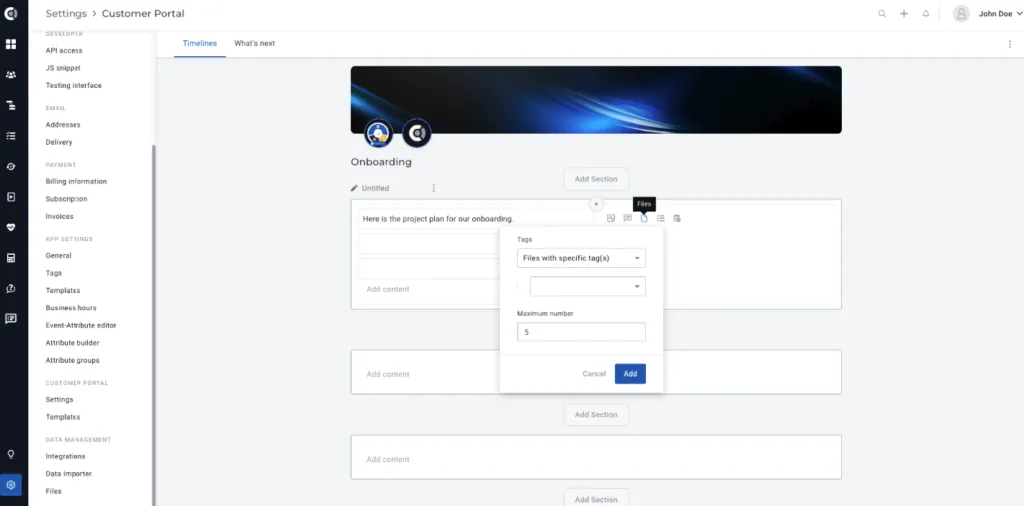
Tasks: Share tasks that you are defining and decide who’s in charge of handling them. You can choose to share tasks with specific tags, tasks with no tags or all the tasks. You can also select the maximum number of tasks that will be imported or filter by the entity that is responsible for them: your company, your customer, or both. Tasks assigned to customers can also be marked as done by the CSM (and also marked as undone if they were mistakenly marked as done).
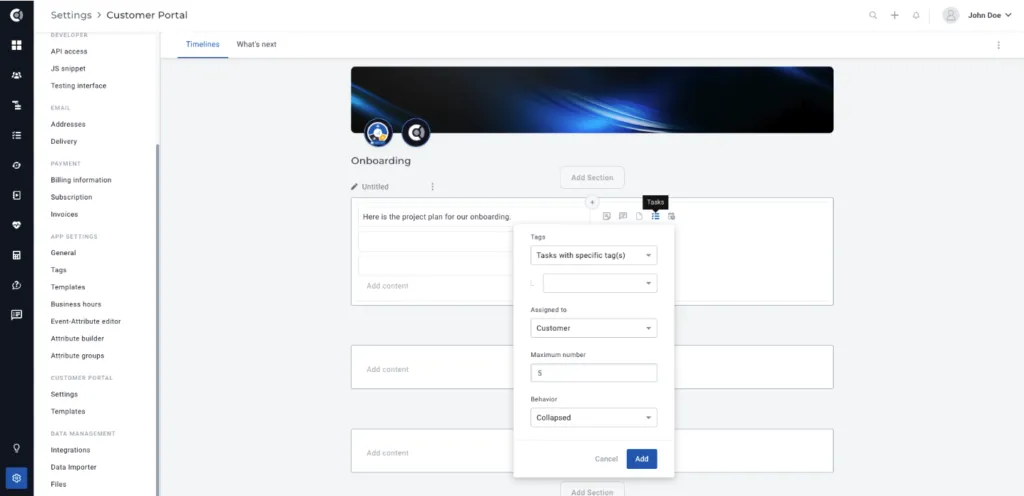
Observation: We added a new option for the tasks that you define in Custify. They can now be assigned to CSMs, account managers, but also to the customer. This means that the customer is responsible for handling them, and they can be marked as done by the customer themselves in the Customer Portal.
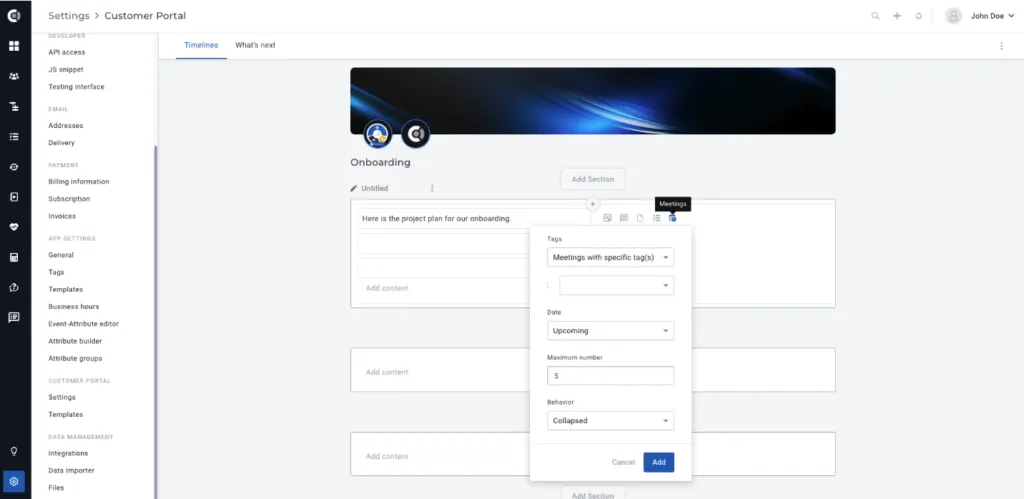
Meetings: Keep track of your touchpoints by adding the meetings’ history to the customer portal. You can choose to add meetings with specific tags, with no tags or all the meetings. You can also select the meeting type (past, upcoming, all), the maximum number of meetings imported (last X meetings) and the display design (collapsed/expanded).
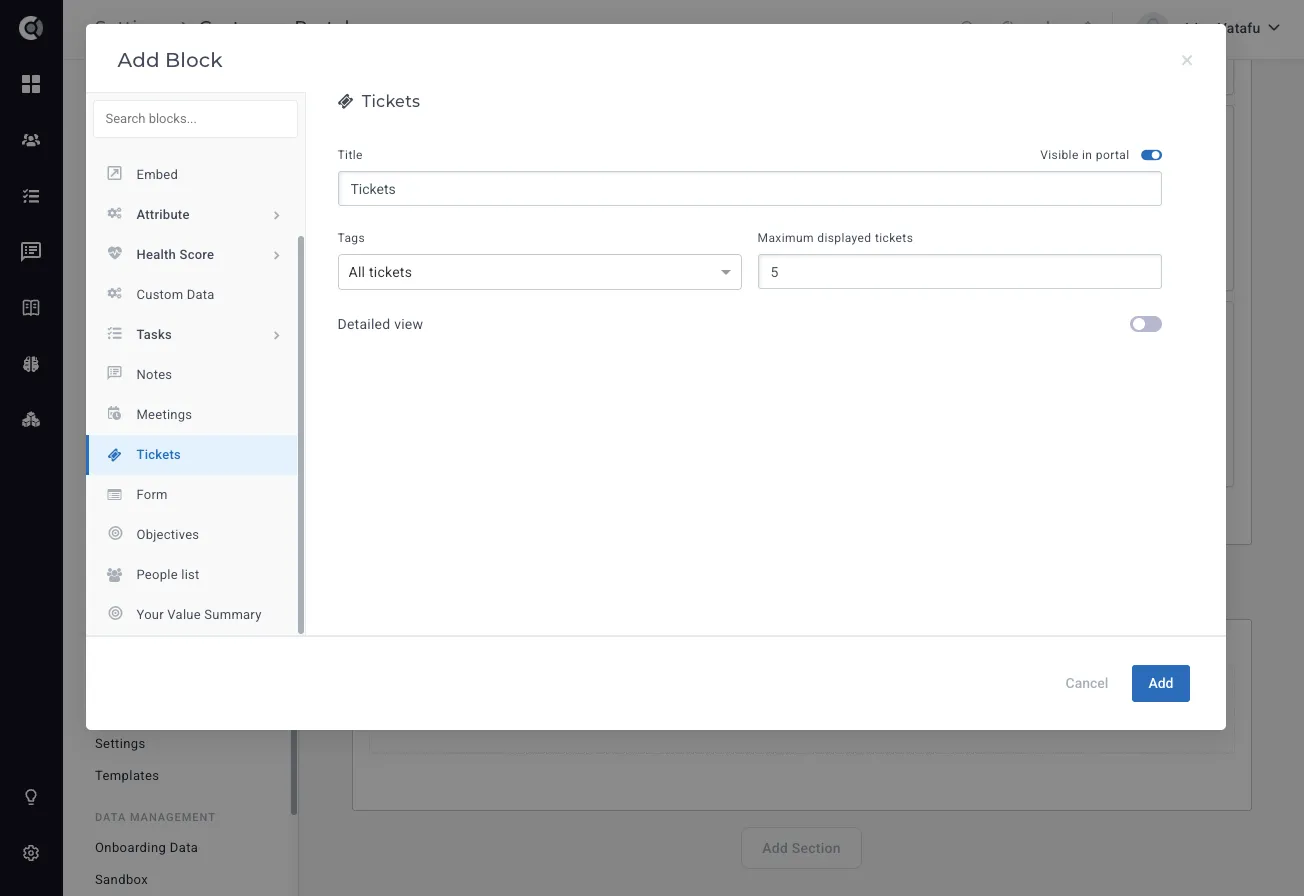
Tickets: Give customers visibility into their support history by adding a tickets block to the customer portal. You can choose to display tickets with specific tags or all tickets, set the maximum number of tickets shown, and toggle on the detailed view if you want to surface more information per ticket.
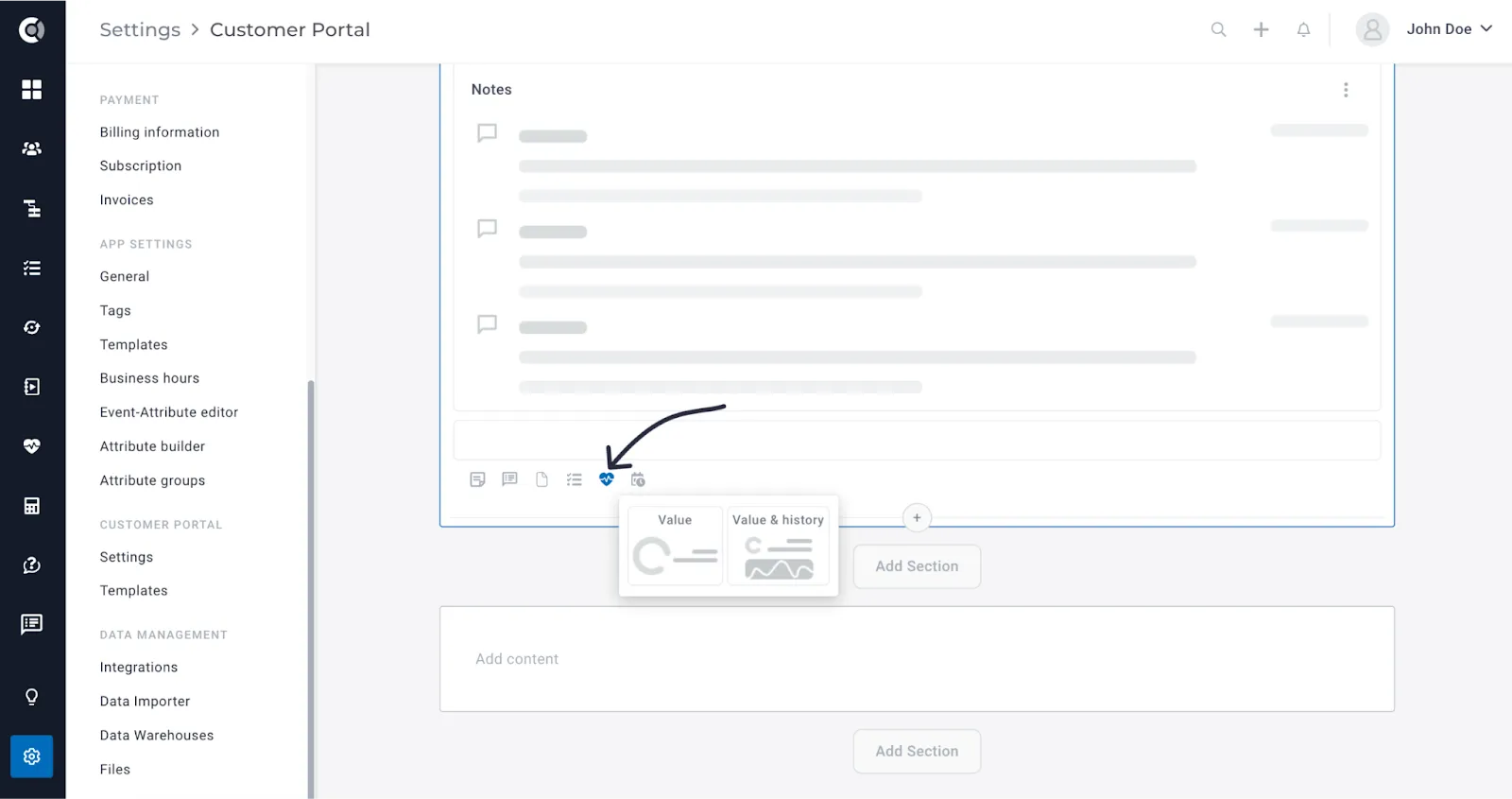
Health Scores: Share meaningful Health Scores with your customers, so they can see their own account’s health and progress. You can choose to share both the current Health Score value and the Health Score evolution over time. The Health Score’s display name is also customizable – you can add a more descriptive name in the Customer Portal if needed.
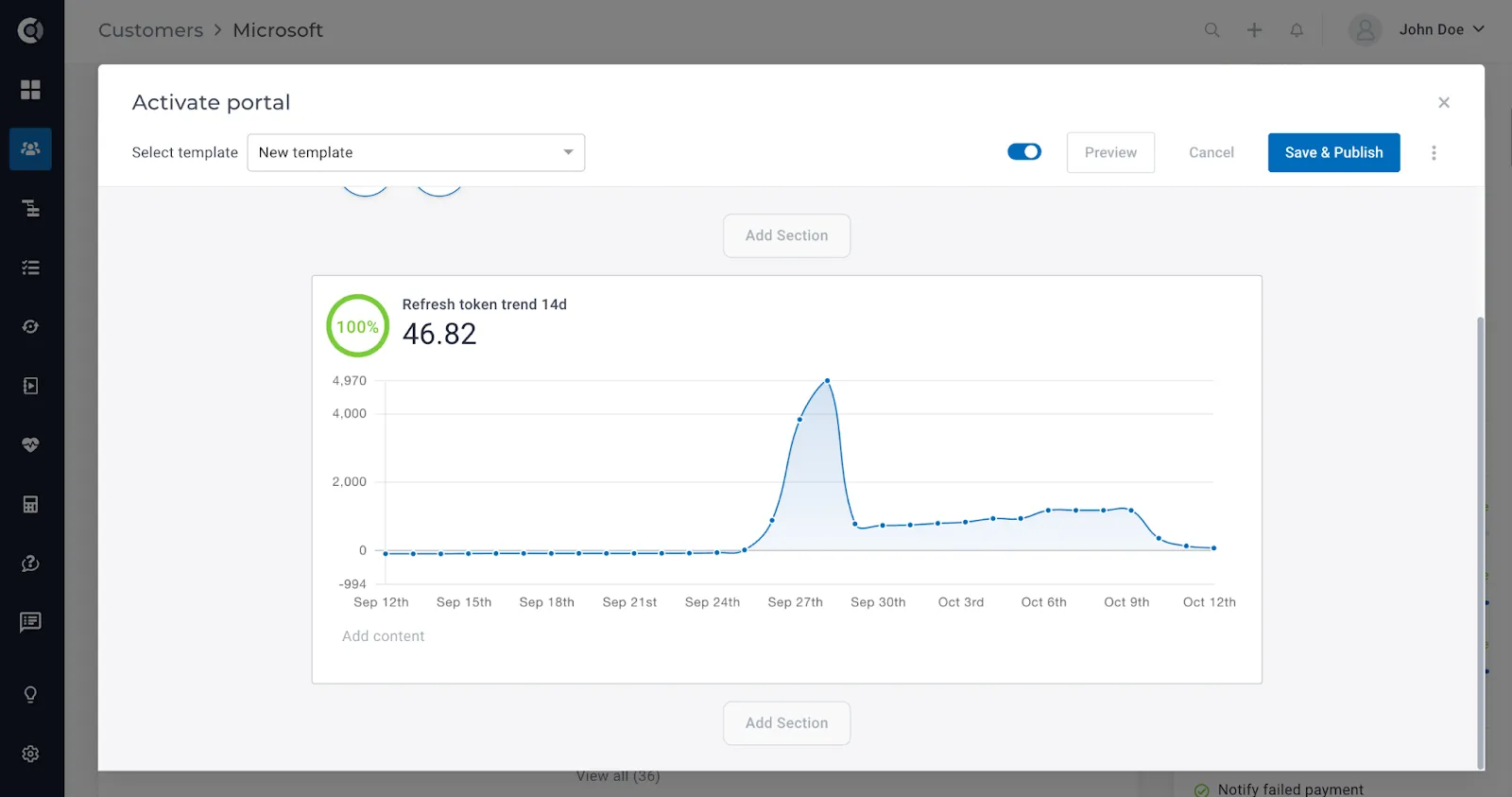
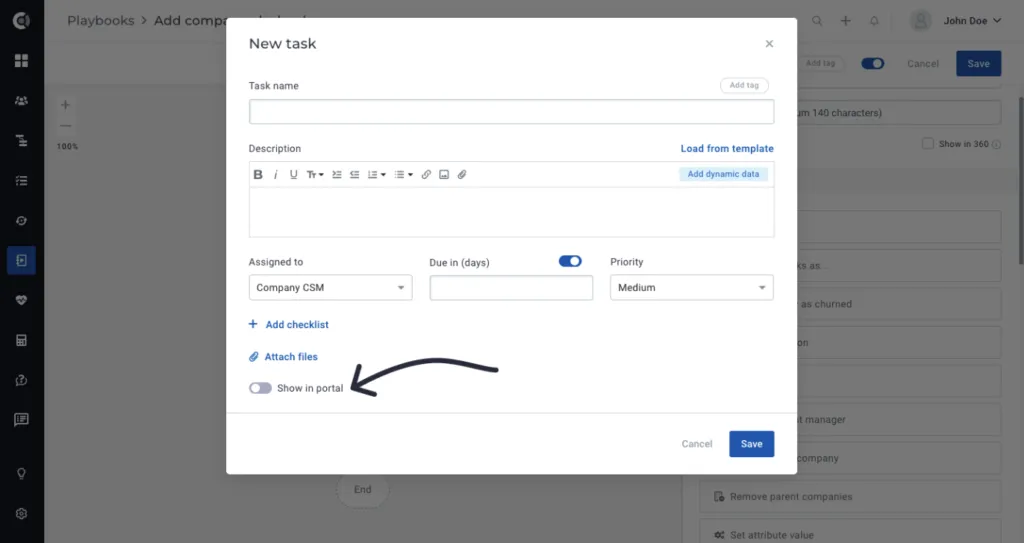
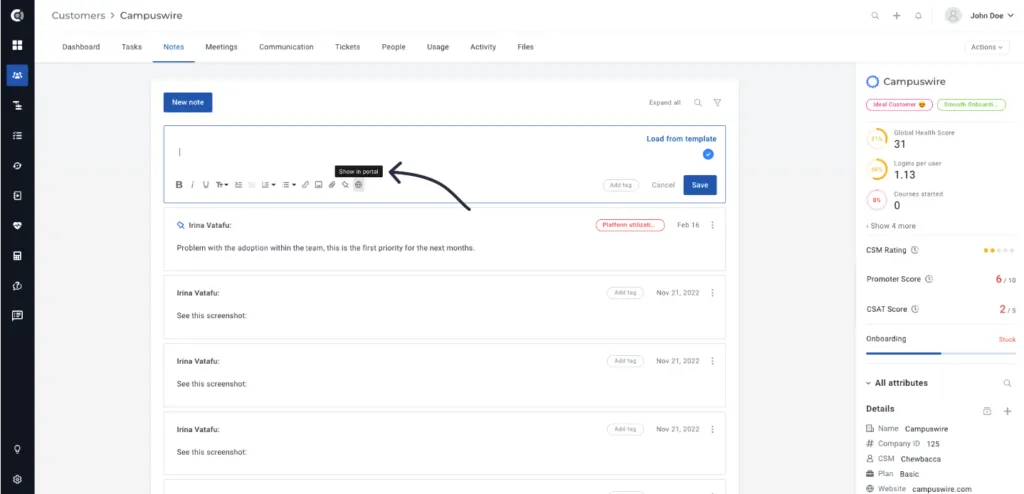
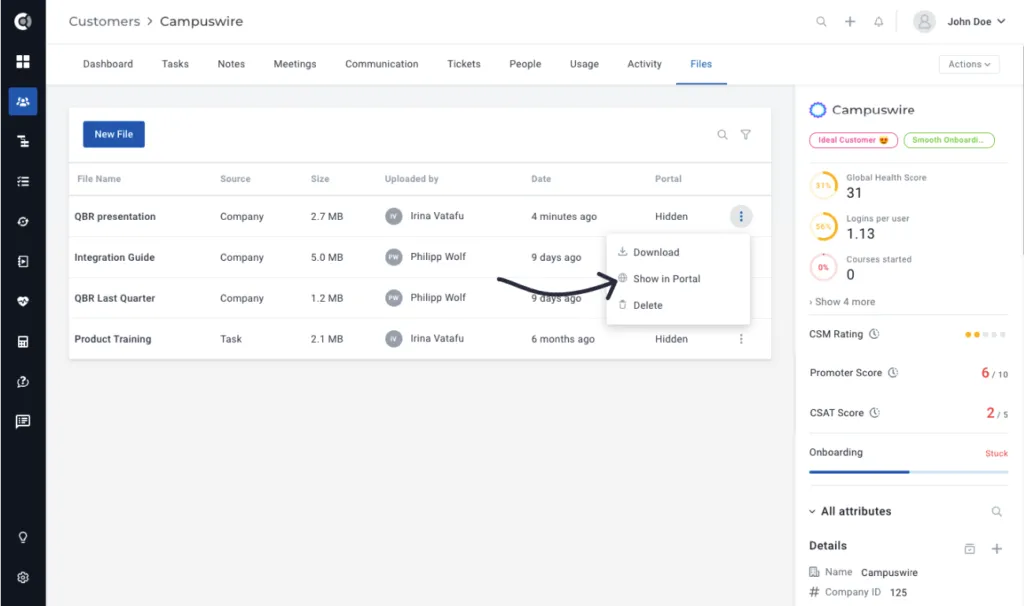
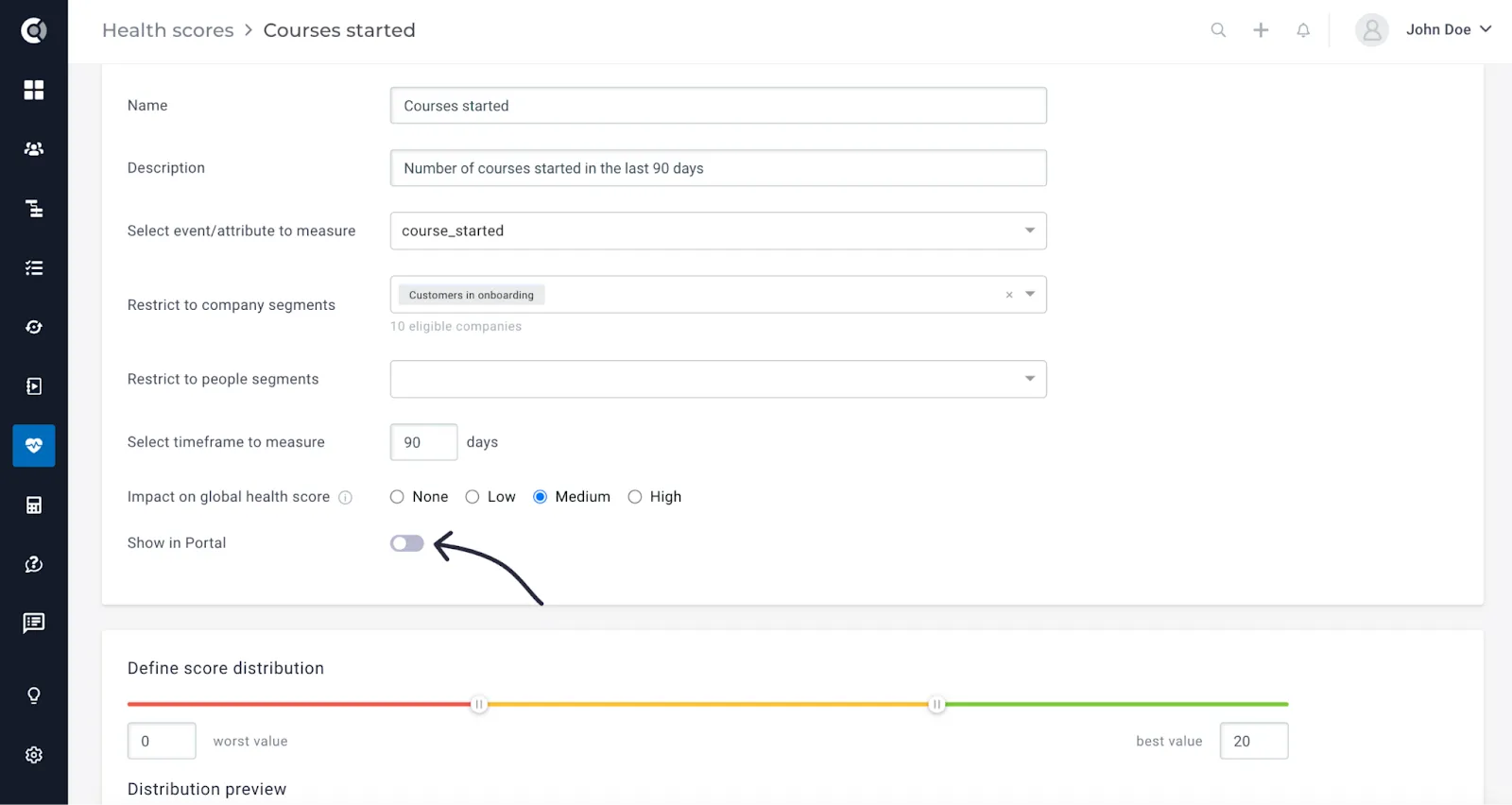
Observation! When creating notes and tasks anywhere in the platform (manually or through lifecycles/playbooks), you will be able to choose whether they should be available or not in the portal. The same applies to the Health Scores that you create and to the files that you upload – to make them available in the Portal, you have to manually turn on this option. By default, they will not be available. The entities that were already created can also be edited and made available in the portal.
Show in Portal option for Tasks
Show in Portal option for Notes
Show in Portal option for Files
Show in Portal option for Health Scores
Observation: When you have a template that’s already shared with a customer, editing the template does not propagate the changes to the existing/shared portal.
Customizing Templates for Each Customer
Each customer is unique, so after defining the general templates, you will be able to customize the template per customer.
The changes that you apply at the customer level will only be visible for that specific customer. To do that, you will go to Customer 360° Profile ➡️ Manage Portal ➡️Customize the template as needed. For each specific customer, you can choose to add more text, other notes or any other content type, without impacting the default template.
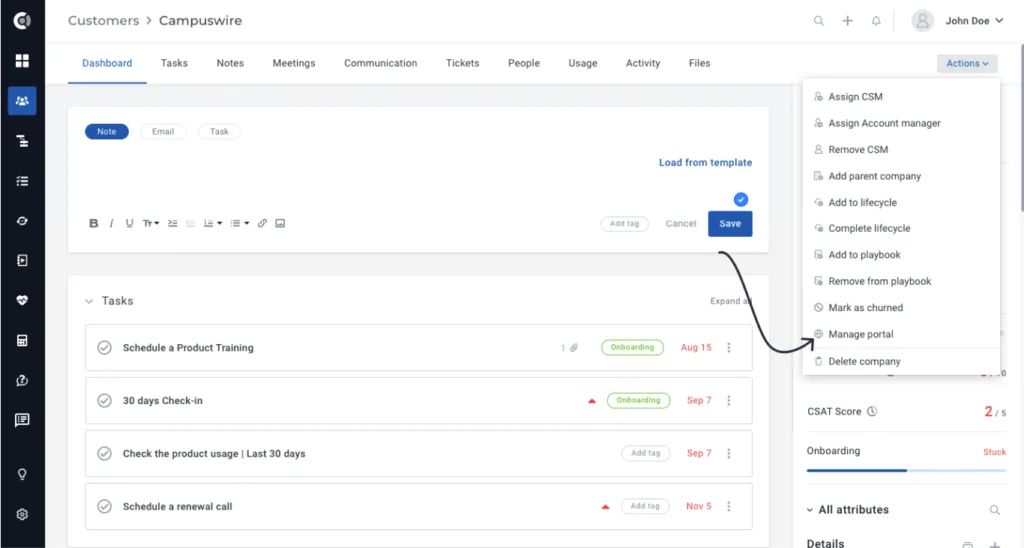
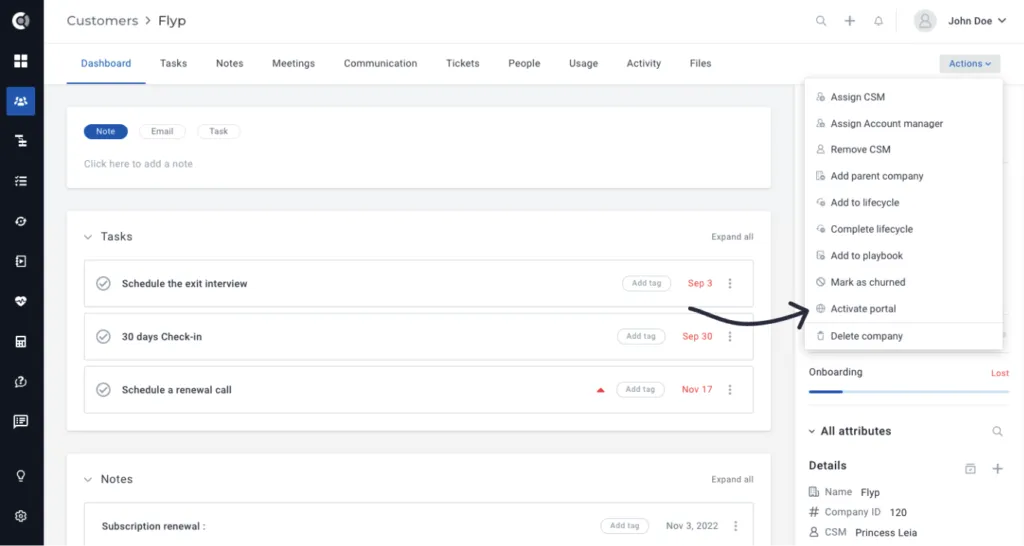
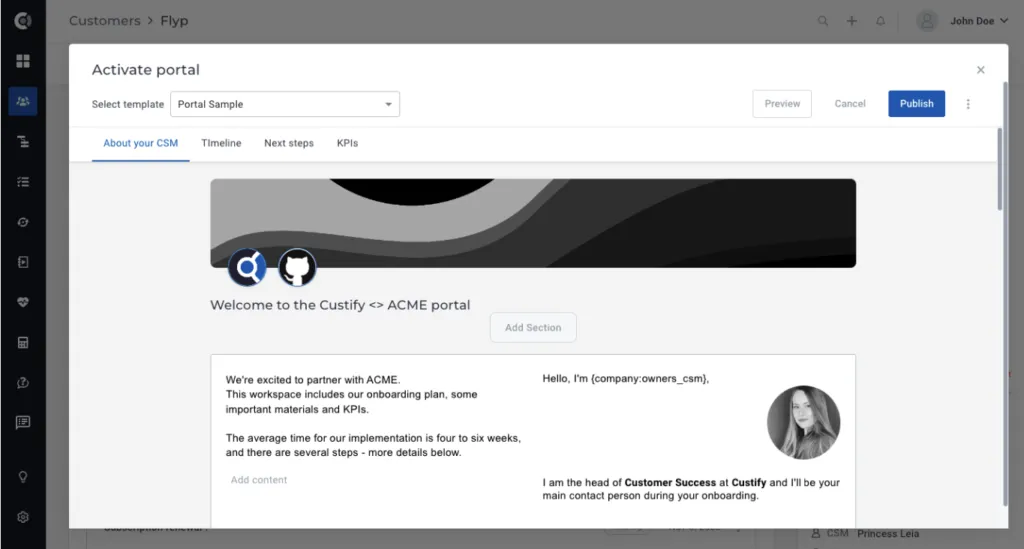
Observation: The Customer Portal will be activated at the account level. However, it will also require an activation at the customer level, as this feature might not be relevant for all your customers. For example, you may want to only share metrics with the customers who are managed under a high touch model). You will see the option to Activate Portal under Customer 360° Profile ➡️ Actions. Click on Activate, select the template that you want to share, customize it, and hit Publish.
Gridster layout
The gridster layout is available across three areas of the Customer Portal: the template editor, the per-customer portal editor, and the customer-facing portal your customers actually see. The grid mechanics are the same everywhere — what changes is the context and what your customers can do.
Building and editing on the grid
When gridster is enabled, every section uses a 3-column drag-and-drop grid instead of the fixed row/column layout. You can place blocks anywhere, resize them, and rearrange them on the fly.
To add a block, click an empty cell to open the Add Block modal, or drag-select across multiple cells to define the block's size up front. Block types that don't fit the selected size are automatically disabled in the modal, so you only see options that work.
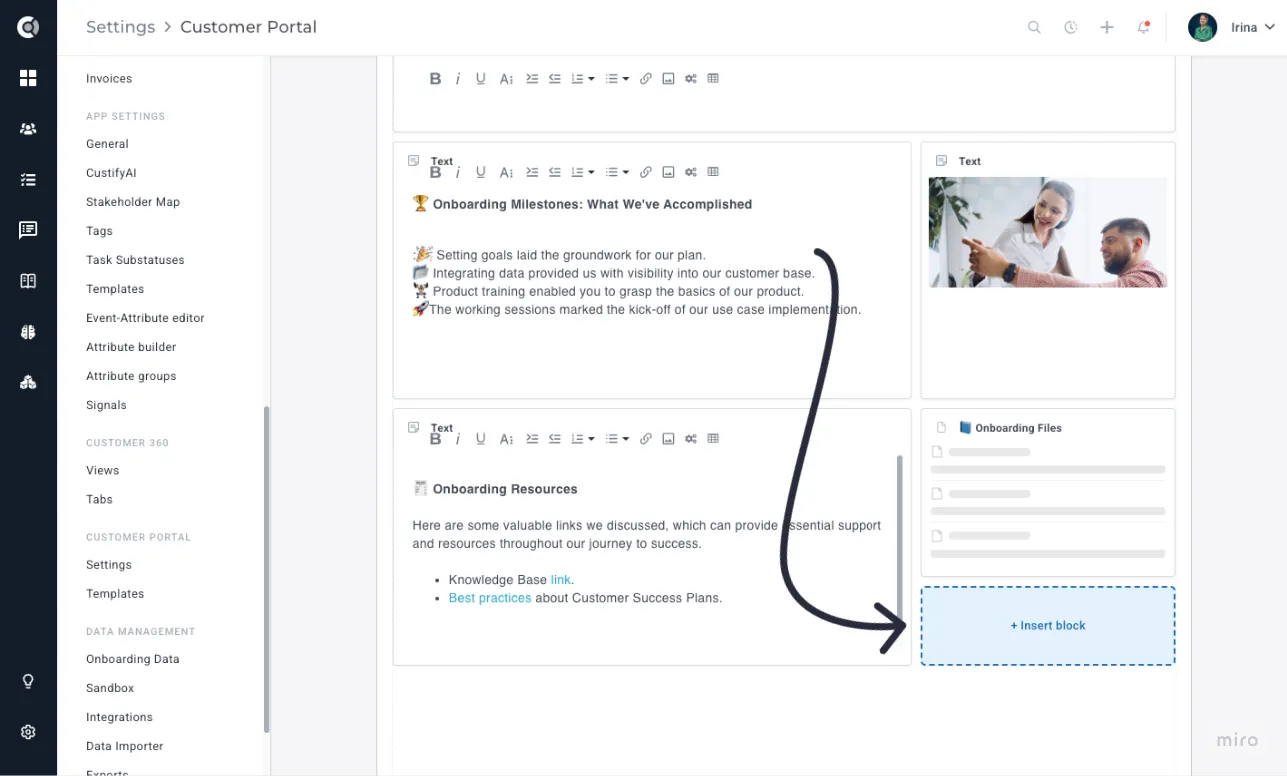
Each block has a hover title bar with three actions:
- Edit — opens the block settings.
- Duplicate — inserts a copy directly below.
- Delete — removes the block after confirmation.
You can also insert or delete empty rows between blocks using the hover overlays that appear between block rows.
Tip: Use Ctrl+Z / Cmd+Z to undo and Ctrl+Shift+Z / Cmd+Shift+Z to redo. This covers block moves, resizes, additions, deletions, and section changes — so you can experiment freely and roll back if something doesn't work.
When you click Add Section, you no longer need to pick a column count — gridster sections always use the 3-column grid.
In the per-customer portal editor
Go to Customer 360° Profile → Manage Portal → Edit to customize the portal for a specific customer. The same grid is available here, with one key difference: every block works with live data. When you add a block or update its settings, Custify fetches the actual values for that customer right away, so you can see how it will look before saving.
Per-customer customizations only apply to that one customer. If you want a layout change to apply to everyone on a template, edit the template directly under Settings → Customer Portal. Template edits do not propagate to portals that have already been shared.
How it renders for your customers
When a customer opens the shared portal link, the layout renders in read-only mode — blocks appear exactly where you placed them, but drag and resize are disabled. Everything else still works: marking tasks as done, expanding notes, downloading files, and leaving comments.
A note on legacy templates
Existing templates are auto-migrated to the gridster layout on load. The original structure is preserved in the background for rollback, and WYSIWYG blocks auto-resize to fit their content after migration. You may notice a brief layout adjustment the first time you open a legacy template — this is expected.
Sharing the Customer Portal with Your Customers
Publishing a customer portal does not automatically share it with your customers. It only means that the template version was saved and is ready to be shared.
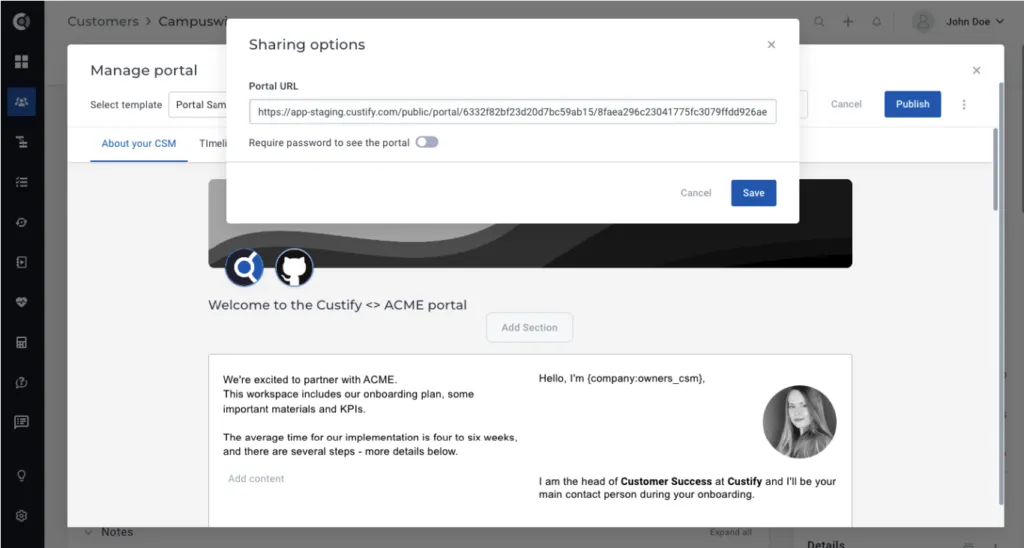
To share it with your customers, go to Sharing and find the Sharing options.
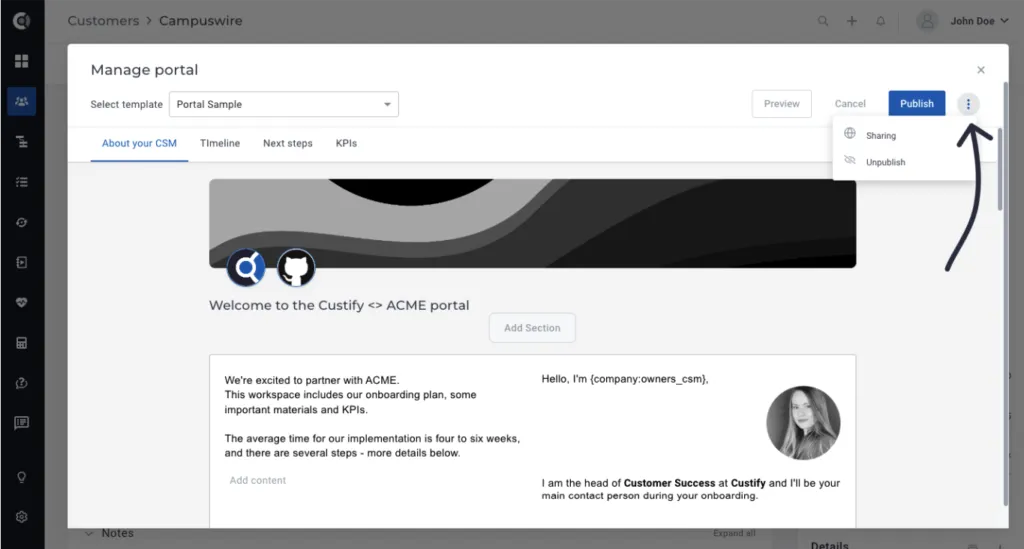
You can choose to share a direct link that anyone with the link can access, or you can secure it with a password so that only the right people have access.
Observation: Any changes made to the portal template on the customer profile are automatically captured, so you will not have to re-share the link if you perform changes.
Customers can interact with the portal — create tasks, mark tasks as done, leave comments, and add or download files. As such, you will have a new communication platform dedicated to your project.
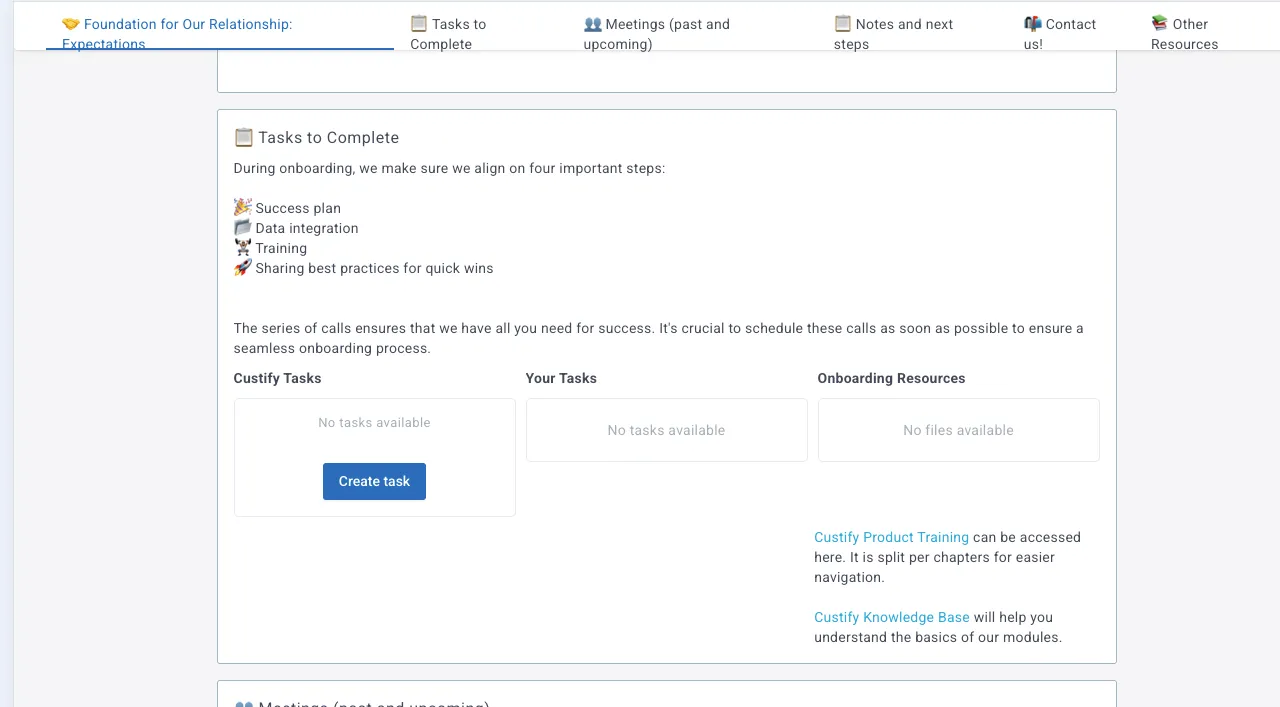
In order for customers to be able to create new Tasks, you will have to enable the "Allow customers to create tasks" option in the Tasks block.
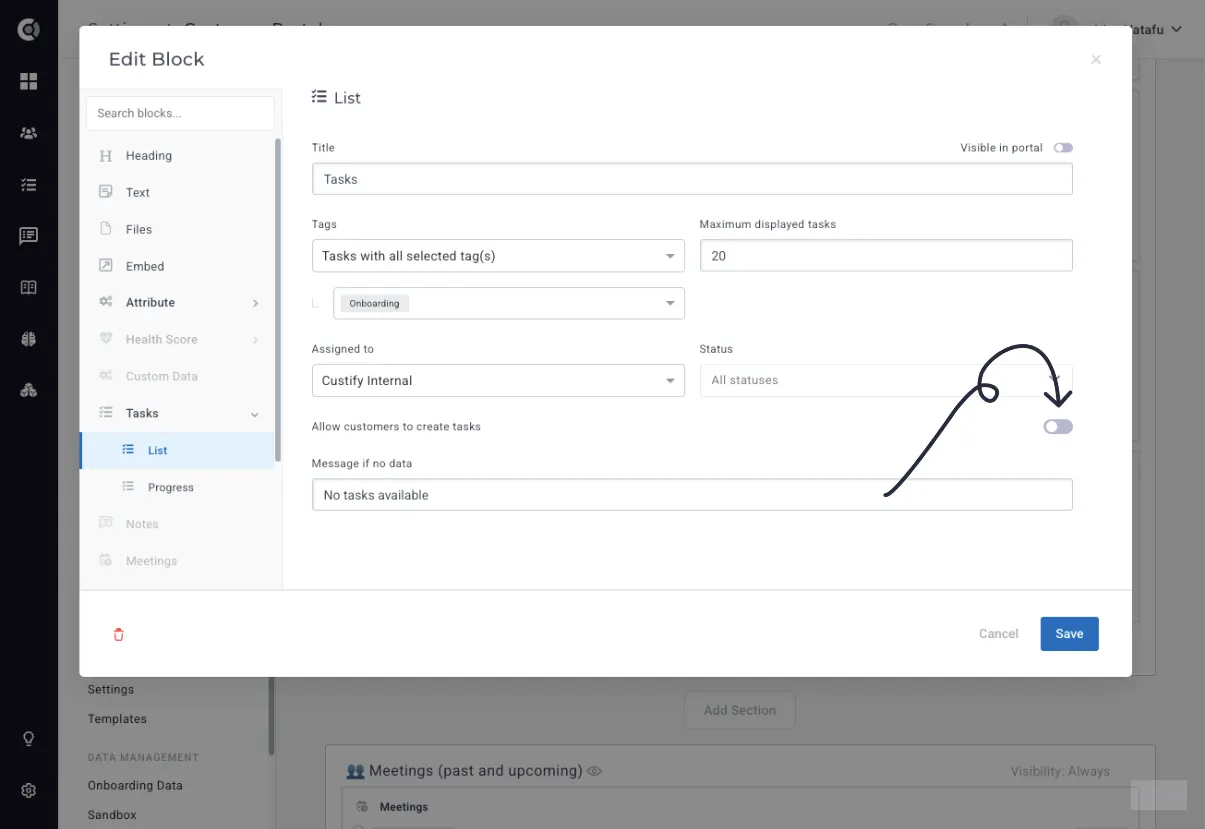
Once the option to create tasks is enabled, a new button "Create Task" will be available for the customers - the task, however, will just have a name, a description, an assignee (customer's company or your internal team), and a due date - the customers cannot add tags or priorities on the tasks.
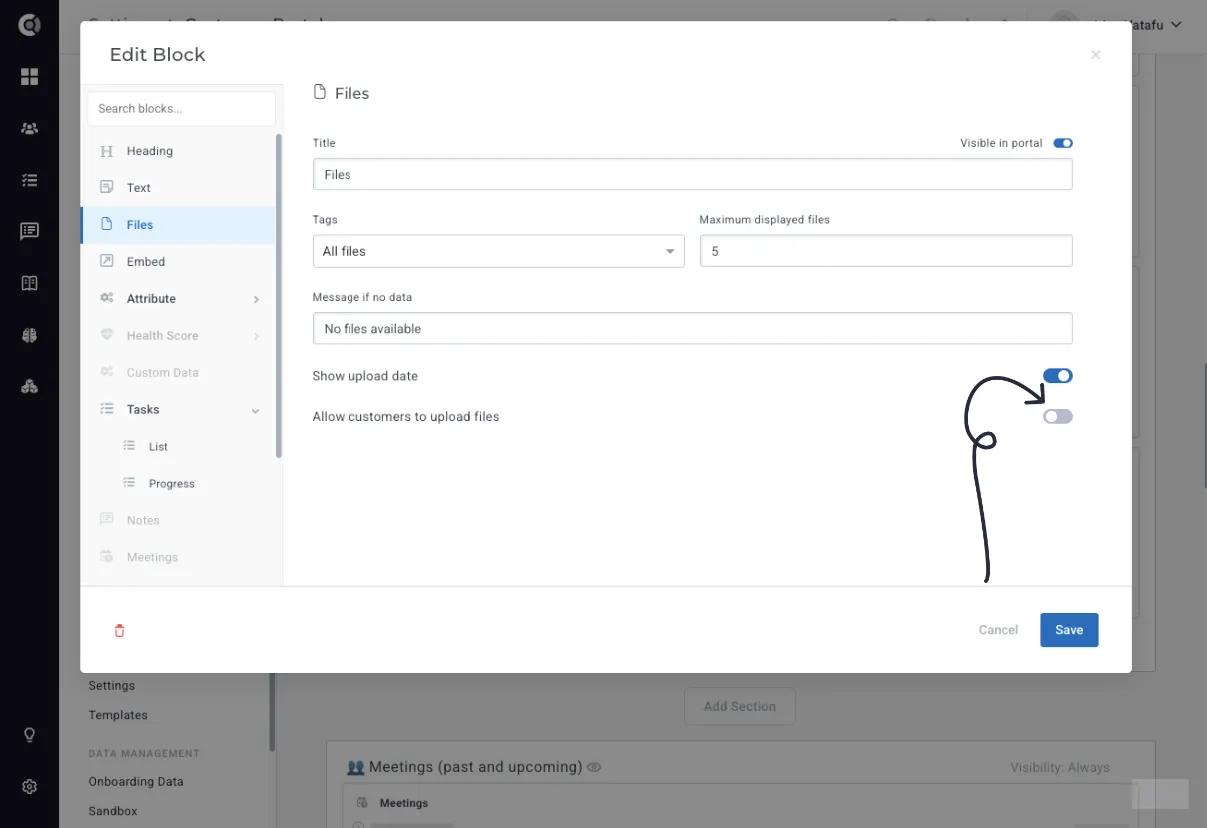
When it comes to uploading Files, the same behavior applies - the option to upload files has to be enabled first under the Files block.
If a portal gets Unpublished, the link will not be accessible to the customer anymore.
Observation: The link to the Customer Portal will be stored as an attribute on the Customer 360° Profile and will also be available as an attribute in dynamic data. You can easily share it with customers in automated emails or any other flows. Also, the “Portal published” attribute (true/false) will help you to easily retrieve customers who have an active portal.
Distinguish portal views by audience
Customer Portal analytics separate views and clicks generated by customer contacts from those generated by internal team members. Useful for understanding actual customer engagement without internal traffic skewing the numbers.
Benefits of using the Customer Portal
Using the Customer Portal can lead to incredibly valuable outcomes, such as the following.
Streamlined Communication: The Customer Portal acts as a centralized platform for communication between CSMs and their customers. It eliminates the need for lengthy email threads and phone calls, providing a dedicated space where both parties can exchange information, clarify queries, and discuss important tasks. By consolidating communication, the Customer Portal saves time and ensures that relevant discussions are easily accessible.
Efficient Task Management: With the Customer Portal, CSMs can assign tasks directly to customers, ensuring clarity and accountability. Tasks can be shared with specific due dates, priorities, and descriptions, streamlining the workflow and enabling customers to prioritize their actions accordingly. This feature not only promotes transparency, but also helps customers stay organized and focused on the tasks at hand.
Proactive Collaboration: The Customer Portal encourages proactive collaboration between CSMs and customers. It enables CSMs to share upcoming milestones, goals, and next steps, ensuring alignment and transparency in customer relationships. By involving customers in the decision-making process, they feel empowered and valued, leading to stronger partnerships and customer satisfaction.
Self-Service Resources: In addition to task management and reporting, the Customer Portal can serve as a repository of self-service resources. CSMs can upload relevant documentation, knowledge base articles, training materials, and FAQs to empower customers to find answers independently. This feature reduces the dependency on CSMs for routine queries and provides customers with convenient access to information whenever they need it.