Signals
Signals empower you to create notifications driven by customer interactions, enabling you to proactively monitor shifts in customer behavior and gain insights into trends and behavioral patterns. Select the critical events that should trigger notifications and ensure that your CSMs stay informed of any changes without the need for manual checks on metrics or health scores.
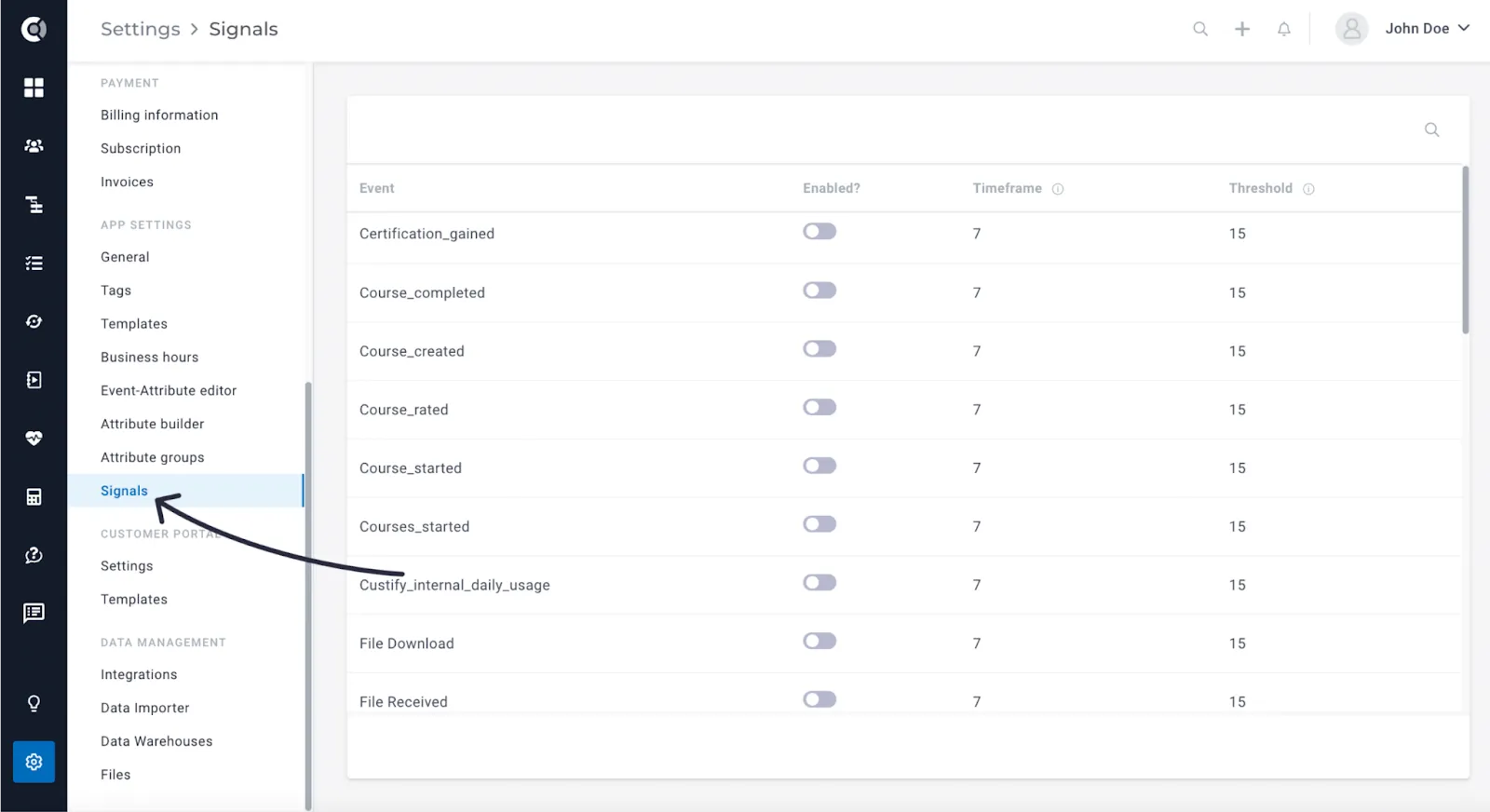
Signals can be easily enabled under Settings – Signals. This setup is a one-time process. Once activated and configured, notifications will be triggered for CSMs assigned to the accounts. Additionally, new attributes for the number of bad/good/open/closed signals will be generated, allowing their use in segmentation, filtering, and other metric analyses.
How to enable Signals
- Go to Settings – Signals. You will find the full list of events sent to your account.
- Think about the events that are the most relevant for customers’ health. Activate notifications for these specific events.
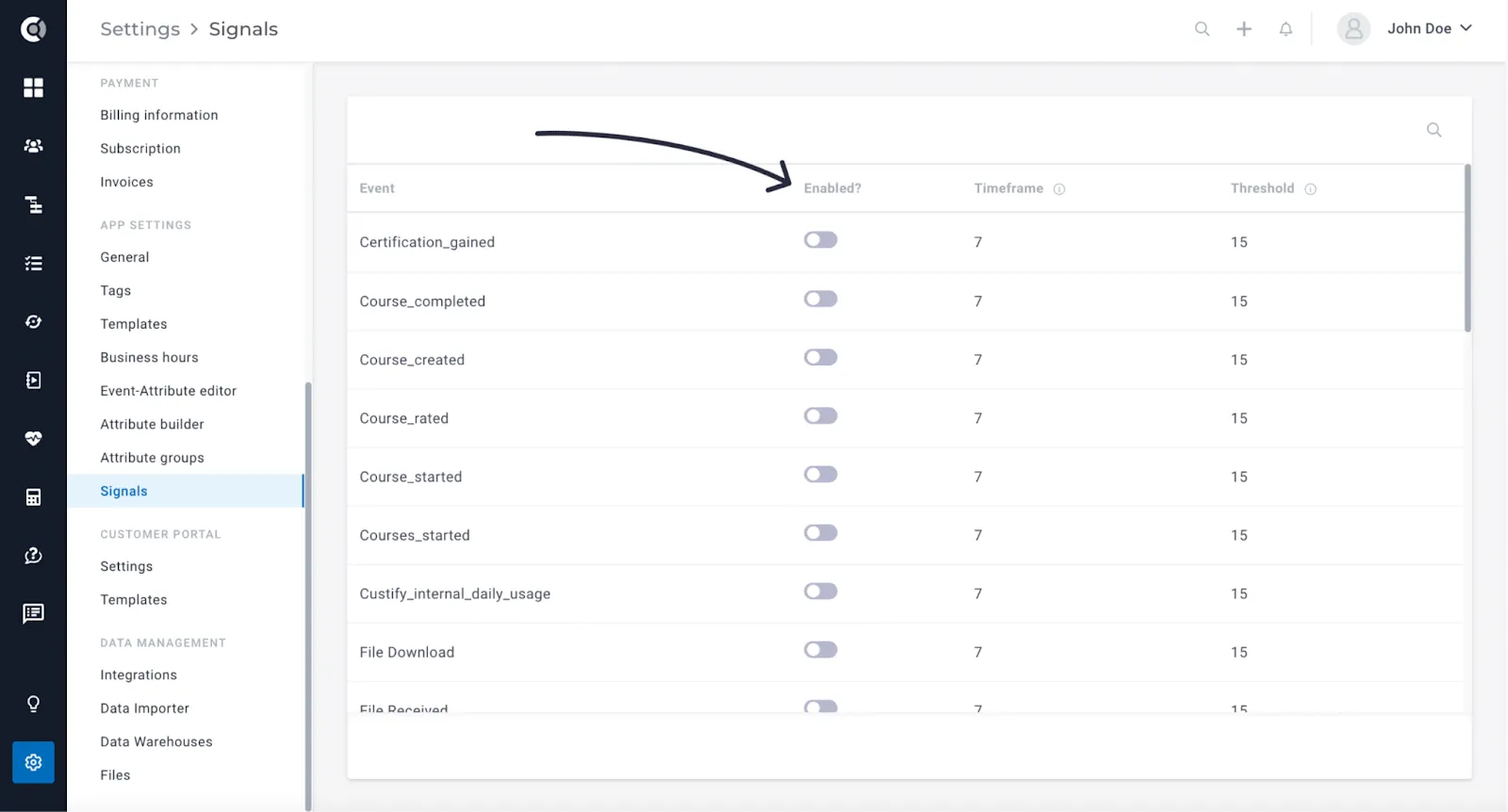
3. Choose the Timeframe and Threshold.
The Timeframe indicates the duration of the trend in days. This feature compares the current selected interval with the precedent one, allowing you to specify the length of that interval.
The Threshold represents the percentage of decrease or increase that, when exceeded, will prompt a notification.
E.g. Consider the Course_started and Course_completed events as crucial indicators of customer health. A decrease in event generation or a halt in interactions with the courses might indicate a churn risk, prompting the need for your Customer Success team’s awareness and outreach to these customers. Similarly, increased activity, signified by a higher volume of events, could present opportunities for upselling or engaging customers in advocacy programs.
In this scenario, you’ll activate notifications for the Course_started and Course_completed events, and you’ll select the Timeframe and Threshold. For instance, setting the Timeframe to 7 days and the Threshold to 15%. This configuration means that a notification will be triggered if customer activity either increased or decreased by more than 15% within the last 7 days, compared to the preceding 7-day period.
Observation! The default Timeframe is set to 7 days and the Threshold to 15. The Timeframe can range from 7 to 30 days, allowing for the largest trend window of 30 days compared to the preceding 30 days. The Threshold accepts values from 1 to 100, representing the percentage increase or decrease.
How to use Signals
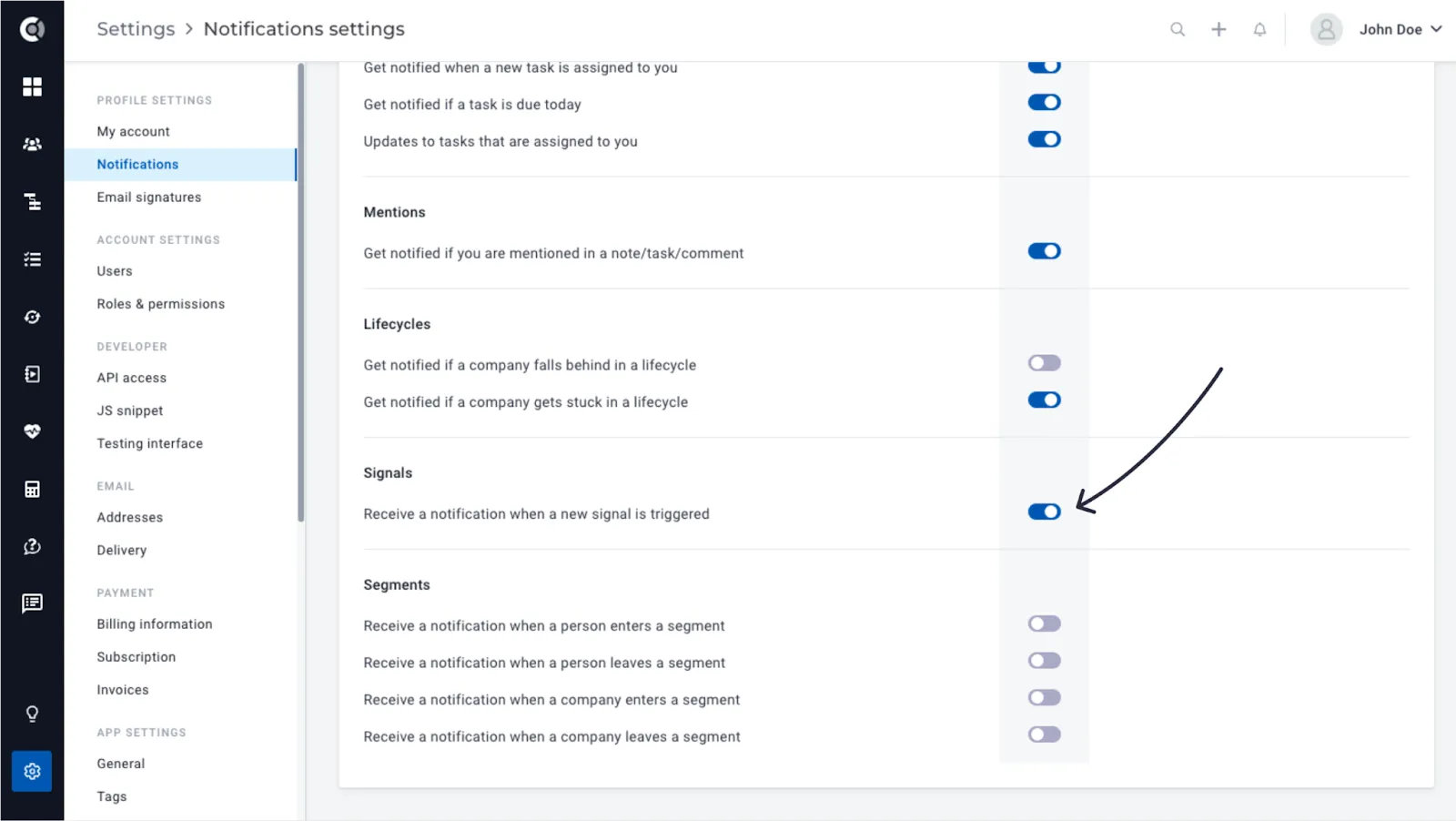
After enabling and configuring Signals, CSMs can choose to receive notifications for the Signals triggered. These notifications will be displayed in-app, or additionally, in case a CSM does not check the in-app notification, an email will be generated and sent to the CSM’s email address.
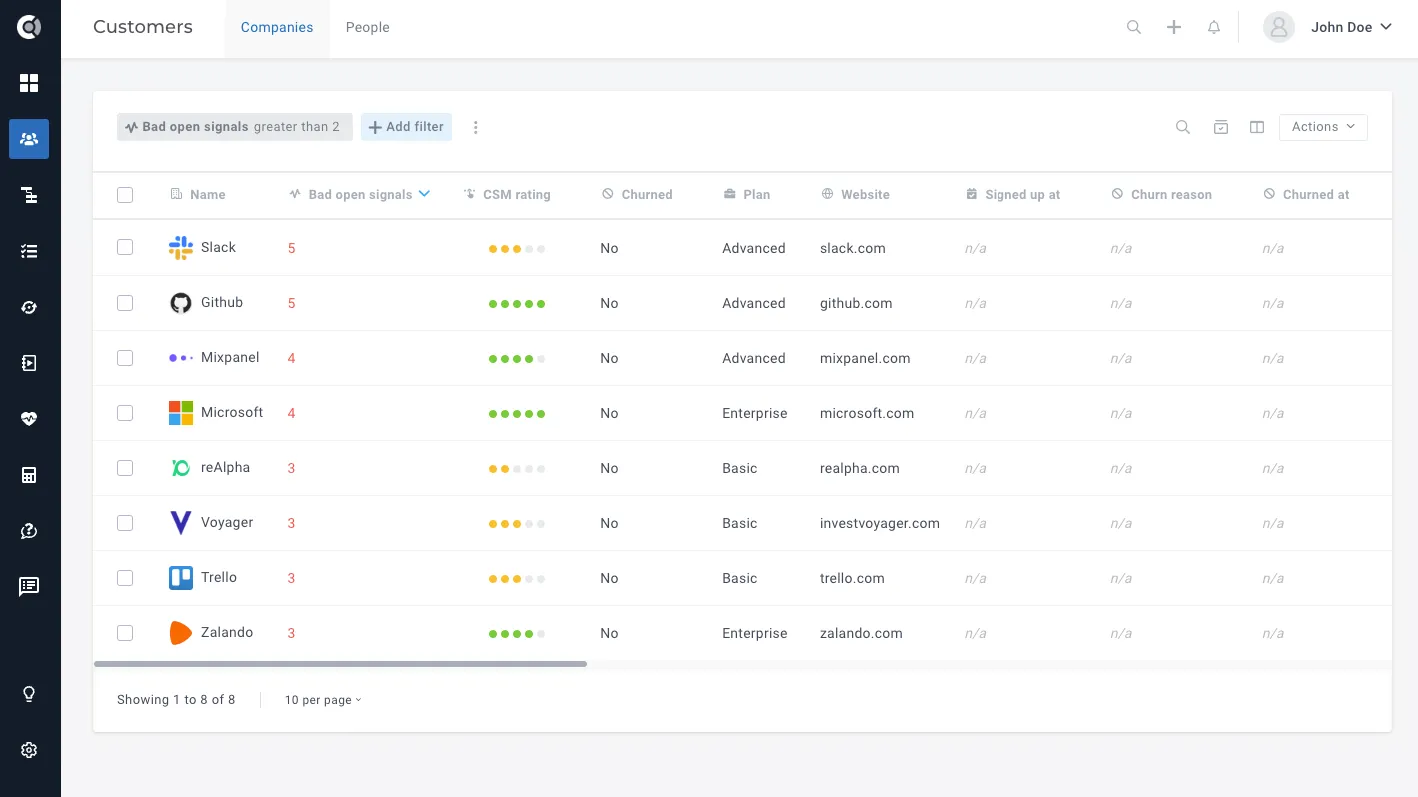
For each company in Custify, four new default attributes will be created:
- Bad closed signals: shows the total number of bad signals that were acknowledged by the CSM.
- Bad open signals: shows the total number of bad signals that were not acknowledged yet by the CSM.
- Good closed signals: shows the total number of good signals that were acknowledged by the CSM.
- Good open signals: shows the total number of good signals that were not acknowledged yet by the CSM.
Where:
- Bad: A signal that is showing decreased activity.
- Good: A signal that is showing increased activity.
- Open: A signal that was not acknowledged by the CSM.
- Closed: A signal that was acknowledged by the CSM.
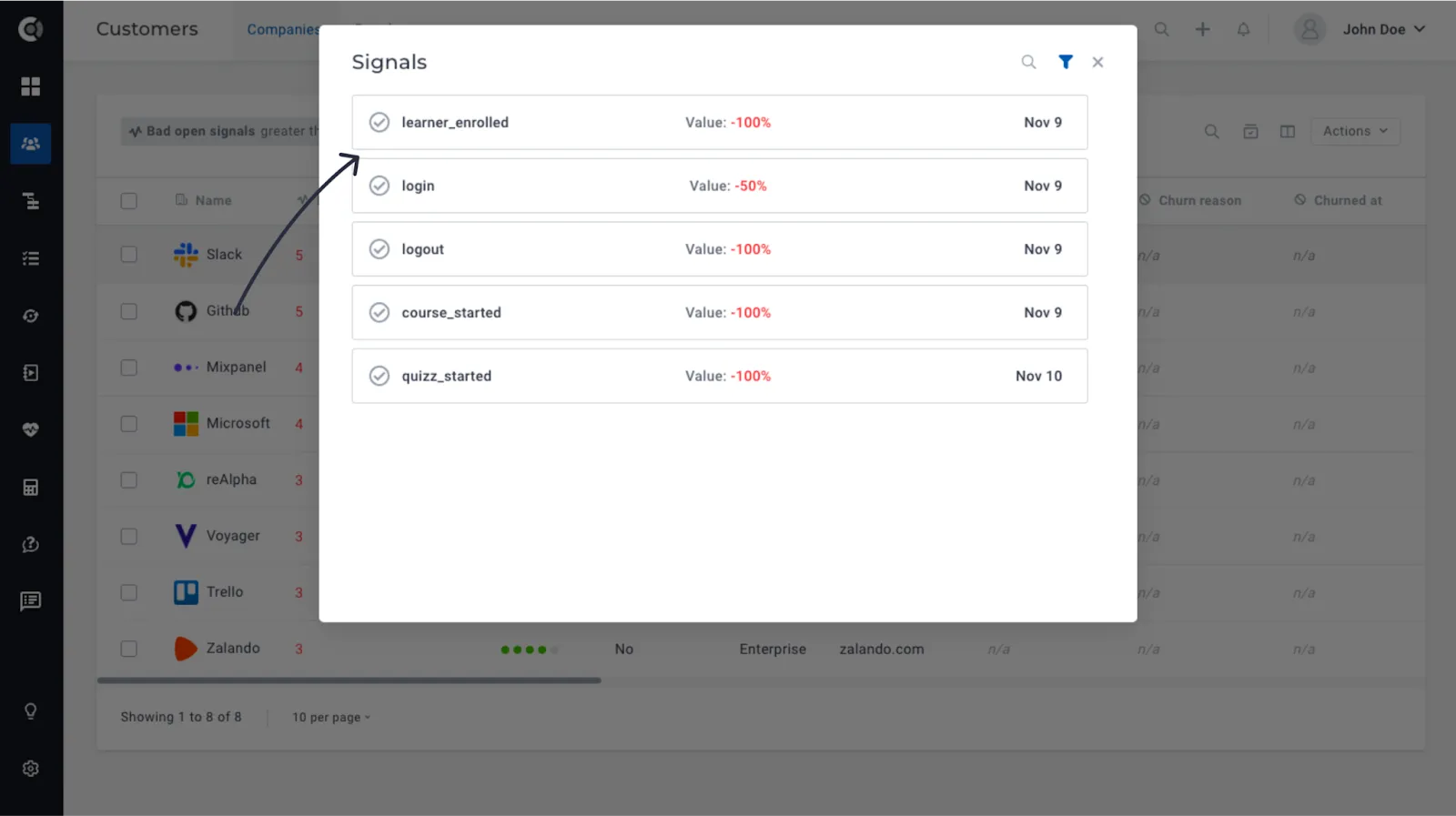
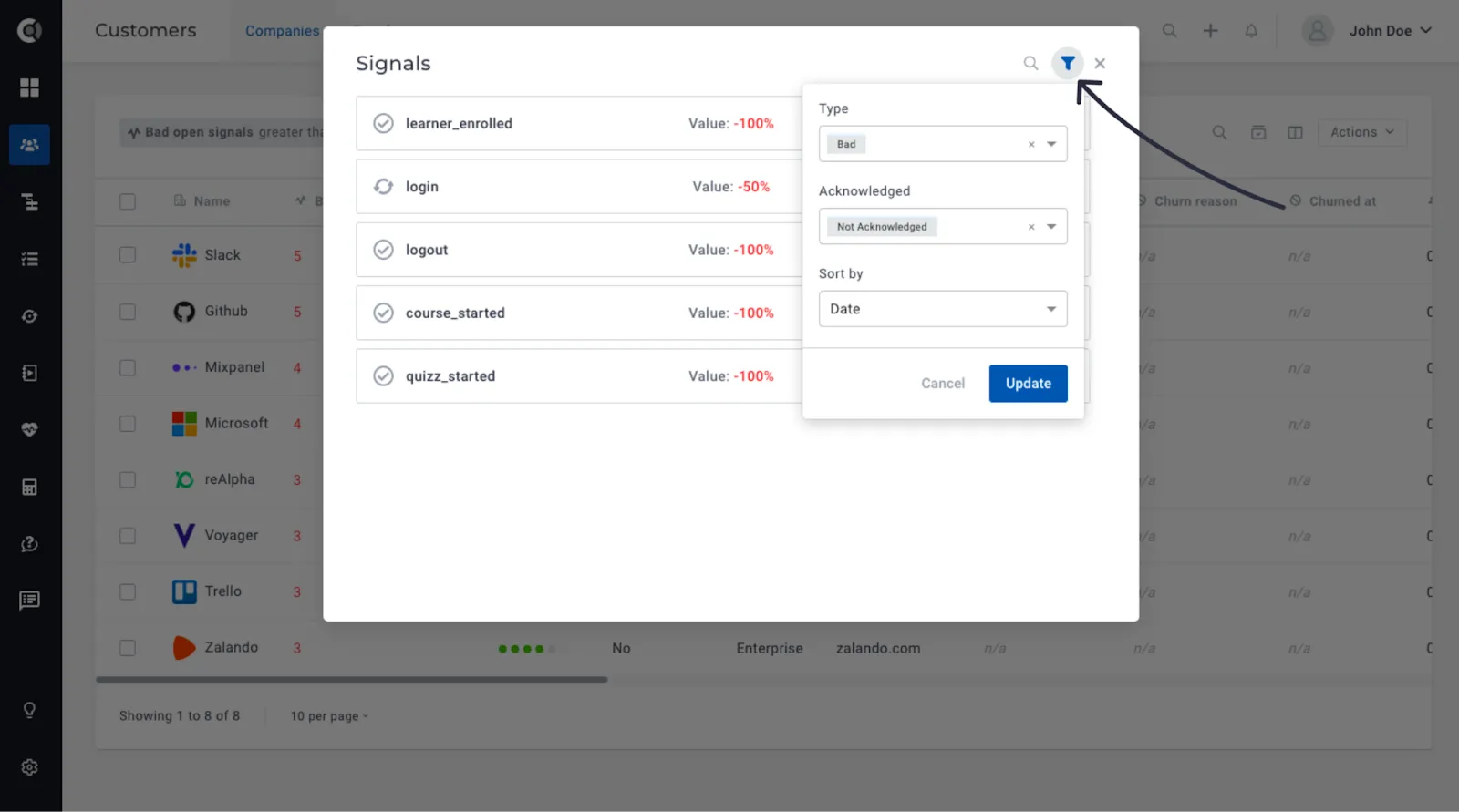
A signal can be acknowledged either from the Customer List View or the Customer 360 Profile. Click on the Signals list, check the signal’s details, then click Acknowledge.
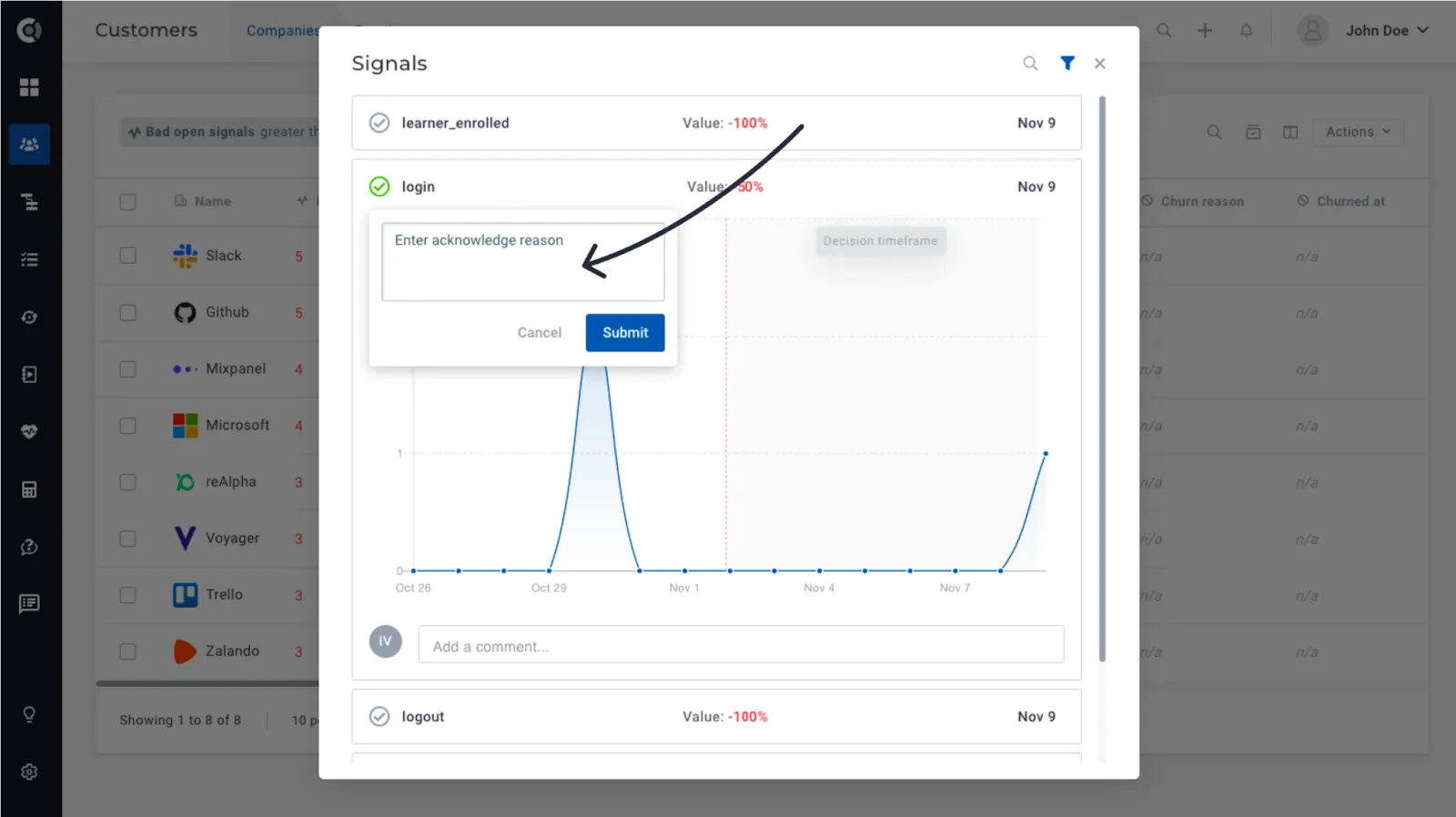
Before acknowledging the signal, a prompt requesting an acknowledgement reason will pop up. This ensures that everyone is aware of the actions taken in response to that specific signal.
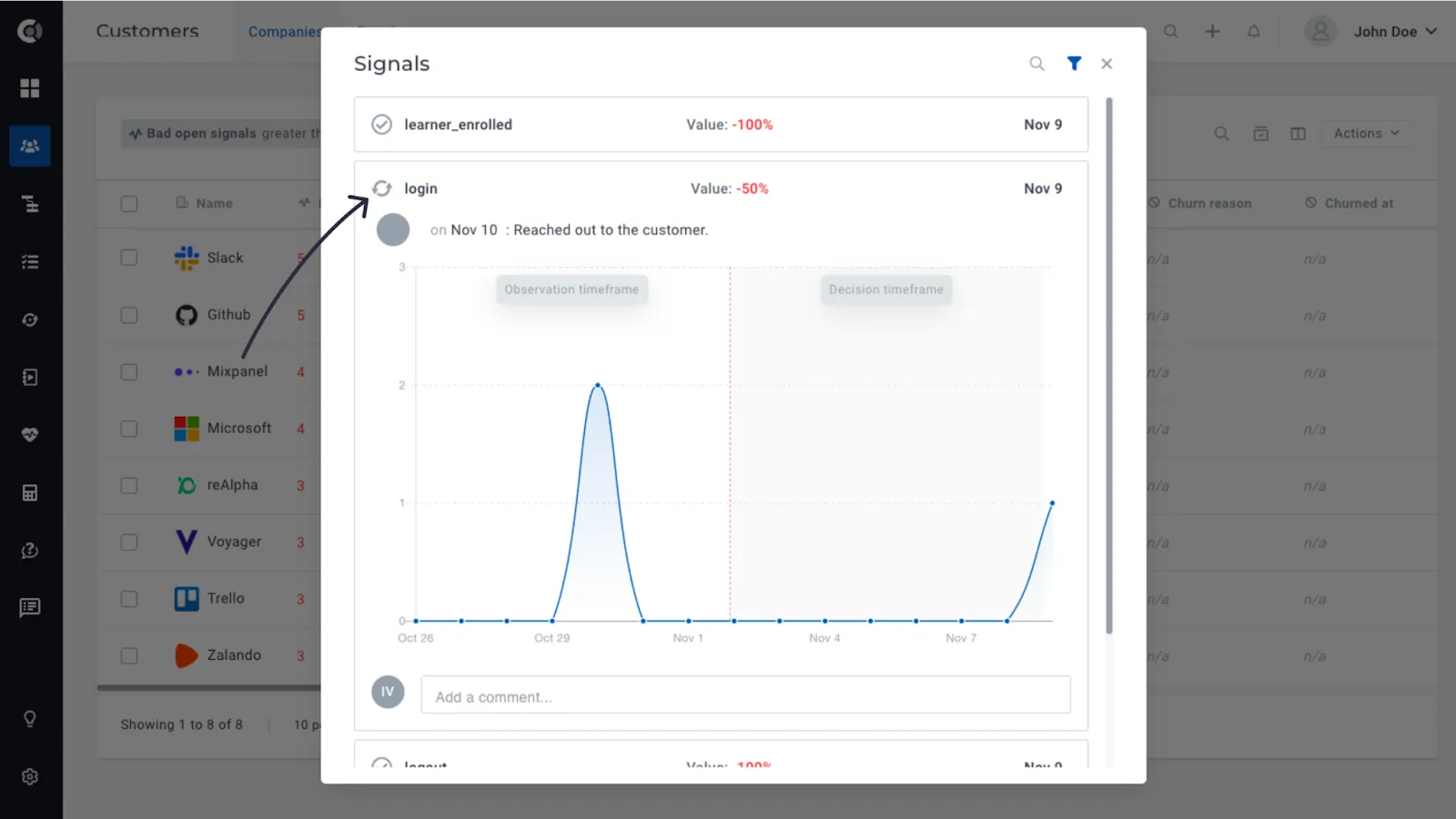
Closed signals can also be reopened. This allows the reopening of a signal in case it was closed mistakenly or if a change in decision regarding the action taken occurs.
Observation! Closed signals cannot be deleted, so the number of bad/good closed signals will never decrease, they will always store the total number of bad/good signals that were ever generated.
When going back to Settings – Signals and edit the logic for a Signal, the ones that were already opened remain unchanged. The new logic that you set will only apply for new Signals.
Before acknowledging/reopening signals, CSMs can look at the signal’s details by checking the Observation timeframe and the Decision timeframe.
- Observation timeframe: this represents the previous interval used for comparison with the current interval, enabling the observation of past behaviour.
- Decision timeframe: this signifies the current interval, displaying activity within the present timeframe.
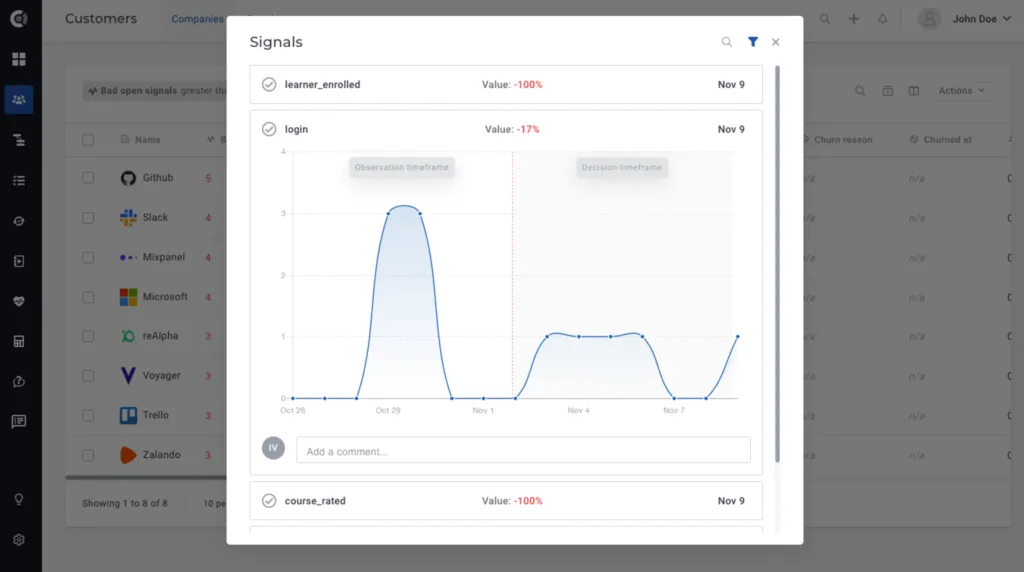
To effectively manage signals, CSMs can filter and sort the complete list of signals for each company. The filters can be by Type (Bad/Good), Acknowledgement (Open/Closed). The sorting available is by Event (alphabetically by event name), Status (Good/Bad), Type (Open/Closed), Date (oldest to newest).
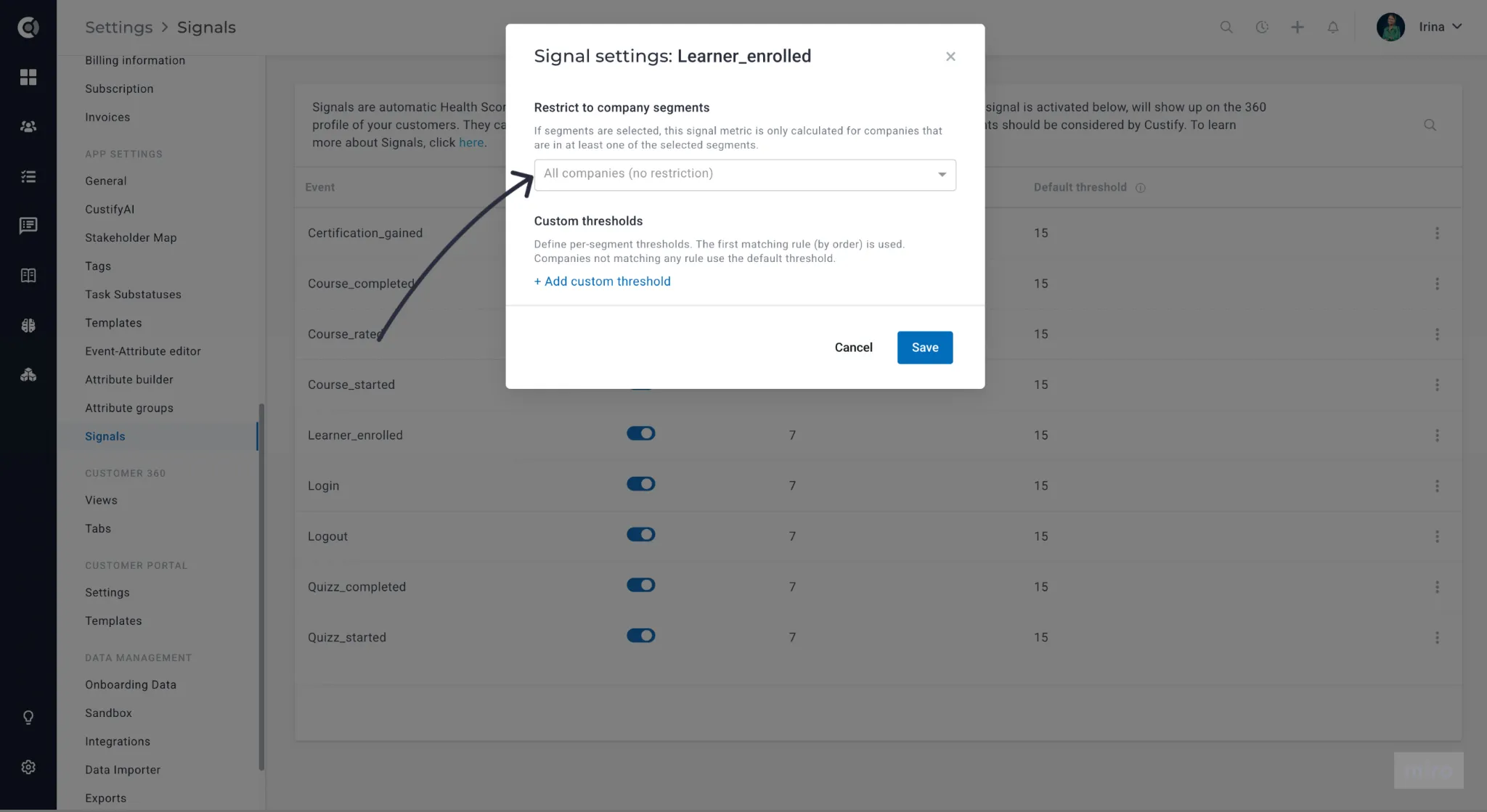
Per-segment Signal thresholds
Signal thresholds can be set per Segment. The same Signal can fire at different thresholds for SMB and Enterprise segments without duplicating the underlying signal definition.
How to leverage Signals
In addition to generating notifications based on product usage and establishing new attributes for customer health, Signals can be used across various parts of the app, allowing you to construct new workflows.
Customer List View
Signals’ attributes are visible on the Customer List View, facilitating sorting and filtering. This enables CSMs to gain a comprehensive understanding of the status of signals for their assigned customers.
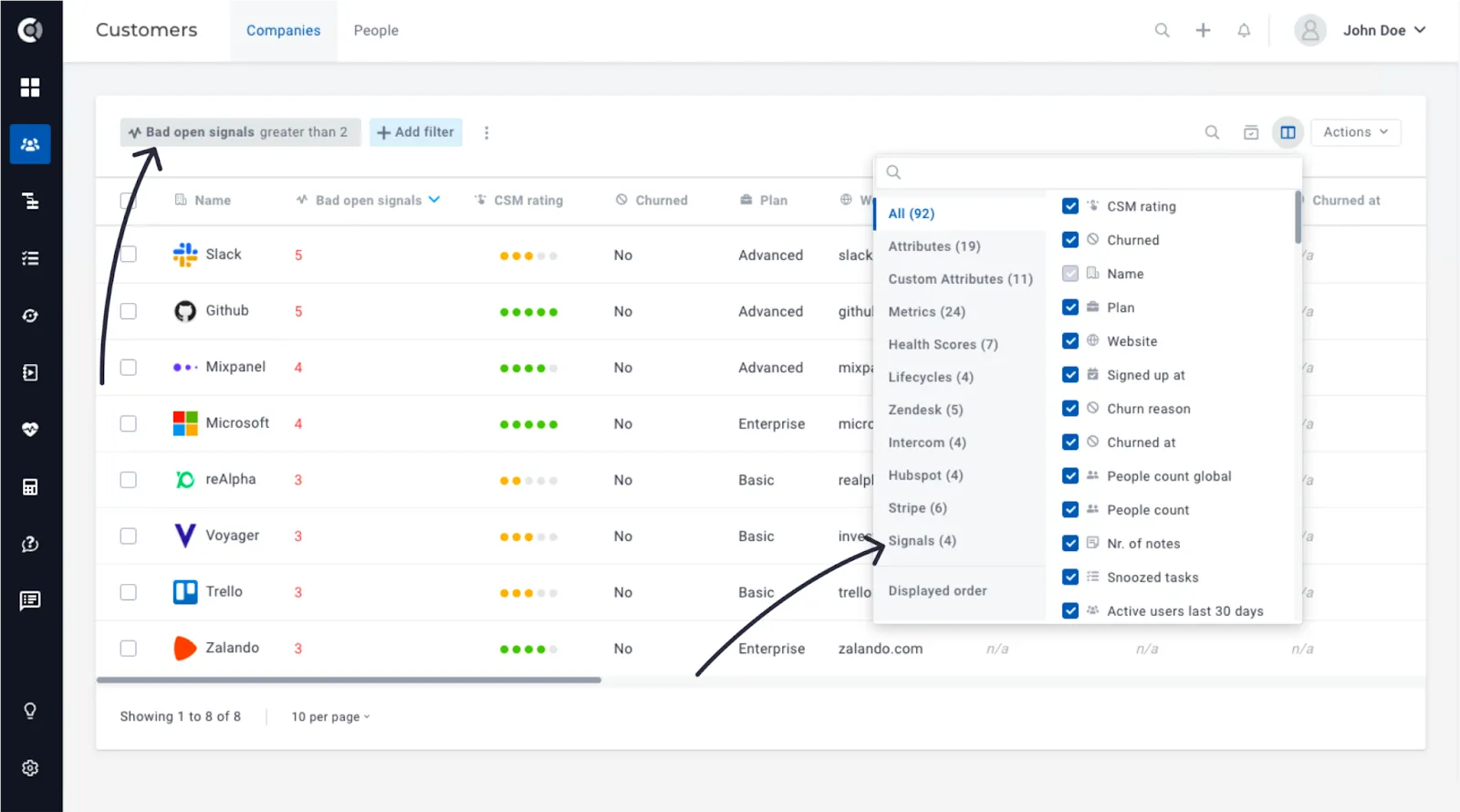
The values of the attributes are clickable, so signals’ details can be easily accessed within the list.
Customer 360 Profile
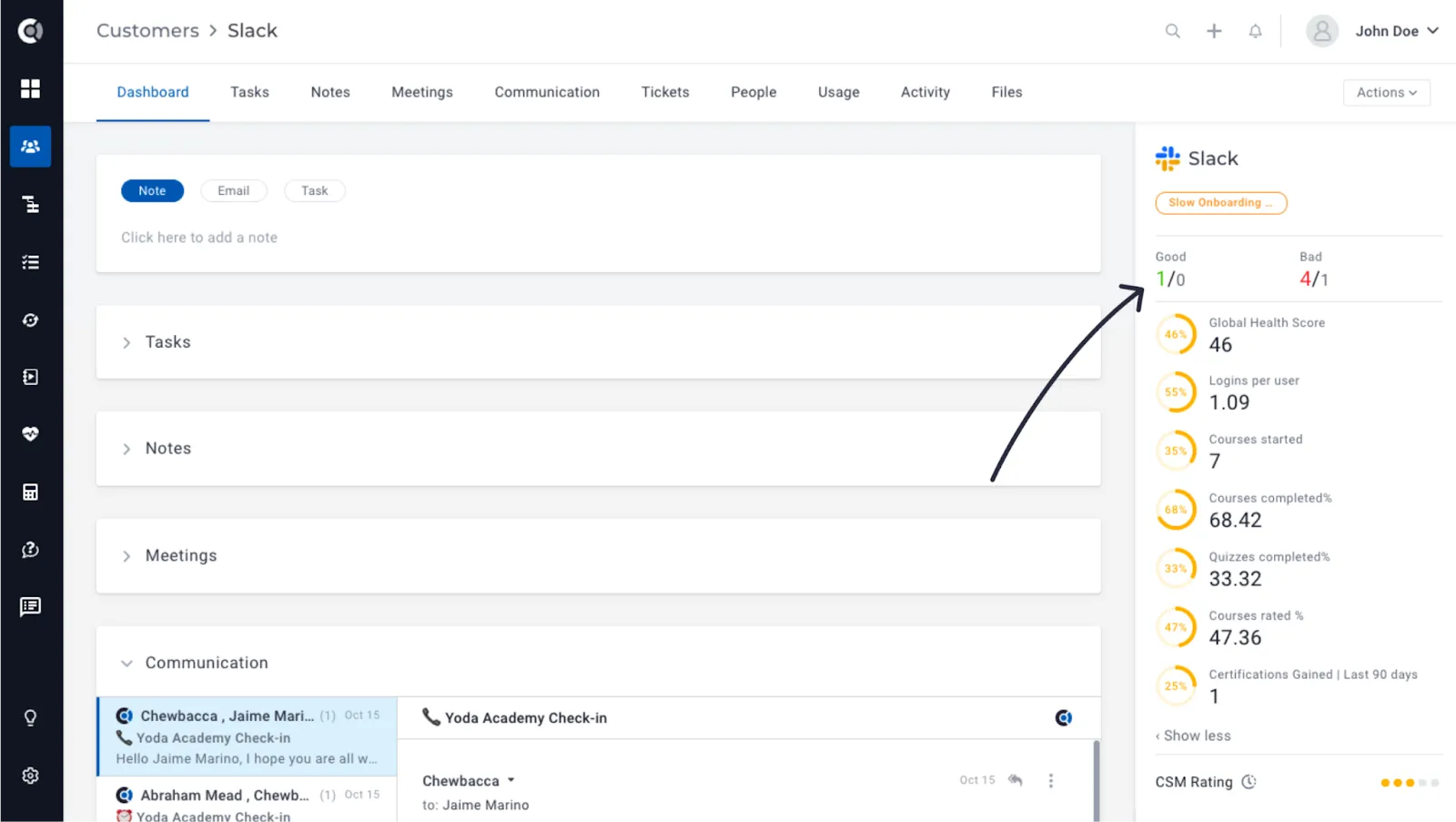
Within each customer profile, Signals are showcased on the right side of the page. This additional information enables CSMs to make informed decisions regarding their customers while reviewing the account health details.
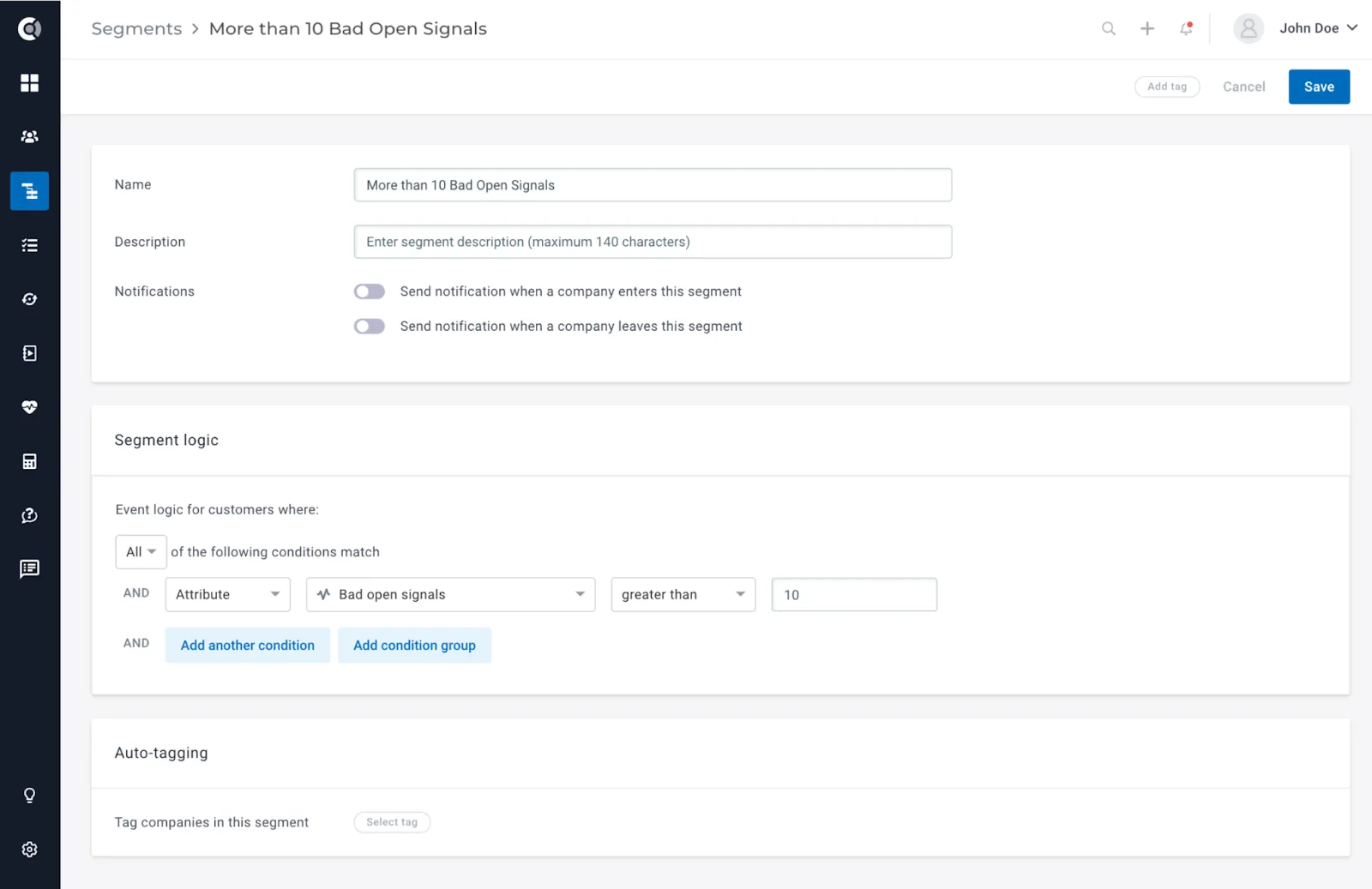
Segmentation
These attributes are also accessible for segmentation purposes. This allows, for example, the retrieval of customer segments with higher counts of bad open signals or good open signals, which can then be utilized in reporting or various playbooks.
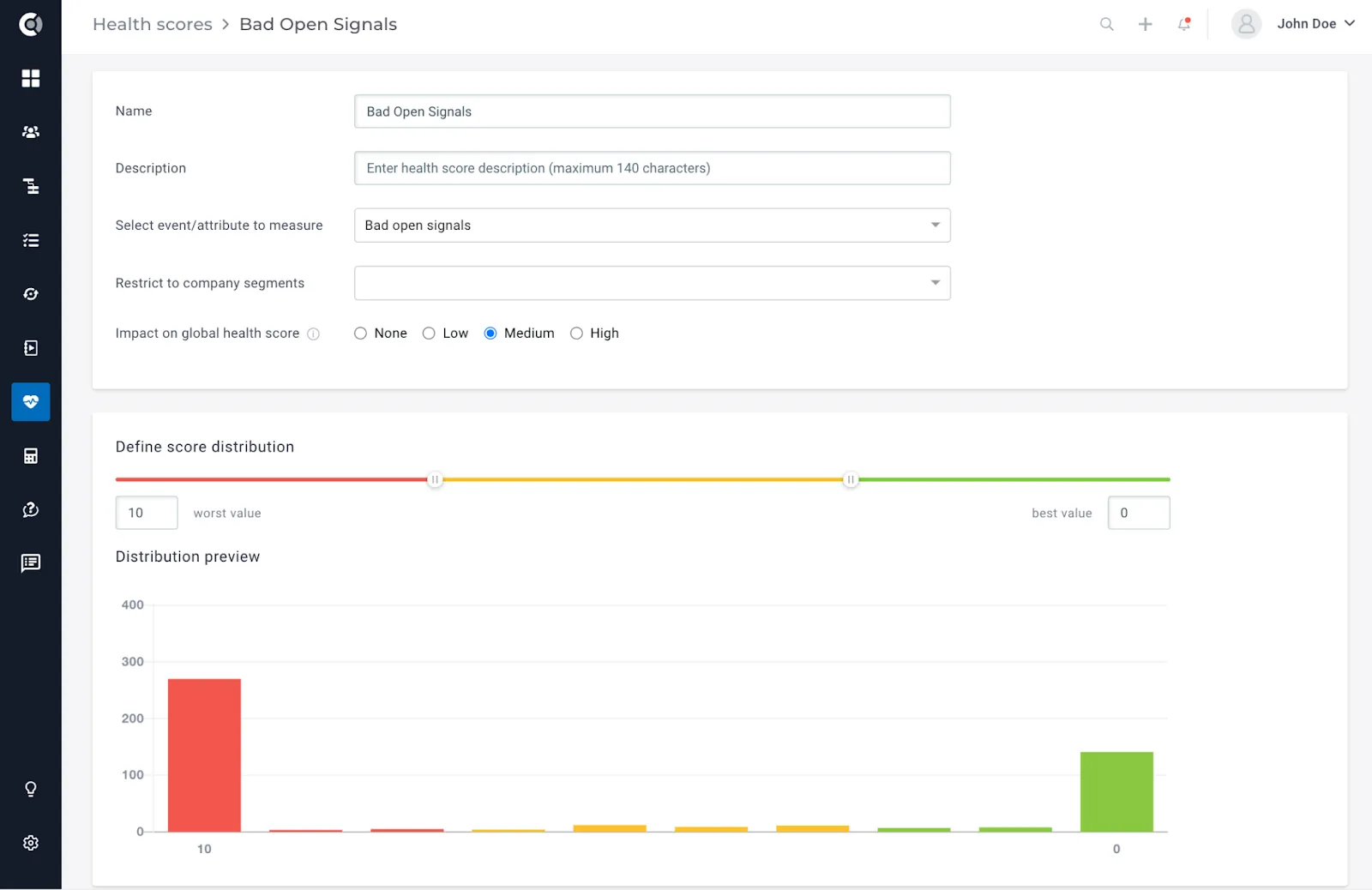
Health Scoring
Health Scores can be derived from these new attributes as well. The count of Bad open signals could serve as a valuable metric to consider and contribute to the overall Global Health Score of each account.
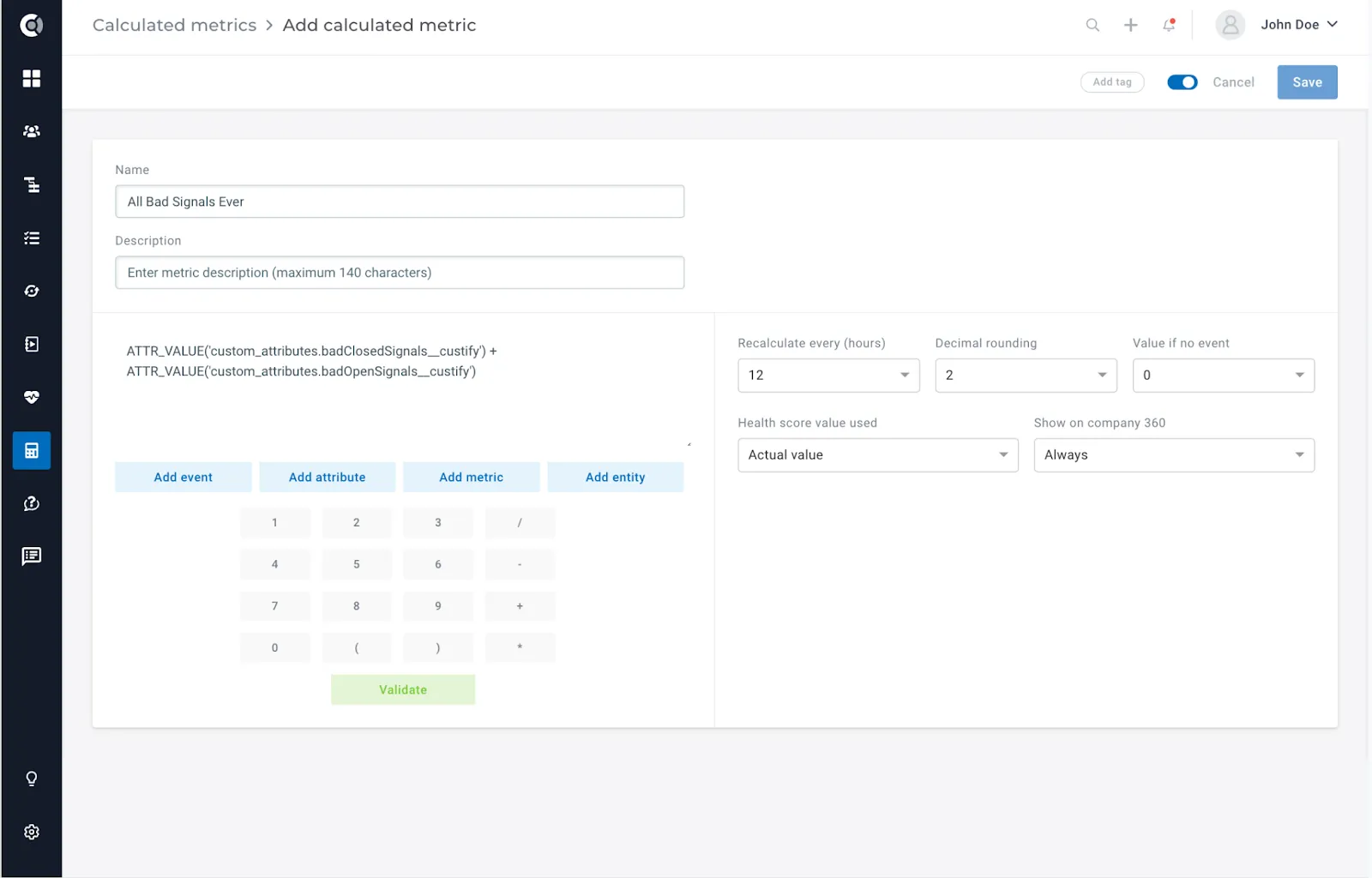
Calculated Metrics
Calculated metrics can be used to combine the signals’ attributes into formulas and get enhanced metrics. For example, summing the count of bad open signals and bad closed signals provides the total number of bad signals ever generated.
Things to keep in mind
- Signals will be generated for a specific company only if there has been at least one event within the last 2X days, where X represents the designated. E.g. If a company has recently been created and generates a ‘course_created’ event, the system will not trigger a signal. Since the account is newly established, capturing this activity as an increase would be inaccurate. For example, if the timeframe is set to 7 days, the system will wait until 14 days have elapsed to ensure sufficient data for analyzing the activity over the last 7 days compared to the preceding 7 days.
- Each signal is activated once per timeframe for the same category (good/bad). If the signal type remains the same, it won’t trigger again. However, if the signal type changes, a new notification will be generated. E.g. If a notification was received for a usage drop of more than 15%, it won’t trigger again in the next X days (where X represents the interval selected for the trend). A new notification will be prompted only if the signal type changes, such as from a more than 15% decrease to a 20% increase.
- The total count of events considered includes all events generated at the company level by all associated people. The formula does not normalize the event count, deliberately avoiding averaging the number of events per person. This deliberate exclusion of normalization allows for observing variations in activity when users join or depart from the company. E.g. If event counts were normalized, a person leaving the company would not reflect a decrease in activity, as the average number of events per person would remain constant. By not normalizing these numbers, a decrease in activity is observable when individuals leave a company, aiding in the identification of departures of key contributors.