Tasks
Keep your CS team organized and make sure nothing gets missed by defining tasks.
Overview
Get organized by defining tasks and make sure nothing is missed. Become more efficient using tasks automations.
Defining Tasks
There are multiple ways of creating tasks in Custify.
- Access the Customer 360° Profile and manually create it on the Company or People accounts.
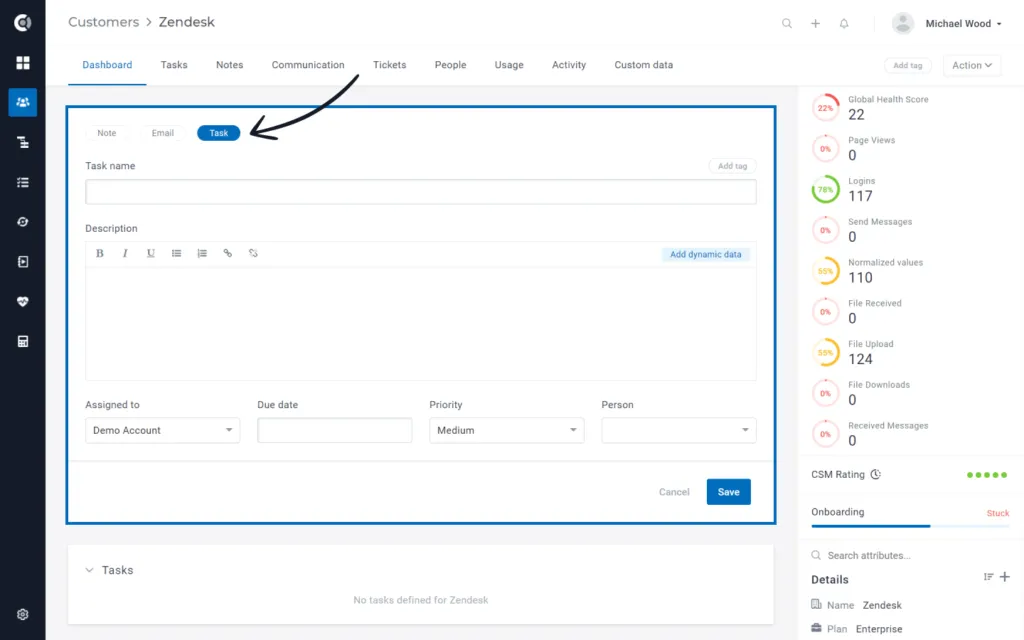
From the Customer 360° Profile:
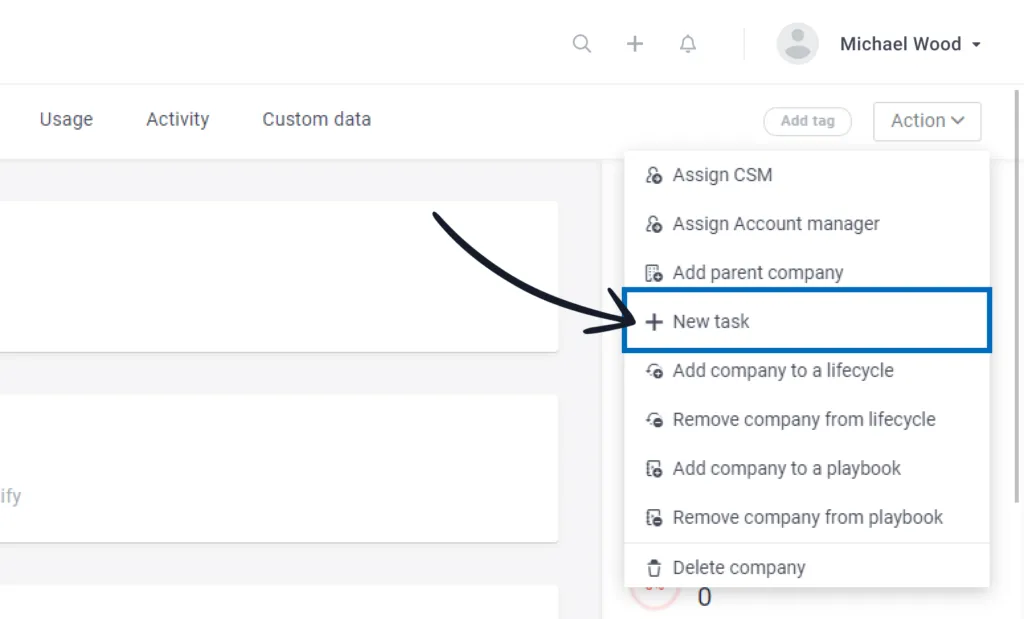
From the Action list:
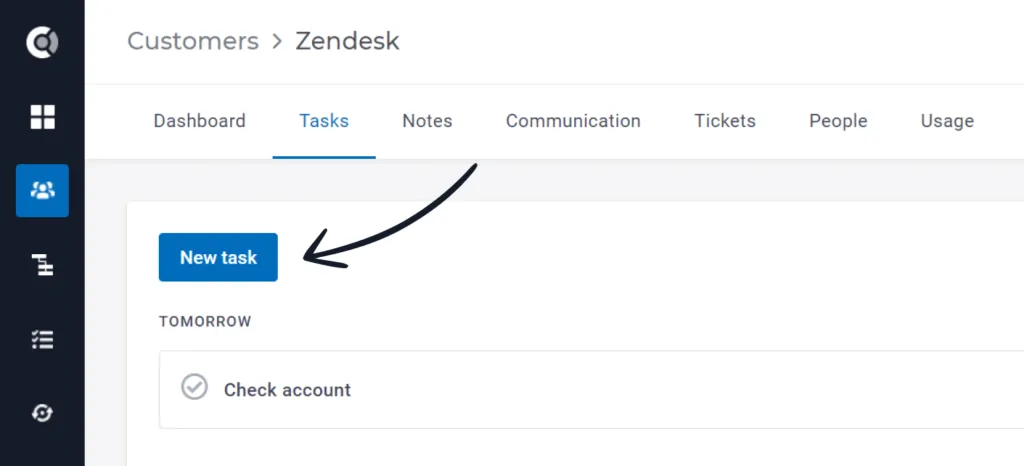
From the dedicated Tasks tab:
Observation: tasks that you define for People accounts will also reflect on the Company account the person is assigned to.
2. Automatically create tasks through

The tasks will be automatically created and assigned to a company when that company enters the Lifecycle. They can also be automatically marked as done by checking the option Mark remaining tasks as no longer relevant when a company completes the lifecycle.
Pro-tip: define onboarding tasks, like “Schedule Onboarding Call” or “Schedule Product Training”, that are applicable to all the new customers.
3. Automatically create tasks using Playbooks
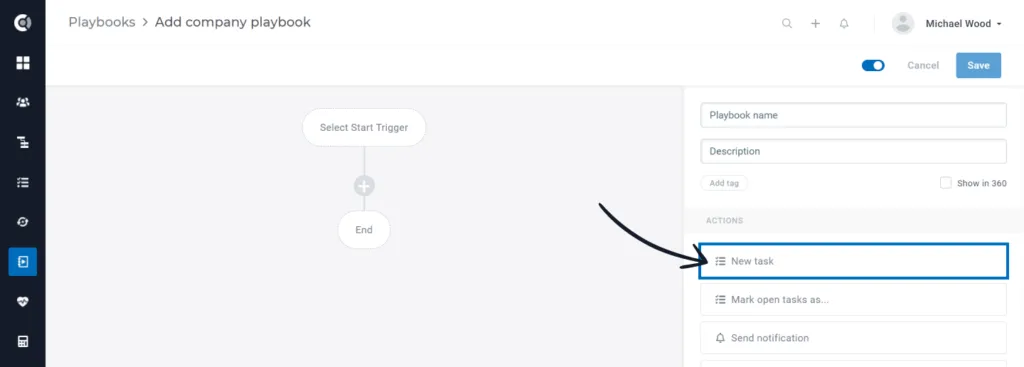
Pro-tip: automatically create tasks for CSMs to check accounts that enter in the “Low activity” segment.
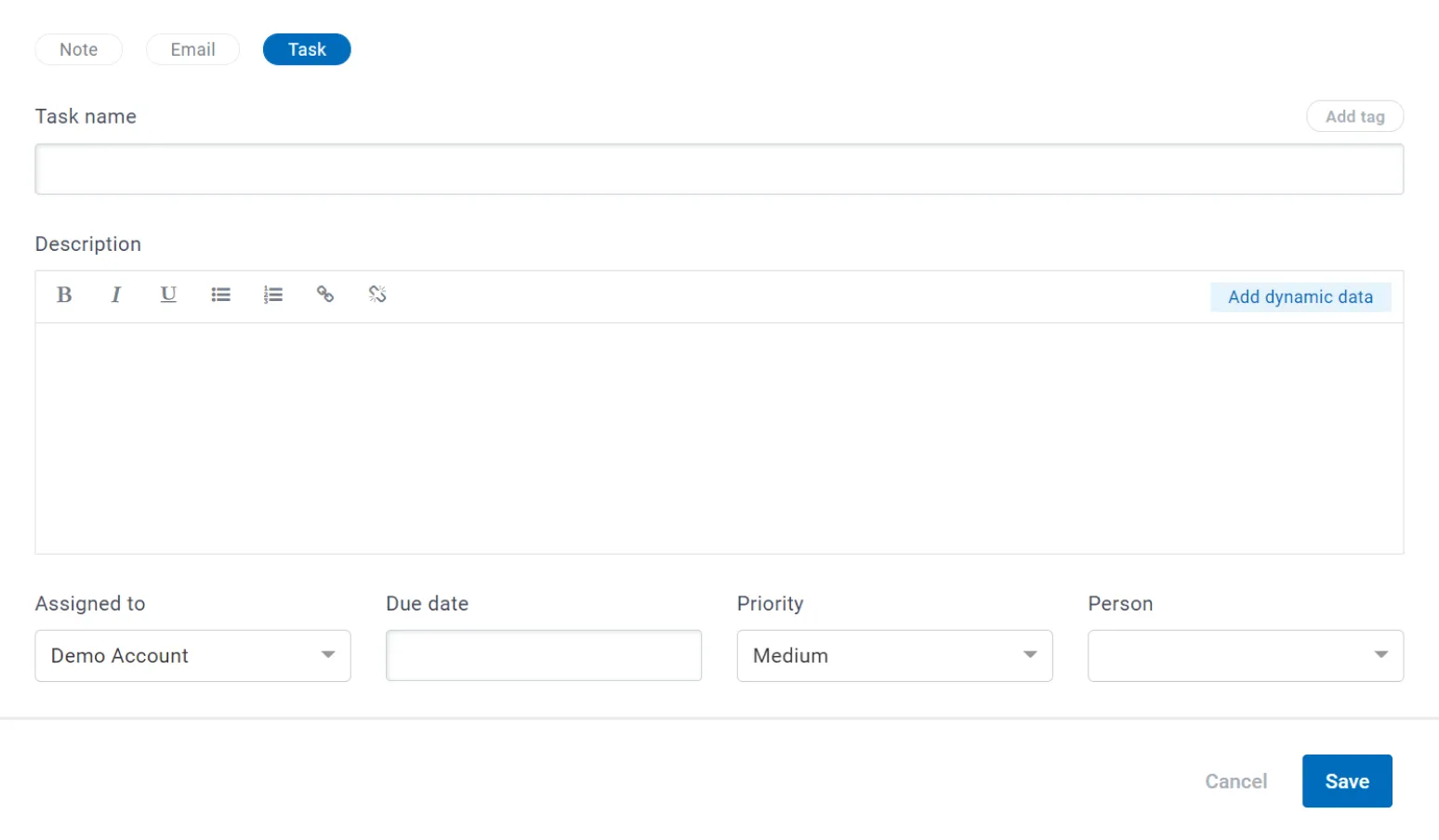
No matter where you create the task from, the task structure will be the same:
Task name and description: add a suggestive name and a description to the task; in this way, you will know exactly what you have to do, even if some time has passed.
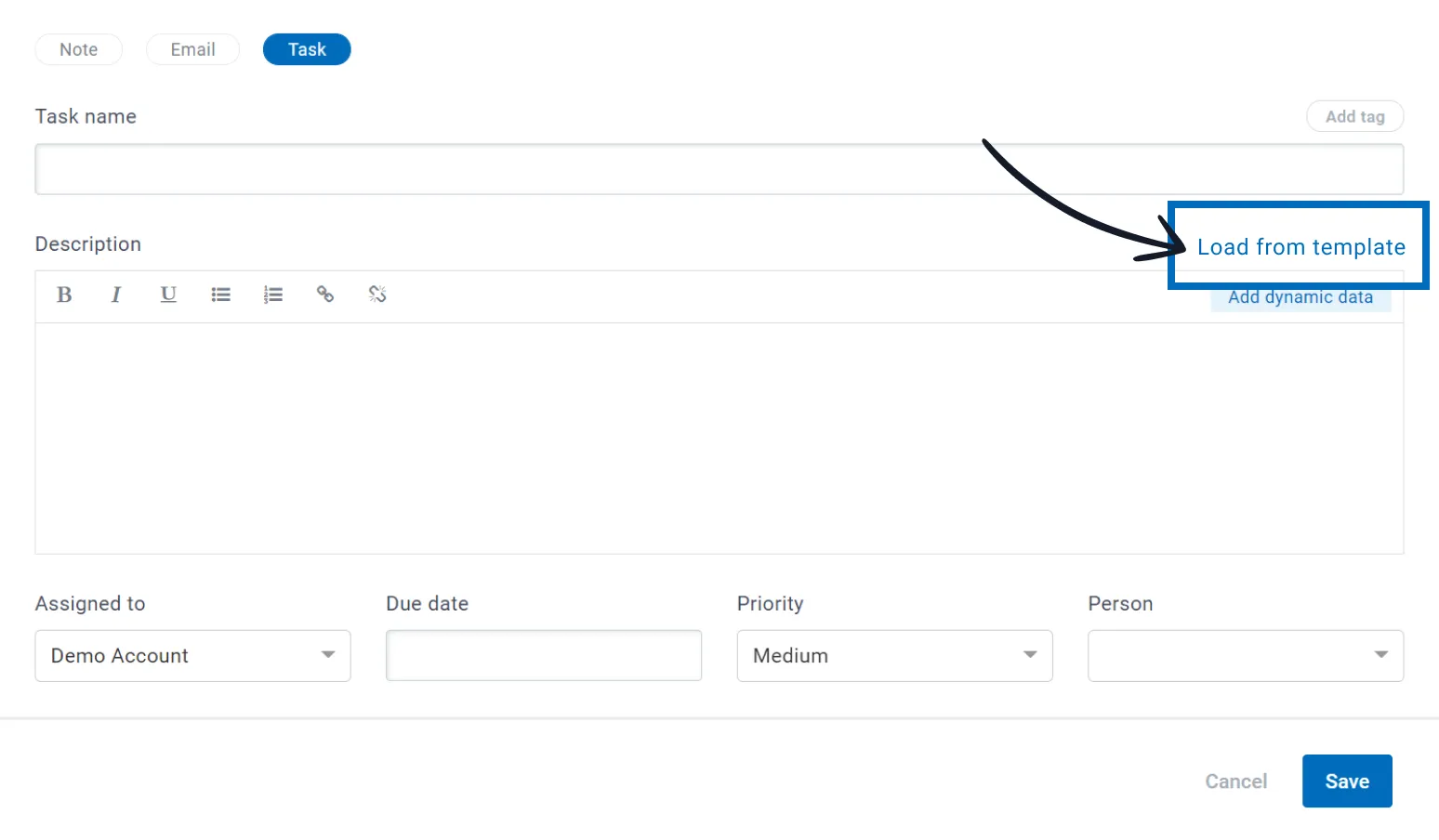
Load from template: define your tasks’ templates in the Custify Settings, then build tasks using predefined information. Save time by using templates instead of recreating them for each customer.
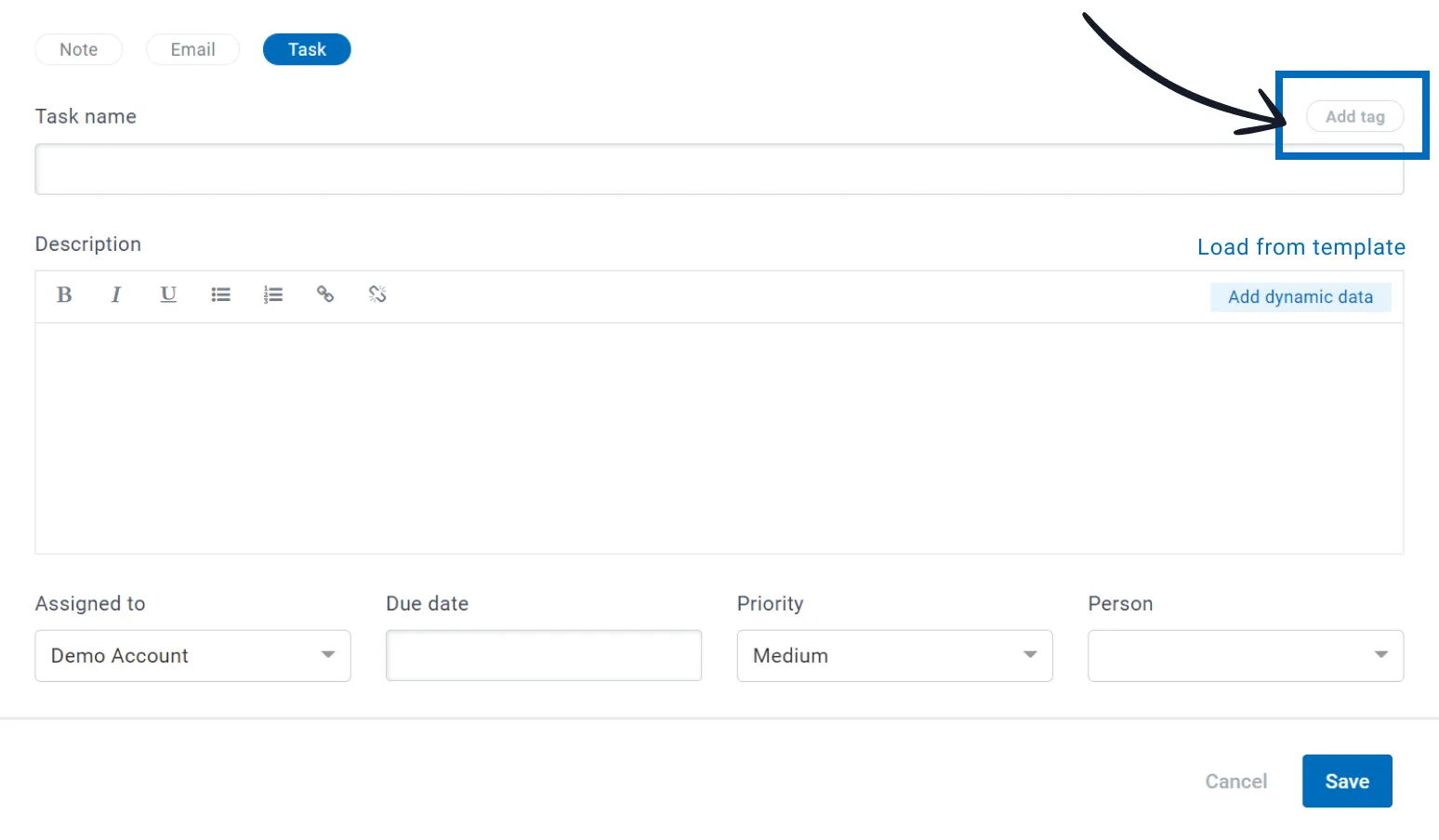
Add tag: use tags to categorize your tasks. Define your tags in the Custify Settings, then categorize tasks by importance, subscription plans, CSMs in charge to track them, or any category you consider useful.
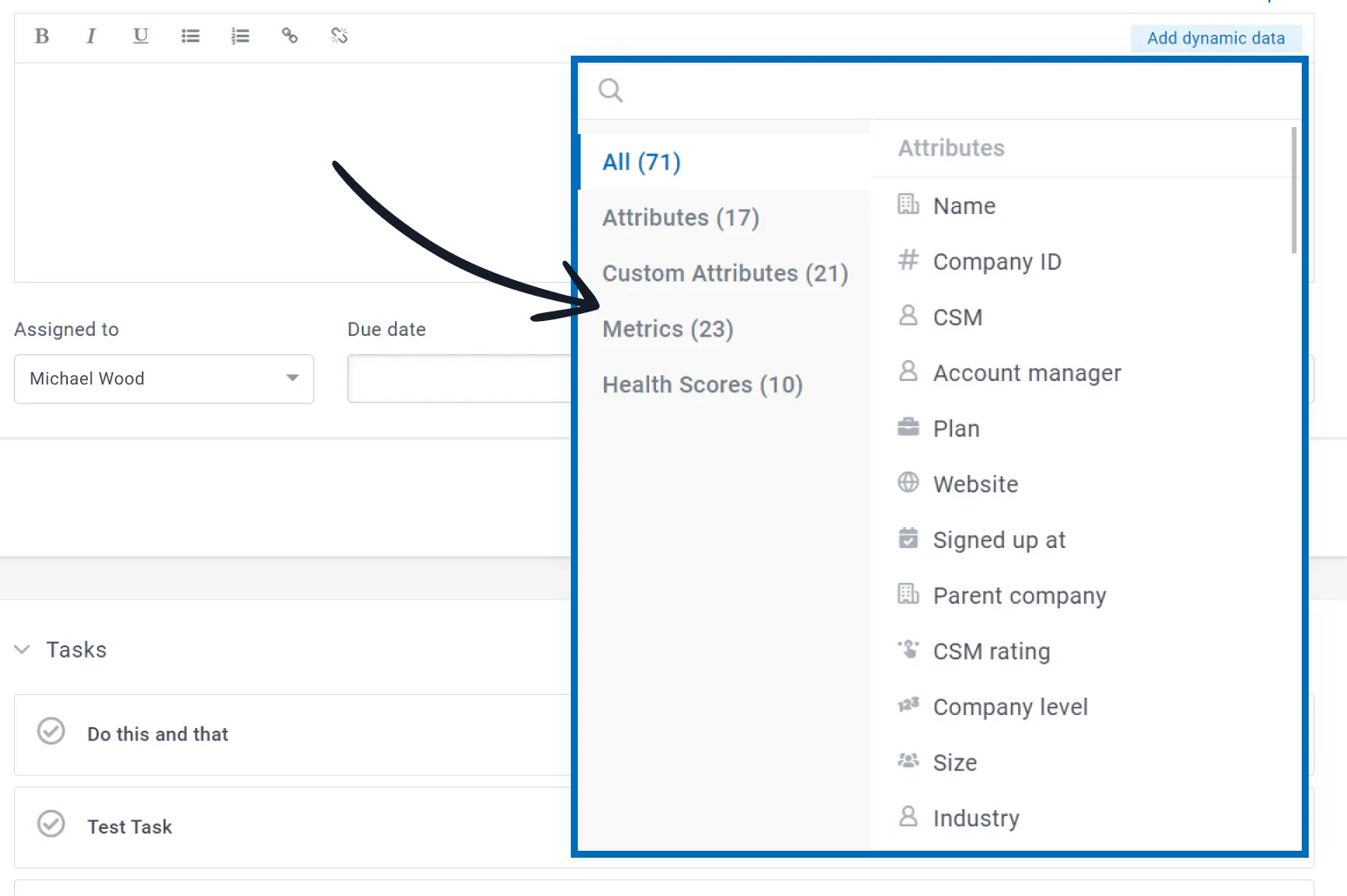
Add dynamic data: add dynamic data to the task’s description to automatically customize the text. You will be able to choose from attributes, metrics and health scores.
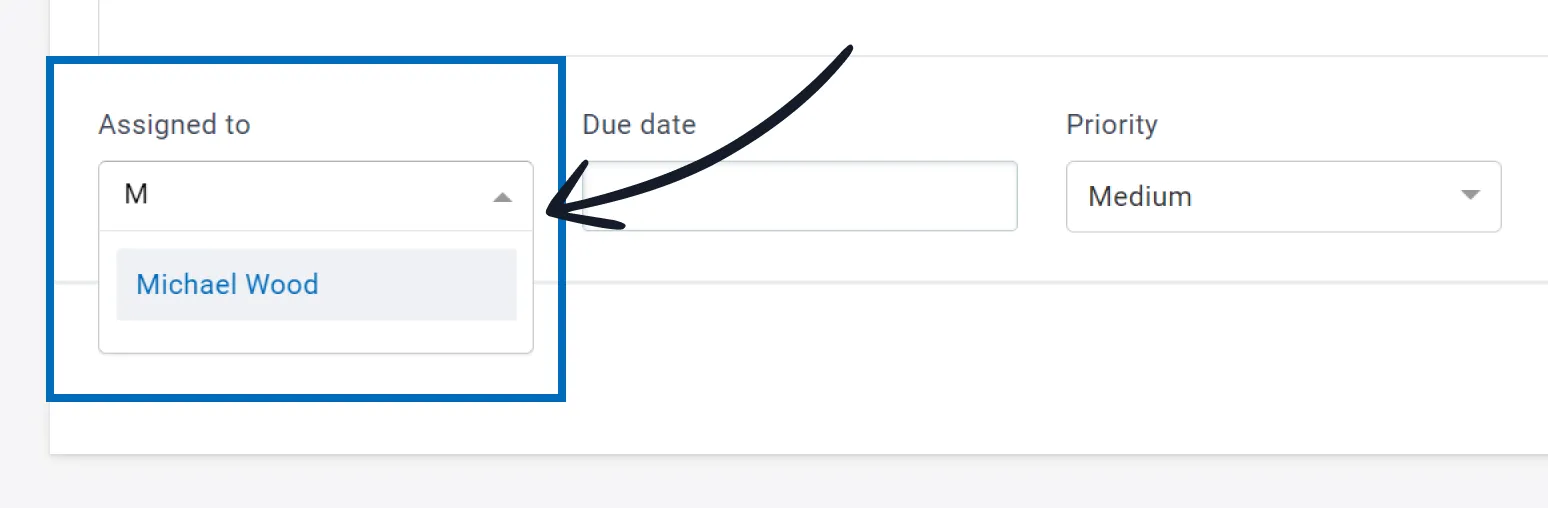
Assigned to: select the person responsible to do the task
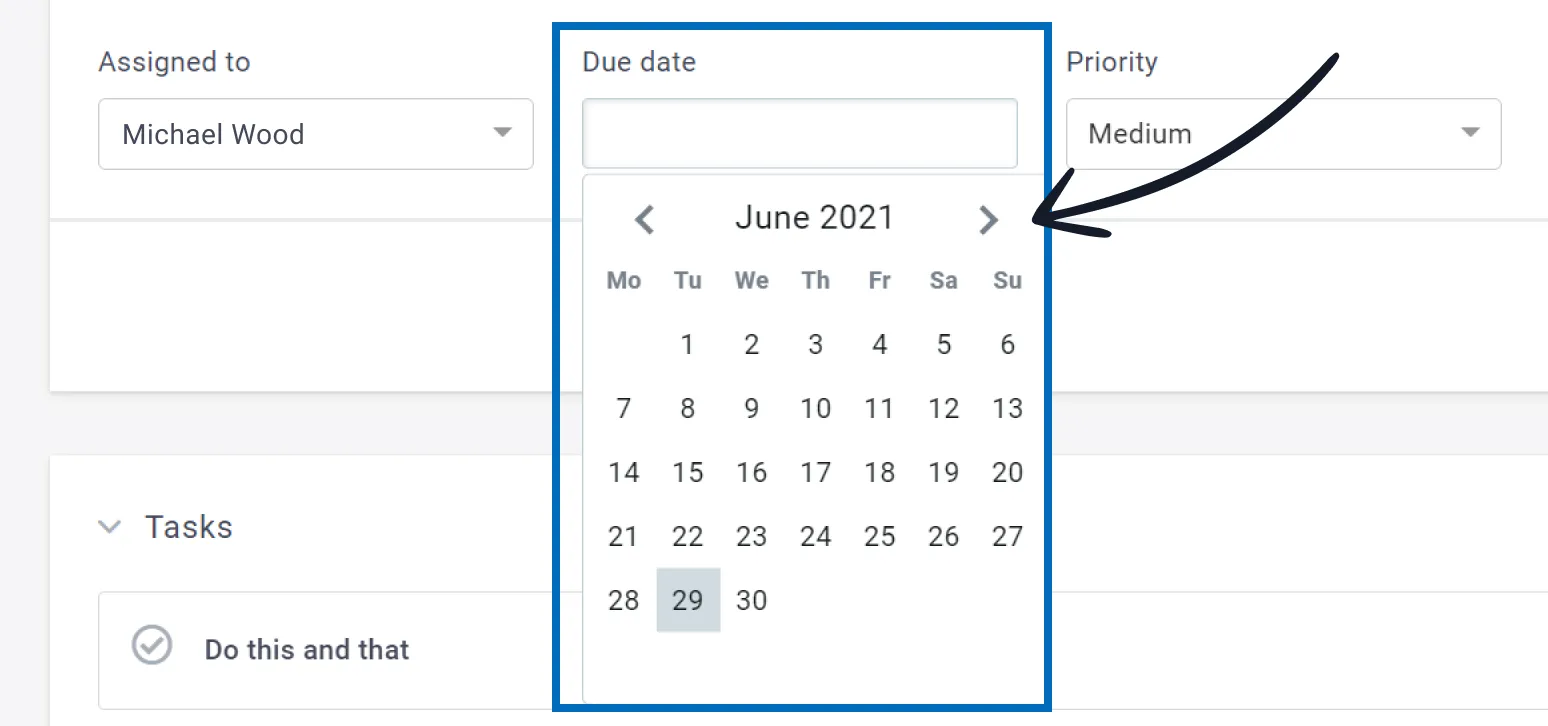
Due date: set a deadline for the task to be completed
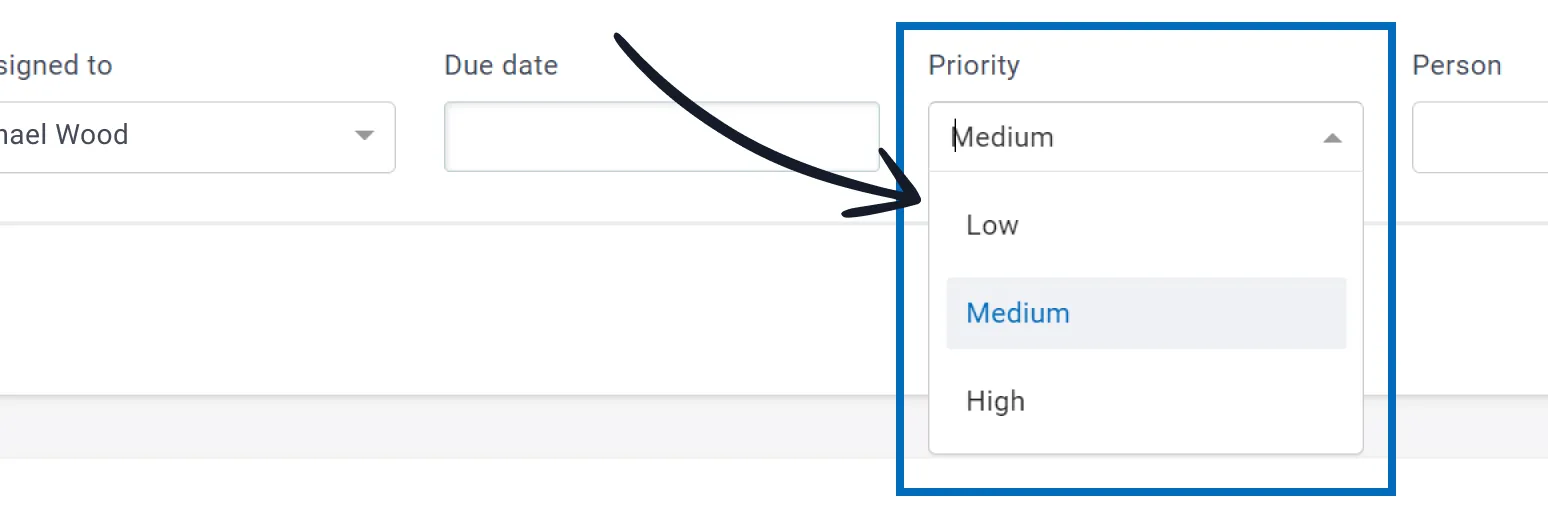
Priority: set a task priority (high, medium or low)
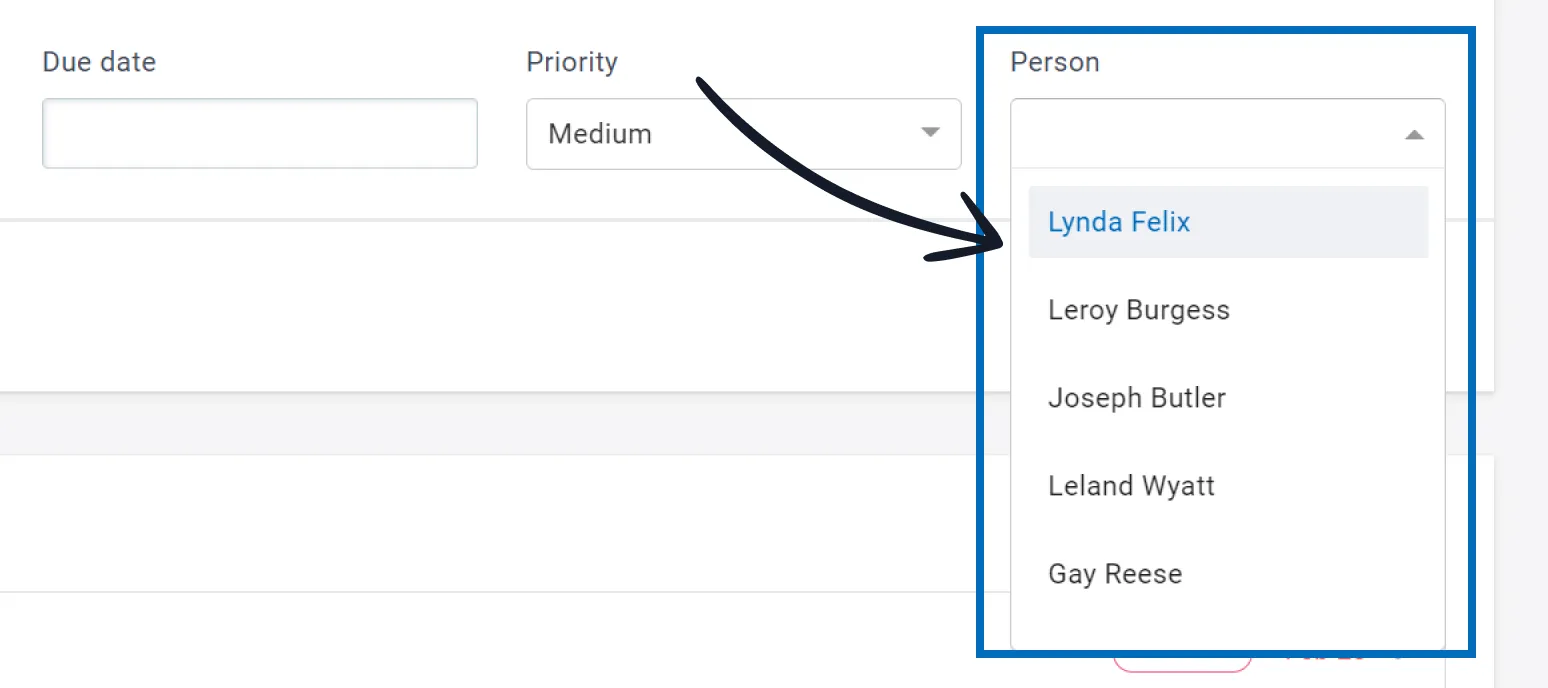
Person: assign the task to a person account (person that is assigned to the company you define the task for). The task will also be visible on that person’s 360° profile.
Managing Tasks
Tasks can be reviewed and edited in different places in the app.
- In the Customer 360° Profile, where you can:
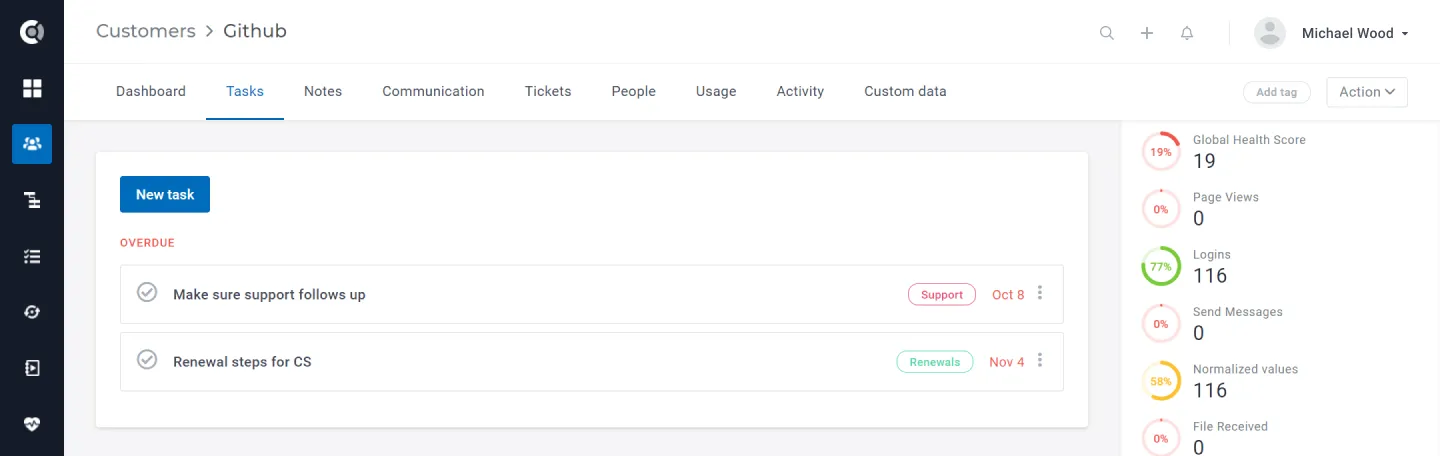
Review the tasks and their statuses.
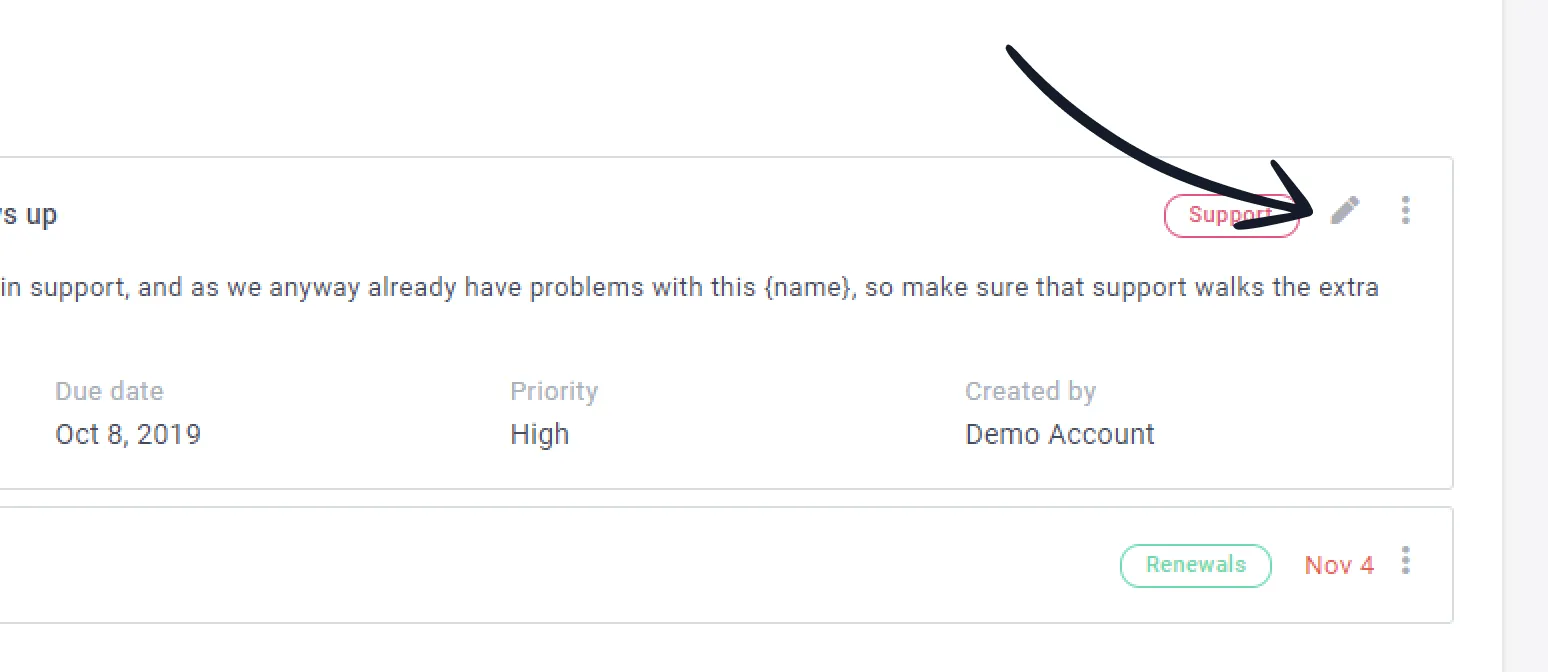
Edit a task.
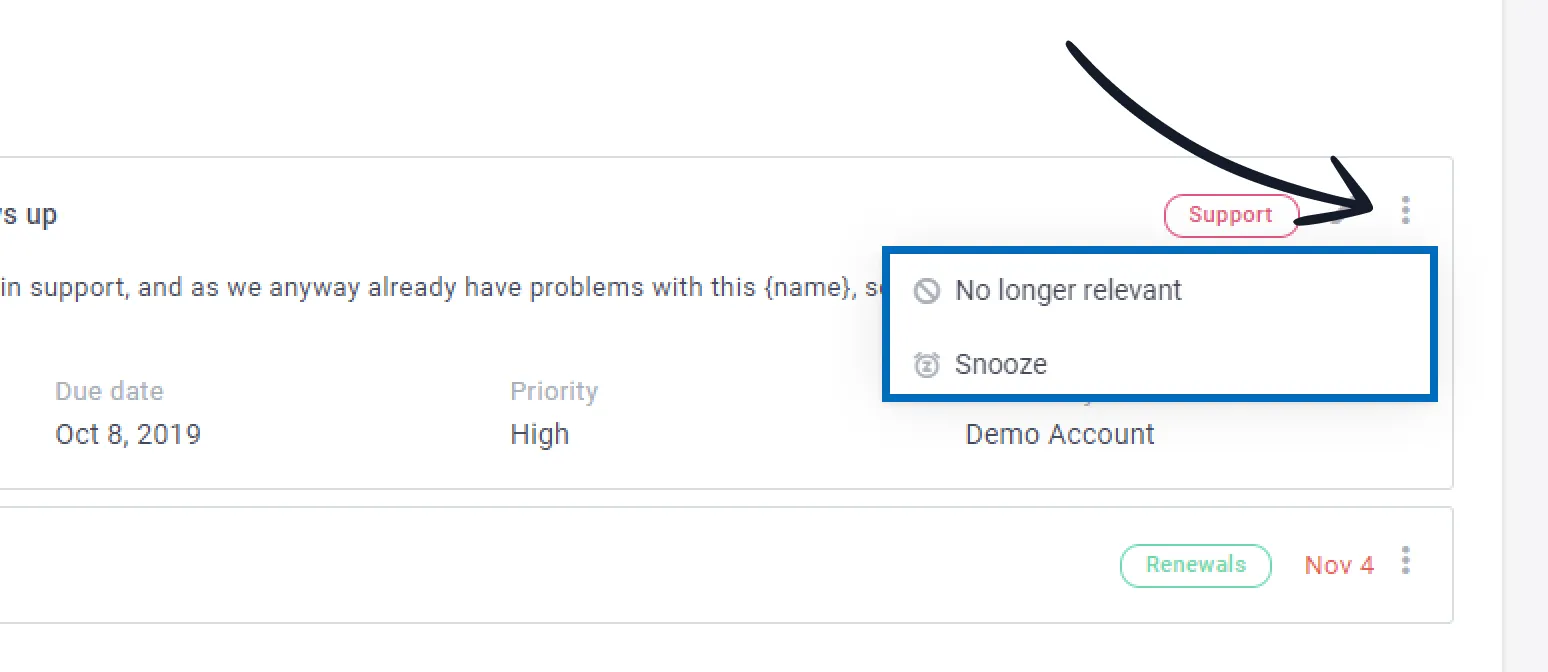
Change a task’s status.
Tag tasks.
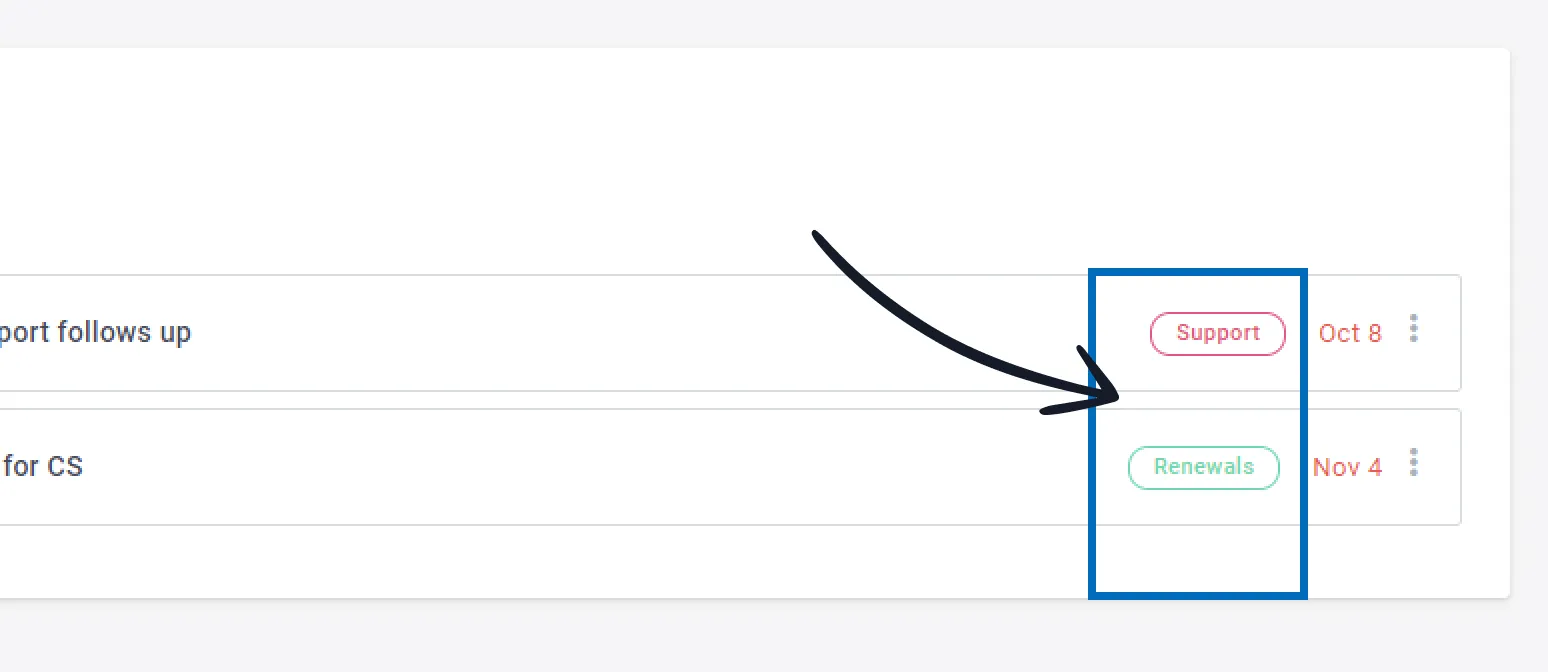
2. In the Tasks menu, where you can have a quick overview of all the tasks defined in your Custify instance:
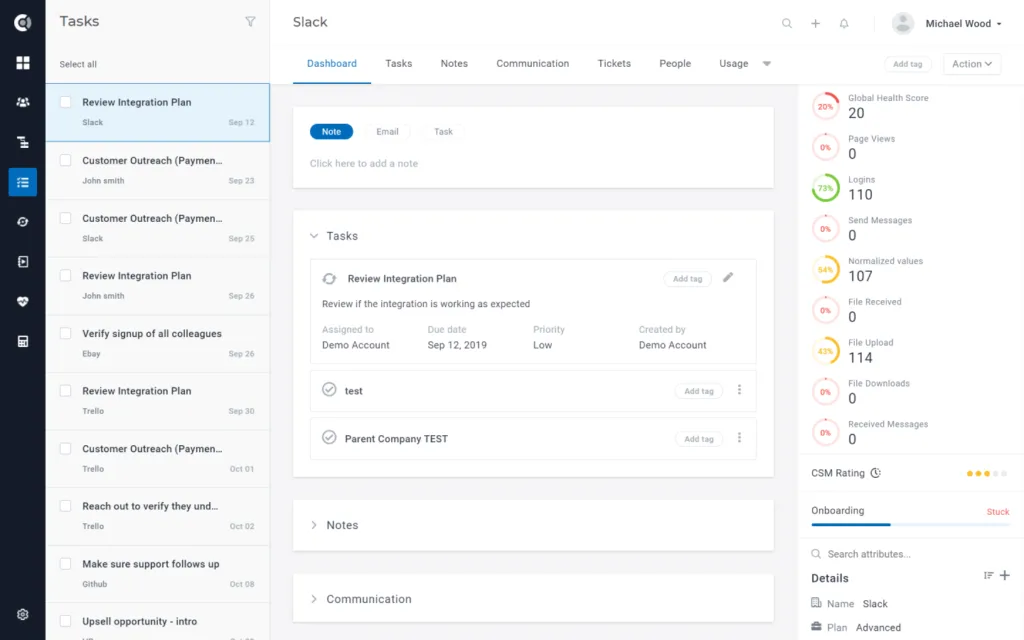
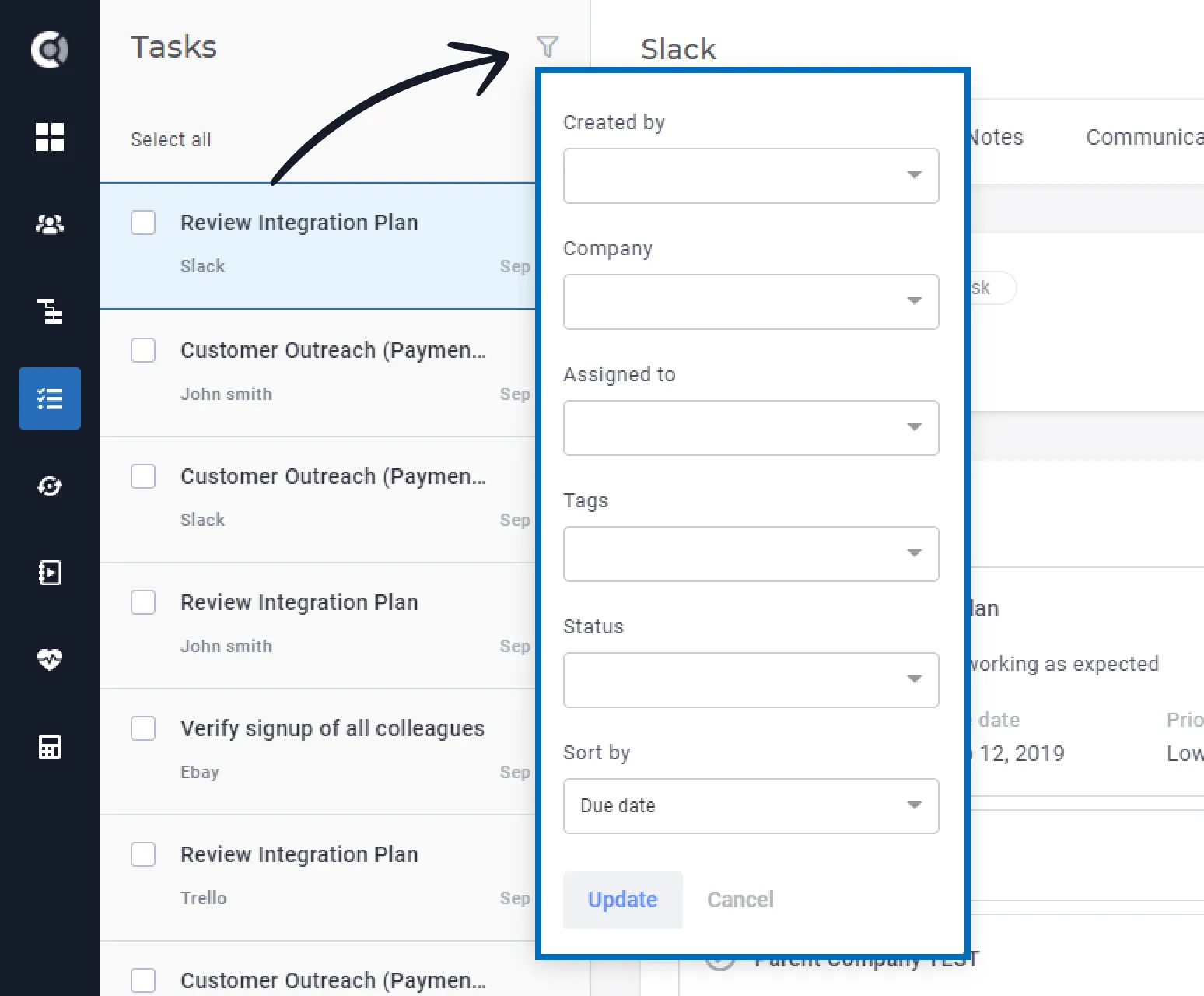
Here you can:
Filter task by: • Created by • Company • Assigned to • Tags • Status Multiple filters can also be applied.
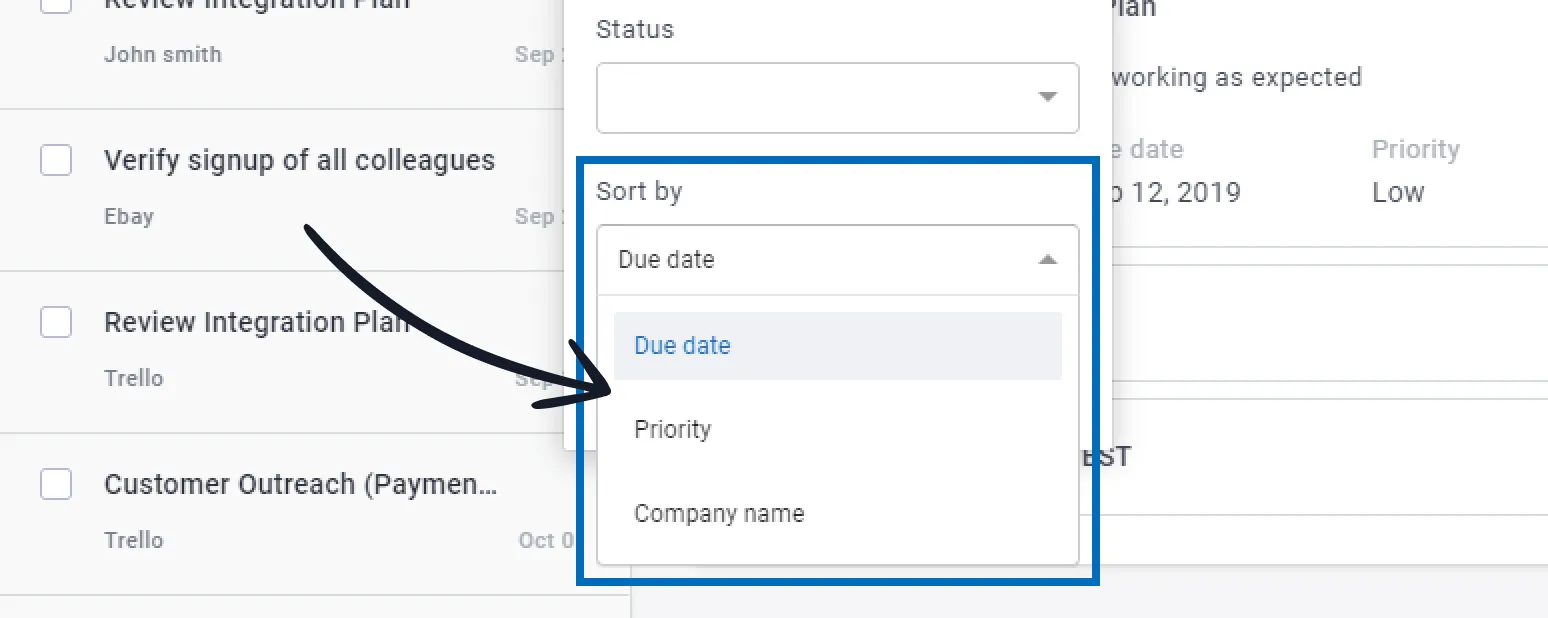
Sort tasks by: • Due Date sorting: it will first sort tasks by due date type (overdue, future due, no due date), then by the actual due date (ascending), then by creation date (ascending); • Priority sorting: first sorting criteria will be by priority (high, medium, low), then by the actual due date (ascending), then by creation date (ascending); • Company name sorting: sorts alphabetically by company name, then by the actual due date (ascending), then by creation date (ascending).
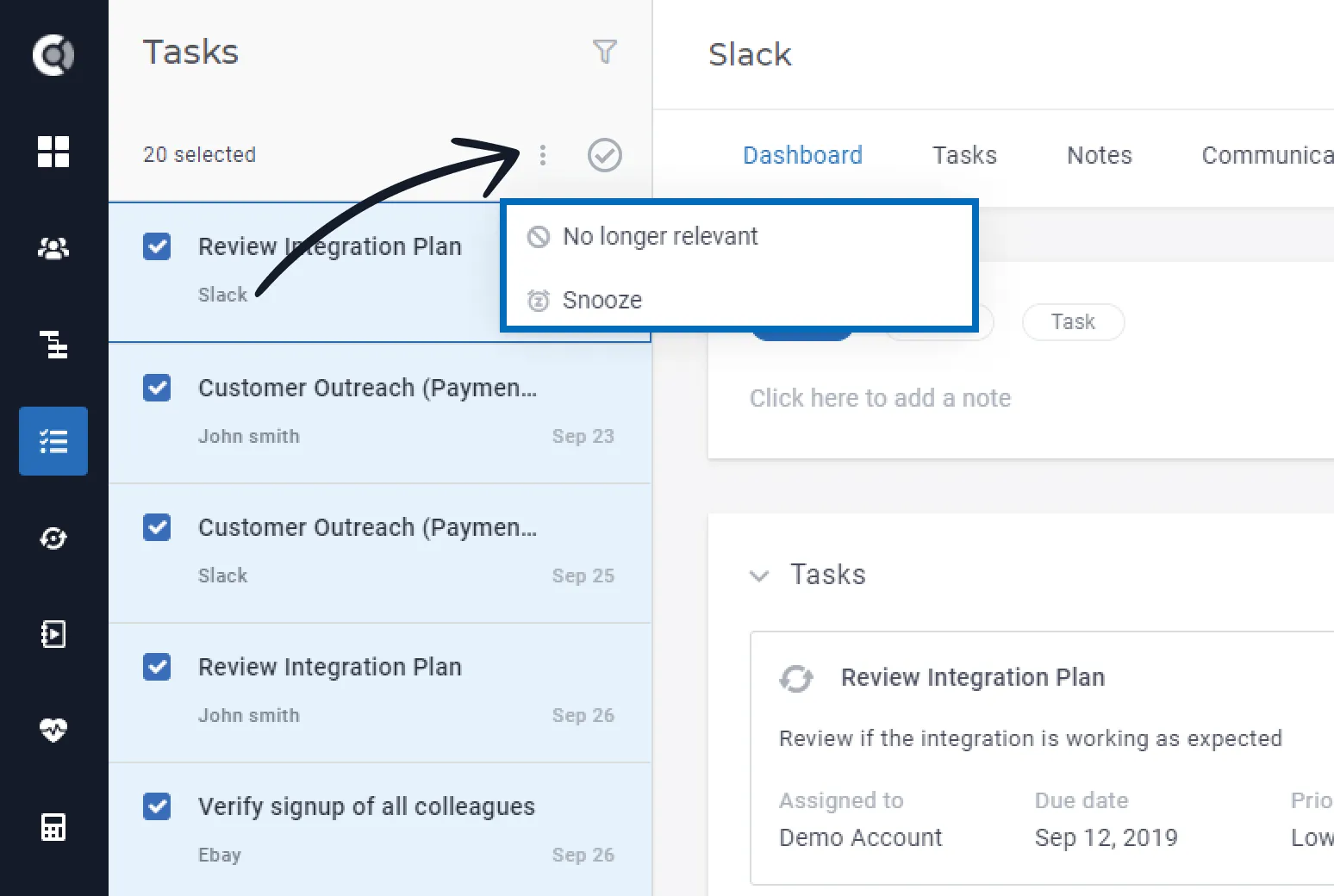
Select tasks and change their status to No longer relevant or Snooze them.
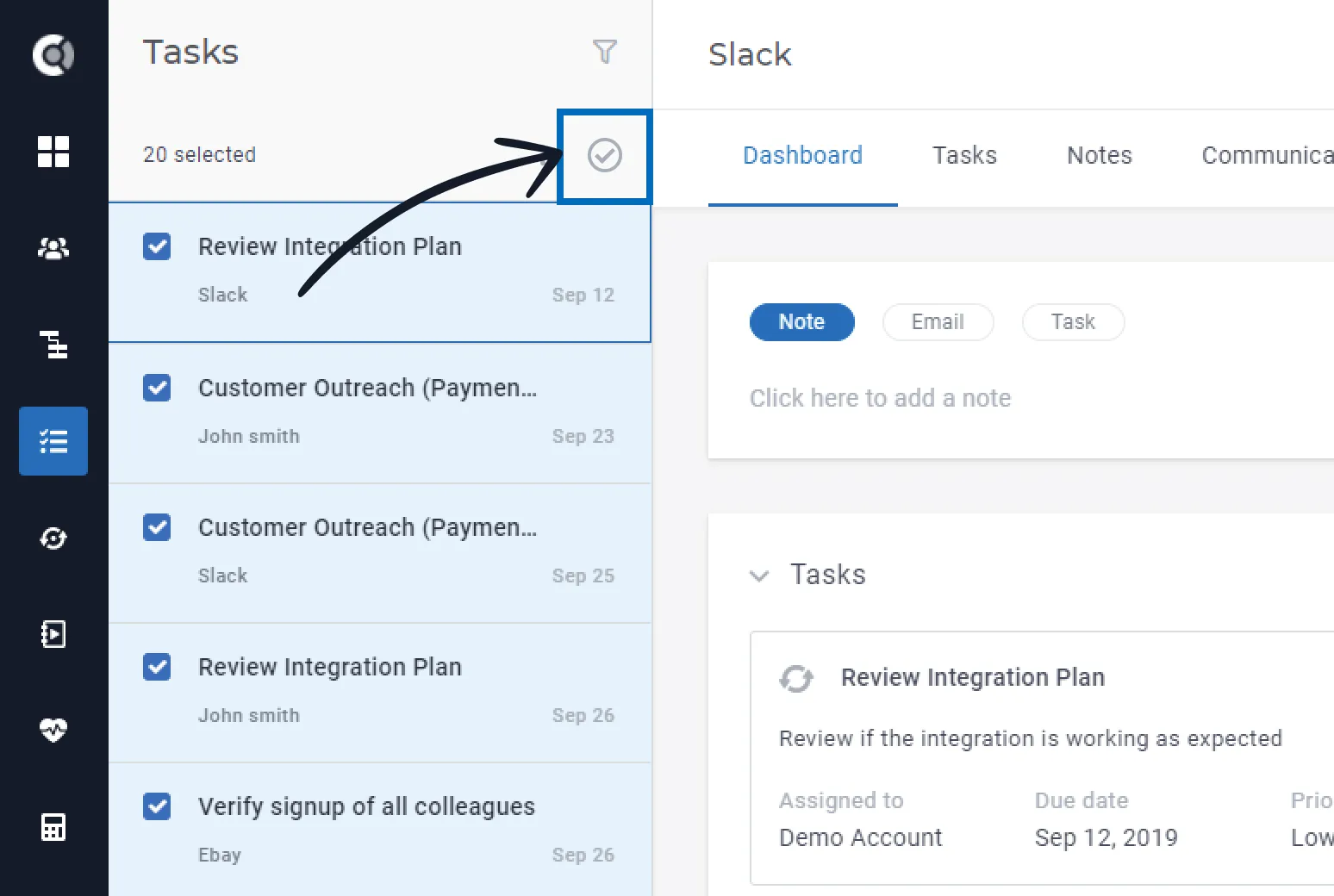
Select tasks and mark them as Done.
Newest completed tasks on top. In the Customer 360° Profile, the Tasks tab now sorts the completed and no-longer-relevant groups from newest to oldest (by completion date, descending). Open tasks continue to follow the existing rules - by due date type, then due date ascending, then creation date ascending.
Checklist items column in the Tasks table view. The Tasks menu's table view has a Checklist items column that shows a completed / total count (for example, 3/5) for each parent task. Click the count to open a modal with the full list of checklist items, their due dates, and their status. You can check or uncheck items directly from the modal if you have edit rights on the task.
Sort by company attributes. The Tasks module lets you sort the table view by any company attribute - for example, Renewal date, Plan, or any custom attribute defined on the company. Add the attribute as a column from the column picker, then click the column header to sort. Sorting works for both standard and custom attributes.
Substatuses
Track Task Progress More Precisely with Task Substatuses
Sometimes "In Progress" just isn't specific enough. Is the task moving forward, or is it stuck waiting on a customer reply? That's where Task Substatuses come in.
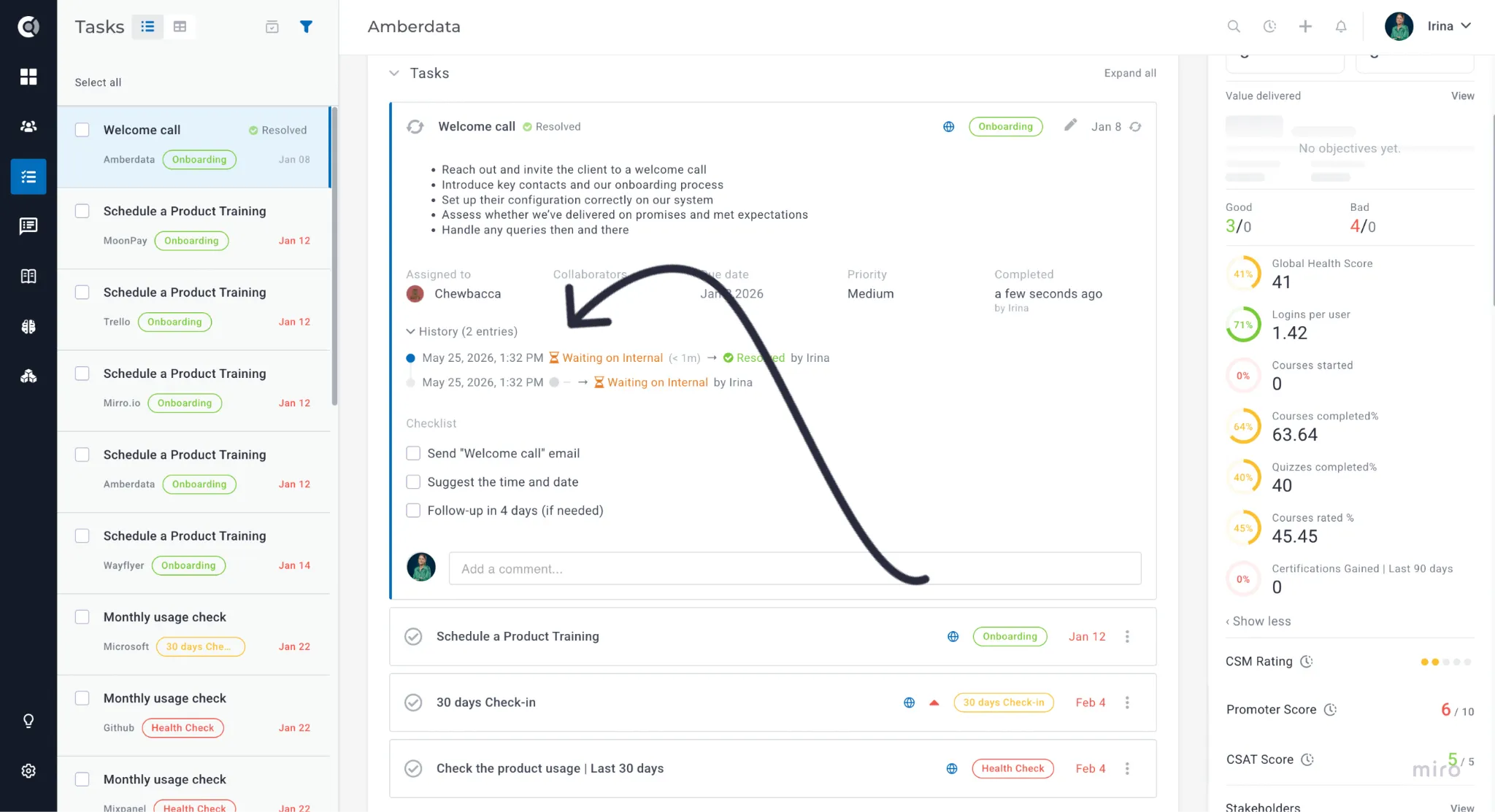
Substatuses let you add a second layer of detail beneath each main task status — Open, Done, and No Longer Relevant. Instead of a single broad label, your team can see exactly where a task stands: Waiting on Customer, Blocked, Verified, or Won't Fix, to name a few examples.
Setting them up
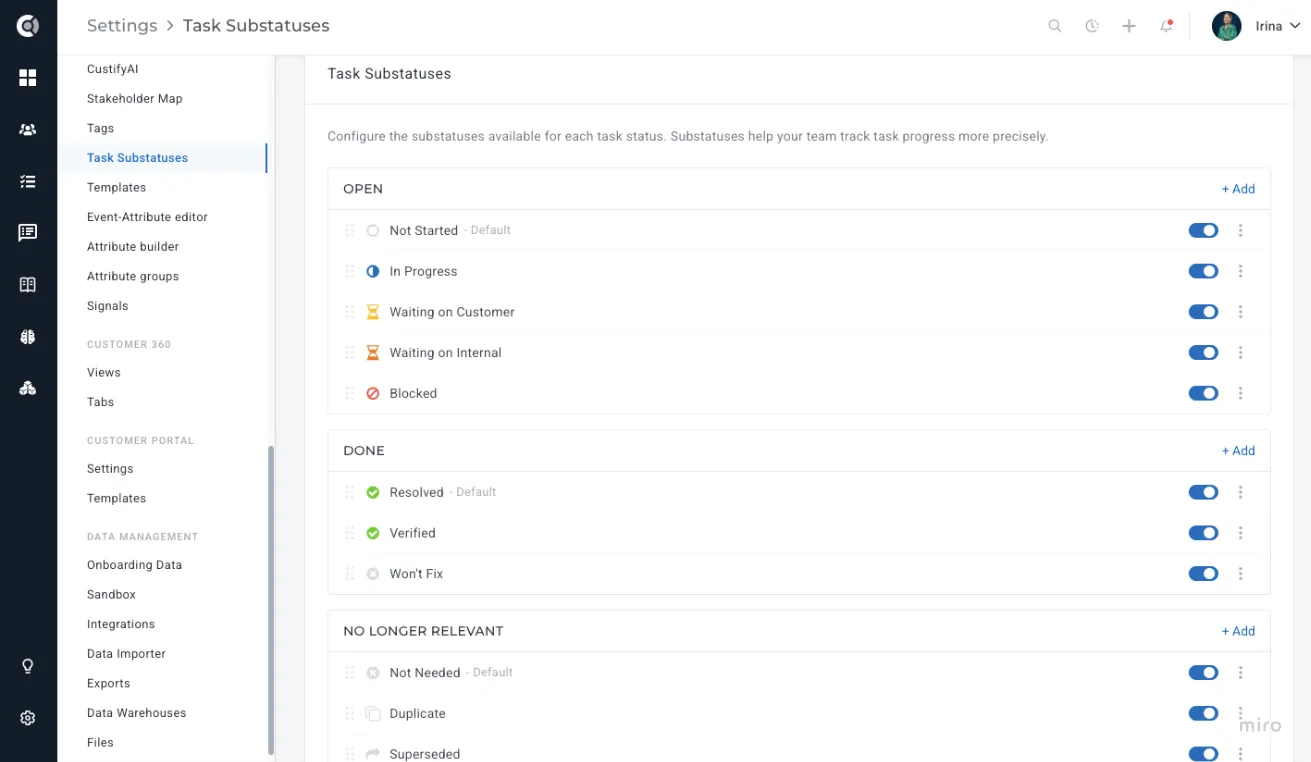
You'll find Task Substatuses under Settings → Task Substatuses. Each main status has its own group, and you can add as many substatuses as your workflow needs. Every group comes with a default substatus — the one that's automatically applied when a task moves into that status — and you can toggle individual substatuses on or off without deleting them.
Using them day-to-day
On any task, a quick click of the three-dot menu lets you mark the current substatus. The active substatus appears right on the task card in your list view, so you can scan your queue and immediately spot what's waiting, what's blocked, and what's done-and-verified — without opening each task individually.
Time-to-resolution metrics
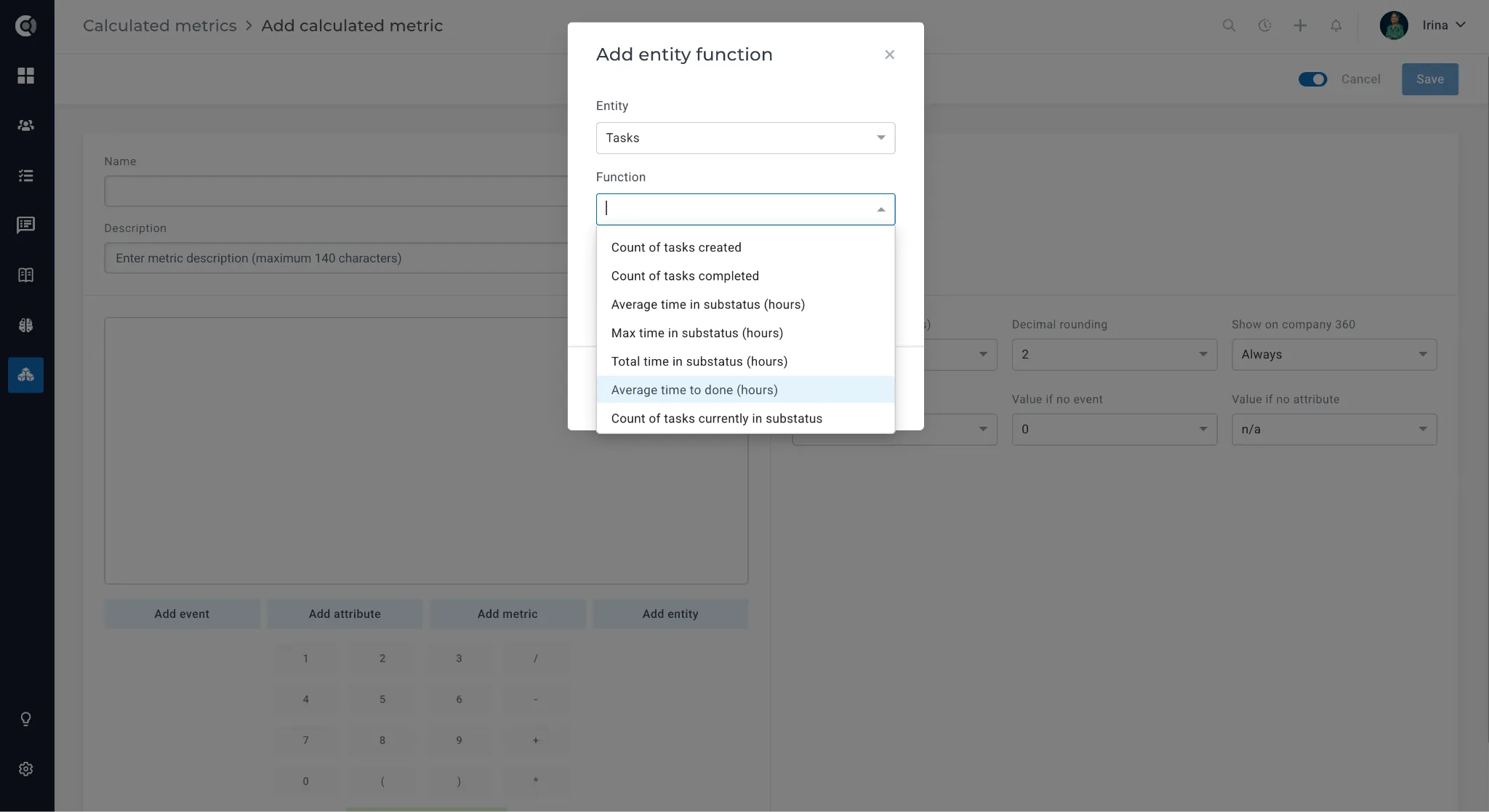
In the Calculated Metrics builder, the Tasks entity now offers four new time-based functions and one count function:
- Average time to done (hours): the average number of hours it takes to complete a task, across all tasks completed in the selected time interval.
- Average time in substatus (hours): the average time tasks spend in a specific substatus you select.
- Maximum time in substatus (hours): the longest time any single task has spent in the selected substatus - useful for surfacing outliers.
- Total time in substatus (hours): the summed hours across all tasks in the selected substatus.
- Count of tasks currently in substatus: a point-in-time snapshot of how many tasks are in the selected substatus right now (no time interval).