Approval Flow & When to Use it
What Is Approval Flow?
The Approval Flow (part of the Touchpoints module) gives you more control over the emails you send from Custify, either automatically or manually.
The Approval Flow can be set up when sending an email, no matter if you choose to send it:
- Manually to multiple users or companies, by accessing the Customer List View, selecting multiple entities, clicking on Actions, and selecting Send email.
Custify Tip: Learn more about Sending Bulk Emails
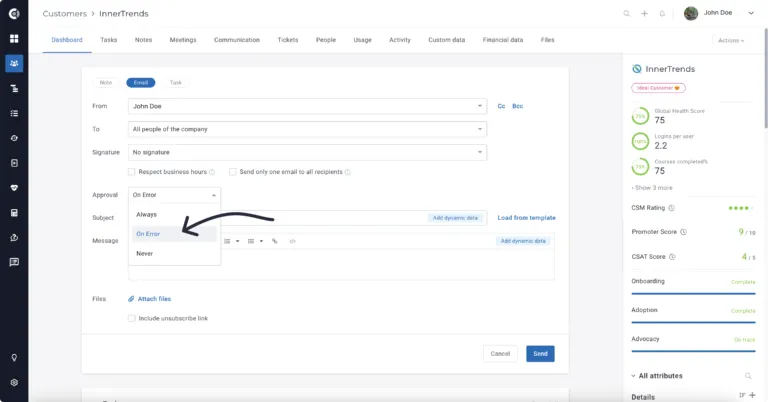
Once you select your preferred option for sending the email, in the email window you will see the Approval section.
Approval Flow Settings
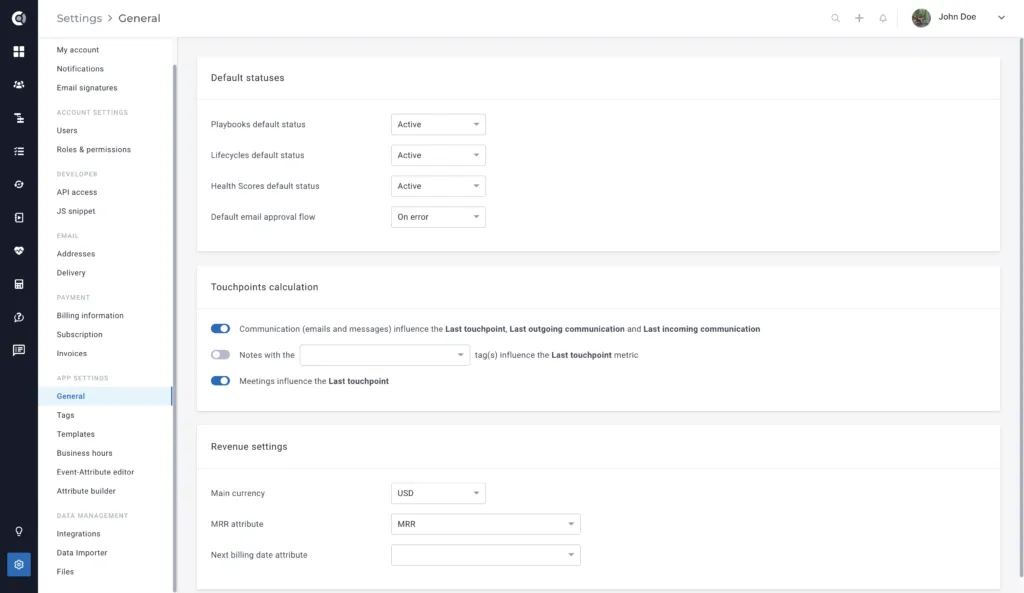
By default, the Approval Flow is set to On Error.
You can adjust the default Approval Flow by accessing the Settings section of the platform, then General and Default statuses.
However, the following three Approval Flow options are available.
On Error
If you use dynamic data in the subject/text of the email, and this dynamic data is empty for a particular entity, this would result in an error (“n/a” would then appear in the email itself).
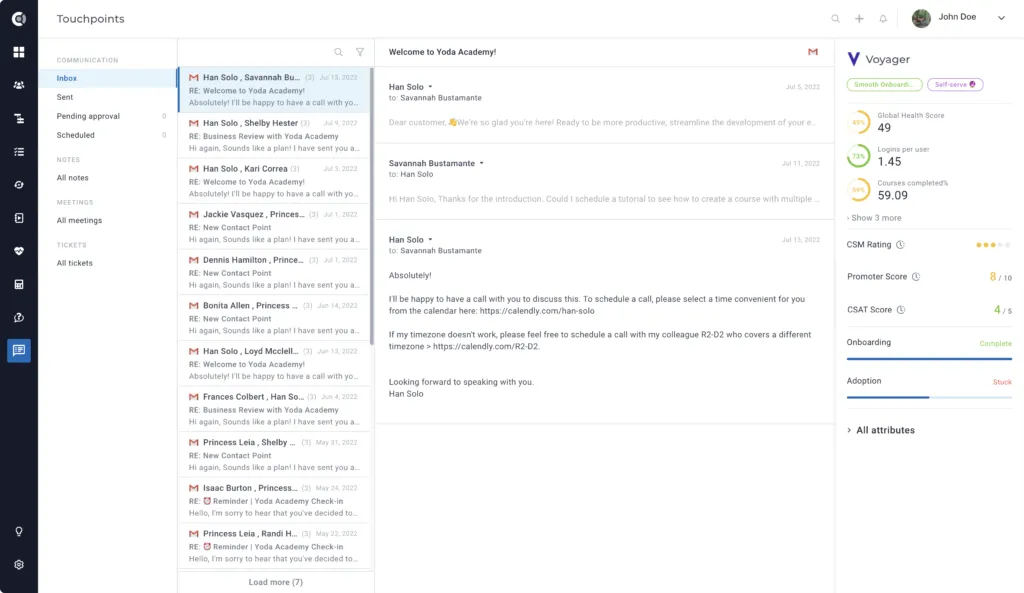
If you select On error, the email will not be sent from Custify but will remain in the Pending Approval box in the Touchpoints menu. Therefore, you get the chance to review the email, rephrase it, and add the missing information before sending it. You can also choose to simply delete the email.
This is the recommended setting that can help you avoid sending incomplete emails or emails with missing information.
Always
If you select Always in the Approval Flow, no emails will be sent from Custify until you approve them in the Pending Approval box.
Always is the best option if you send very sensitive emails to your customers and want to review each email before sending it, or if you want to add a personal note to each email sent via automations.
These use cases include:
- Sending email notifications about due invoices
- Sending contract renewal emails
- Sending personalized information to each customer
Never
Select Never when you want to send the email without further checks. This setting is useful if you send a large number of emails to your customers, and these emails do not require any additional review (e.g. the emails do not contain dynamic data or personalized information).