Sending Bulk Emails
If you want to send bulk emails to your customers, either manually at a specific time or automatically when a specific action takes place, there are a few ways to accomplish this in Custify.
Sending Emails Manually
You can send emails manually from the Customer List View, using Filters to find the specific customers you want to email.
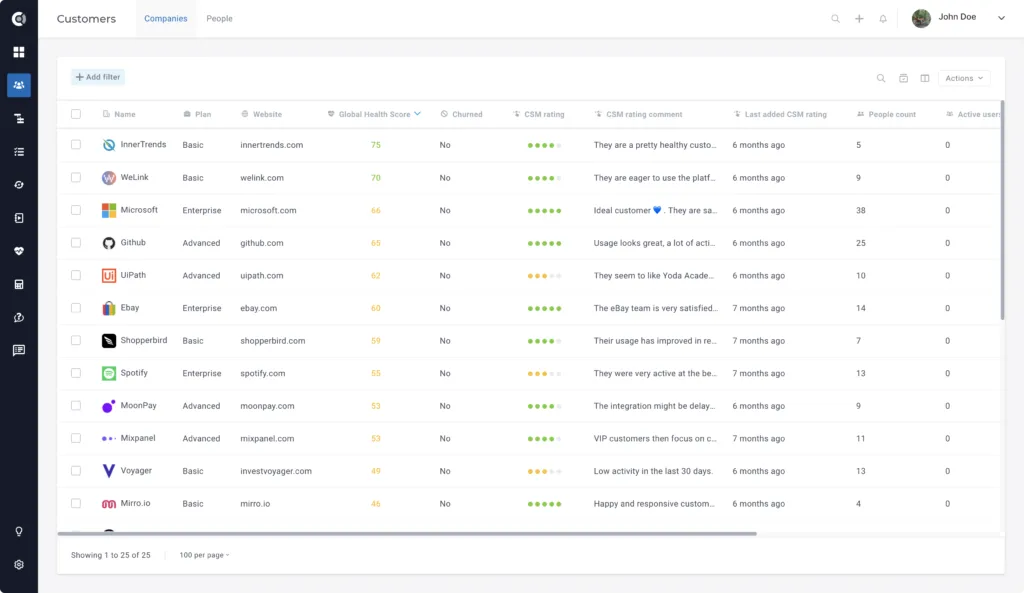
Once you’ve found your recipients, Select the customers you want to email, click on Actions, and select Send email.
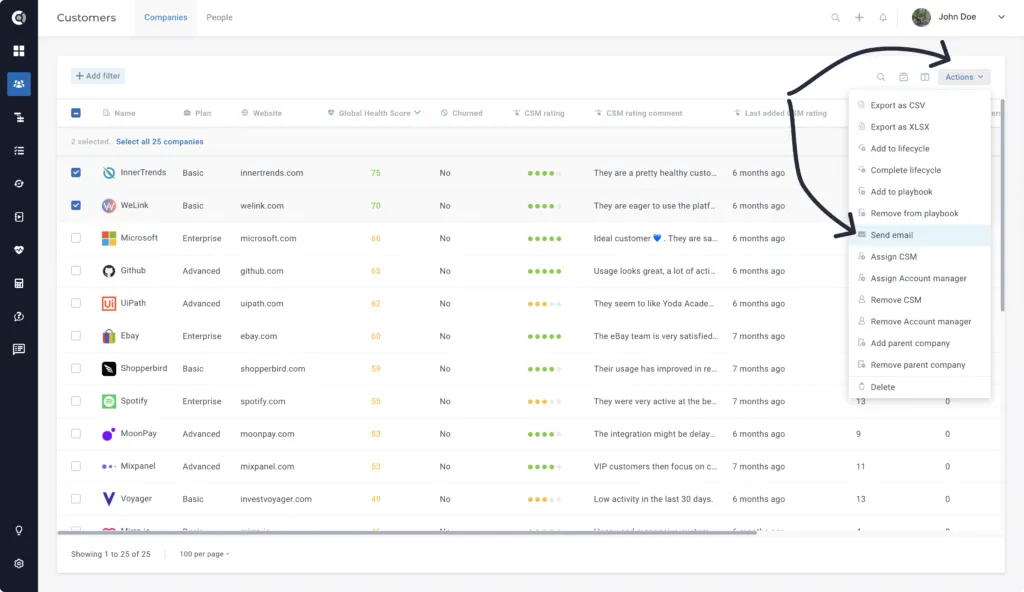
In the email window, configure how you want to send the email:
- From: You can choose the sender’s email address
- To: You can choose the following options:
- All people of the company ➡️ the email will be sent to every person assigned to the company in Custify
- People in a particular Segment ➡️ you need to pre-define the Segment (e.g.: users that signed up more than 30 days ago, status is Active, etc.)
- People with a particular tag ➡️ select the tag from the list
- Custom email address
- A particular person
- You can Upload a template (if that already exists in Custify)
- You can use Dynamic data from the people/company profiles (people/company attributes, metrics)
- Set up the Approval Flow for your emails:
- On error (default): in case a dynamic data syntax error is detected
- Always: all the emails
- Never: no emails
Once you click Send, the email will be sent out to the audience you selected.
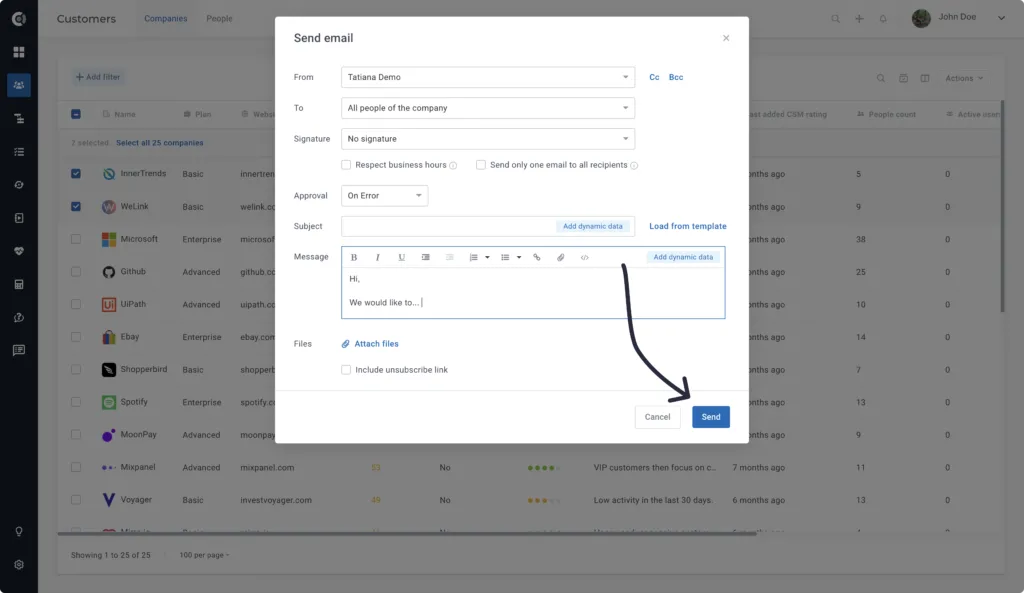
The unsubscribe link only appears if the email includes at least one recipient who exists as a person in Custify. If the email is sent only to a custom email address (not an existing Custify person), the unsubscribe link will not show up — even if the option is checked.
Sending Emails Through Playbooks
You can use People or Company Playbooks to send bulk emails.
If the trigger is dynamic and based on participation in a People/Company Segment, you must first define the Segment.
To create the Playbook, access the Playbooks menu and click New playbook.
Then, choose one of the following Start triggers:
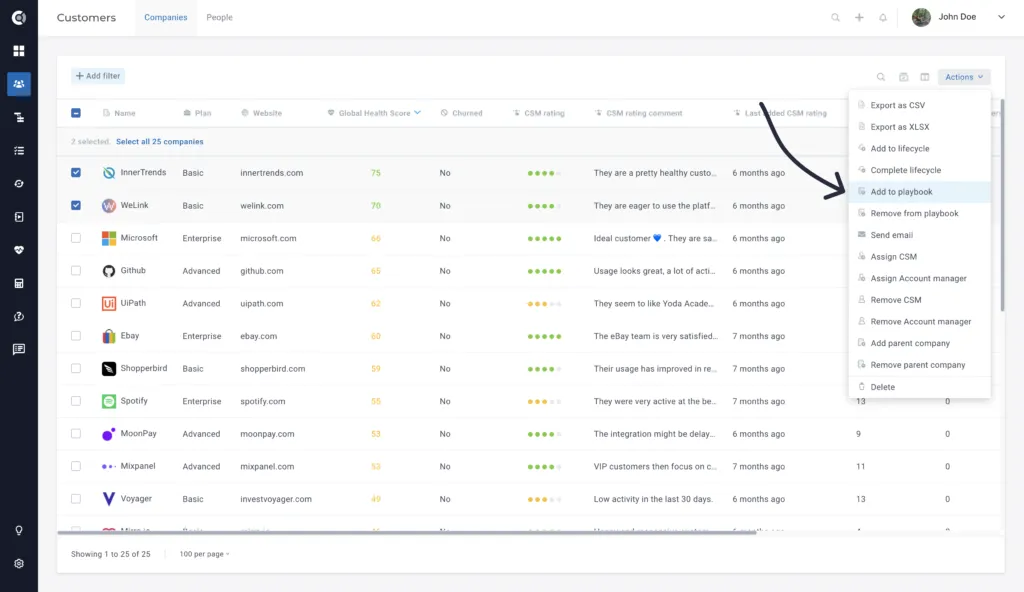
- Manually started: this allows you to choose the customers and the time when they should receive the email. You configure the Playbook steps, but you will manually decide the audience that will enter the Playbook. To manually add the customers to the Playbook, access the Customer List View, select the one you want to add to the Playbook, click Actions, then Add to playbook.
- Enters Segment — Emails when a customer enters a Segment you set.
- Leaves Segment — Emails when a customer leaves a Segment you set.
- Is in Segment — Emails all customers currently in a Segment, as well as every new customer joining the segment.
- Scheduled — Choose the time when the email will be sent, as well as the customer Segment which will receive the email.
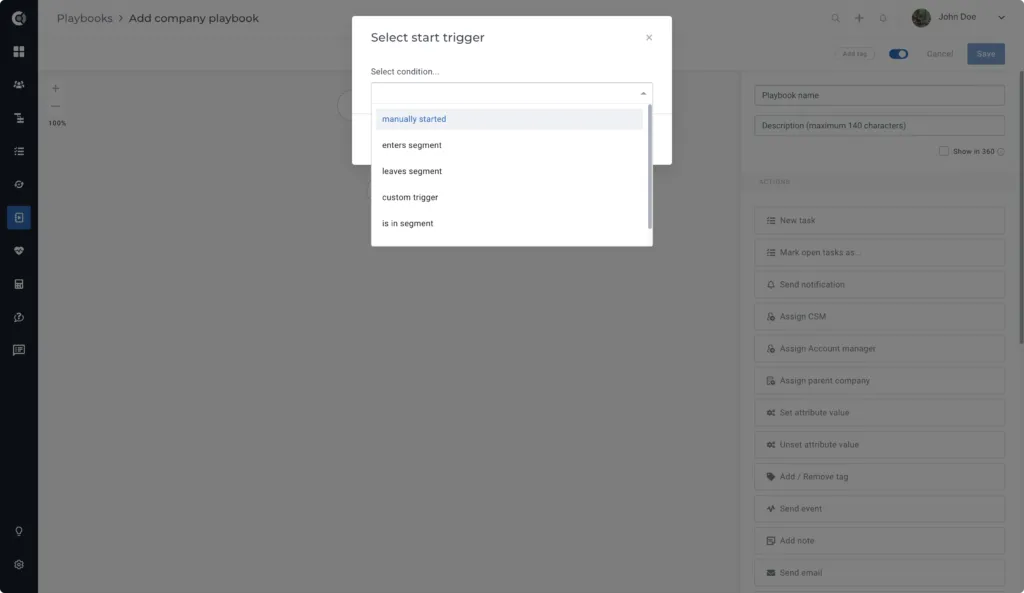
Once you have defined the start trigger for the Playbook, simply click the + button to add an action and select Send Email.

In the new email window, you need to define the email by choosing the From and To fields and configure the email content (you can load from a template, add dynamic data, etc).
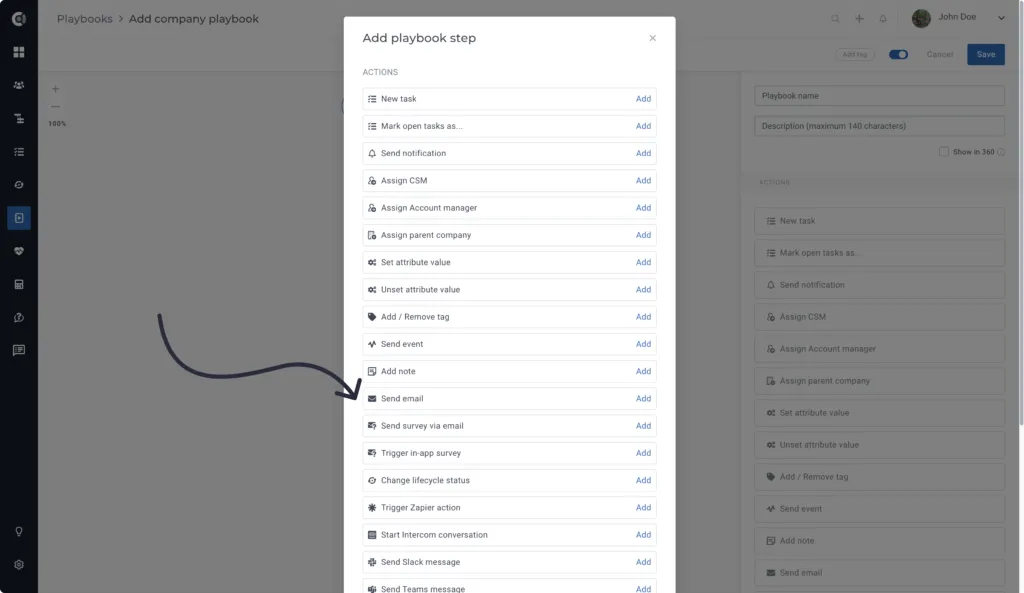
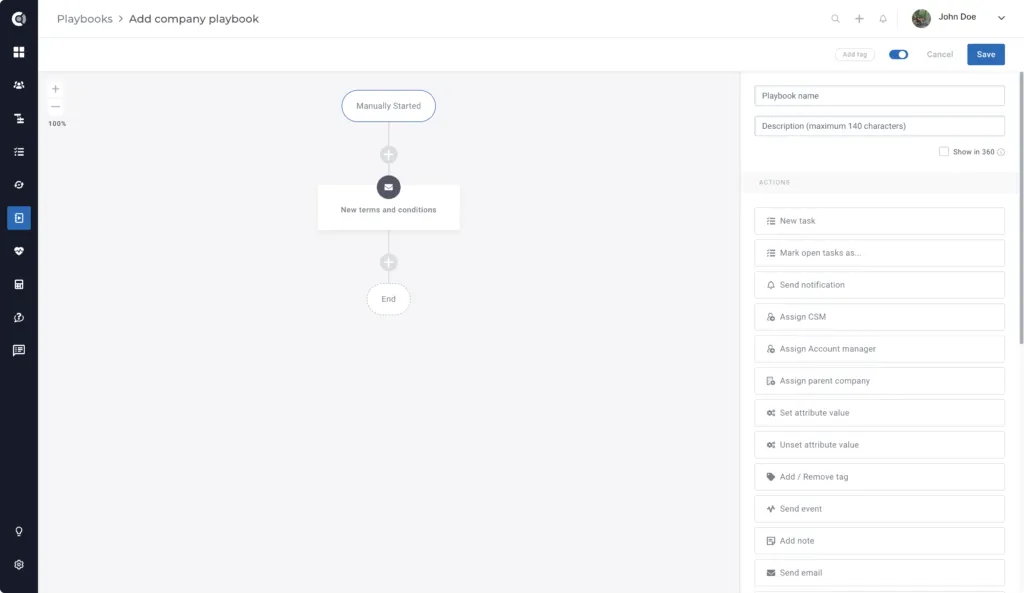
Once you have configured and saved the Playbook, it will send the emails according to the triggers and conditions you set.
Custify Tip: If you send emails through a Company Playbook and you have people that are assigned to multiple companies, they will receive one email for each company they are assigned to. If this is not the outcome you’re looking for, you can use People Playbooks.
Smart Content
Inside the email editor, any block of content can now be marked as conditional, so it only appears for recipients who match a rule you define. A single email adapts at send time based on the recipient's tags, attributes, or Segment membership, which removes the need to maintain separate emails or branching Playbook steps for different customer groups. Smart Content is available across manual emails, Playbook email steps, bulk emails, and reusable templates.
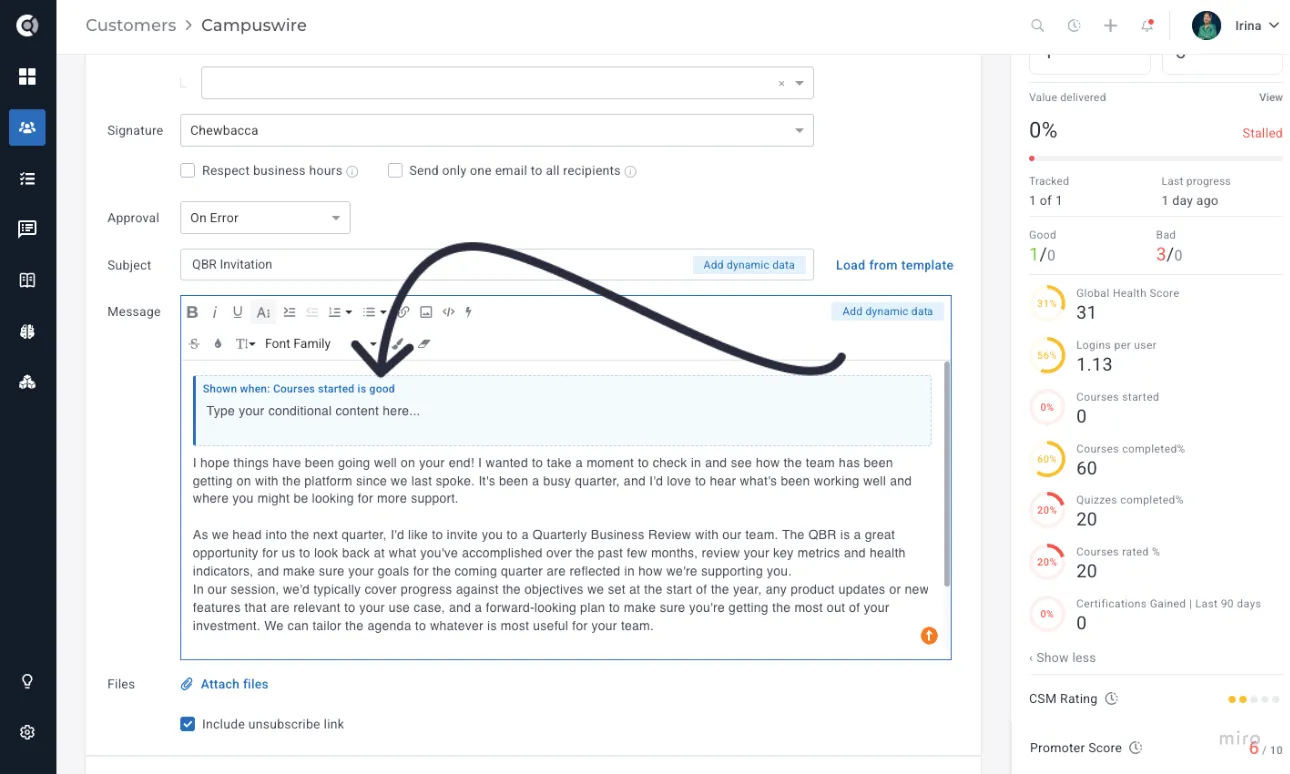
To make a block conditional, select the content you want to gate and click the Smart Content button (lightning bolt icon) in the editor toolbar. You can also right-click the selection and choose Make Conditional. The block is wrapped in a dashed-border indicator that shows the active condition at a glance, so you can scan an email and immediately see which sections are gated and which are static.
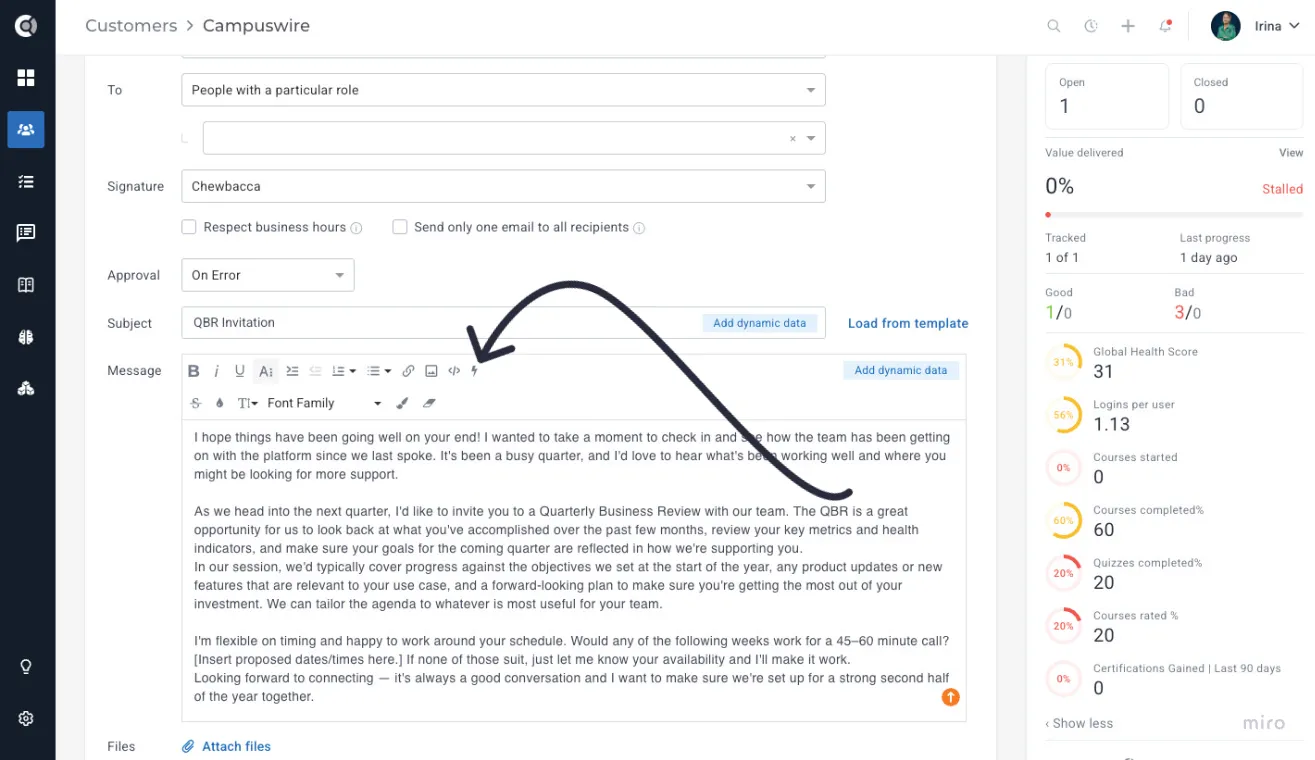
When you mark a block as conditional, the Condition Builder panel slides in from the right. You define when the block should appear by choosing one of three condition types:
• Tag: Show the block when the company or person has a specific tag.
• Attribute: Show the block based on a company or person attribute, using one of 17 operators (e.g., is, is not, contains, greater than, less than).
• Segment membership: Show the block when the recipient is in (or is not in) a specific Segment.
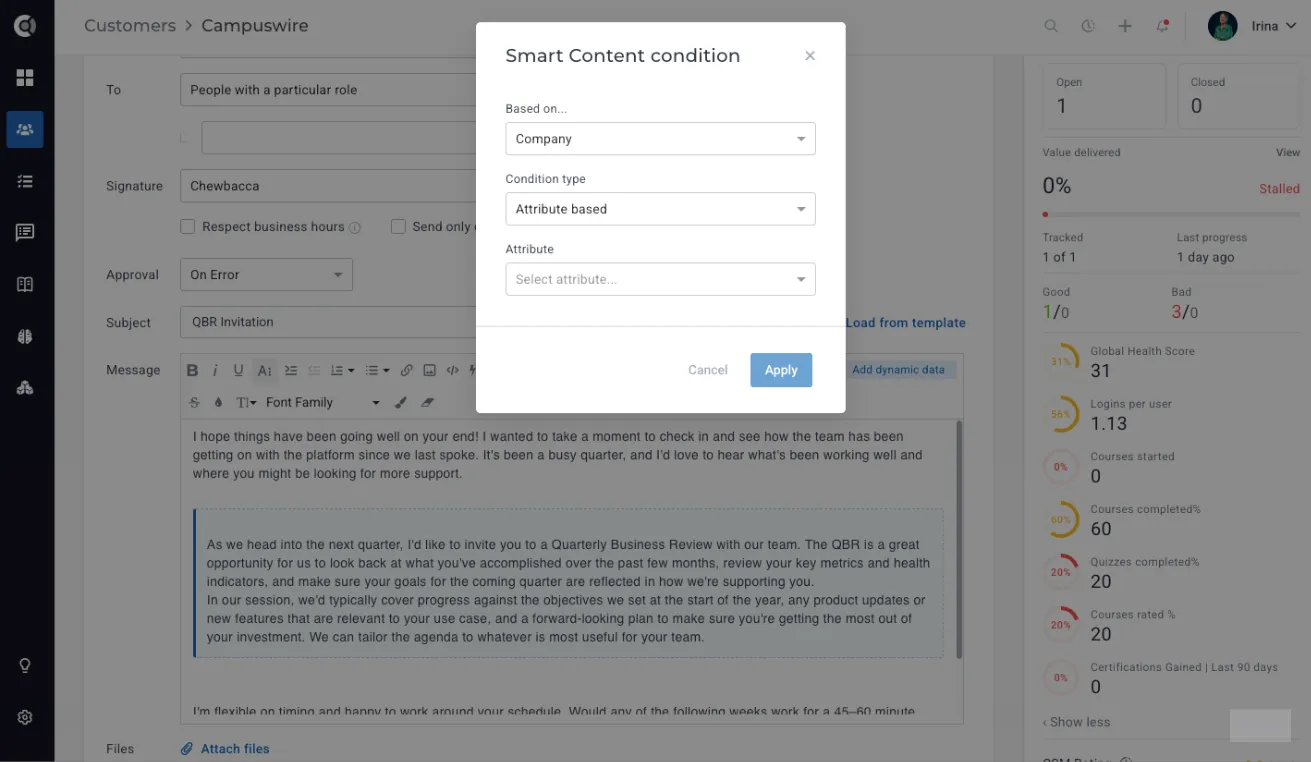
A typical rule looks like Show when Plan is Enterprise or Show when Company has tag at-risk. You can edit a condition at any time by hovering the block and clicking the pencil icon, or remove the condition (×) to convert the block back into regular static content. Copy-pasting a conditional block creates an independent copy that carries its own condition, so you can branch the rule for similar paragraphs without affecting the original.
To verify how an email will render before sending, use the Recipient Preview bar at the bottom of the editor. Pick a customer and the editor switches to a read-only preview where each conditional block is labelled either SHOWN (green) or HIDDEN (gray) for that recipient based on their actual data.
Custify Tip: Conditional blocks are evaluated server-side at send time. Recipients receive clean, static HTML — there is no trace of the conditional logic in the delivered email, and merge fields inside hidden blocks are never processed, so missing-data warnings will not appear for excluded content.
Where Are My Emails Mapped?
The emails you send will be visible in different places:
- Customer 360° Profile - Dashboard/Communication tab: The emails sent from Custify also carry the eye icon that you can click on to get details on the number of email views/clicks.
- Customer 360 Profile – Activity tab: You will be able to see when the email was sent out, as well as when the email was opened by each user.
- Touchpoints - Sent section
- Email Playbook: When clicking on the email, you will be able to see statistics on the number of emails sent out, % of emails opened, % of clicks, and % of bounced emails.
Email Communication Flows
If you want to build more complex communication flows, there are a lot of options you could use inside the Playbooks:
- If you plan to send a series of emails to your customers every X days, add Waiting periods between emails in a Playbook (e.g., add a 14-day waiting period between emails if you plan to send emails to your customers every 2 weeks) so you don’t have to create a separate Playbook for each individual email.
- Send reminders to the clients that did not reply to your initial email, using the Reply detection feature within the conditions.
- Use the Reply detection feature to set up tasks for your CS team to reach out on a different channel if the client does not reply to the email within a certain period of time (works for sensitive topics, such as renewals, due invoices, etc.).
Add a wait time in the Playbook for the customer to respond to your email if you need to receive any type of communication from them before the next actions in the Playbook are triggered.