Calculated Metrics
A powerful tool that allows you to build custom metrics using the data you are sending.
Getting Started with Calculated Metrics
In Custify, you can use Calculated Metrics to create custom metrics based on the data you send (API, integrations, or manually added).
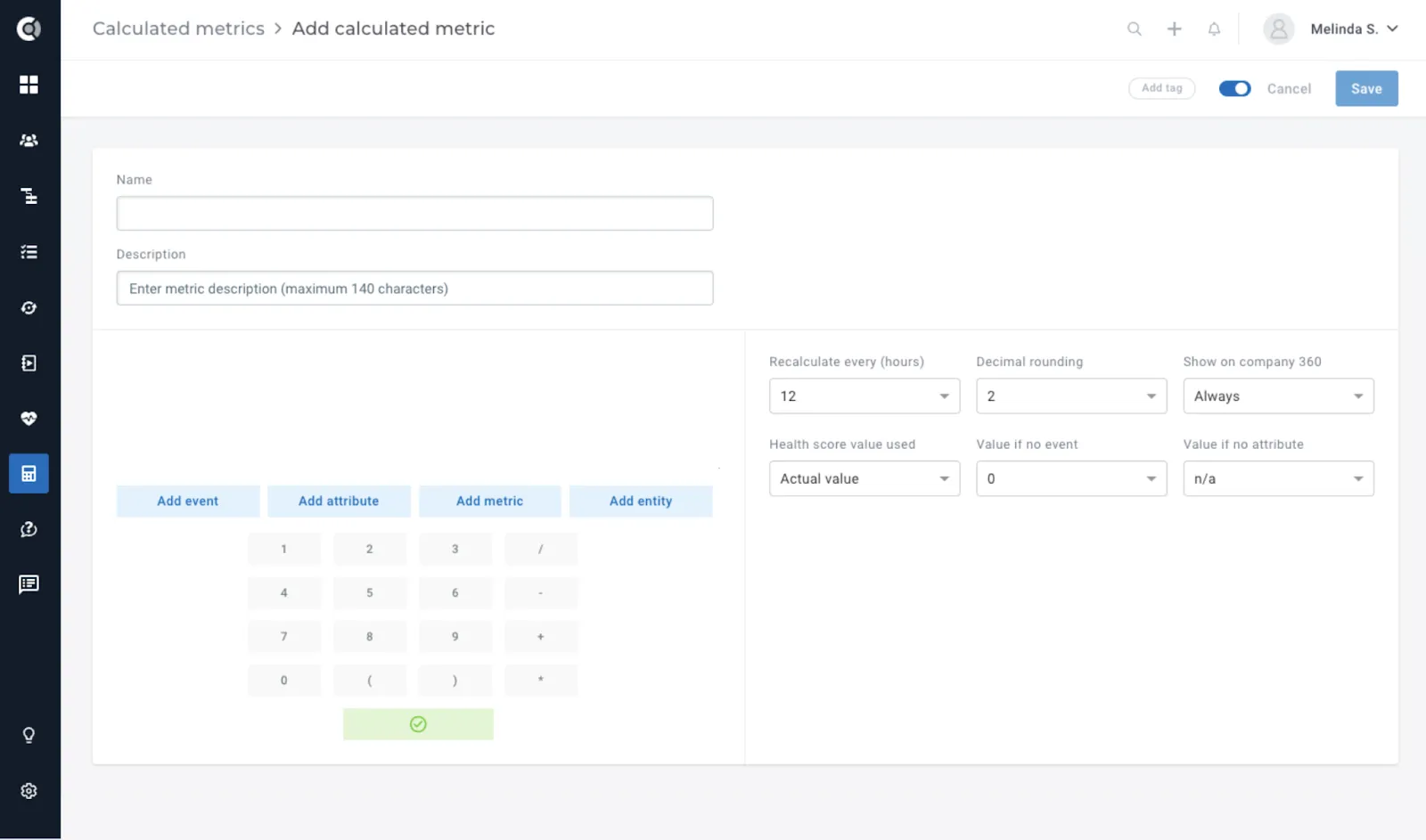
Use the familiar calculator interface to create formulas that are then stored in metrics. Then, you can use them in Segments, Dashboards, when creating Health Scores, or display them in the Customer List View to track valuable scores.
Defining Calculated Metrics
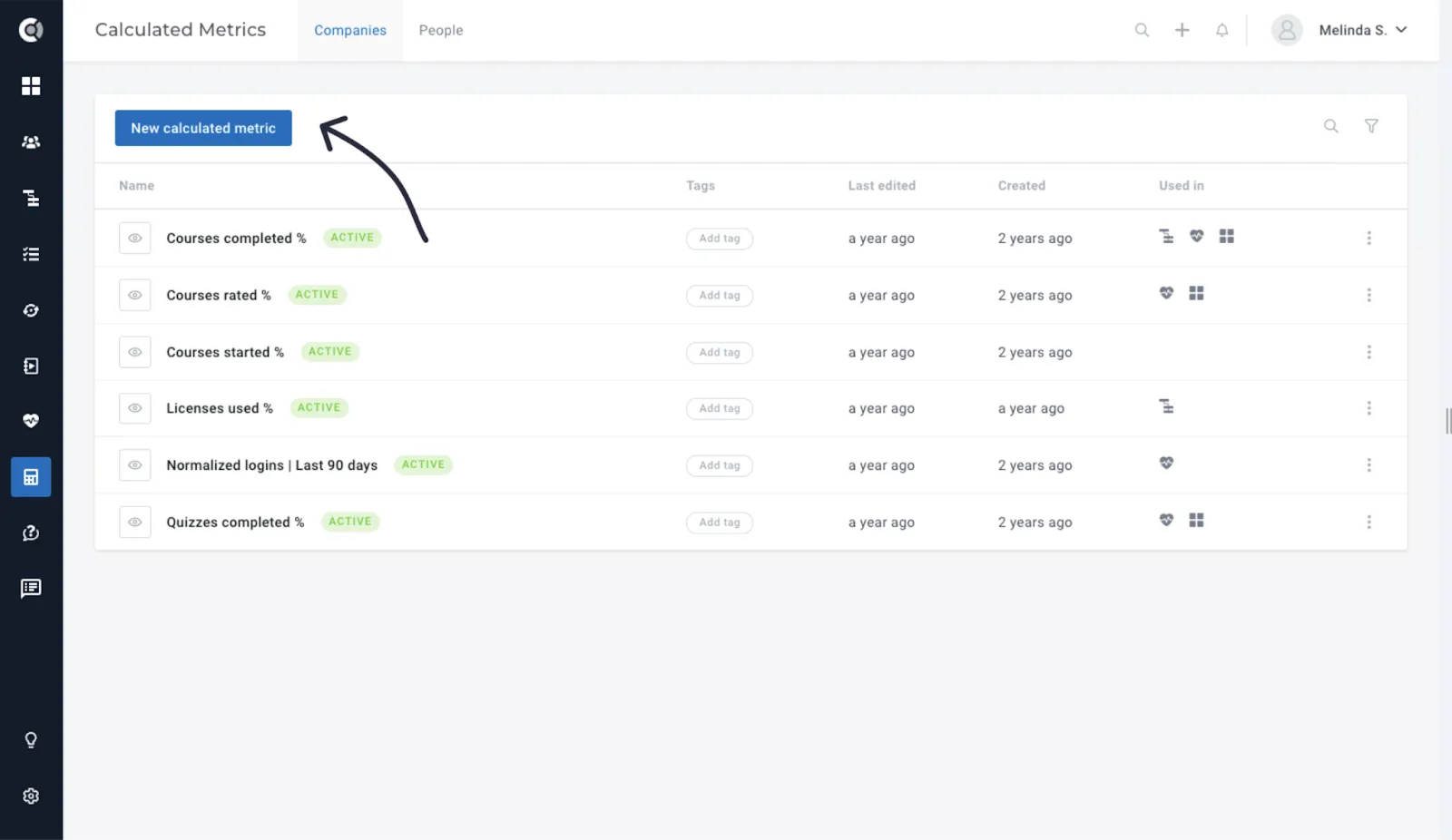
To create a Calculated Metric, simply navigate to the Calculated Metrics tile in the main menu and click on New calculated metric. You can choose between Company Metrics and People Metrics, by navigating to the corresponding tab on top of the page.
Company Metrics
The metrics for companies can be obtained based on the functions described below.
Add Event
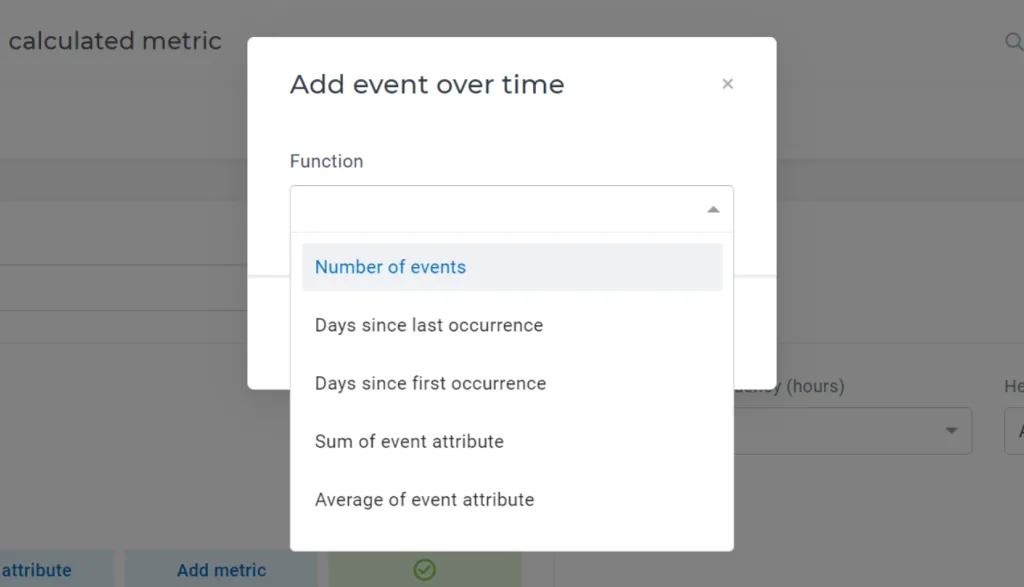
Using Calculated Metrics, you can create formulas based on the number of events sent in a specific period of time, the metadata attached to the event, the unique users who generated an event or days since first/last occurrence.
Available functions:
- Count the total number of events
- Return the number of days since the first/last event occurrence
- Calculate the average/sum/maximum/minimum/last value/count of unique values of an event attribute (metadata)
- Count the number of people who triggered the event
- Time in product (if tracked)
Custify Tip: You can only use numerical metadata values in calculated metrics.
🎯Use Case Ideas
- Usage Monitoring and Alerting: Monitor and count the number of login events generated by a customer within the last 30 days. Automatically trigger an alert or email notification when a customer’s login count falls below a specified threshold (e.g., only 5 logins in the past month).
- Customer Engagement Tracking: Calculate the number of days since the last login event was performed by a customer. If this metric exceeds a predefined threshold (e.g., more than 14 days since the last login), automatically trigger a task for the Customer Success team to reach out to the customer.
- Team Engagement Assessment: Determine the ratio of unique people who generated a specific event within the last 30 days to the total number of people associated with the company. If this ratio falls below 1, trigger a notification for the Customer Success Manager (CSM) to initiate discussions regarding low team engagement with the company.
- Product Usage Health Score: Calculate the total time spent by users in the product within the last 30 days. Translate this data into a Health Score, providing insights into customer engagement and product utilization over time.
You can also calculate all of the above only for events that meet specific criteria. For this, you will filter by event metadata or by people segments. Select the function and the events you want to use, then select Filter and choose the right filters for your setup.
Custify Tip: You can filter by metadata with the following types: numerical and string.
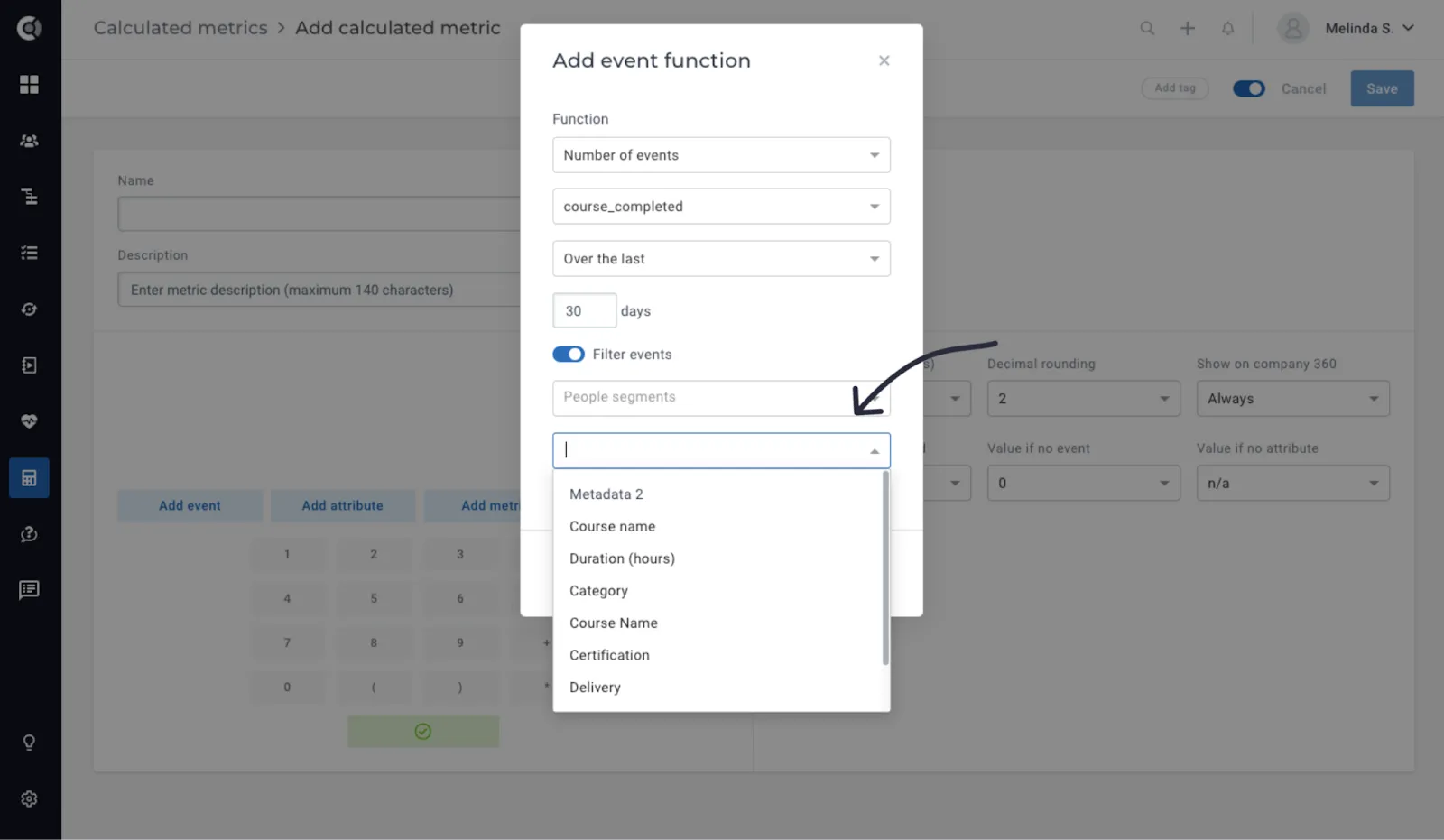
Custify Tip: When filtering by people segments on the event functions, only events triggered by people in those segments will be considered.
Add Attribute
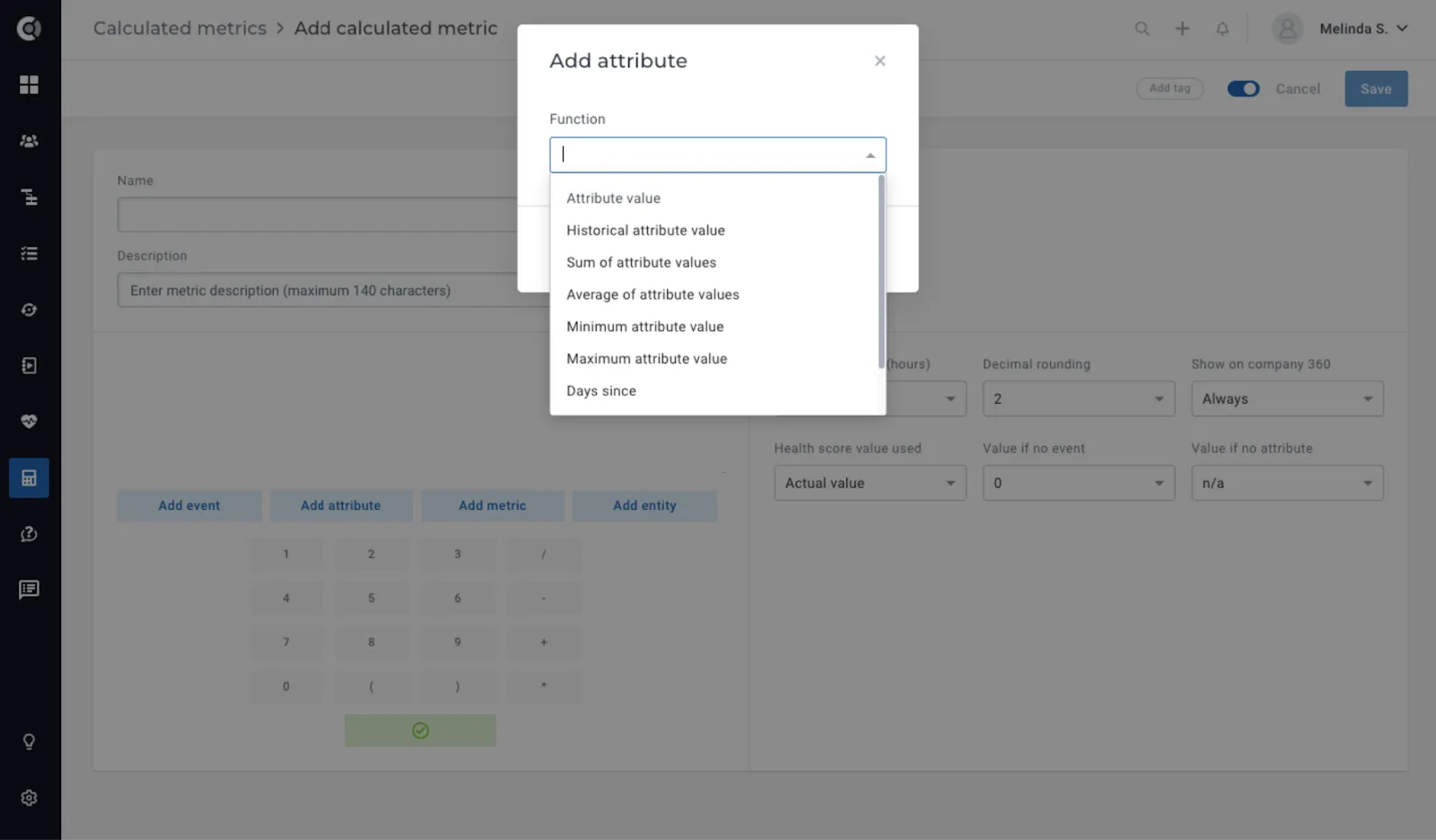
Create formulas using attributes’ values. The available functions are:
- Return the current attribute value and use it in the formula
- Access the historical value of the attribute
- Calculate sum/average/minimum/maximum of the attribute values from the previous X days
- Calculate the Days since and Days until for data type attributes.
Use case Ideas
- Track Attribute Evolution: Subtract the value of an attribute from X days ago from its current value to gauge its evolution over time. For instance, calculate the change in the number of projects customers have created in the last 30 days. Utilize this metric in health scores and segments, such as determining the total number of projects created now compared to 30 days ago.
- Customer Lifecycle Analysis: Determine the number of days since customers signed up or the remaining days until their renewal. This information provides insights into customer engagement and helps in tailoring retention strategies accordingly.
- Ticket Management Optimization: Calculate the maximum value of the attribute “open tickets” to understand the peak workload periods. Utilize this data point in health scores to assess customer support efficiency and prioritize actions accordingly.
Add Metric
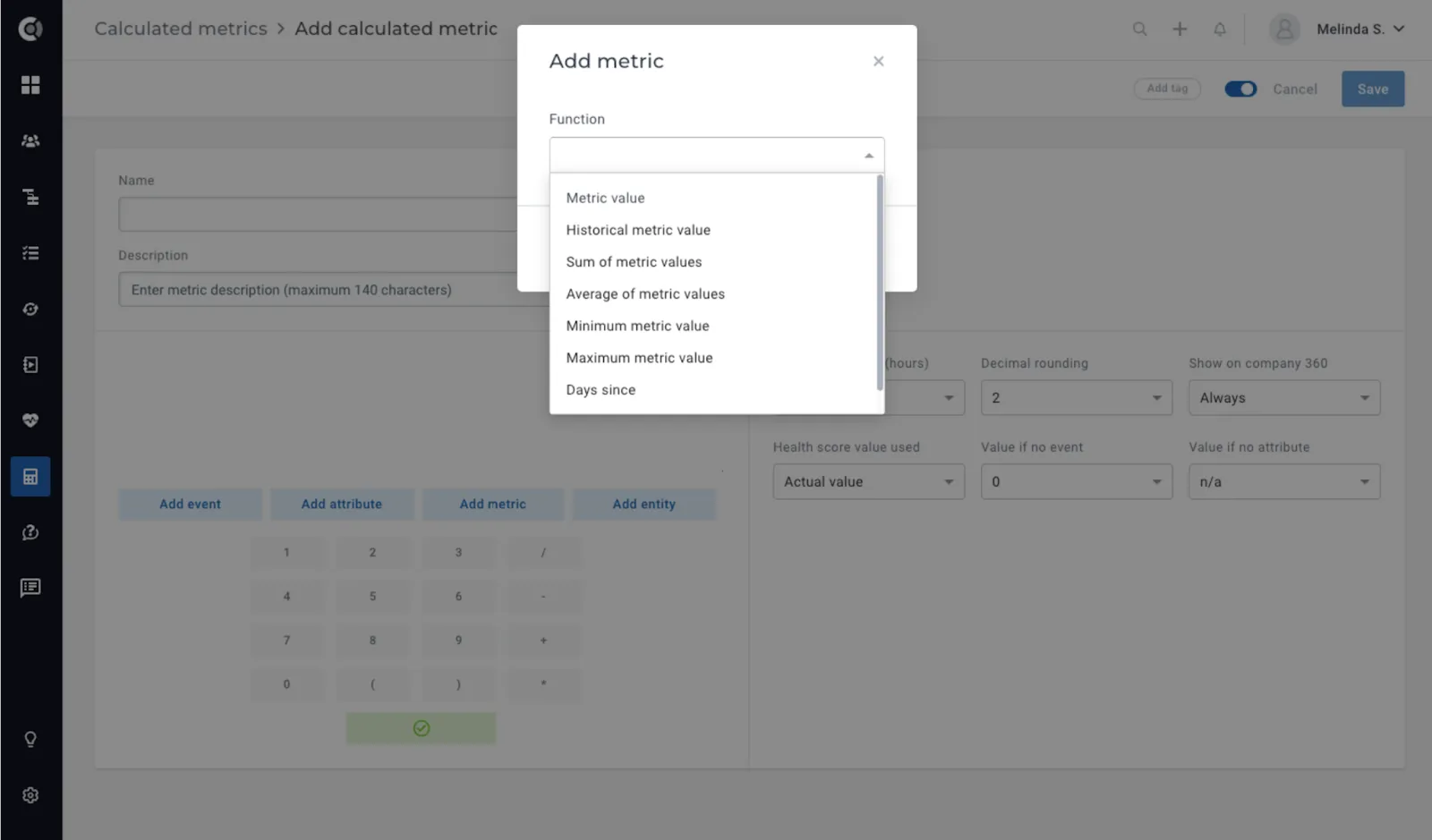
Enrich your formulas by using metric values. Metrics can be the default Custify ones, other Calculated Metrics that you defined already, or Health Scores that you’ve built.
Available functions:
- Return the current metric value and use it in the formula
- Access the historical value of the metric
- Calculate sum/average/minimum/maximum of the metric values from the previous X days
- Calculate the Days since and Days until for data type metrics.
Use Case Ideas
- Product Usage Assessment: Calculate the average value of the metric active users yesterday to gauge the level of product usage. This provides insights into the daily engagement of users with the product.
- Customer Engagement Monitoring: Determine the number of days since the last Touchpoint and utilize this metric to assess customer engagement. Incorporate this metric into a Health Score or set it as a trigger point for an alert. For instance, if the metric value exceeds 45 days, initiate a Playbook to notify Customer Success Managers (CSMs) to proactively reach out to the client.
- Health Score Evolution Analysis: Assess the evolution of the Global Health Score by subtracting its value from 14 days ago from the current value. If the trend indicates a negative change, automate the process by building a Playbook to notify CSMs, prompting them to reach out to the client for proactive intervention and support.
Add Entity
Build new Company metrics based on People attributes, Child Company attributes, or other entities, such as Notes, Tasks, Communication, and Tickets.
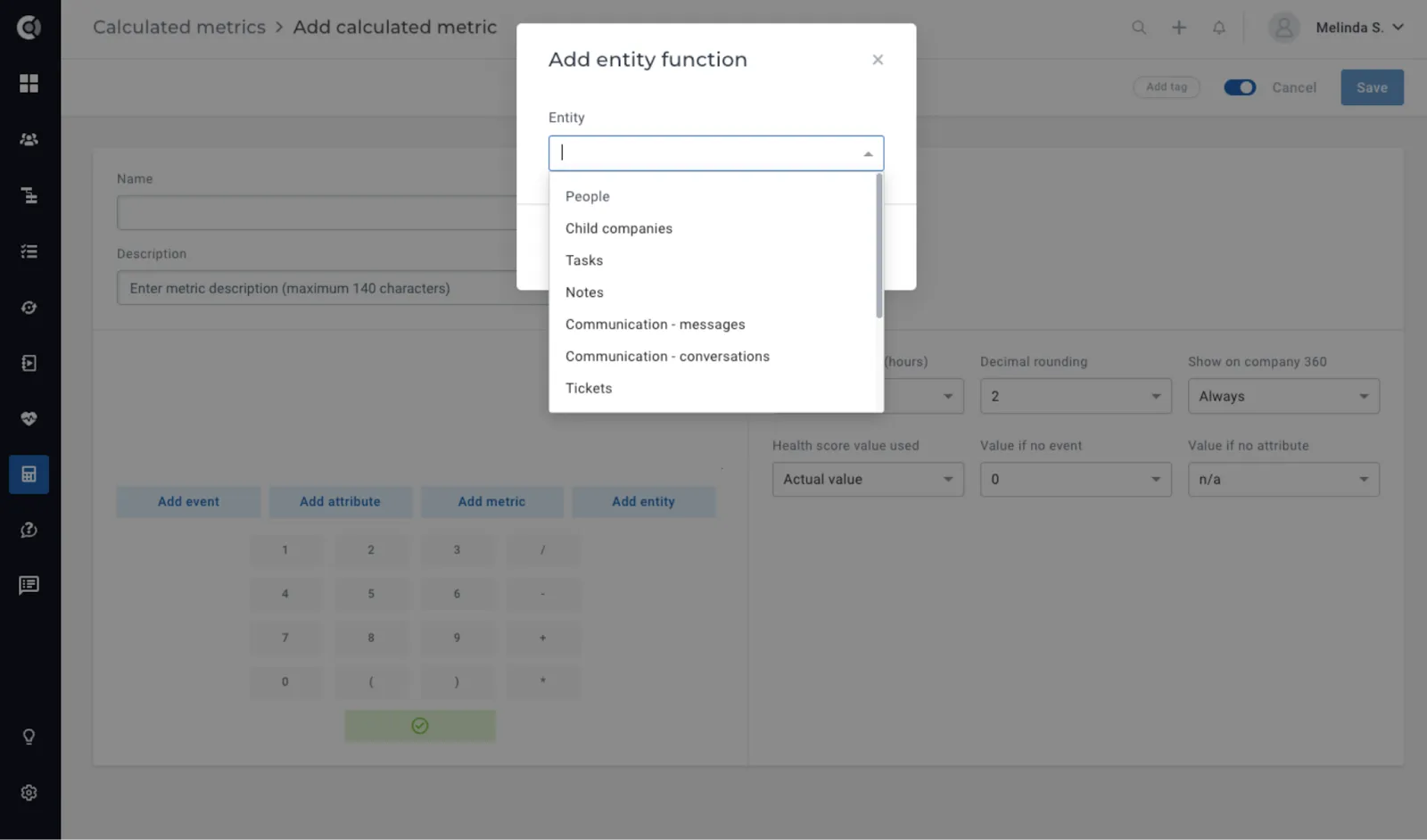
All the available entities are listed and explained below.
People
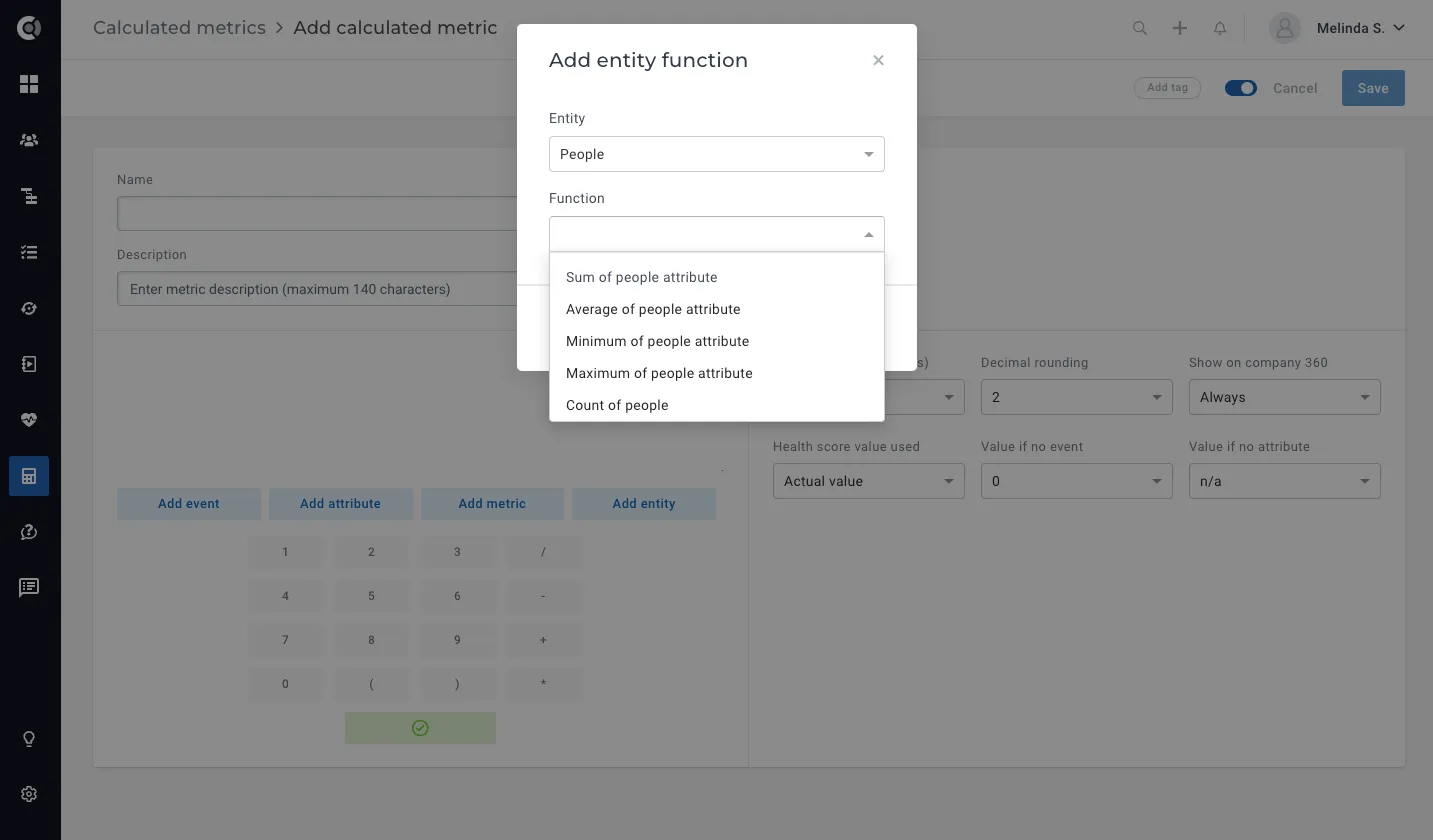
Available functions:
- Sum/average/minimum/maximum of people attribute
- Count of people
For all of the above, you can filter the people by segments they are part of or by tags.
Count the number of People with the tag primary contact under each Company. Filter by companies that have 0 people and make sure you update the tags, so each Company would have at least one primary contact.
Available functions:
- Sum/average/minimum/maximum of child companies attribute
- Count of child companies
For all of the above, you can filter the child companies by segments they are part of or by tags.
Use Case Ideas
Aggregate the active projects attribute values for all Child Companies under the Parent Company. Calculate the sum of these values to obtain the total number of active projects associated with the Parent Company.
This provides a comprehensive overview of project activity across all subsidiaries, aiding in strategic decision-making and resource allocation at the Parent Company level.
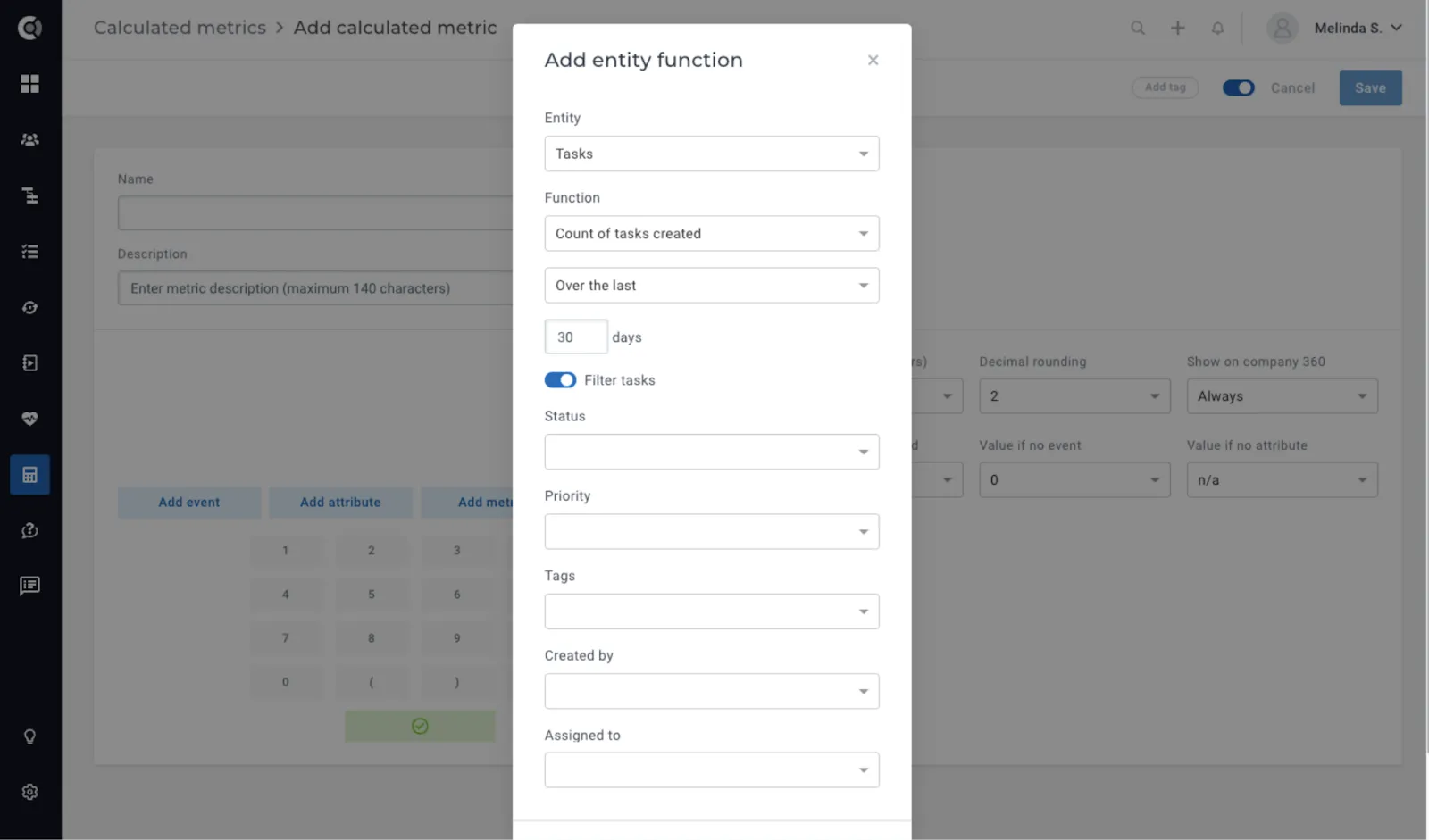
Available functions:
- Count of tasks completed
- Count of tasks created
You can filter by:
- Status
- Priority
- Tags
- Created by
You also need to add the period of time you want to count the tasks for.
Use Case Ideas
Count the number of completed tasks tagged with training within the last 90 days.
Ensure that all Companies in the Onboarding process have received the expected number of training sessions by comparing this count against the predetermined target.
This helps ensure compliance with the onboarding process and guarantees that all relevant companies receive the necessary training sessions within the specified timeframe.
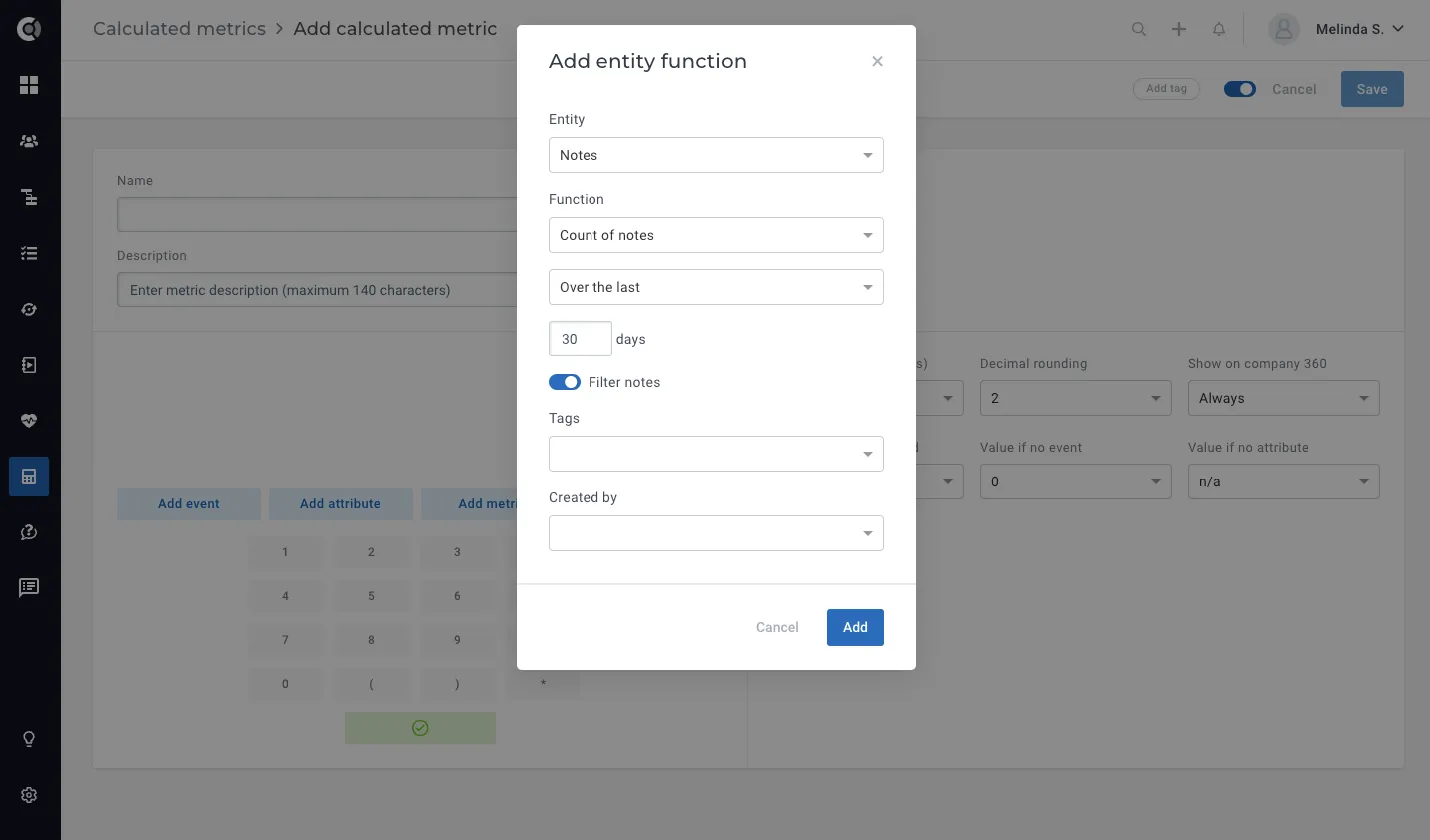
Function: Count of notes
You can filter by:
- Tags
- Created by
You also need to add the period of time you want to count the notes for.
Use Case Ideas
Count the number of notes tagged with client meeting within the last 90 days.
If the count is 0, automatically trigger a Playbook to initiate a task for the Customer Success Manager (CSM) to reach out to the client.
This ensures proactive engagement with clients and helps maintain strong relationships by addressing any gaps in communication or missed meetings.
Communication - messages & conversations
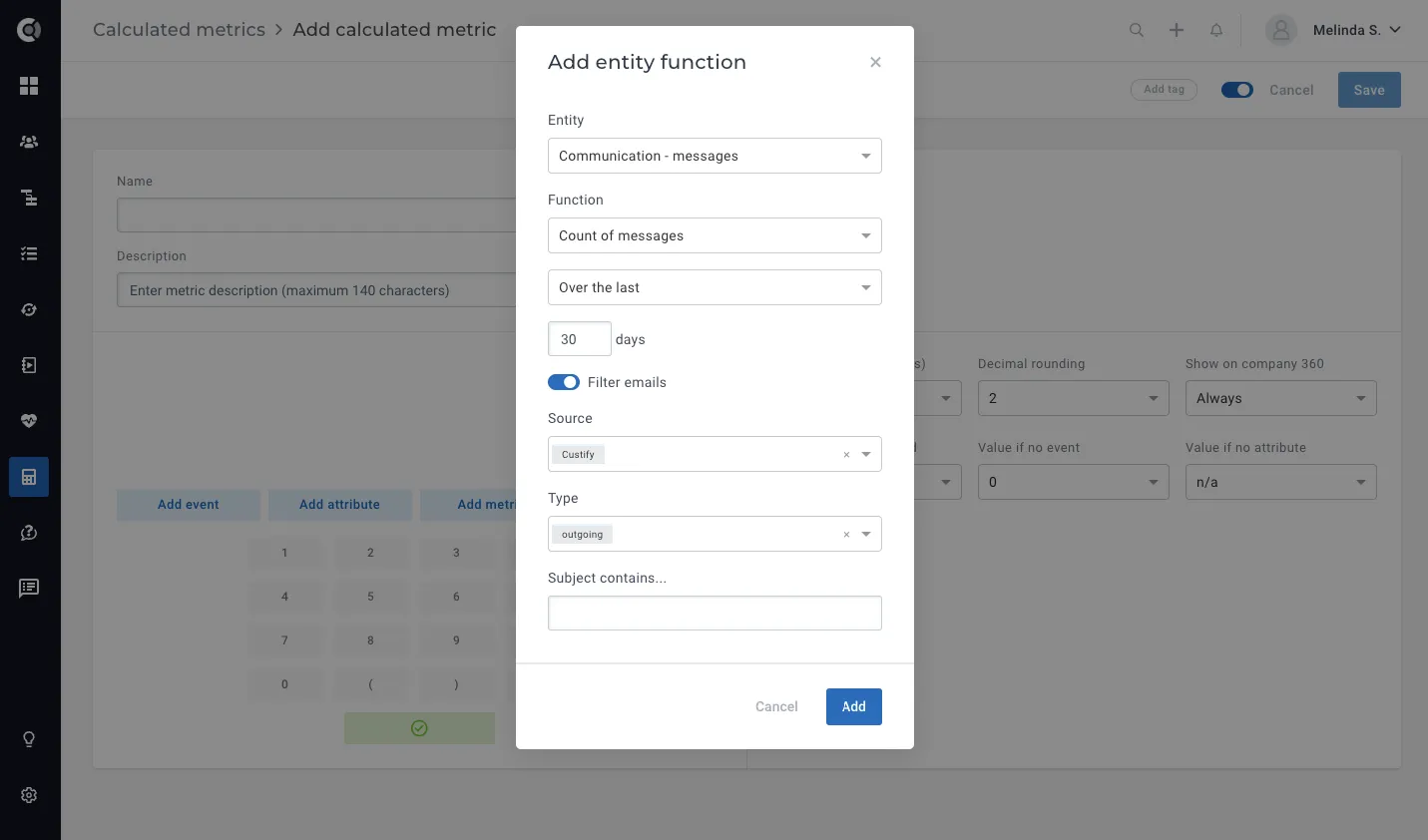
Function: Count of messages / Count of conversations
Count the number of emails / conversations from Intercom exchanged in a given period of time.
You can filter by:
- Source (Custify, Gmail, Outlook, Intercom)
- Type (Incoming, Outgoing, Note – for emails)
- Subject contains…(for emails)
- Tags (for Intercom conversations)
Use Case Ideas
Monitor the number of incoming emails received within the last 90 days. If the count exceeds a predefined threshold (X), automatically trigger an alert to the Customer Support Lead.
This alert serves as a proactive measure to identify high-contact customers, enabling the CS Lead to schedule training sessions or meetings to address any recurring questions or concerns promptly.
Tickets
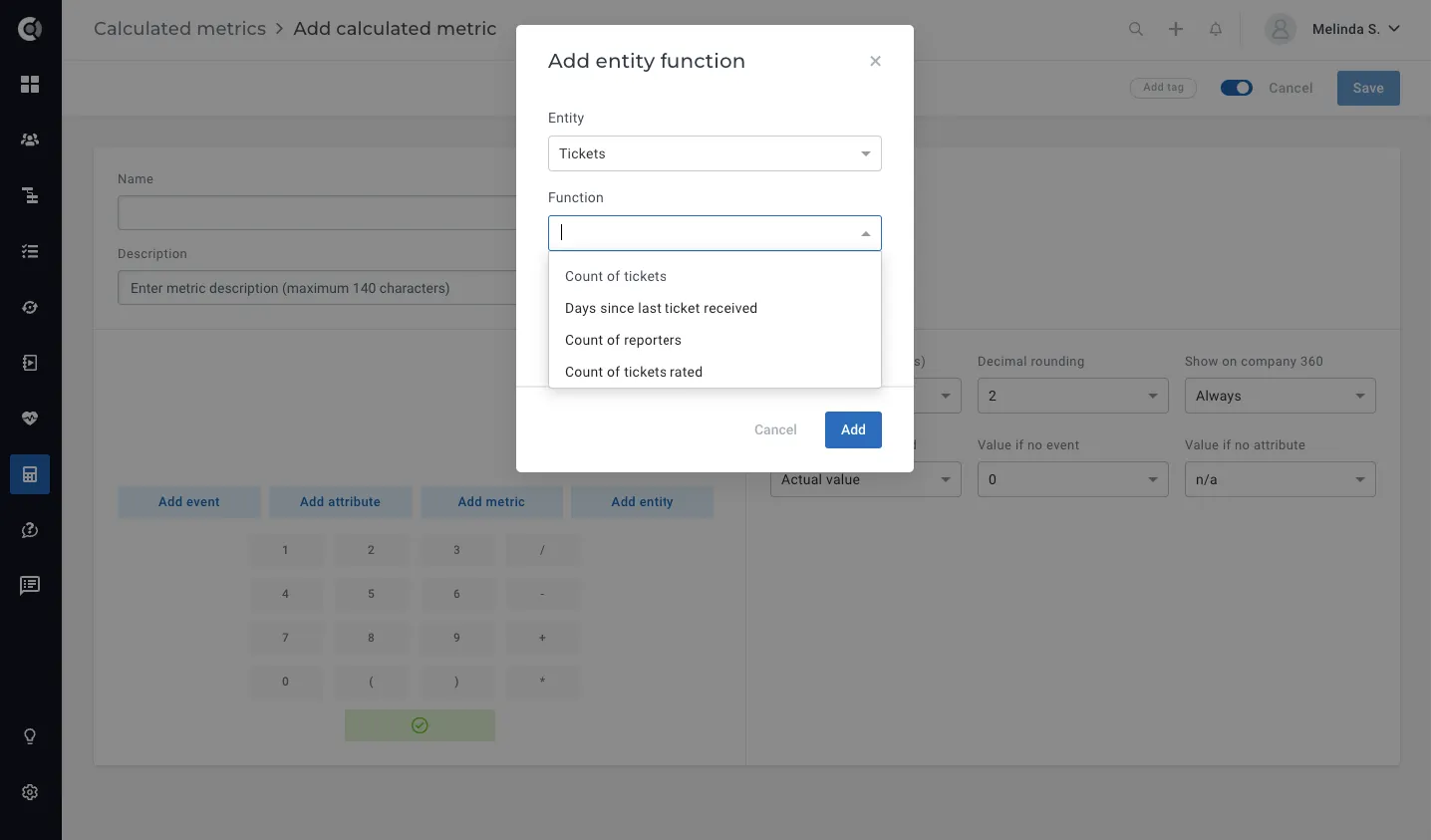
Function: Count of tickets
- Source
- Priority
- Status
You also need to add the period of time you want to count the tickets for.
Use Case Ideas
Analyse the number of tickets generated within the last 30 days. If the ticket count exceeds a specified threshold (X), initiate a task for the Customer Success Manager (CSM) to engage with the customer.vHigh ticket volume may indicate potential churn risks, necessitating proactive discussions between the CSM and the client to address any underlying difficulties or concerns.
Meetings
Functions:
- Count of meetings
- Meetings duration
- Count of upcoming meetings
You can filter by:
- Tags
- Name contains.

Use Case Ideas
Count the total number of hours spent on meetings for each specific customer, in a given timeframe. Use that metric to analyse who are the customers with whom you spend the most of your CS time.
Files
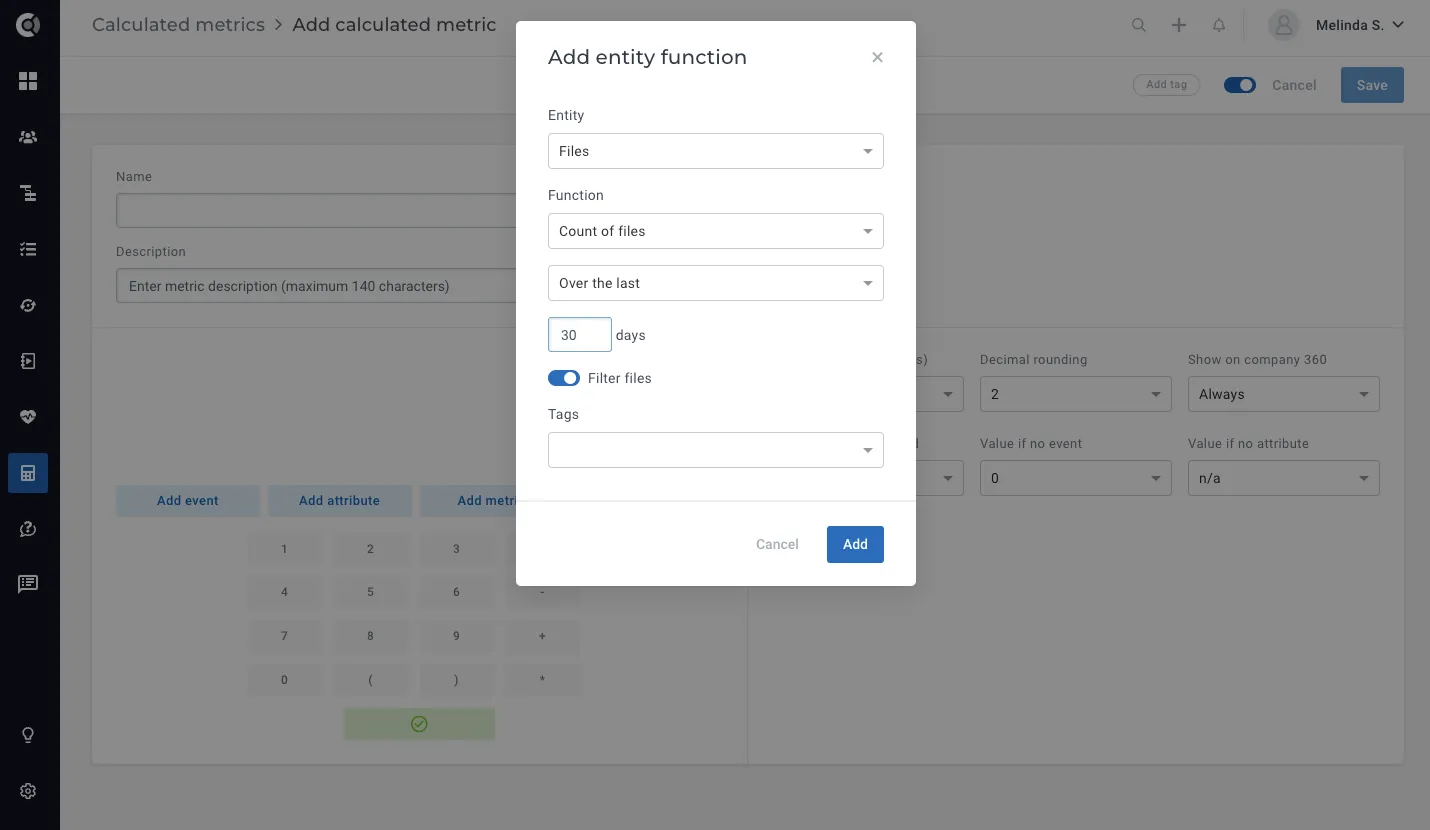
Function: Count of files
You can filter by:
- Tags.
Use Case Ideas
Count the total number of files with the ‘Best Practices’ tag, in order to obtain the total number of best practices files provided in a given period of time.
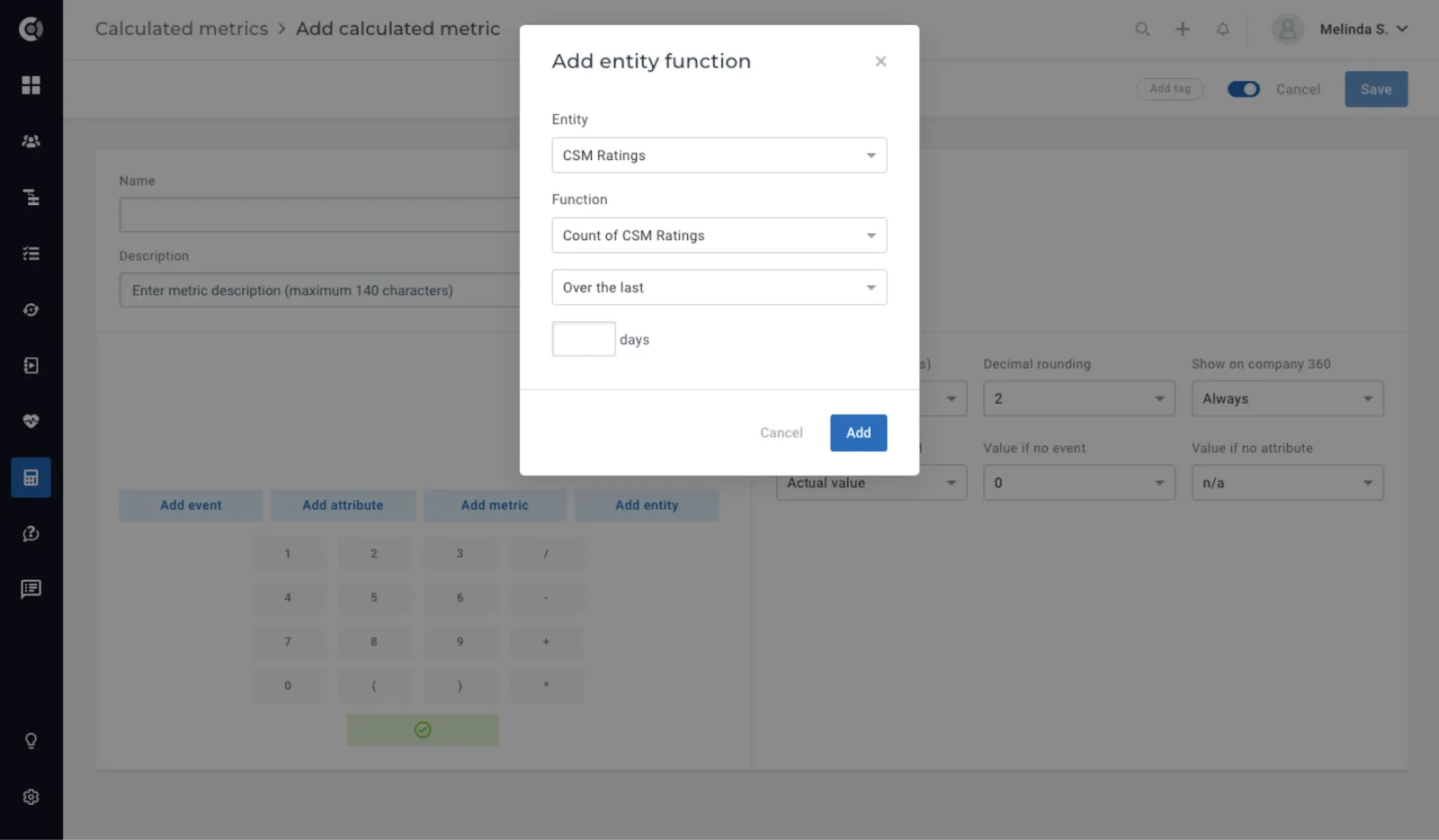
CSM Ratings
To ensure that all your customers got a CSM rating in a given period of time, count the number of CSM ratings given in the last X days.
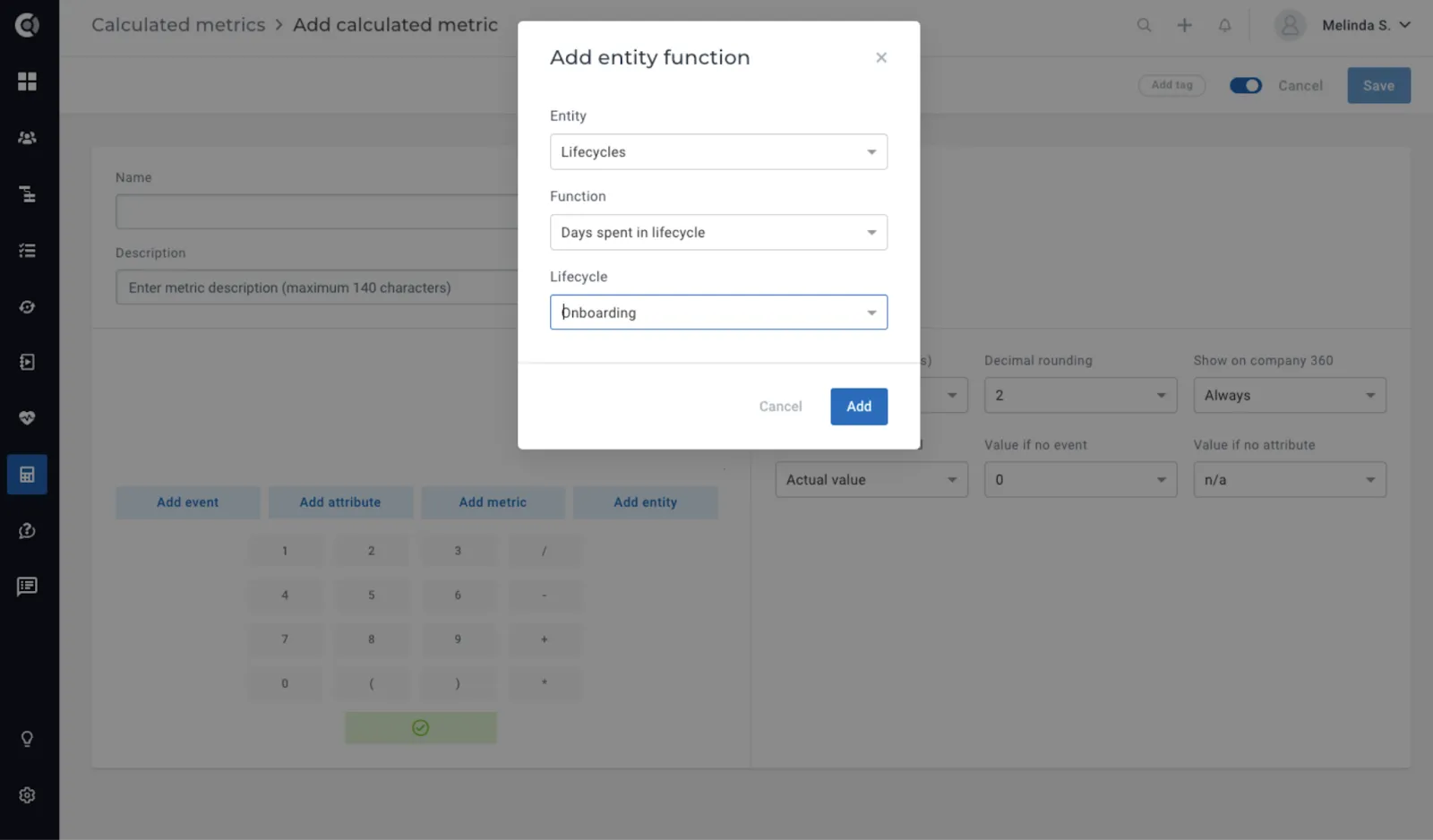
Lifecycles
The only available function is ‘days spent in lifecycle’, that helps you easily return metrics for the days a customer stayed in a lifecycle (e.g. how much time they spent in onboarding).
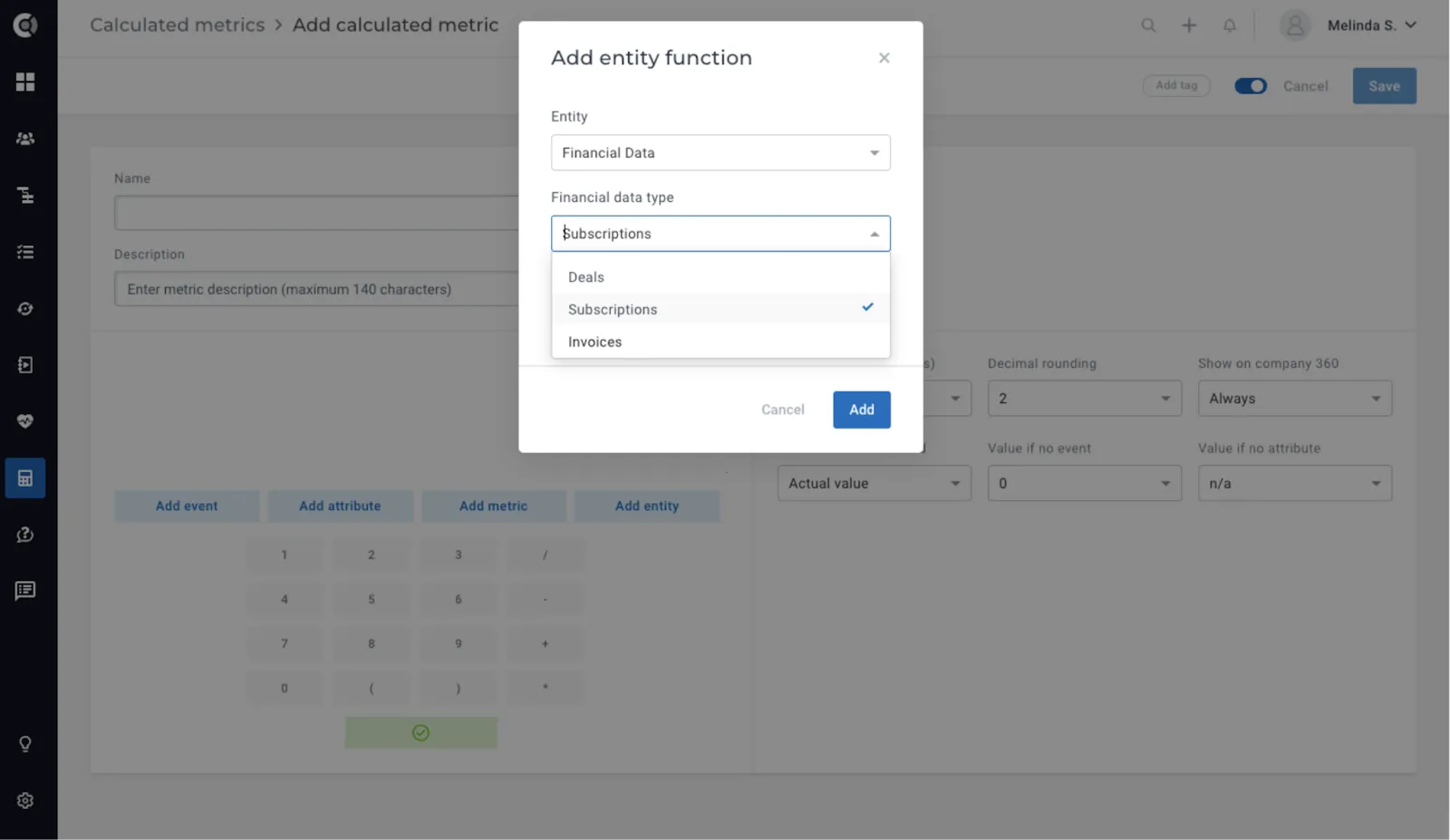
Financial Data
Within the financial data section, users have access to numerous nested functions for Deals, Subscriptions, and Invoices. These functions enable the extraction of complex metrics derived from financial information, empowering users to generate detailed insights and analysis based on their financial data.
Deals Functions:
- Count of deals
- Sum of deals value
- Days since last closed deal
- Days since last won deal
- Days since last lost deal
- Days since first closed deal
- Days since first won deal
- Days since first lost deal
Inside the formulas, you can also apply a filter, to only calculate the formula for the deals with a specific Status.
Subscriptions Functions:
- Count of subscriptions
- Sum of subscriptions MRR
- Average subscriptions MRR
- Sum of total paid
- Sum of total due
- Count of due invoices
- Available filters:
- Status
- Last invoice status
- Last transaction status
- Plan
Invoices Functions:
- Count of invoices
- Sum of total
- Sum of amount paid
- Days since last paid
- Days since last invoices
Inside the formulas, you can also apply a filter, to only calculate the formula for the invoices with a specific Status.
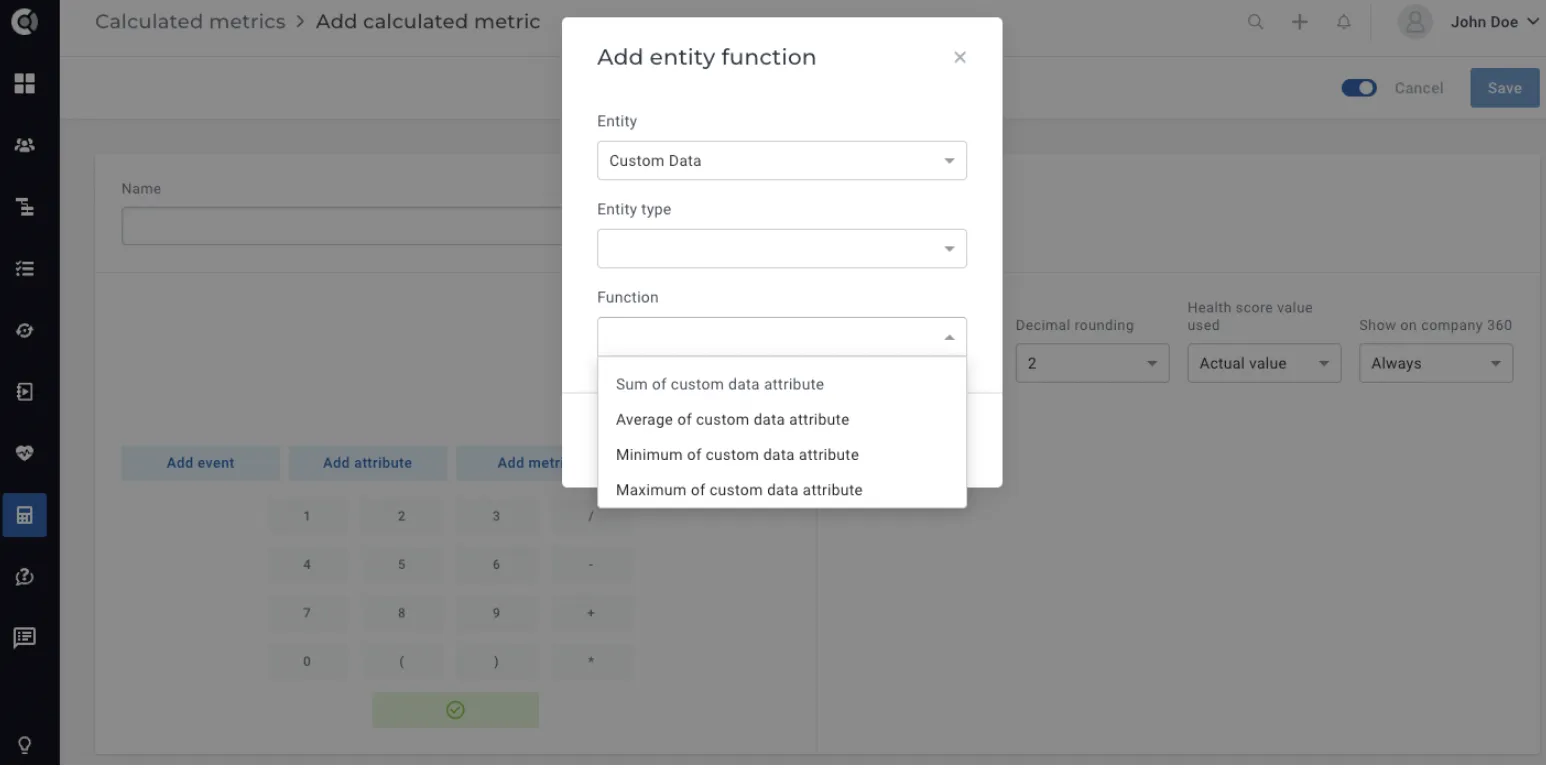
Custom Data
The custom data that you’re sending can be leveraged through calculated metrics.
The available functions are:
- Sum of custom data attribute
- Average of custom data attribute
- Minimum of custom data attribute
- Maximum of custom data attribute
Time Tracked
Retrieve the total time spent for every company. These calculated metrics can help identify how much effort has been allocated to each customer, making it easier to assess the return on time investment (ROTI) for various projects.
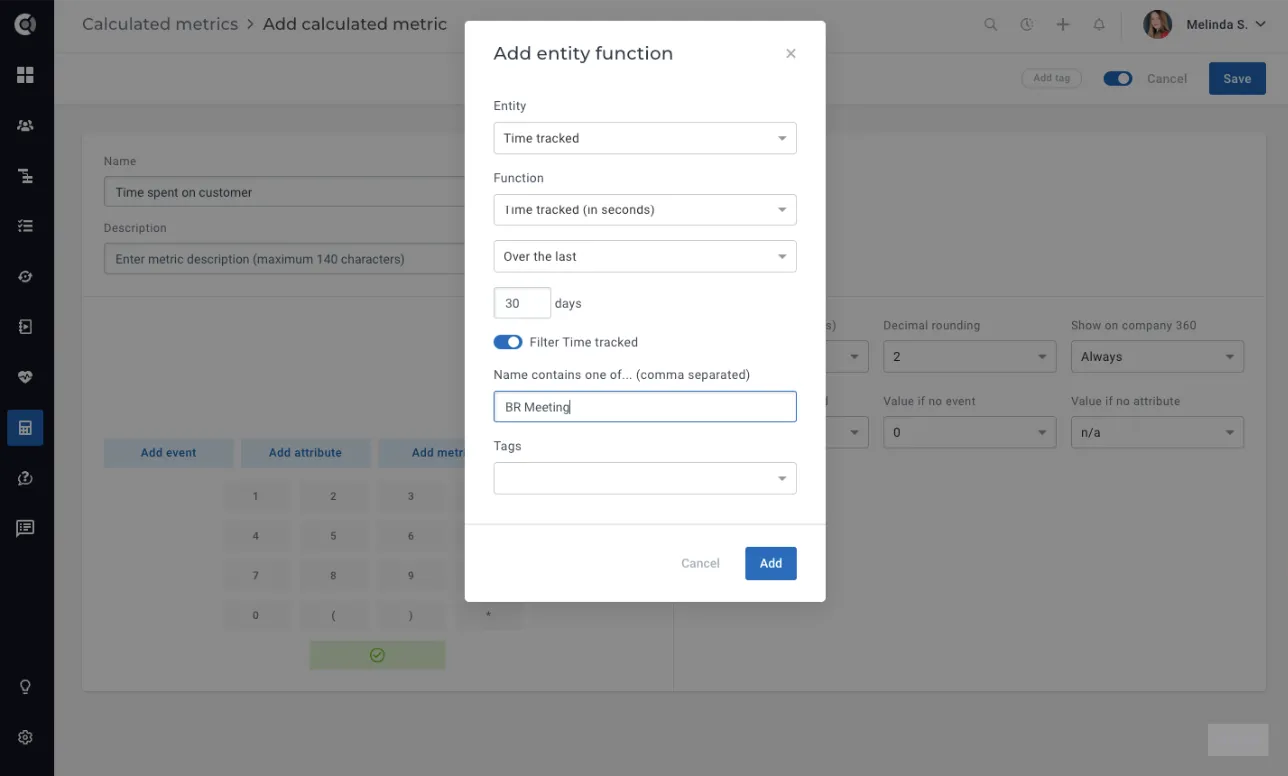
Build the metric using the entity Time Tracked. Select the timeframe for the total amount of time spent with the customer and filter it accordingly (e.g. calculate the hours spent on custom implementation, BR meeting preparation, etc.). The filter can be based on name keywords and tags.
Other Settings
Once you’ve set up the formulas, you can fine-tune the parameters on the right side of the metric:
- Recalculate every (hours): Default set to 12 hours but can be adjusted to meet your specific requirements.
- Decimal rounding: Default set to 2 but can be adjusted for precision.
- Health Score value used: Relevant only if you’re using Health Scores within the Calculated Metrics. You have the option to choose between ‘Actual value,’ which considers the captured number in the Health Score, and ‘Normalized value,‘ which transforms the actual value of the Health Score into a number between 0 and 100, corresponding to the scale used. For instance, if your Health Score measures the number of logins for the last 30 days and ranges from 0 to 20, a customer with 15 logins will have an actual value of 15 and a normalized value of 75%.
- Show on Customer 360° View: Defaulted to ‘always’ but can be adjusted based on your preferences.
- Value if no event: Select the desired behaviour for the situations when no event was sent for a specific company and the metric is based on events (choose if the formula’s result should be n/a or 0).
- Value if no attribute: Select the desired behaviour for the situations when an attribute used in the formula has no value (it was never populated for that company). You can choose if the formula’s result should be n/a or 0.
The embedded calculator provides support for arithmetic operators, facilitating complex calculations. It’s imperative to validate your formulas at the end to ensure accurate logic sequencing; this feature automatically checks the formula’s logic and identifies errors if the sequence is incorrect.
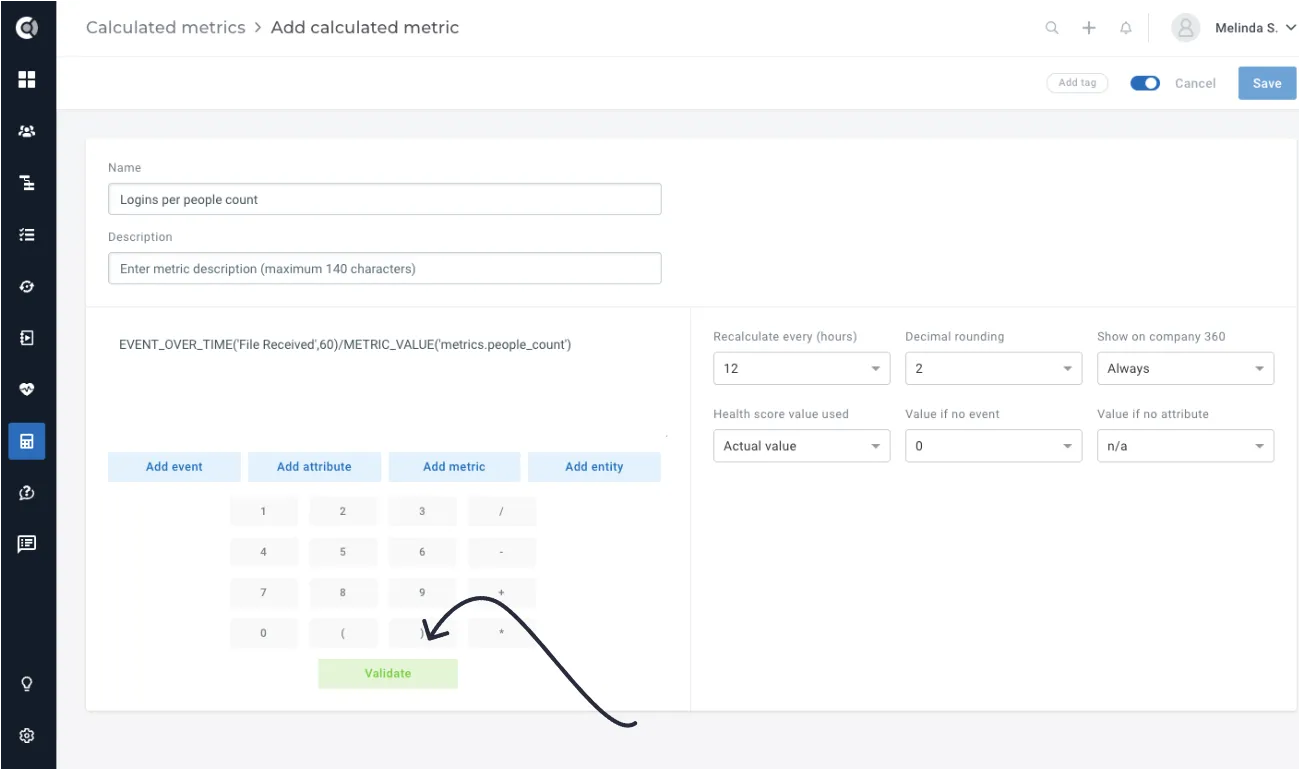
Once saved, the metric might take some time to be calculated for all customers depending on complexity.
If your Calculated Metric returns N/A, you can hover over it to see the reason, such as:
- Calculated metric not computed yet
- Historic data not found
- Division by zero
If you make any changes to a Calculated Metric, this will not trigger a recalculation of it. It will be recalculated as it was set to when being saved initially.
People Metrics
Very similar to Calculated Metrics for Companies, the People Metrics allow you to enhance people data with advanced data points, obtained based on formulas in Custify. The available functions are listed below, and they behave exactly like the Company Metrics functions.
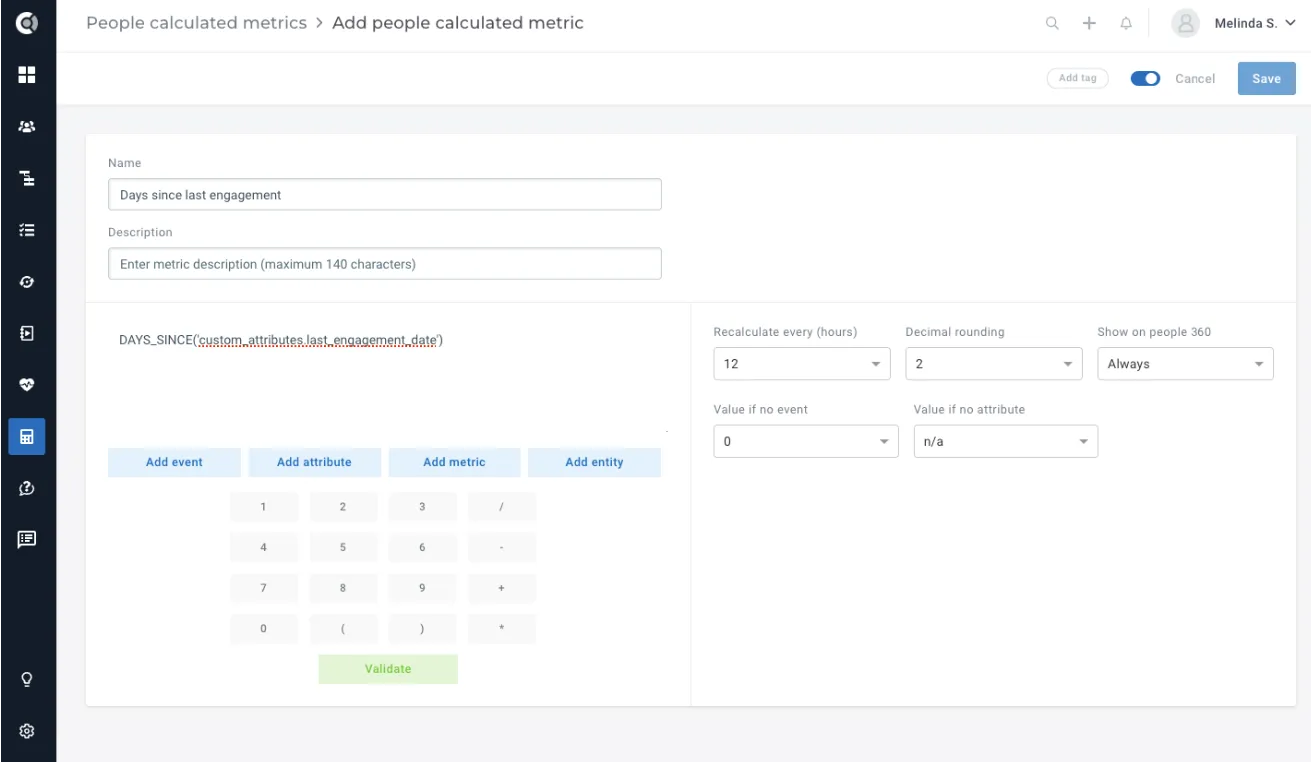
Available functions:
- Add event:
- Number of events
- Days since last occurrence
- Days since first occurrence
- Sum of event attribute
- Average of event attribute
- Minimum of event attribute
- Maximum of event attribute
- Last value of event attribute
- Count of unique values of event attribute
- Time in product (in seconds)
- Add attribute:
- Attribute value
- Days since
- Days until
- Convert currency
- Add metric:
- Metric value
- Days since
- Days until
- Add entity
- Tasks:
- Count of tasks created
- Count of tasks completed
- Notes:
- Count of notes
- Communication – messages:
- Count of messages
- Communication – conversations:
- Count of conversations
- Tickets:
- Count of tickets
- Days since last ticket received
- Count of tickets rated
- Meetings:
- Count of meetings
- Meetings duration
- Count of upcoming meetings
- Files:
- Count of files
- Custom data:
- Sum of custom data attribute
- Average of custom data attribute
- Minimum of custom data attribute
- Maximum of custom data attribute
Use Case Ideas
- Calculate the days since your last training (taking into account the last training date, a date attribute mapped on your profile).
- Determine the days since your last login.
- Compute the total number of logins you’ve made within a specific time period.
Tracking Calculated Metrics
After you define your custom metrics, you have several options to integrate them into other Custify tools.
- Check the values in the Customer List Views (Company and People).
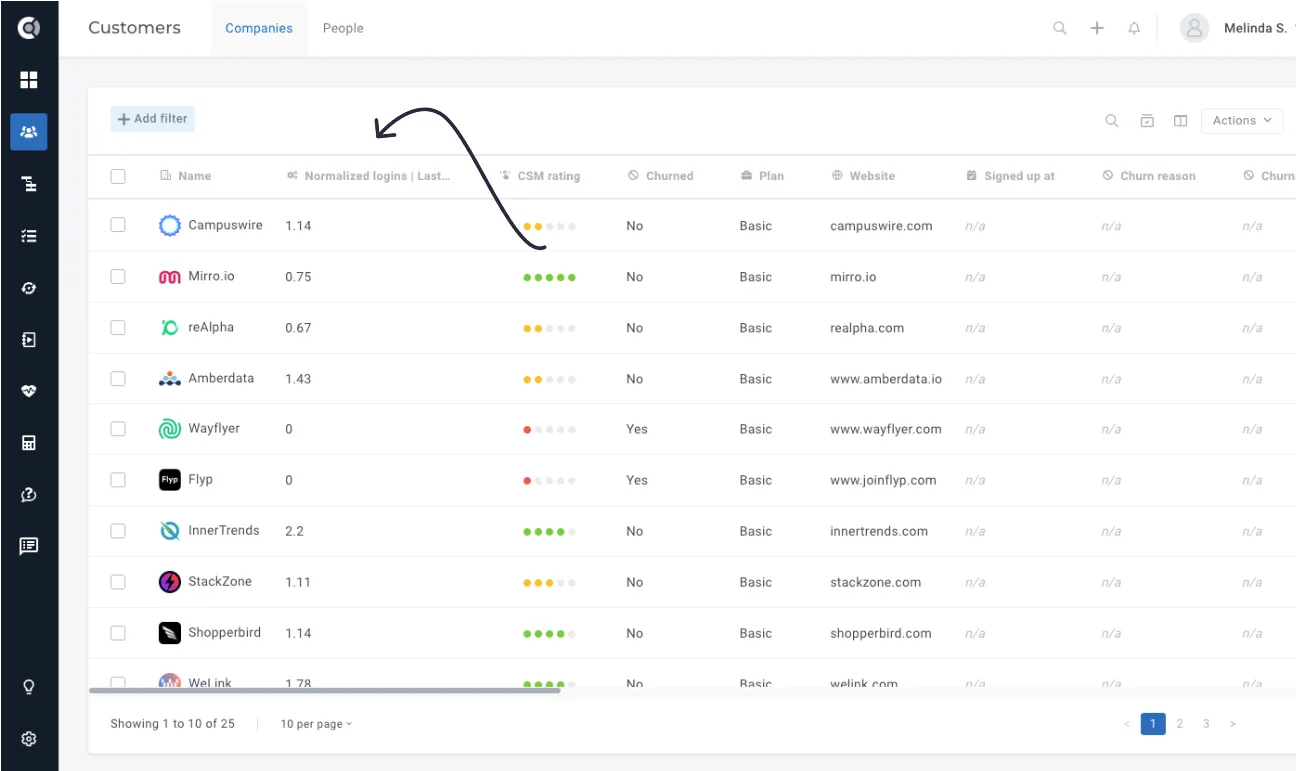
2. Find them in the Customer 360° Profile.
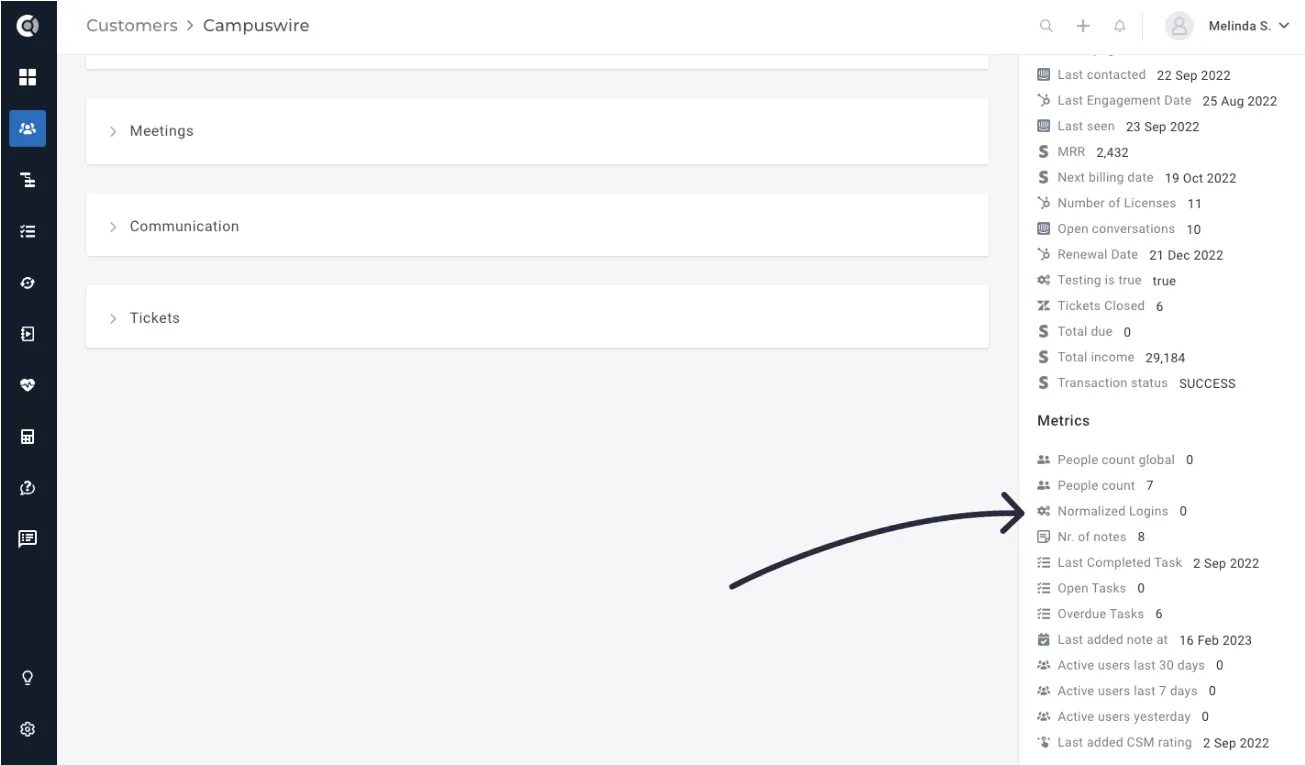
If you click on the icon on the left of a Calculated Metric, you will be able to observe its evolution over a given time period. The history will be available from the moment the metric was created/had any value for the customer.
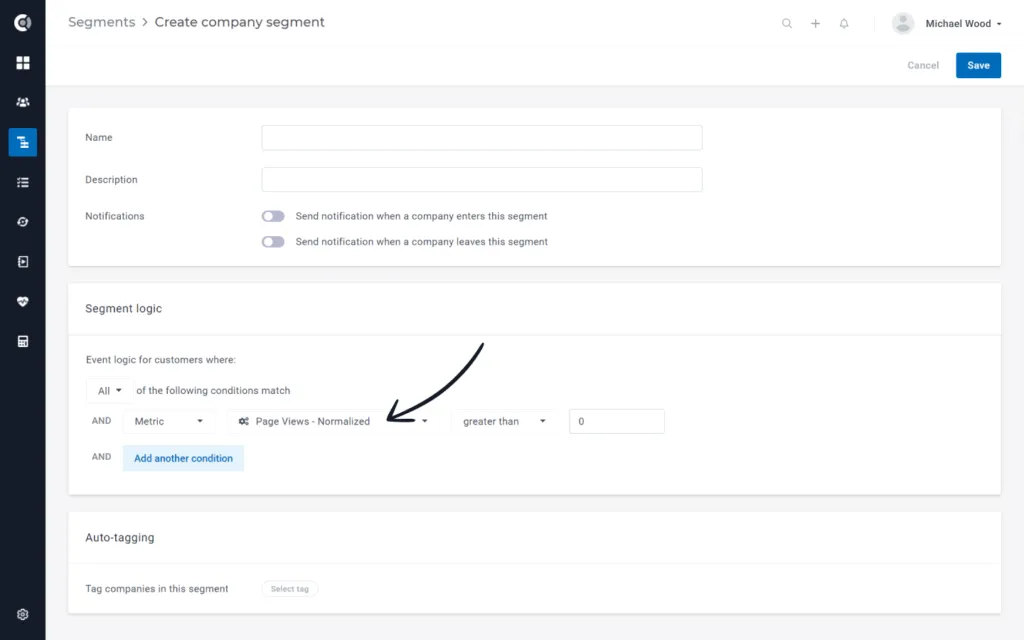
3. Build Segments based on Calculated Metrics values.
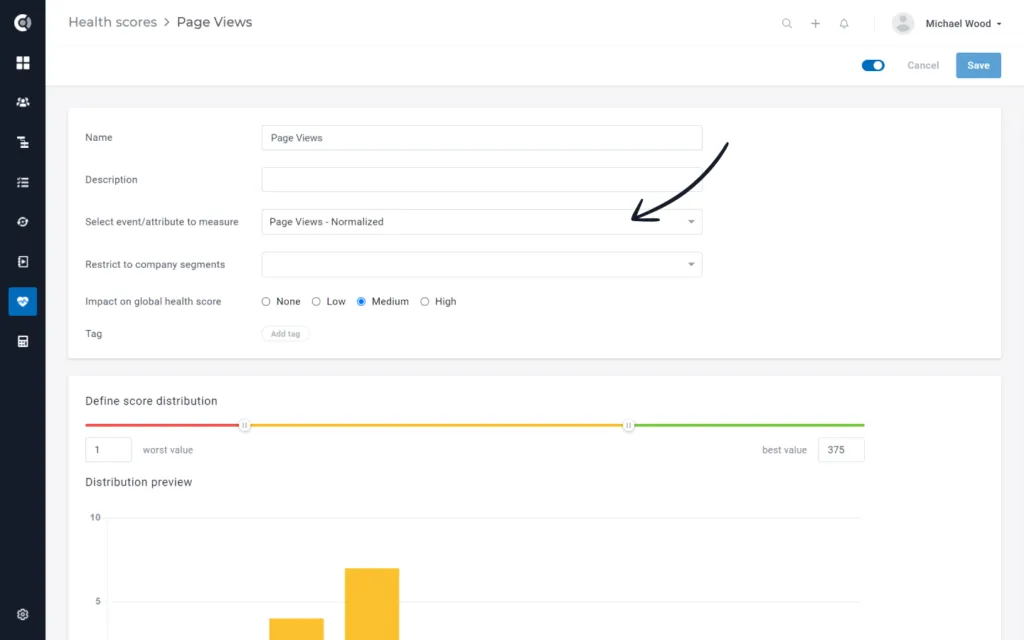
4. Build Health Scores based on Calculated Metrics values (only available for Company Metrics).
5. Display them on Reports.