Touchpoints
Communication, notes, tickets, and meetings. All in one place.
The Touchpoints menu collects all your client interactions in one place, allowing you to easily search for them by keywords, tags, and statuses via the search box. Additionally, the Approval FlowApproval Flow module within Touchpoints allows you to access the emails that are pending your approval.
Communication
View all your inbound and outbound client communication via the subsections of the Communication menu.
Inbox
This view aggregates all incoming communication threads from Gmail, Outlook, and Intercom. Any emails that match the following rules will be displayed in this unified inbox:
• FROM: an email address associated with a People entity in Custify
• TO/CC: a Custify user
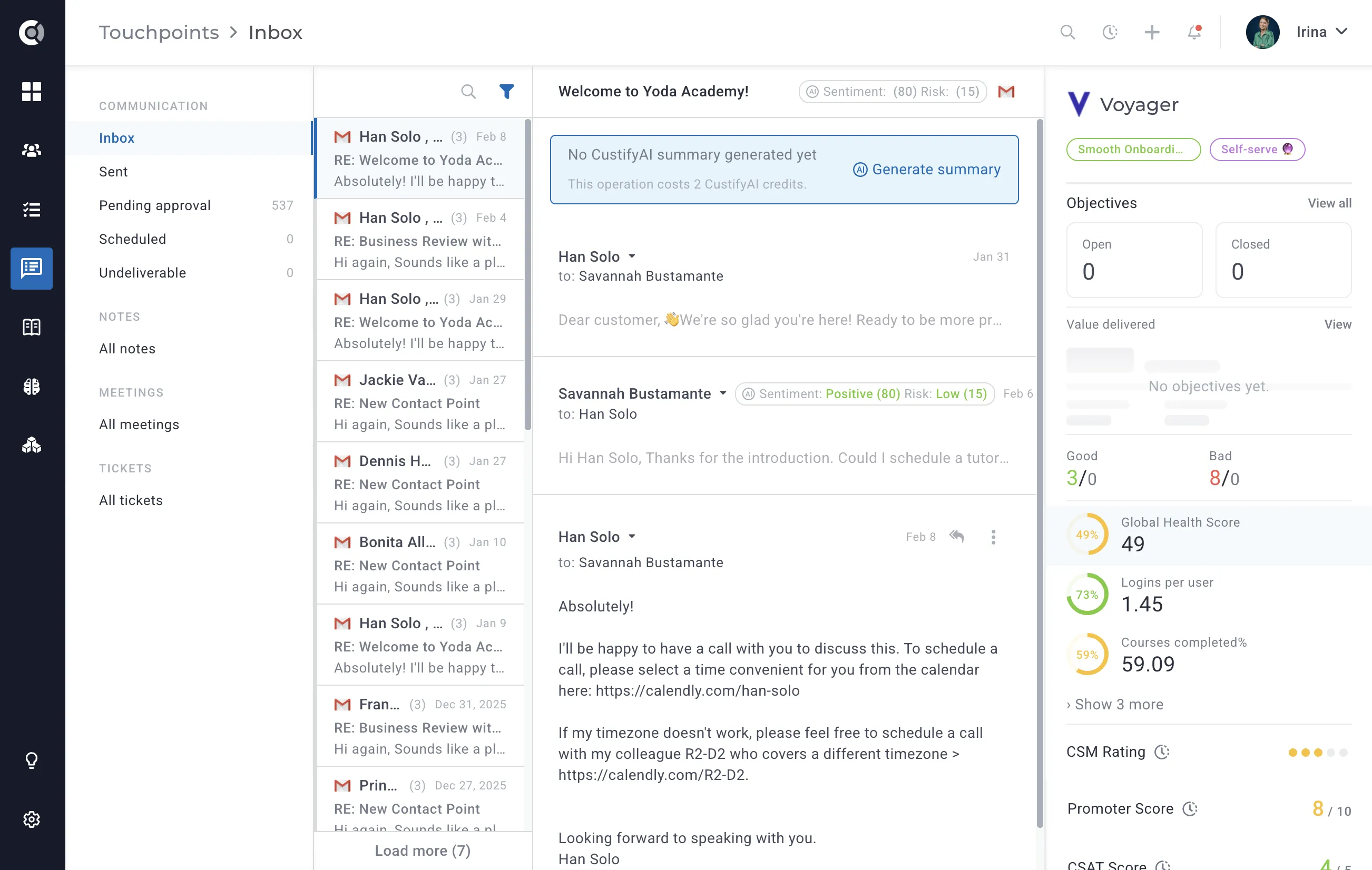
You can search emails by keyword or use the filter panel to narrow results by: To, From, Subject, Tags, Source (Gmail, Outlook, or Intercom), Date interval, and Analyzed by CustifyAI (to surface threads that have already been reviewed by AI).
Things to keep in mind:
• The Custify user needs to have their Gmail/Outlook account synced for the emails to be fetched and mapped in Custify.
• For Intercom communication, keep in mind that a conversation is imported in Custify based on the contacts it includes. Even the contacts that haven't replied in the conversation will be included.
• When Gmail or Outlook is first connected, Custify syncs the last 10,000 messages. Ongoing syncs run every 30–45 minutes.
Sent
This view aggregates all outgoing communication threads sent from Custify, Gmail, Outlook, and Intercom. Any email that matches the following rules will be displayed in this unified outbox:
• FROM: a Custify user
• TO/CC: an email address associated with a People entity in Custify
You can search emails by keyword or use the filter panel to narrow results by sender, recipient, subject, tags, source, or date. Note that emails sent via an SMTP server will appear in Custify's Sent view but will not appear in your Gmail or Outlook Sent folder.
Pending Approval
This view aggregates all the emails that are pending approval before being sent to one or more people. The Approval Flow is available for new emails as well as for email replies.
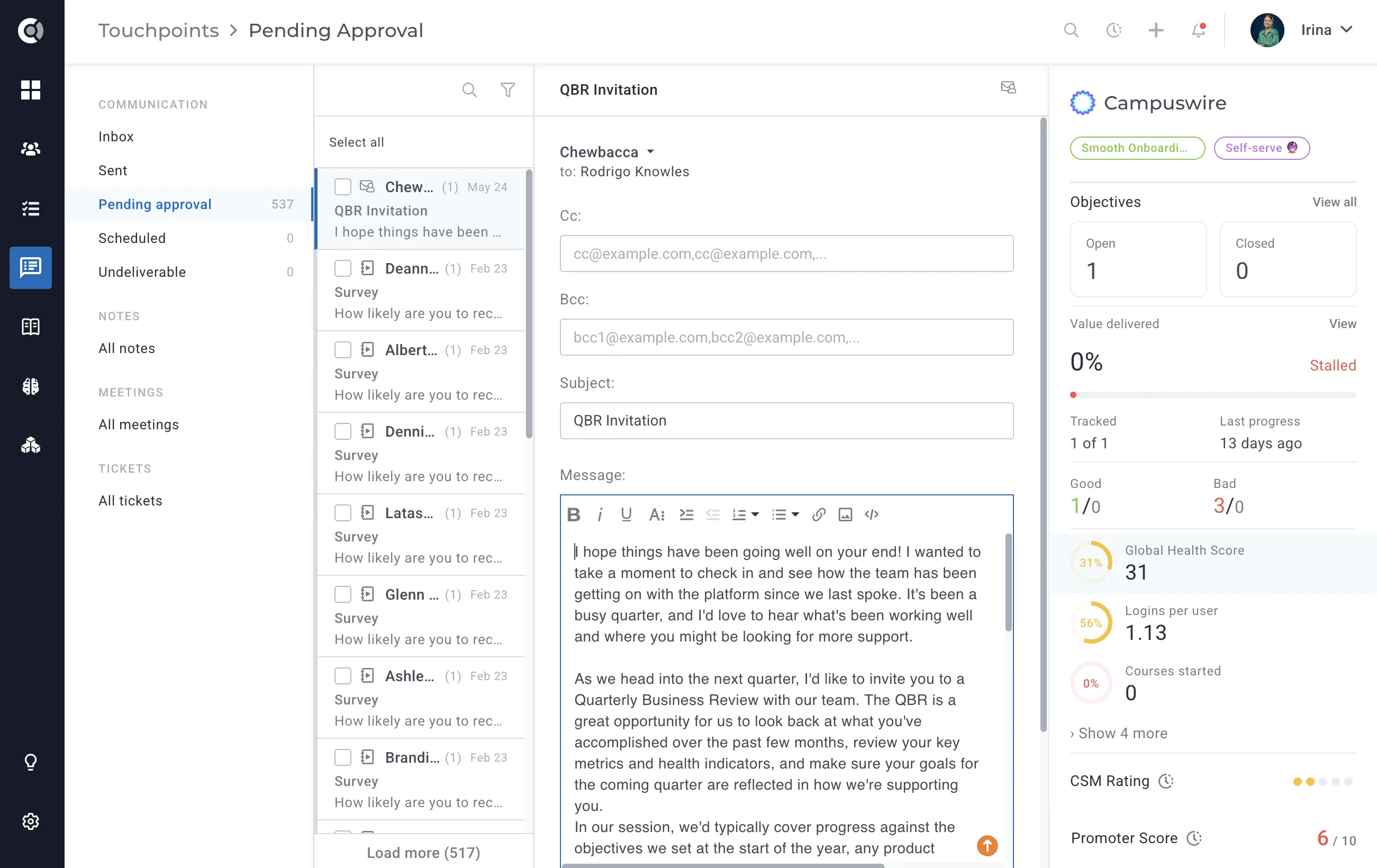
Here is how you can add emails to an Approval Flow:
- Step 1: Start writing an email (in bulk, using Playbooks, or individually from a Customer 360° Profile).
- Step 2: Select your preferred approval flow.
- On error (default): in case a dynamic data syntax error is detected
- Always: all the emails
- Never: no emails
- Step 3: Access the Pending Approval menu to edit and send or permanently delete a pending email.
You can filter the Pending Approval view by the FROM email address, which allows each CSM to quickly find and action only their own emails. You can also mass-delete emails from this view when needed.
Notifications: When emails enter the Pending Approval queue, the sender receives a notification within 5 minutes. If additional emails continue to arrive, reminders are sent every 3 hours. For emails that remain pending for more than 36 hours, a follow-up reminder is sent to the responsible CSM (identified by the replyTo address or the company's assigned CSM owner) — at most once every 3 days per user per account.
Custify Tip 1: There is no universal remedy when it comes to client communication. While some email drip campaigns can be fully automated, others require your close attention.
Custify Tip 2: Currently, there is no limitation for email flow approval. Any user, regardless of their role, can approve or delete the emails in the Pending Approval box.
Custify Tip 3: When using Select All in the Pending Approval view, the bulk action only allows rejecting/deleting emails — this is intentional, as an extra safeguard to prevent large batches of emails from being accidentally sent out.
Use Cases Ideas:
- Use the Approval Flow to make sure that sensitive client information (such as revenue data or an account deletion notice) is sent to the right people.
- Use the Approval Flow to customize and add a personal touch to all the emails to your premium customers.
- Set the Approval Flow to Always when sending contract renewals, due invoice notifications, or any other emails where every message should be reviewed before delivery.
Scheduled
This view aggregates all outgoing communication that is scheduled to be sent from Custify. This is a temporary view where emails can stay for a couple of minutes or hours.
You can schedule emails by choosing the Respect business hours option. This option is available for all the emails sent from Custify.
Custify Tip 1: Business hours correspond to your Custify instance timezone. Ask our CS team for more details.
Custify Tip 2: Normally, one email is sent per second. If you are sending many emails, or our servers are overloaded, there may be a delay, and queued emails will temporarily appear in the Scheduled view.
Custify Tip 3: Emails cannot be force-sent out of the Scheduled queue. They will be released automatically once they fall within the configured business hours window, or once the sending queue clears.
Keep in mind that the following email will not appear in the Scheduled view:
• Emails that are scheduled in Gmail / Outlook.
• Emails that will be sent using a scheduled Playbook.
Undeliverable
This view displays all emails that failed to deliver (status: undeliverable). It gives you a dedicated space to review and recover failed messages without disrupting the rest of your communication workflow.
For each undeliverable email, you have two available actions:
- Retry Sending: Marks the email as pending again and re-queues it for delivery. Use this after resolving the underlying delivery issue (e.g., reconnecting a disconnected email account).
- Delete: Permanently removes the email from the queue.
Both actions are available in bulk, allowing you to retry or clean up multiple undeliverable emails at once.
Custify Tip: If you notice a high number of undeliverables, first check that the sender's email account is properly connected to Custify under Settings → My Account → External Accounts.
Notes
This view aggregates all the notes added to Custify or imported from external CRMs (HubSpot, Pipedrive, Salesforce, Close, Zoho, Zendesk Sell, Freshsales, and others) across all the accounts.
This unified view gives you the option to search for specific notes with keywords or to filter them by tags and creator. You can also edit notes, delete notes, and add tags or comments.
Notes in this view are sourced from three different origins:
• Manually added by your CS team directly in Custify
• Automatically created via Playbooks
• Imported from integrations — these notes carry the icon of the originating app (e.g., HubSpot, Salesforce)
Once a note exists, you can also:
• Mark as sticky — pins the note to the top of the list so it's always visible
• Add tags — for filtering and organization
• Add comments — for internal team collaboration on the note
• Attach files — notes can include pictures, documents, video, audio, or zip files (max 16 MB per file)
• Show in Customer Portal — make the note visible to the customer in their portal
Custify Tip 1: Notes can influence the Last Touchpoint date calculation. To configure which notes count as touchpoints, go to Settings → General → Touchpoints Calculation.
Custify Tip 2: Notes can be exported from Custify to external CRMs (e.g., HubSpot, Salesforce) to keep your Sales and CS teams aligned across systems. However, manually created notes exported to HubSpot will not be re-imported into Custify, to avoid duplications.
Custify Tip 3: With CustifyAI enabled, tasks can be automatically generated when specific keywords are detected in a note — helping your team stay on top of follow-ups without manual effort.
Tickets
This view aggregates all the tickets imported via an API or from external ticketing systems (Jira, Zendesk Support, Intercom, Wix, Happyfox, Freshdesk, Helpscout and others).
This unified view gives you the option to search for tickets with keywords or to filter tickets by priority, status, person they're assigned to, provider, Company CSM, or Company Segment. The latter two filters are especially useful for CSMs who want to review all open tickets for their assigned accounts or for a specific customer segment (e.g., by plan, MRR, etc.).
Custify Tip: Tickets are imported into Custify in view-only mode — you cannot create or edit tickets directly in Custify. Any modifications must be made in the source ticketing tool. Tickets are mapped to accounts and people based on email address. If a person is assigned to multiple companies, the ticket will be linked to all matching company records.
Ticket data available in Custify includes title, description, status, priority, assignee, open date, last modified date, rating (e.g., CSAT from Freshdesk), tags, and ticket replies (classified as incoming, outgoing, or note type).
Use cases for ticket data in Custify:
• Segment customers based on ticket activity (e.g., open tickets, pending tickets, or total ticket count)
• Build health scores using data points like number of open tickets or CSAT rating
• Trigger Playbooks based on ticket information (e.g., send automated follow-ups to users with a high number of open tickets)
• Assign tasks or alerts to CSMs based on ticket thresholds
Custify Tip: Tickets are also visible on each customer's individual profile — both on the Company/People Dashboard and in the dedicated Tickets tab.
Meetings
This view aggregates all past and upcoming meetings imported from Gmail (Google Calendar), Outlook Calendar, and HubSpot across all your accounts. It gives your team a unified view of customer interactions beyond email, so you can search, filter, add notes, and tag meetings directly in Custify.
Meetings are matched to accounts and people using the same logic as email mapping — by the email addresses of the participants or by the company domain. For a meeting to be imported, the calendar event must include at least one customer email address that exists in Custify, and at least one Custify user must be a participant.
Custify Tip 1: Meeting invites are excluded from the Communication (Inbox/Sent) views — they are captured separately in the Meetings view, keeping your email list clean.
Custify Tip 2: To import meetings, each Custify user needs to have their Gmail or Outlook account connected under Settings → My Account → External Accounts. If already connected, reconnecting the mailbox will trigger a reimport of historical meetings.
Custify Tip 3: If you want to import all meetings for a company, even when not all contacts are stored in Custify, enable domain-based matching in the integration settings. This will import meetings based on the company email domain rather than individual email addresses.
Once a meeting is imported, you can:
• Add notes to capture key discussion points or outcomes directly on the meeting record
• Add tags to categorize and filter meetings (e.g., QBR, onboarding, renewal)
• Search and filter across all meetings by keyword, tag, participant, or company
Custify Tip: Cancellations and reschedules made in your calendar after a meeting has been imported are not automatically synced to Custify. If a meeting is deleted or rescheduled in Gmail or Outlook, it will remain visible in Custify unless manually removed. Contact your CS team for bulk cleanup if needed.
AI enrichment with note-taker integrations
If you use Grain, Gong, Fathom, Fireflies, or tl;dv to record your customer calls, these integrations can automatically enrich your existing Custify meetings with AI-generated summaries, action items, key topics, decisions, and recording links — without creating duplicate records.
Meeting summaries from these integrations can also be imported as Notes in Custify, making them fully searchable and visible in the Notes tab on the Company 360° Profile. This also enables CSMs to generate follow-up tasks directly from the meeting summary note.
Custify Tip: Note-taker integrations enrich meetings that were already imported from Gmail or Outlook. They do not create new meetings independently — the Gmail or Outlook calendar integration must be active first.
Use cases for meeting data in Custify:
• Track meeting frequency and build health scores based on data points like number of meetings in the last 90 days
• Trigger Playbooks based on meeting activity (e.g., alert the CSM if no meeting has been held with a key account in 60 days)
• Segment customers by engagement level using meeting metrics
Switching between feed and table view
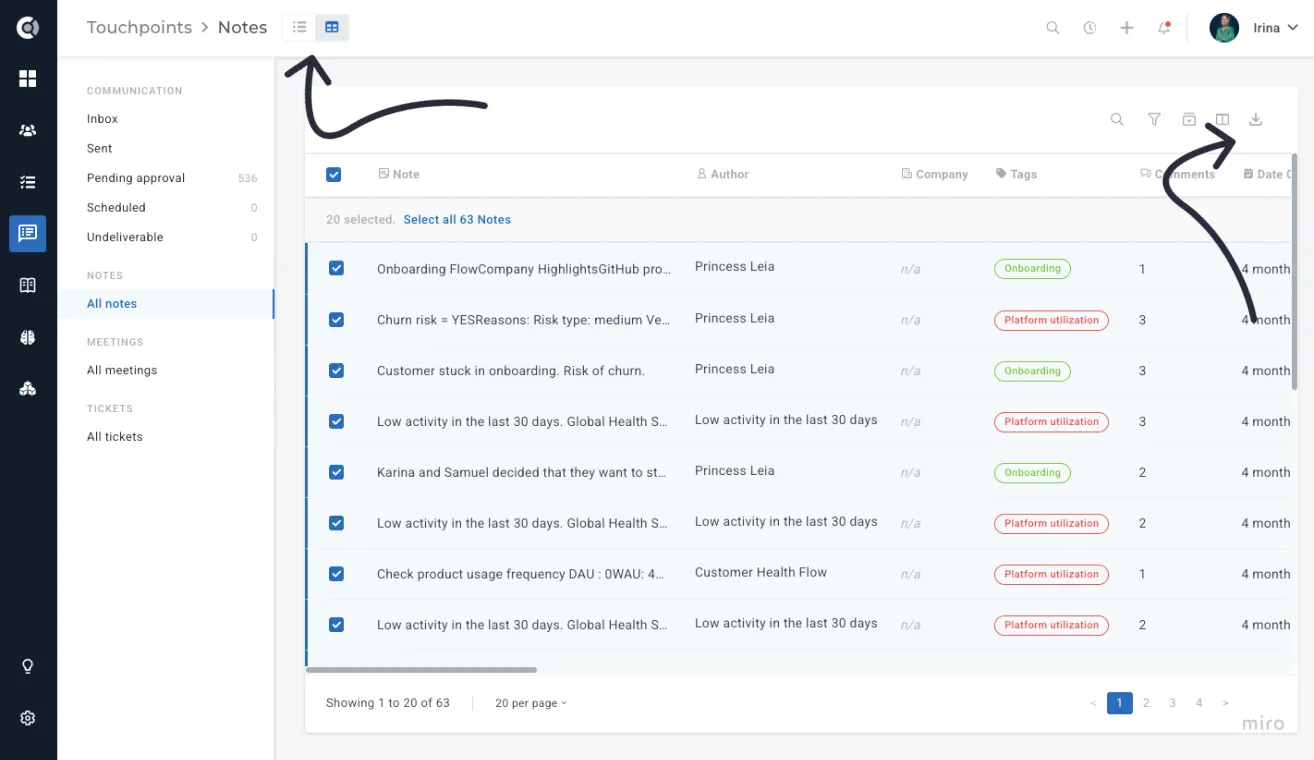
The Notes and Meetings sections each support two view modes: the existing feed (timeline) view and a new table view. The table view brings Notes and Meetings to the same level of customization as the Tasks table, so you can sort, filter, add company-level columns, save views, and export data.
To switch between views, use the icons next to the page title. The page title also shows a breadcrumb -- Touchpoints - Notes or Touchpoints - Meetings -- so you always know which section you're in. Your last-used view is remembered per section, so opening Notes in table view and Meetings in feed view will restore that exact pairing the next time you come back.
Customizing the columns
The table opens with a default column set. To add more, click + Columns and pick from the column picker. Under Company Attributes you can add ARR, Health Score, Lifecycle Stage, Segment, and any of your custom company attributes -- the same set you can already use on the Tasks table.
A few things to keep in mind when working with columns:
• Reordering: Go to Toggle Columns - Displayed Order and arrange the columns in your preferred order, by dragging and dropping them in the list. The Note or Meeting Title column stays pinned to the left and is not reorderable, so it remains visible when you scroll horizontally.
• Persistence: Your column choices and order are saved per user, so each CSM can have their own setup.
• Meetings-only column: The Meetings table includes a Has Summary column by default, which shows a checkmark for meetings that have an AI summary attached and a dash for those that don't.
• Multi-company meetings: If a meeting is linked to several companies, the Company column shows the primary company with a +N more badge next to it.
Filtering, sorting, and saved views
Click any column header to sort the table ascending or descending. Use the search bar and filters in the toolbar to narrow the list - for example, filter Meetings by date range to see only the meetings from the last quarter, or filter Notes by tag and creator.
Once you have a column, filter, and sort combination you want to reuse, save it from the Views dropdown. Saved views are stored per section (Notes views are separate from Meetings views) and can be restored with one click.
Custify Tip: Saved views are personal by default, but they can also be shared with other users.
Exporting the table
Use the Export button to download the current view as CSV or XLSX. The export respects your active filters, sort order, and visible columns, so you get exactly what's on screen and nothing more.
For large result sets (over 3,000 records), the export is processed asynchronously. You'll see a We'll email you when the file is ready toast and receive the file by email once it's been generated. Smaller exports download instantly.