Lifecycles
Have a better understanding of the different stages a customer is going through.
Overview
A client that never completes onboarding isn’t going to generate more revenue. Track your customers’ journeys and get a global view of their progress. Define goals that they should meet, then get notified automatically if they don’t. Proactively reach out when they need your help.
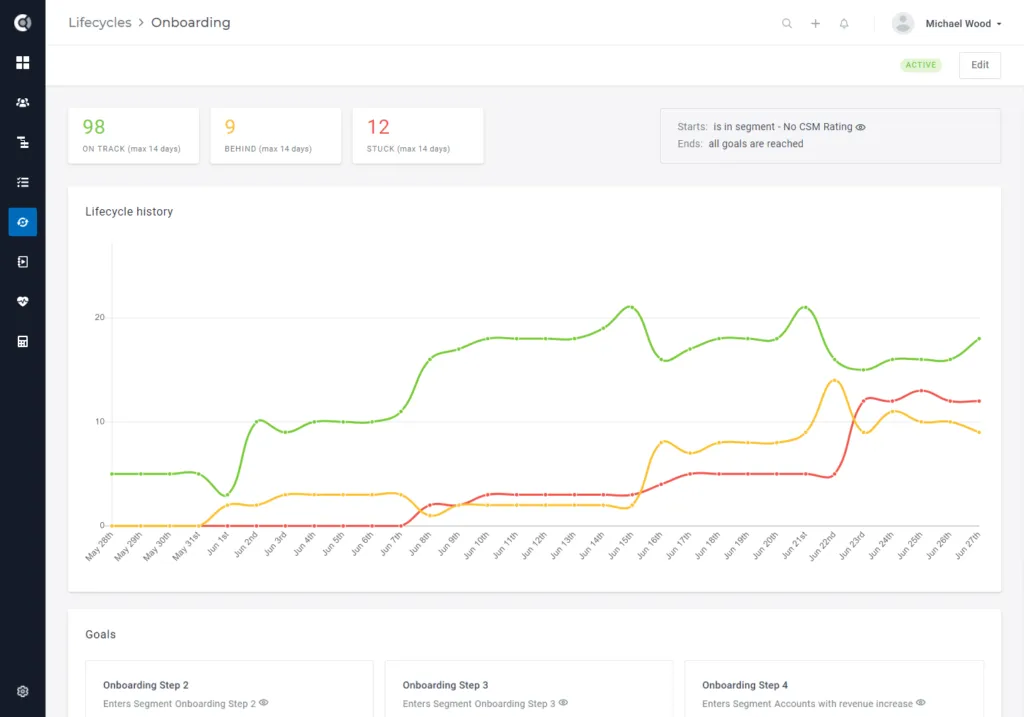
While Health Scores help you measure customers’ health, Lifecycles will help you observe:
- Customers who are successful in each stage you define.
- Customers who are struggling to be successful.
- Customers that get lost in a certain stage.
- The evolution of their progress in time.
- How easy/hard is it to accomplish the goals you set for them.
Defining Lifecycles
There are two ways to create a lifecycle.
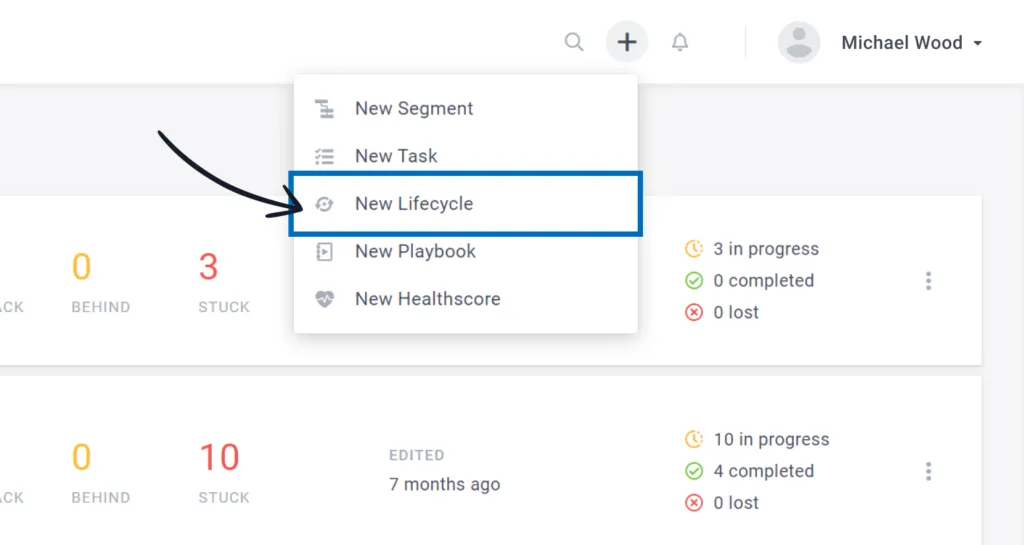
- Navigate to the Lifecycle tile in the main menu, then click on New lifecycle

2. Create the lifecycle from anywhere in the app by using the global shortcut (➕), then select “New Lifecycle”.
To set up the lifecycle, you will need to define the following:
- Name: The name of the lifecycle you define.
- Description (optional): A relevant description of the lifecycle that will be displayed under the lifecycle name in the lifecycles’ list.
- Lifecycle starts when: The condition that will trigger the lifecycle’ start.
- Lifecycle ends when: The condition that will trigger the lifecycle’ end.
- Lifecycle should take: The time frame in which you expect customers to complete the lifecycle.
- Goals: The goals customers should achieve to be considered successful during a lifecycle.
- Tasks (optional): The tasks you define for your Customer Success team, that will be created for each customer that enters the lifecycle.
Name and Description: Use relevant names and descriptions for your lifecycles, these will help your Customer Success team better understand the lifecycles’ logic and be organized, and will also facilitate a smooth transition when there are new CS members on board.
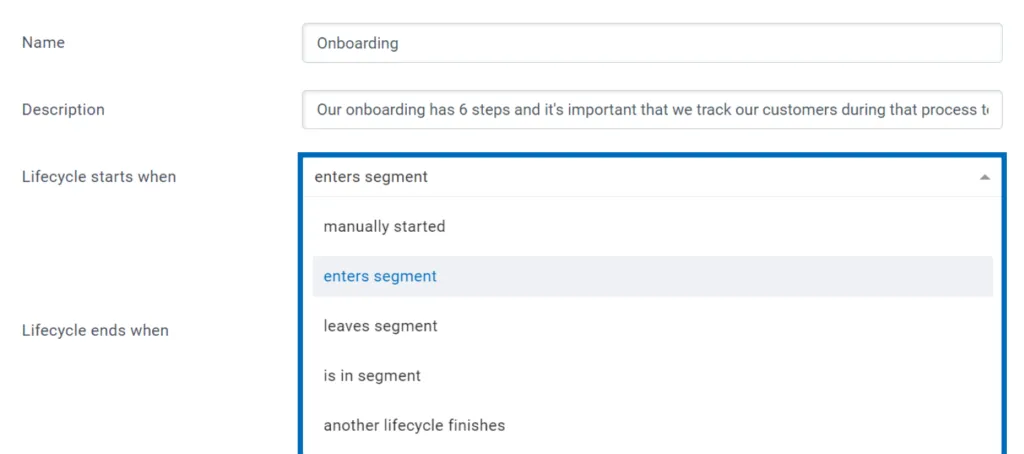
The lifecycle starts when:
- Manually started: You will manually pick companies and add them to the lifecycle. You can add a selection of companies directly from the Customer List View or individually from the Customer 360° Profile
- Enters/Leaves/Is in Segment: You will first have to define the segment that contains all the companies this lifecycle should apply to. (e.g. for an Onboarding lifecycle, you will define a segment called ‘New customers’, that will return all the customers that match the condition ‘Subscribed at’ is less than 30 days ago.). Then, depending on the condition you select, the lifecycle will automatically start for all the companies that enter/leave/are in that specific segment.
Observation: Pay attention to the difference between Enters segment and Is in segment. Enters segment will trigger the lifecycle start only for new companies that are added to a specific segment, not for the already existing ones, while Is in segment will start the lifecycle for both existing customers and new additions.
For example, if you want to create a lifecycle that also generates tasks, you will probably want to avoid using the condition Is In Segment, especially if the segment contains a large number of companies. It’s best to use Enters Segment so the tasks are created only for the customers who join the segment.
- Another Lifecycle Finishes: The lifecycle you define will automatically start for companies that are finishing another lifecycle. Considering you have an existing Onboarding lifecycle, you can define a second one, called Adoption, that will start the moment your customers successfully finish their onboarding stage.
Lifecycle ends when:
- All goals are reached: Customers will complete the lifecycle when all the goals defined are fulfilled.
- All tasks are done: Customers will complete the lifecycle when the CS team completes all the tasks created through this lifecycle.
- All goals and all tasks are completed: Customers will complete the lifecycle when both the goals and the tasks defined are completed.
- Manually completed: You will manually pick companies and Complete them from the lifecycle. You can manually Complete a selection of companies directly from the Customer List View or individually from the Customer 360° Profile
- Enters/Leaves Segment: The lifecycle will automatically end when customers will enter or will leave a specific segment you defined.
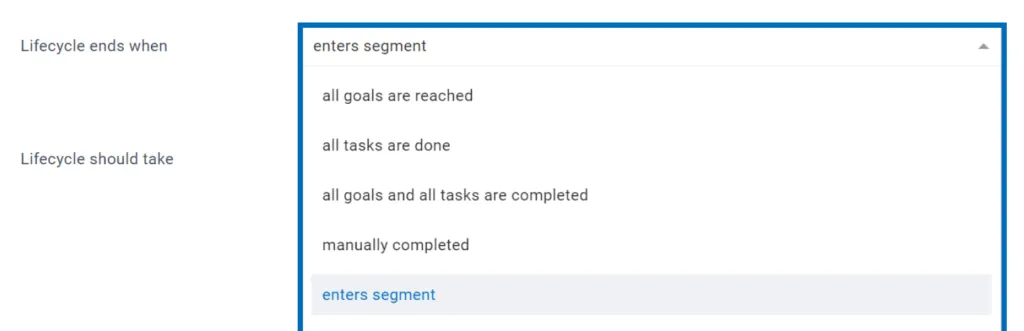
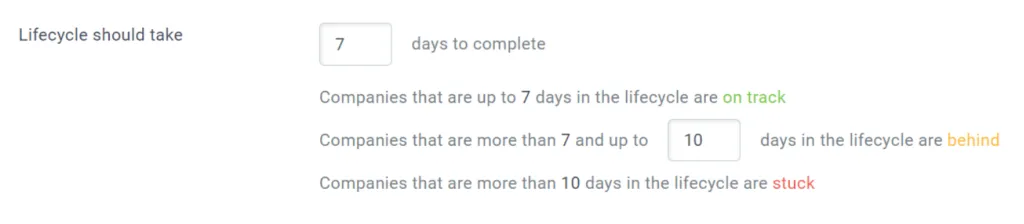
Lifecycle should take: Define the time frame in which you expect customers to complete the lifecycle. This time frame will be split into 3 statuses: On track, Behind and Stuck, so depending on the number of days you define, you can see how long it takes for a customer to complete the goals.
Taking the example of an Onboarding lifecycle that should take 10 days (as shown below):
- first 7 days: customers will be considered On track (they still have time to complete their goals).
- between 7 days and 10 days: customers will be considered Behind (days are passing and the goals are still not completed, so this can fire an alarm for your CS team and have them look into these accounts).
- after 10 days: customers will be considered Stuck (the onboarding period finished and the goals have not been completed, so they are at a high risk to churn).
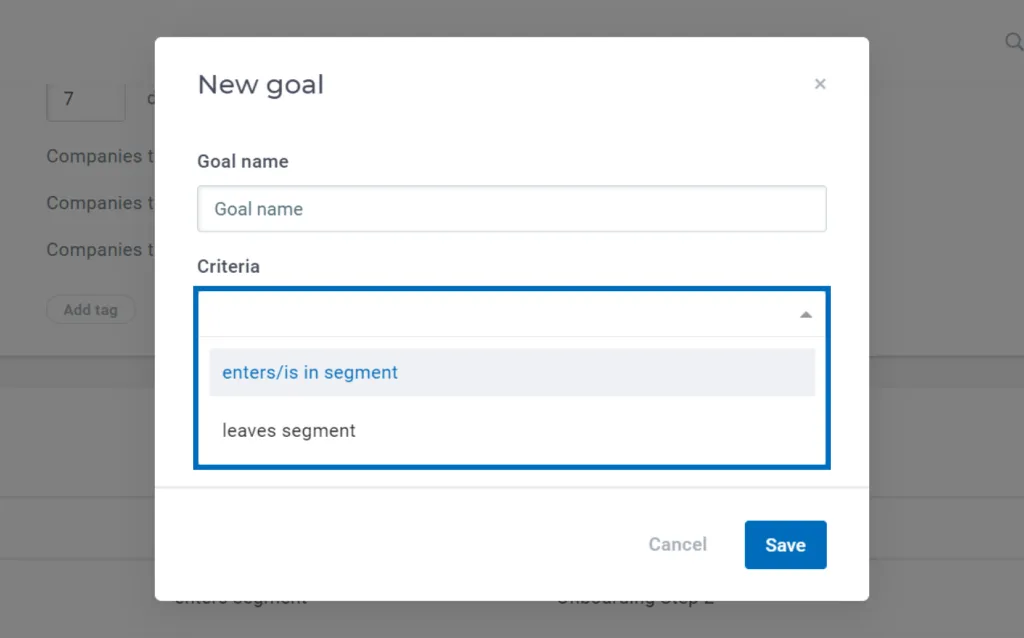
Goals: Define the goals your customers should achieve to complete the lifecycle. The goals are based on segmentation and can be related to specific platform usage events that you would like to track or specific attributes’ values.
Taking a basic example, let’s say you consider a customer is successfully using your platform in their onboarding period if they complete the setup of their account. For this, you are sending an attribute (boolean) called ‘Setup Complete’.
- You will first create a segment that will contain all customers with ‘Setup Complete = True’.
- You will define a goal based on the ‘Enters segment’ condition, so when a customer finishes the setup of his account, the attribute value for ‘Setup Complete’ becomes ‘True’ => the customer enters the segment ‘Setup Complete is true’ and the goal is achieved. If the lifecycle is set to finish when all the goals are completed, this will trigger the lifecycle end.

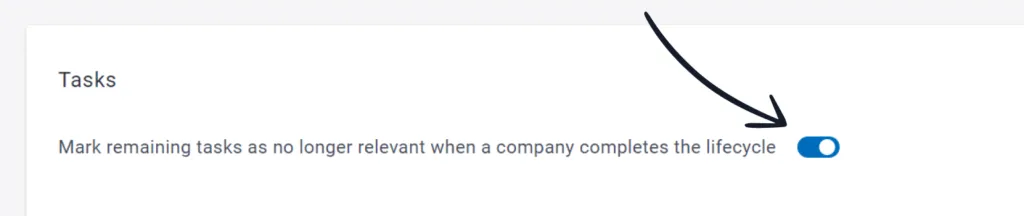
Tasks: Define tasks for your CS team. They will automatically open when a customer joins the lifecycle and can be closed either manually or automatically if you enable the feature “Mark remaining tasks as no longer relevant when a company completes the lifecycle”.

Tracking Lifecycles
Viewing customers with an active Lifecycle
Once you save a lifecycle you will immediately see the number of customers that are part of it. The number is actionable, so click on it to see details about those customers.
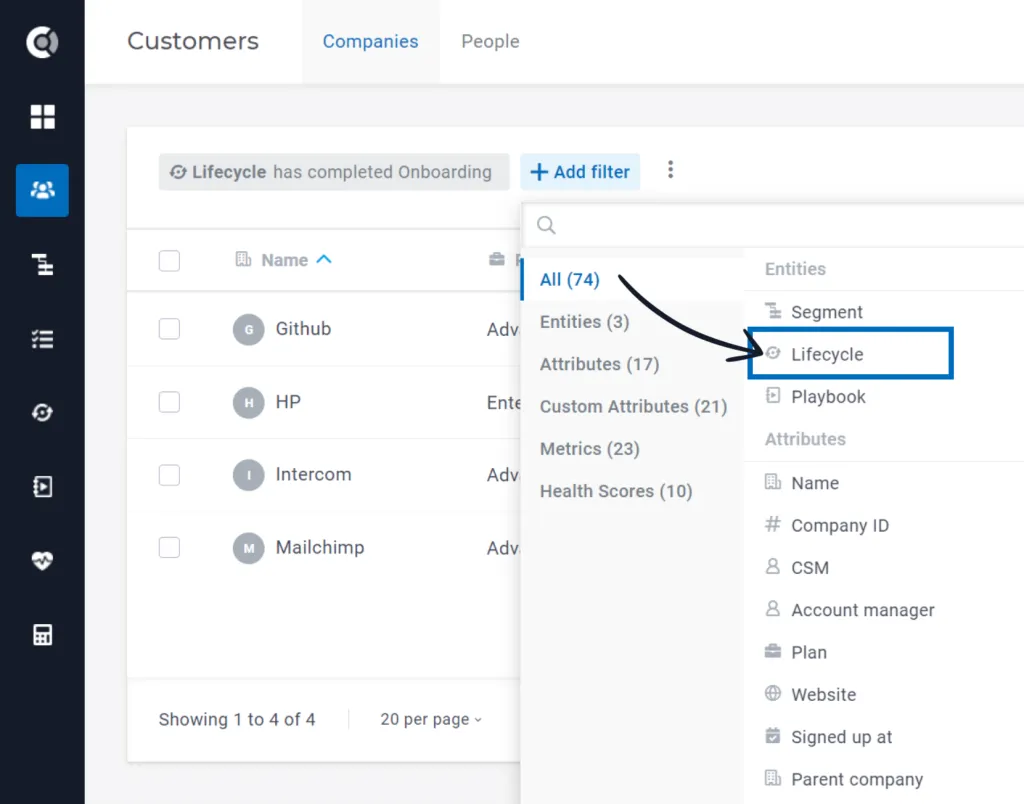
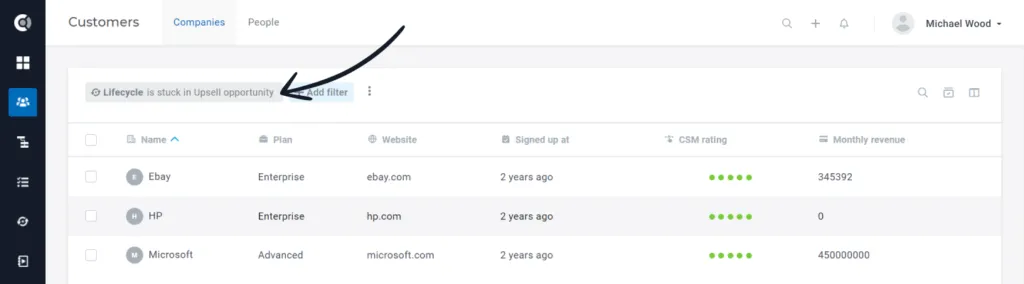
You can also go to the Customer List View (left menu) and use the lifecycle status as a filter. Get a list of all the customers that are On Track, Behind or Stuck in a lifecycle by simply applying a filter.
Viewing all current & past Lifecycles for a customer
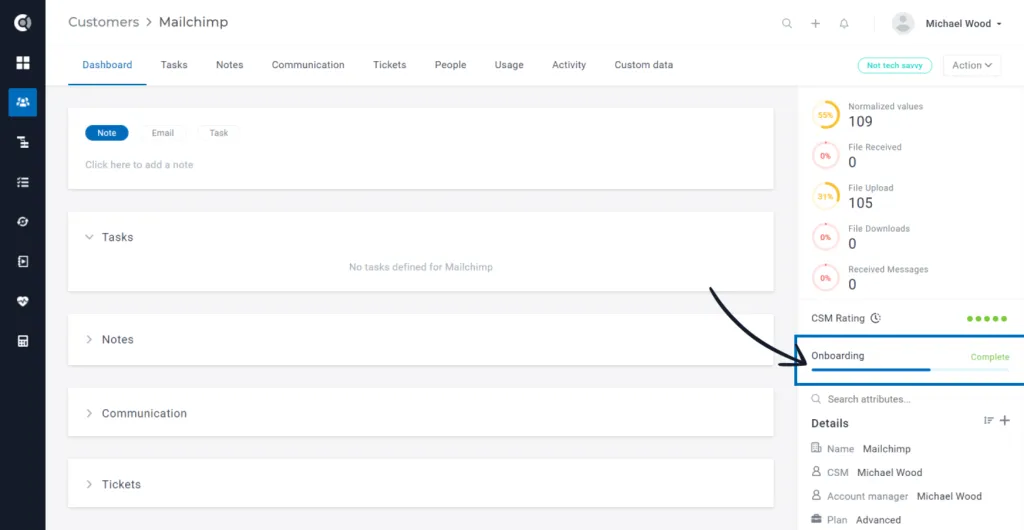
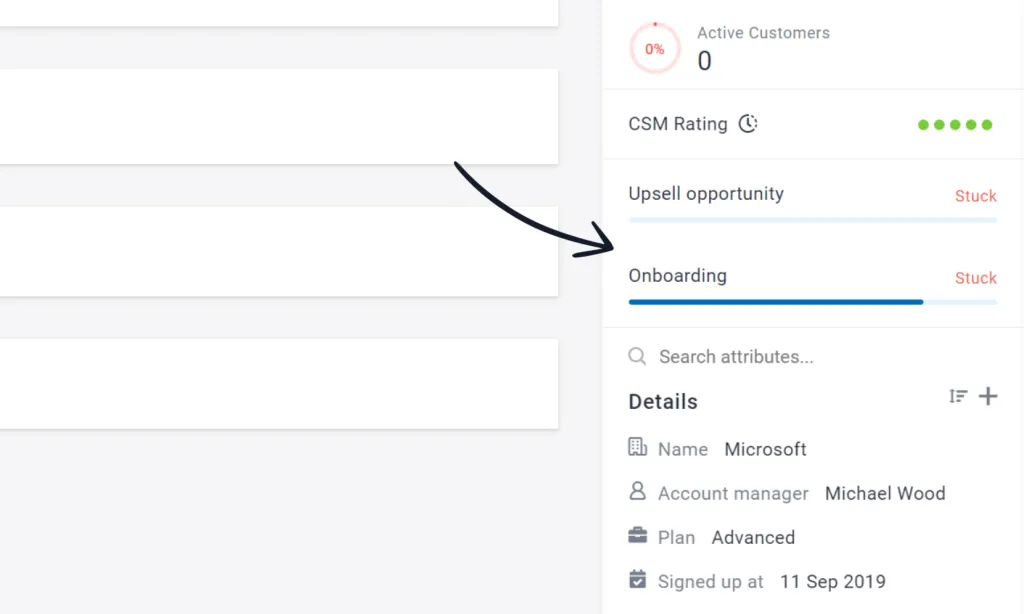
Go to a Customer 360° Profile and check the right pane to see:
- What lifecycle are they part of
- Status (Complete or In progress)
Managing Lifecycles
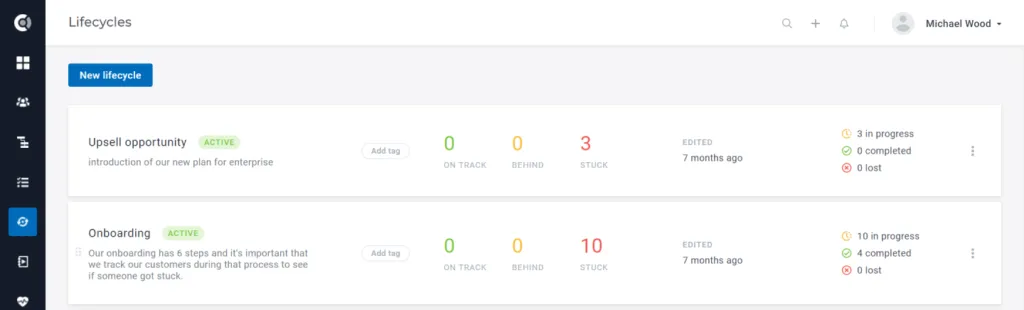
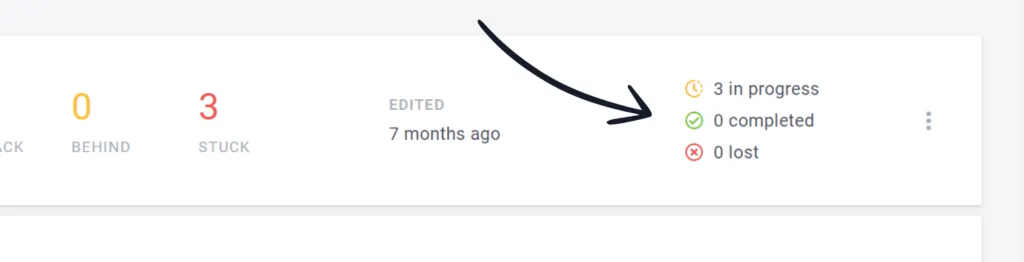
Quickly check all your Lifecycles by accessing the lifecycles menu. You will be able to see what is the progress on each stage, how many customers are on track, and how many need further help to become successful. The On Track, Behind, and Stuck numbers are actionable and they will redirect you to the list of customers in each category.
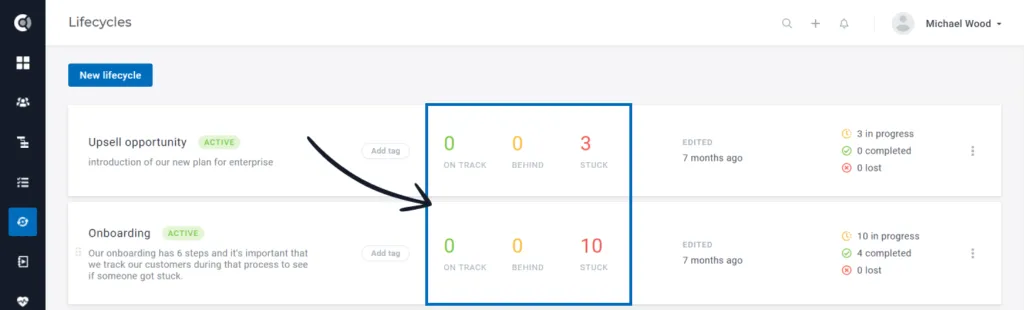
You will also be able to check here the total number of customers who are:
- In progress: The total number of customers who are in progress in a lifecycle, regardless of status (On Track/Behind/Stuck).
- Completed: The total number of customers who completed the lifecycle (automatically or manually).
- Lost: Total number of customers who entered the Churn segment while being in progress in this lifecycle.
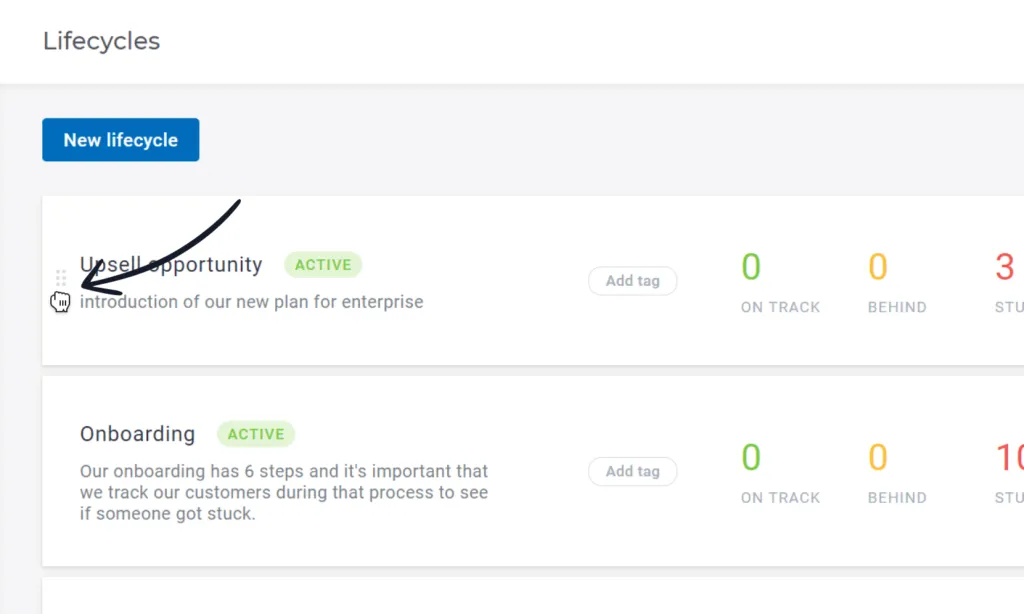
Lifecycles can be reordered by dragging and dropping them. This order will also be kept in the Customer 360° Profile.
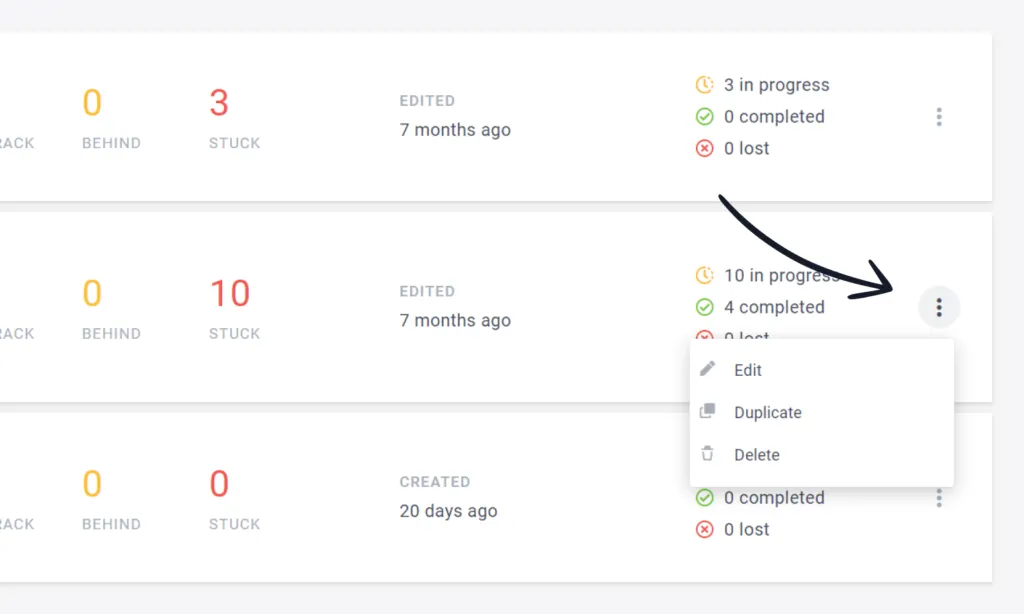
Need to create a similar lifecycle, with a slightly different starting condition? Use the Duplicate function, then Edit the lifecycle as needed. You will also be able to Delete unused lifecycles, so they will not be displayed anymore in the Customer 360° Profile.
Tags
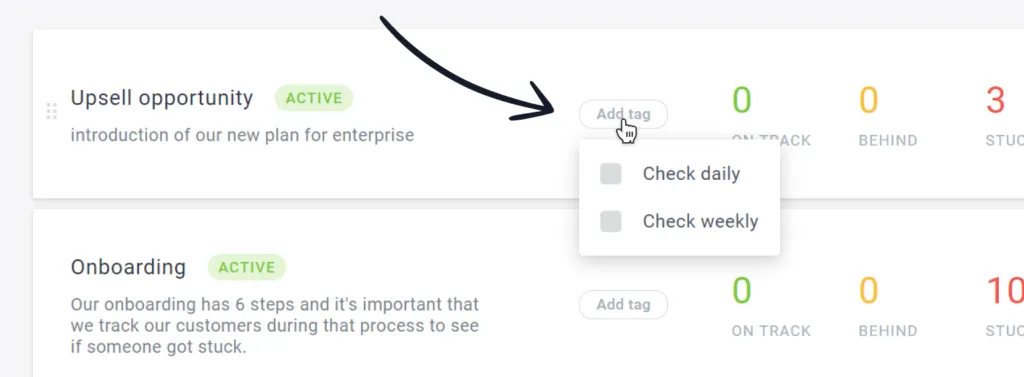
Use tags to categorize your Lifecycles. You can categorize them by importance, subscription plans, CSMs in charge to track them, or any category you consider useful.
Step 1: Define the tags in Settings – App Settings – Tags.
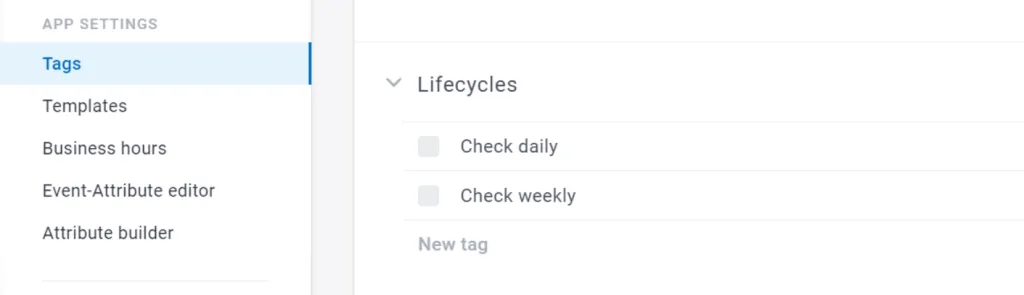
Observation: if there is no tag defined for lifecycles, the Tagging option will not be available for them.
Step 2: Assign the tag to the Lifecycle.
Lifecycle dashboard
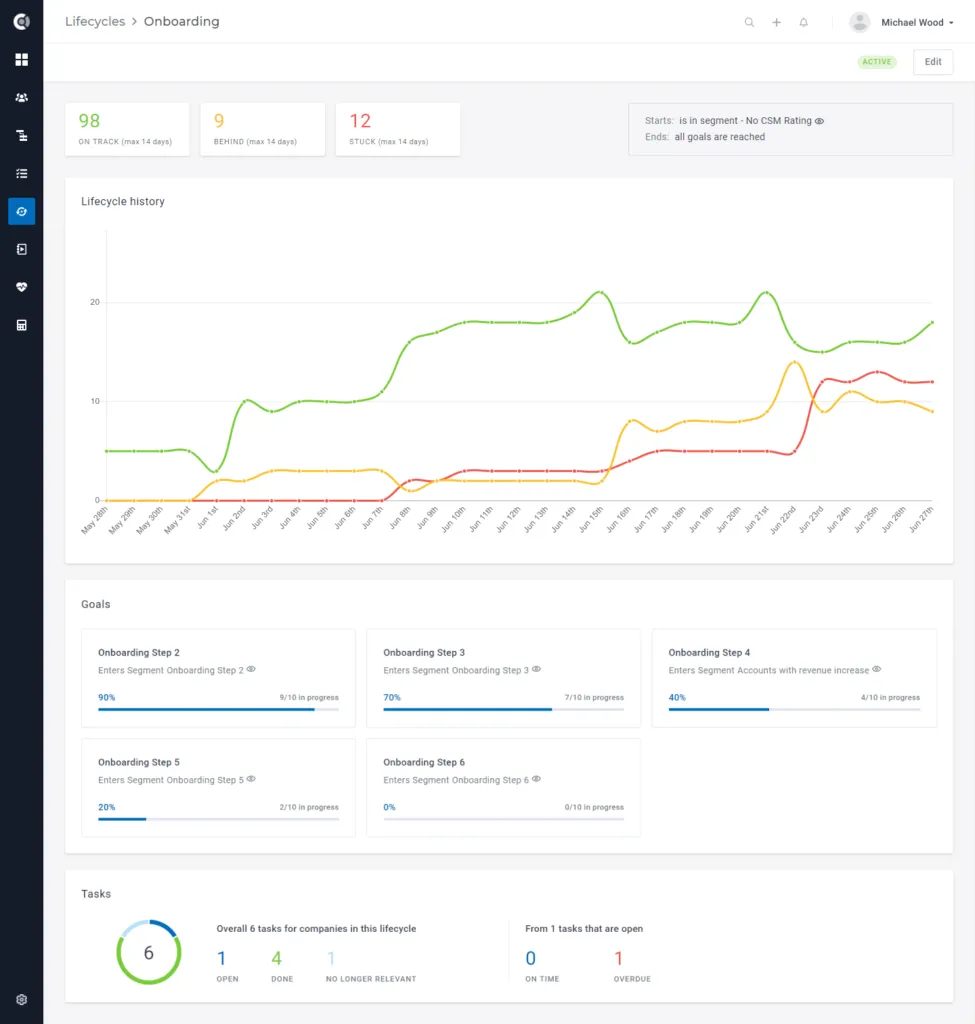
To see more details about the lifecycle’s evolution, click on the Lifecycle’s name and you will be redirected to the corresponding dashboard. There you will find information about the customers’ statuses (On Track, Behind, Stuck), you will see the lifecycle evolution in the last 30 days and you will also see the percentage of companies who completed each goal and the tasks statuses.
Custify Template Library (Beta)
When creating a new entity, you can choose to build from scratch or start from a template — a great way to move faster while drawing inspiration from industry best practices.
Browse by category, or filter by use case (Onboarding, Renewal, Churn Prevention) and CS motion type (SaaS B2B, PLG) to find the right fit. Click Use Template to load it directly into the matching editor — pre-populated and ready to customize.
Nothing is saved until you click Save — so you can explore, adjust, and preview completely risk-free before committing to anything.