Focus Session
Overview
The Focus Session feature in Custify is designed to streamline task management, allowing users to concentrate on completing tasks quickly and efficiently. Organizing selected tasks into a continuous workflow eliminates distractions and provides a clear sense of progress. Whether you're handling daily to-dos or tackling a large batch of tasks, the Focus Session helps you stay on track and work through tasks with minimal effort, making it an ideal solution for users who want to dedicate time to specific tasks and then move on to other activities.
Key Benefits of the Focus Session Feature
- Increased Productivity: Focus Sessions allow users to work on tasks consecutively, reducing cognitive load and decision-making time.
- Better Progress Tracking: With visual progress indicators and a task-by-task flow, users can see how much work they've completed and what's left to be done at a glance.
- Task Prioritization: By skipping tasks that aren't immediately relevant and returning to them later, users can focus on high-priority activities without losing sight of other tasks.
- Cross-Browser Tab Functionality: Work on tasks seamlessly across different pages or browser tabs, enabling multitasking without losing track of your session.
How to Use Focus Sessions
- Select Your Tasks
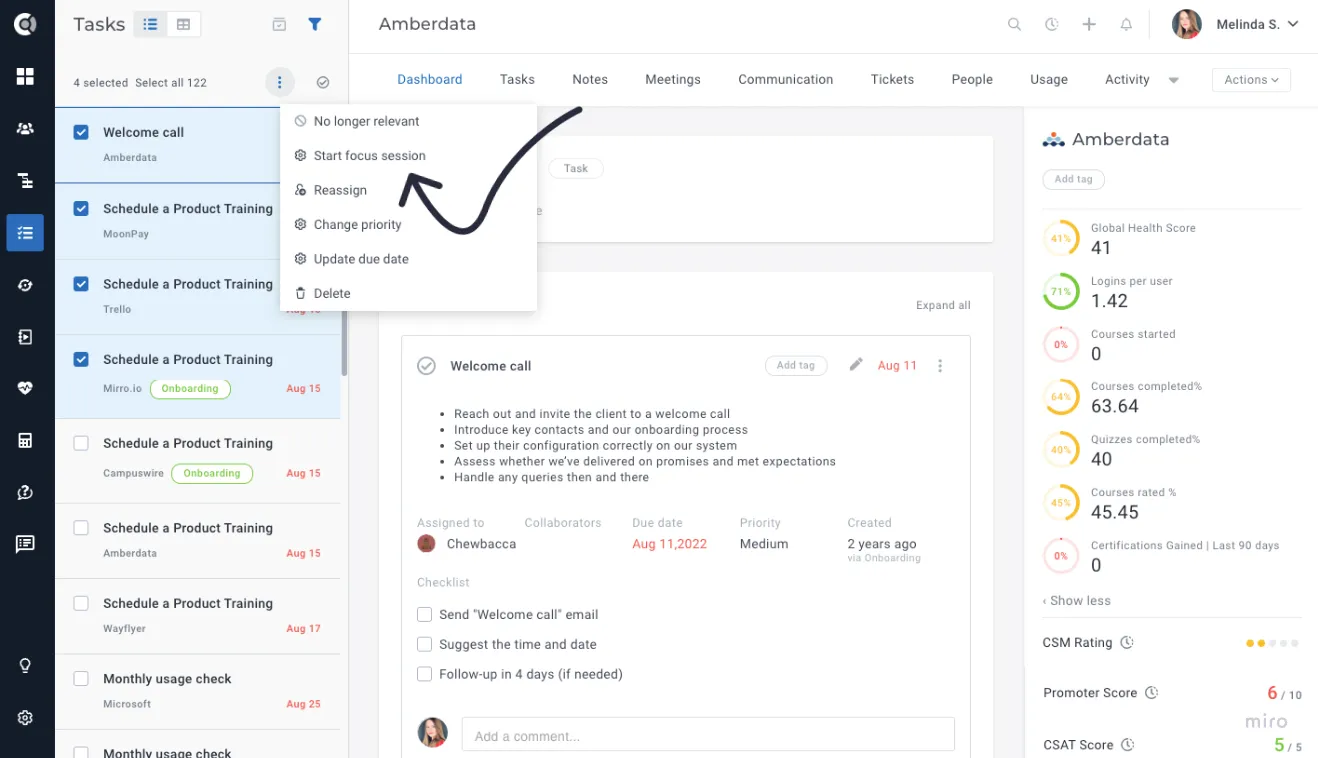
- You can initiate a Focus Session from either the List View or the Table View of your tasks. Start by selecting the tasks you wish to work on.
- Alternatively, you can use the Select All option to select every task based on a filter.
- Start a Focus Session
- Once you've selected the tasks, click the Actions button and choose Start Focus Session.
- Custify will check the number of tasks selected. If you’ve selected more than the session limit (e.g., 100 tasks), the system will notify you that Focus Sessions are capped at a maximum number of tasks.
- If a session is already in progress, you’ll be asked whether you want to continue or discard the current session and start a new one.
Navigating a Focus Session
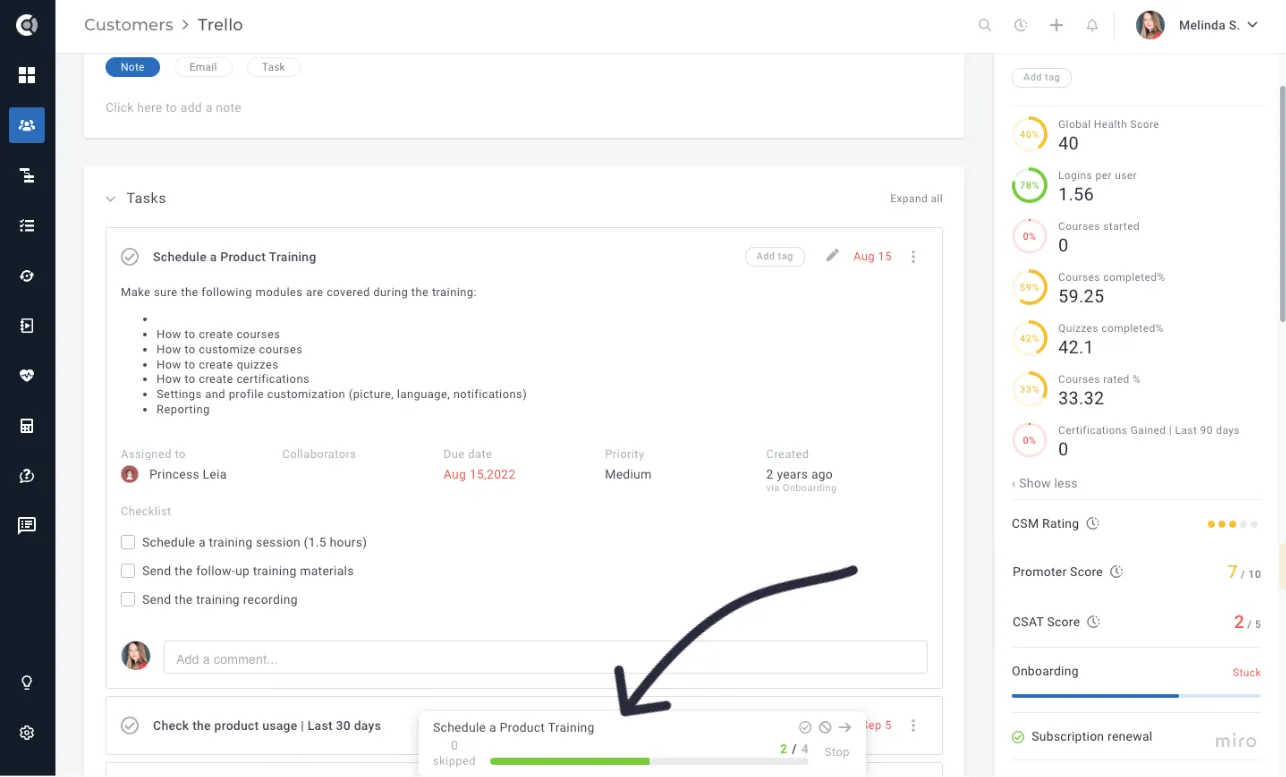
When a Focus Session is active, a fixed Focus Session Bar appears at the bottom of the window with the following features:
- Current Task Information: The current task's name is displayed, and clicking on it takes you to the task, just like in the Task Table view.
- Actions: You can mark the task as Done, Not Relevant, or Skip it directly from the Focus Session bar.
- Progress Tracking: A visual progress bar shows how many tasks have been completed or skipped.
- Tasks marked as completed will be highlighted in Custify's primary blue.
- Skipped tasks will be shown in gray, and the bar will display the number of tasks skipped.
- Clicking on the "X Skipped" label will show a list of skipped tasks, allowing you to revisit them.
Task Flow During a Focus Session
- When the session begins, you are automatically directed to the first task, displayed within the context of its company (similar to the Task Table view).
- Upon completing, skipping, or marking the task as irrelevant, the system will immediately open the next task, keeping your workflow seamless and reducing the need for additional clicks.
- The session continues to cycle through tasks until all selected tasks are addressed.
Completing a Focus Session
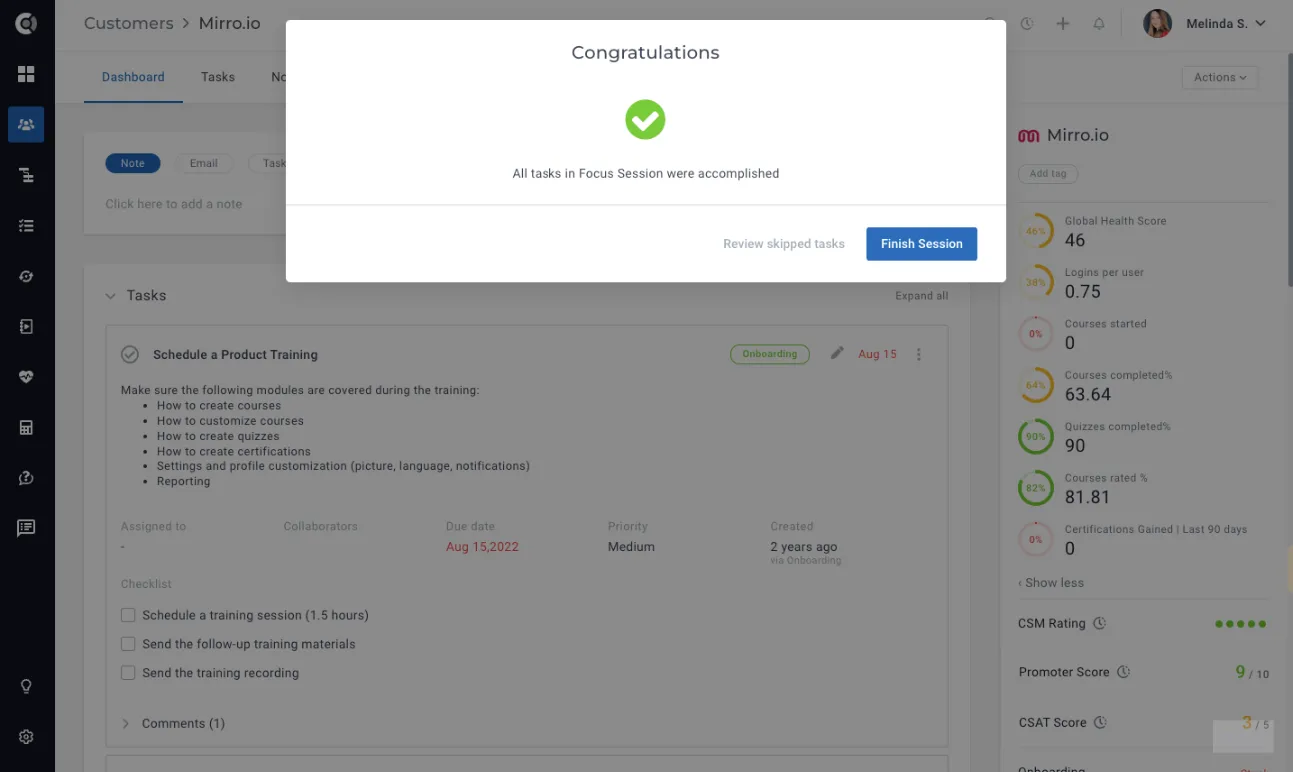
- Once you've worked through all the tasks, a modal will appear with a congratulatory message.
- If you have skipped tasks, the modal will give you the option to revisit and complete them.
You will also have the option to finish the Focus Session at this point.
Whether you're a busy customer success manager or a team leader handling many tasks at once, Custify's Focus Session feature will help you stay productive and achieve your goals efficiently.