MyCustify
Your day, prioritized.
A CSM’s morning often looks like this: open your tasks, check the calendar, scan the renewals report, review new signals, then dig through the inbox for anything urgent. That’s a lot of clicking before any real work starts, and it’s easy for something important to slip through.
MyCustify changes that. It’s your personalized home page in Custify, built around one simple question: what needs my attention right now? Everything that matters across your accounts comes together in one place, ordered by urgency, so you can spend less time looking for work and more time with your customers.
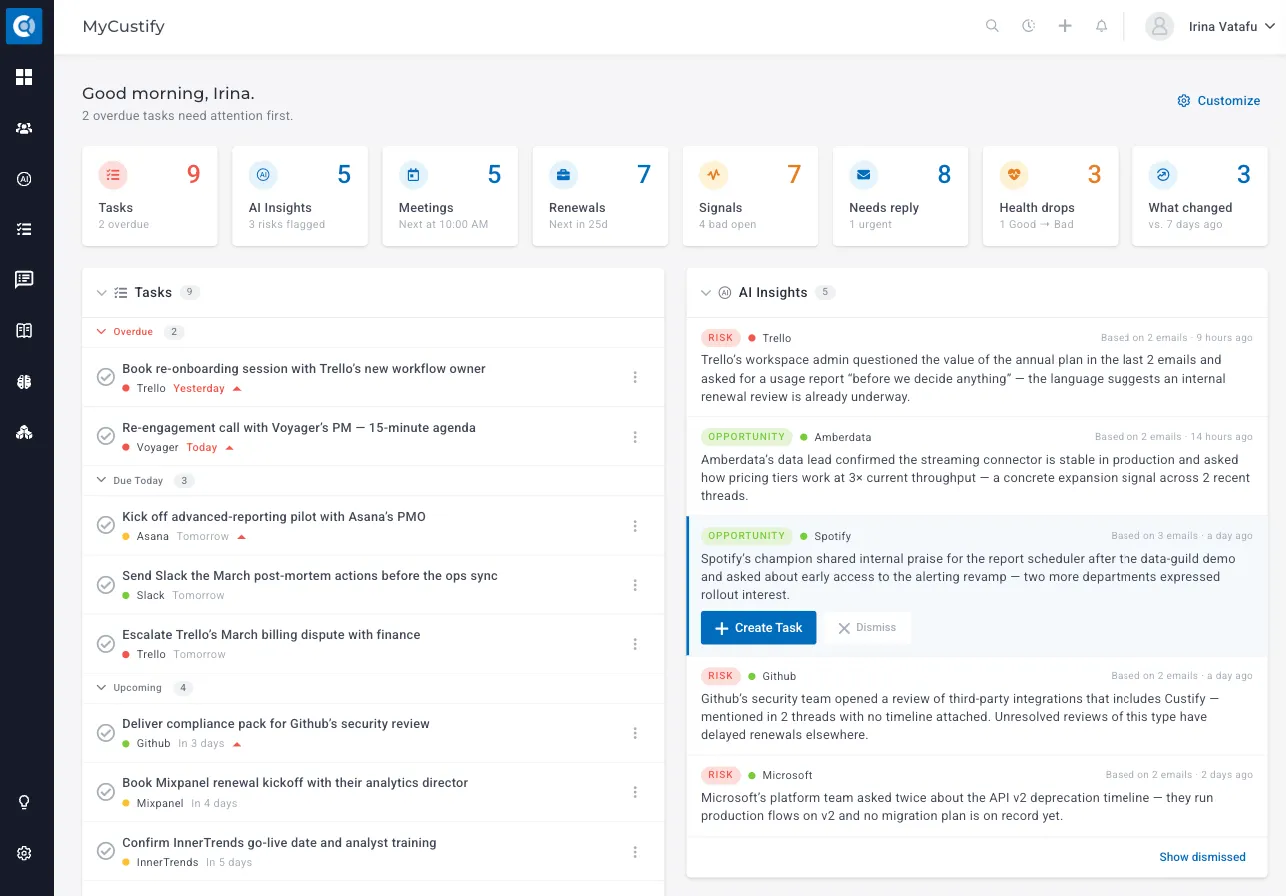
Start every day with clear priorities
The moment you log in, MyCustify greets you with a short summary of what to focus on first, such as “2 overdue tasks need attention first”. Right below it, the summary tiles give you an instant read on your portfolio: your tasks, AI insights, meetings, renewals, signals, emails that need a reply, health drops, and what changed. Each tile highlights what matters most, like how many tasks are overdue, how many risks were flagged, or when your next meeting starts. When there’s nothing to worry about, the tile simply shows Clear.
You know where you stand in seconds, and one look tells you whether it’s a firefighting day or a strategic one.
Focus on the accounts that matter right now
Work on the entire portfolio or narrow every section by filtering by one or more segments, for example “Enterprise customers” or the companies in your region. Every section and tile follows your choice, and Custify remembers it for next time.
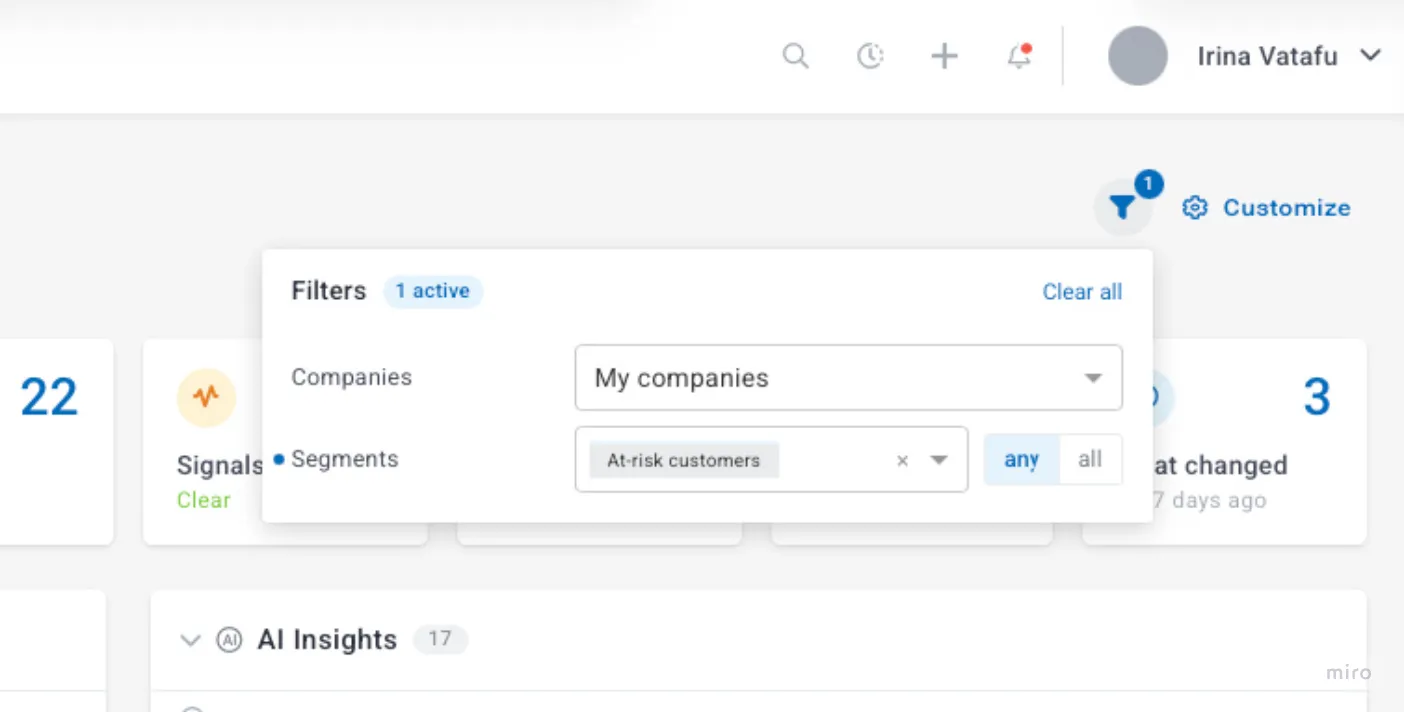
Turn your to-do list into progress
Your tasks are organized into Overdue, Due Today, and Upcoming, so the most urgent work is always at the top. Each task shows the company it belongs to and its priority, giving you all the context you need.
Need more details? Click any task to expand it right in the list: you’ll see its due date, priority, collaborators, when it was created and by which playbook, and the full description, without opening the task or the customer profile.
Finish a task with a single click. Need to change plans? Reassign it to a teammate, change its priority, move the due date, track the time you spent, or mark it as no longer relevant, right from the list.
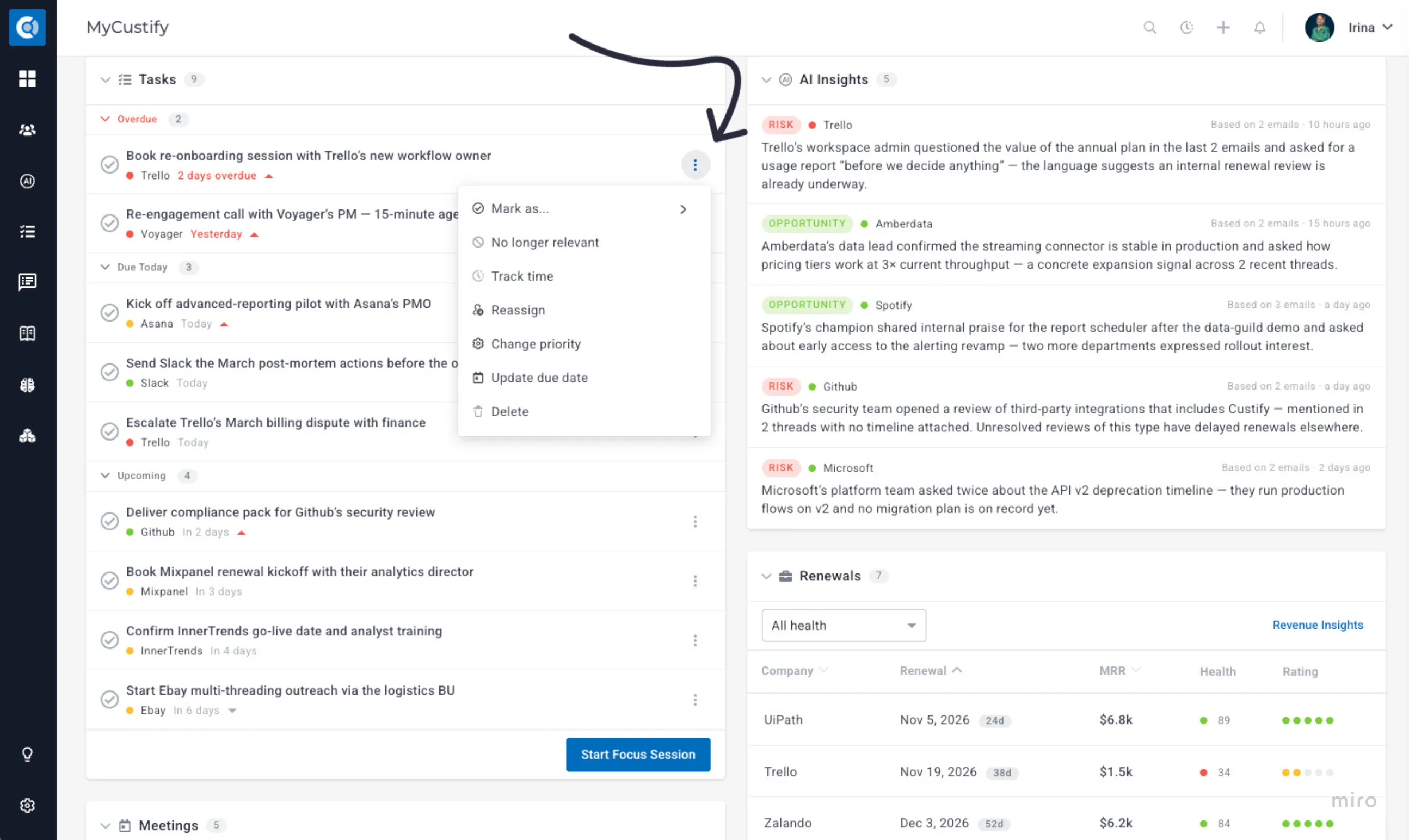
Spot risks and opportunities before they become surprises
Important signals often hide in the middle of long email threads: a customer questioning the value of their plan, a stakeholder asking about competitors, or a champion hinting at a bigger rollout. AI Insights surfaces these moments for you.
CustifyAI reviews your recent customer conversations every night and highlights what deserves your attention, clearly labeled as a Risk or an Opportunity. Each insight tells you which company it’s about and how many emails it’s based on, so you can trust where it comes from.
When an insight needs action, click Create Task to plan your follow-up immediately; this also closes the insight for the whole team. If it’s already handled, Dismiss it and pick a reason. The reason decides who stops seeing it: Not relevant to me hides it only for you, while Not worth acting on, Already addressed, and Incorrect hide it for the whole team. Show dismissed lists who dismissed what and why, with a Restore option.
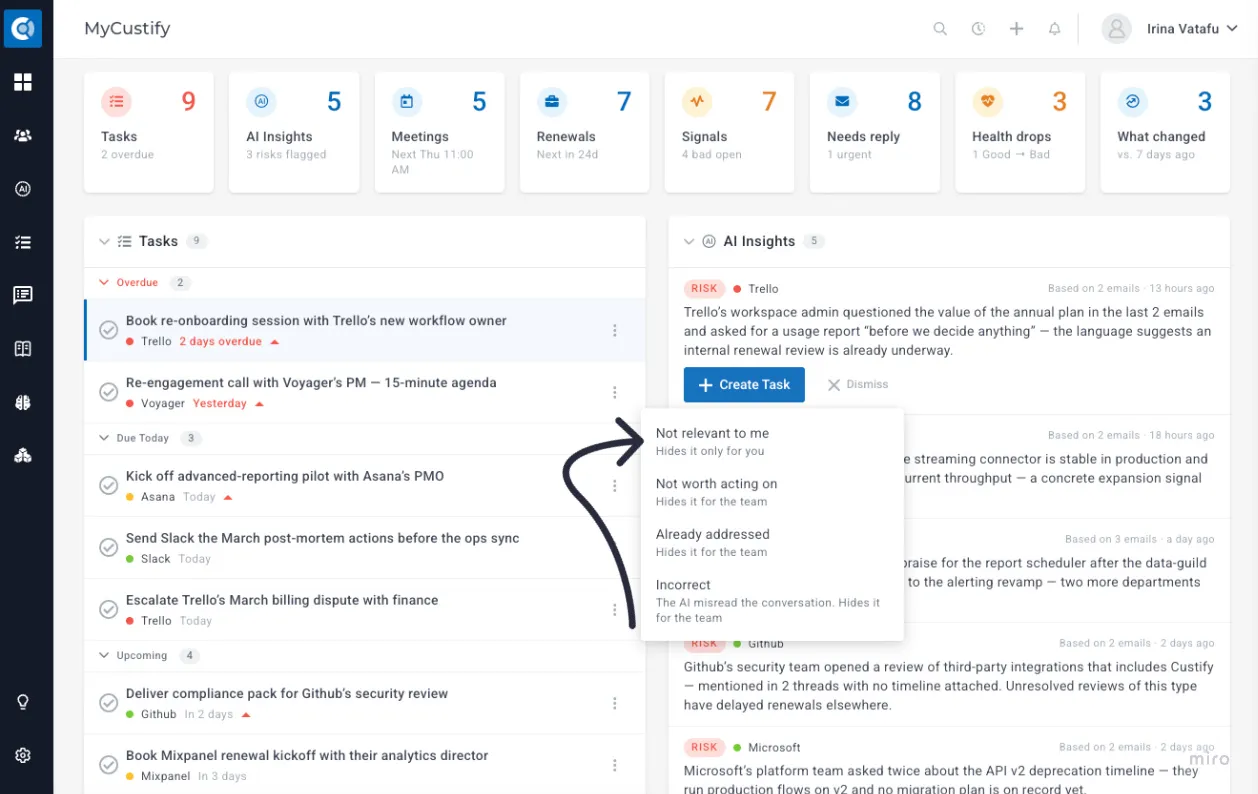
It is based on the CustifyAI Agent, Proactive Insights, that works for you overnight. It reviews recent customer conversations in each CSM’s book of business and surfaces risks and opportunities, such as cancellation hints or competitor mentions, even when they’re buried in the middle of a long email.
The agent has to be enabled under Settings - CustifyAI in order for the information to be populated.
It is based on the CustifyAI Agent, Proactive Insights, that works for you overnight. It reviews recent customer conversations in each CSM’s book of business and surfaces risks and opportunities, such as cancellation hints or competitor mentions, even when they’re buried in the middle of a long email.
The agent has to be enabled under Settings - CustifyAI in order for the information to be populated.
See what changed across your book
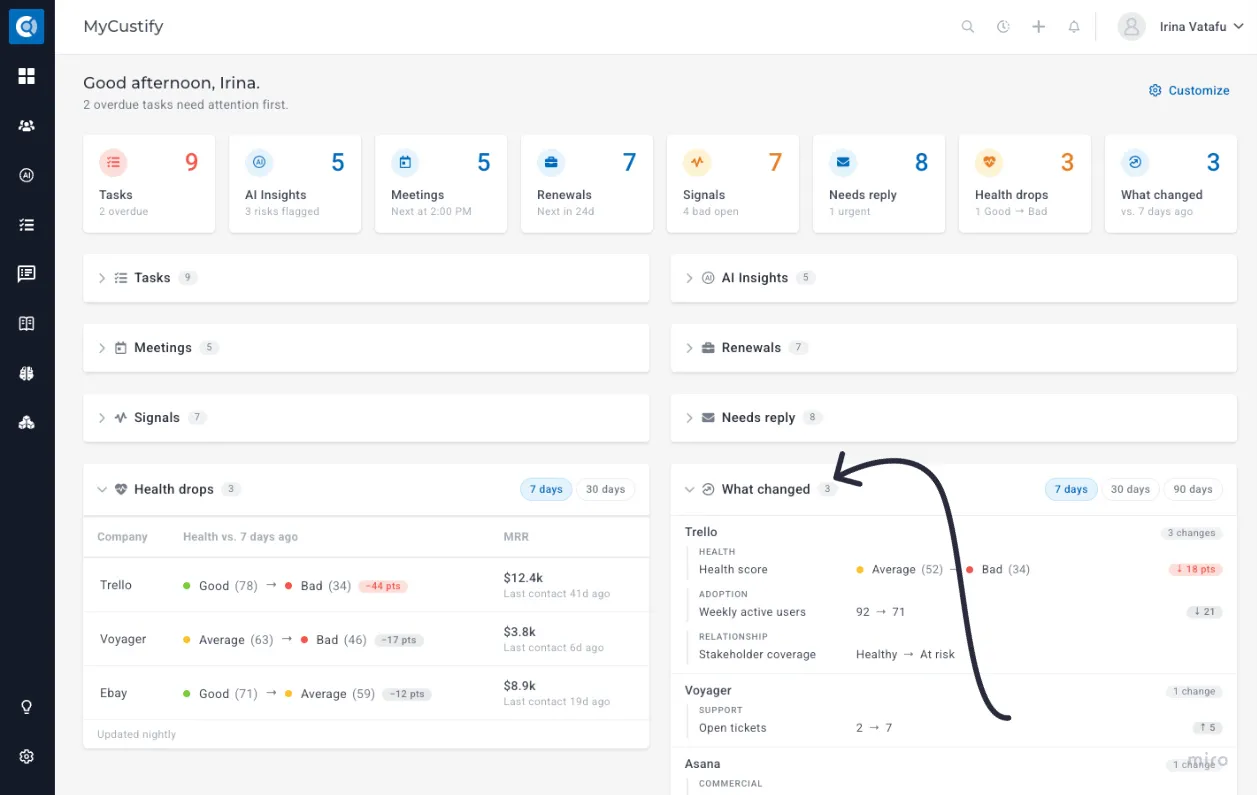
What moved in your accounts since last week, last month or last quarter? The What changed section shows, for every company in your book, the data points your team chose to track that changed over the last 7, 30 or 90 days, written as before → now. Each company gets its own block listing only what changed, for example:
- Health score: Good (85) → Average (72)
- Open tickets: 2 → 7
- Stakeholder coverage: Healthy → At Risk
Companies with the most changes come first, and hovering over a line explains it in plain words (“Open tickets went from 2 to 7 since Oct 20”). Use the 7 / 30 / 90 days switch in the section header to change the window.
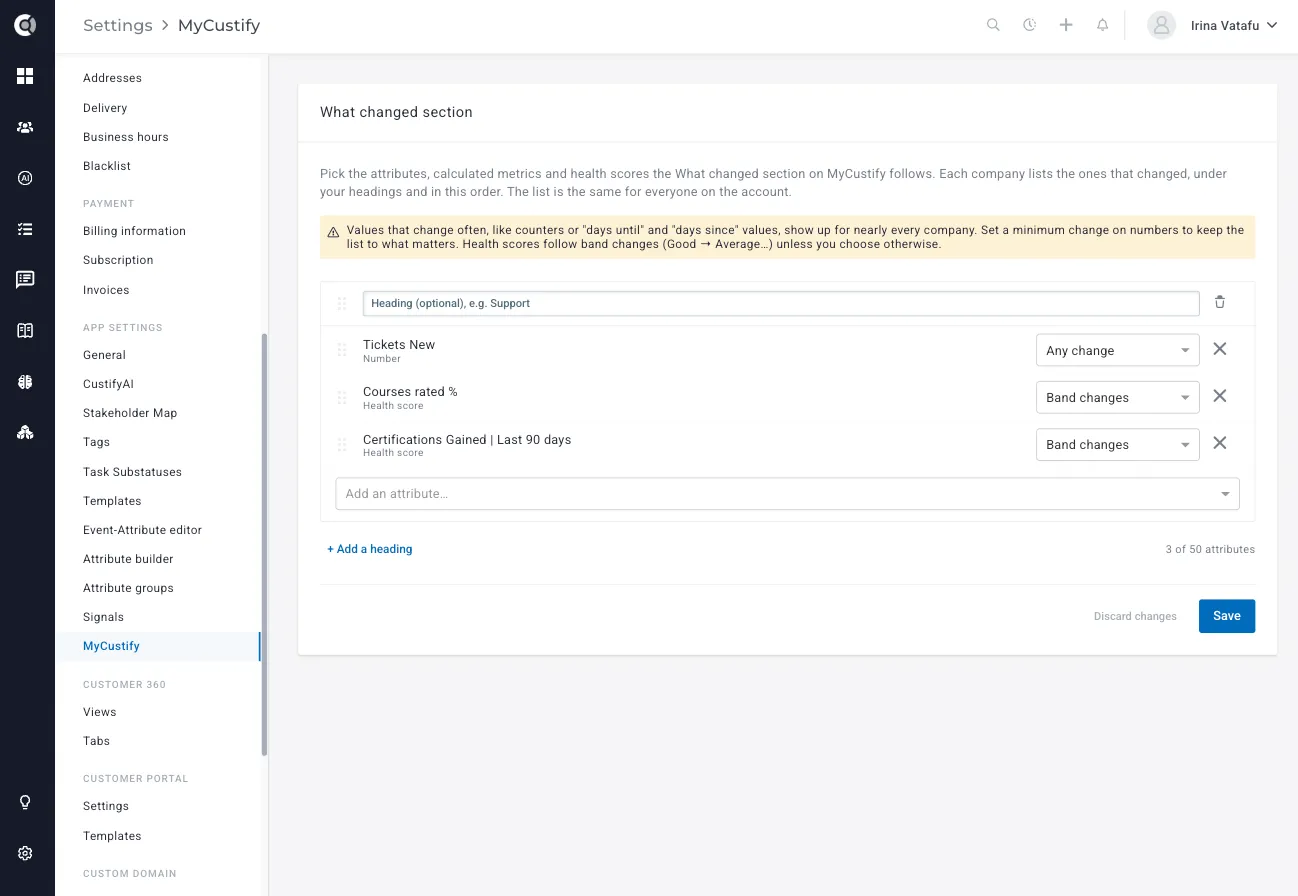
An admin chooses what to track in Settings - App settings - MyCustify: add headings (for example, Adoption, Support, Commercial) and the attributes, calculated metrics, and health scores under each, up to 50. For numbers, set a minimum change (for example, 10%) so small moves don’t show. The section fills a few minutes after the first save, then refreshes every night.
Catch the health drops that stick
The Health drops section lists the companies whose Global Health Score moved to a worse band compared with 7 or 30 days ago (Good → Needs attention, Good → Bad, Needs attention → Bad). It shows the drops that stuck, not the daily ups and downs, with the points lost, the company’s MRR, and your last contact, with the worst drops first.
Health drops works out of the box for accounts with a global health score and is refreshed every night.
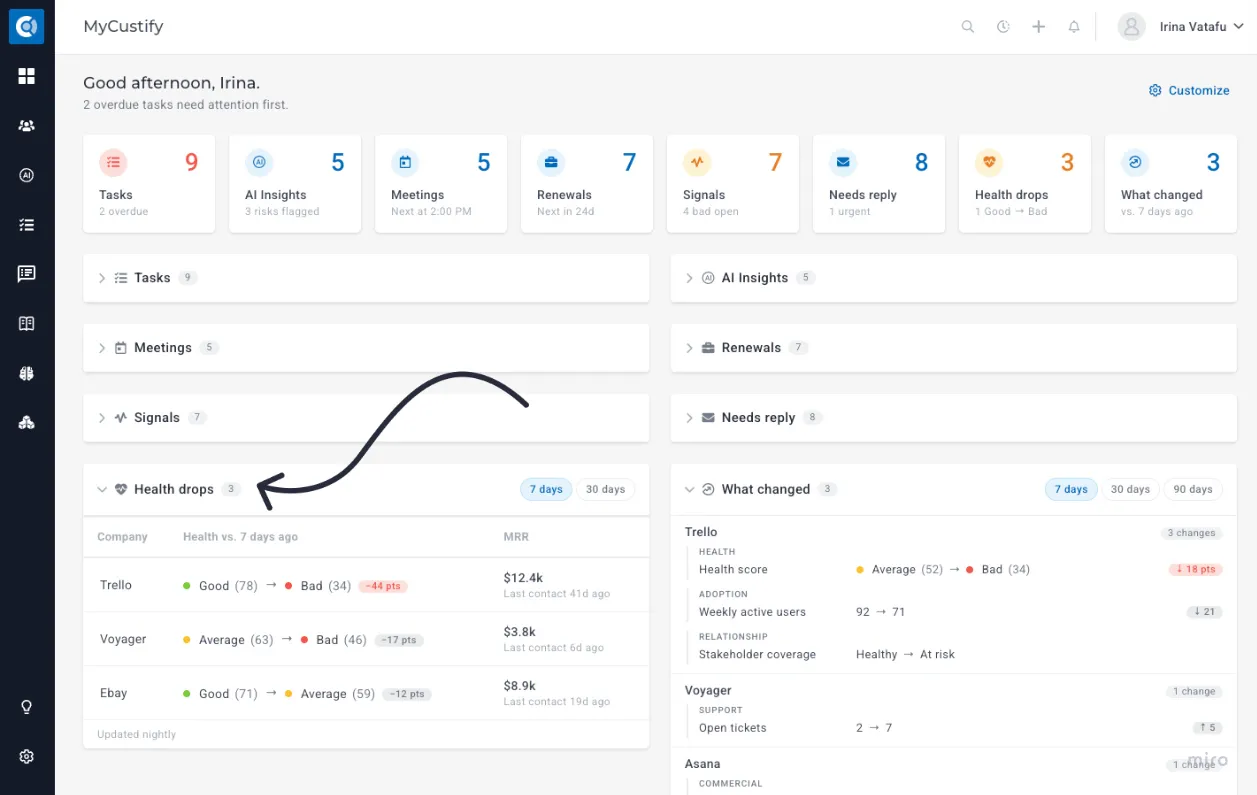
Good to know: both sections compare the start of the window with today, so a value that changed and changed back in between is not listed. Churned companies are left out.
Walk into every meeting prepared
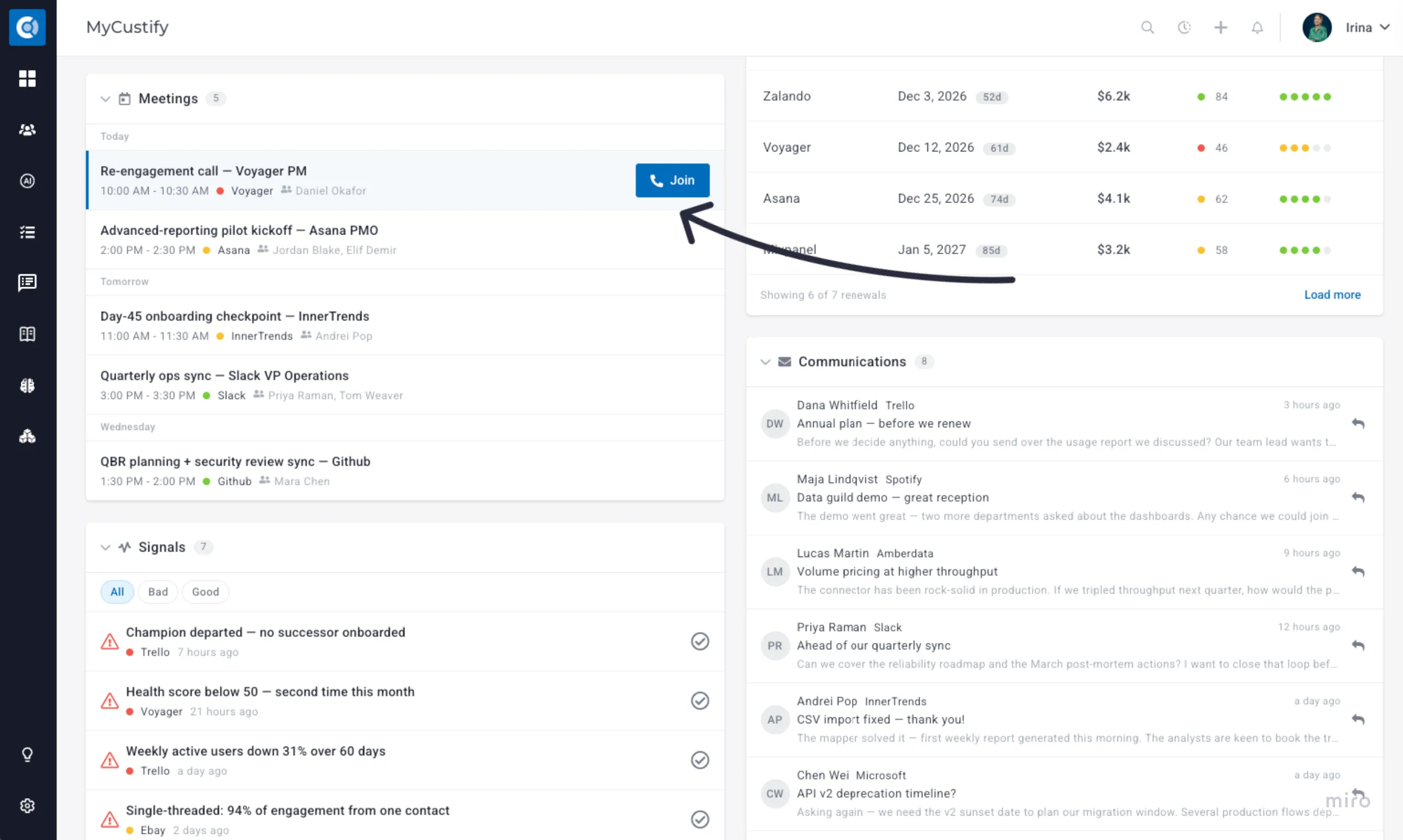
Your upcoming meetings are grouped by day, with the company and attendees for each one. You see your schedule in the same place as the account context, so preparation starts naturally.
Protect your revenue, one renewal at a time
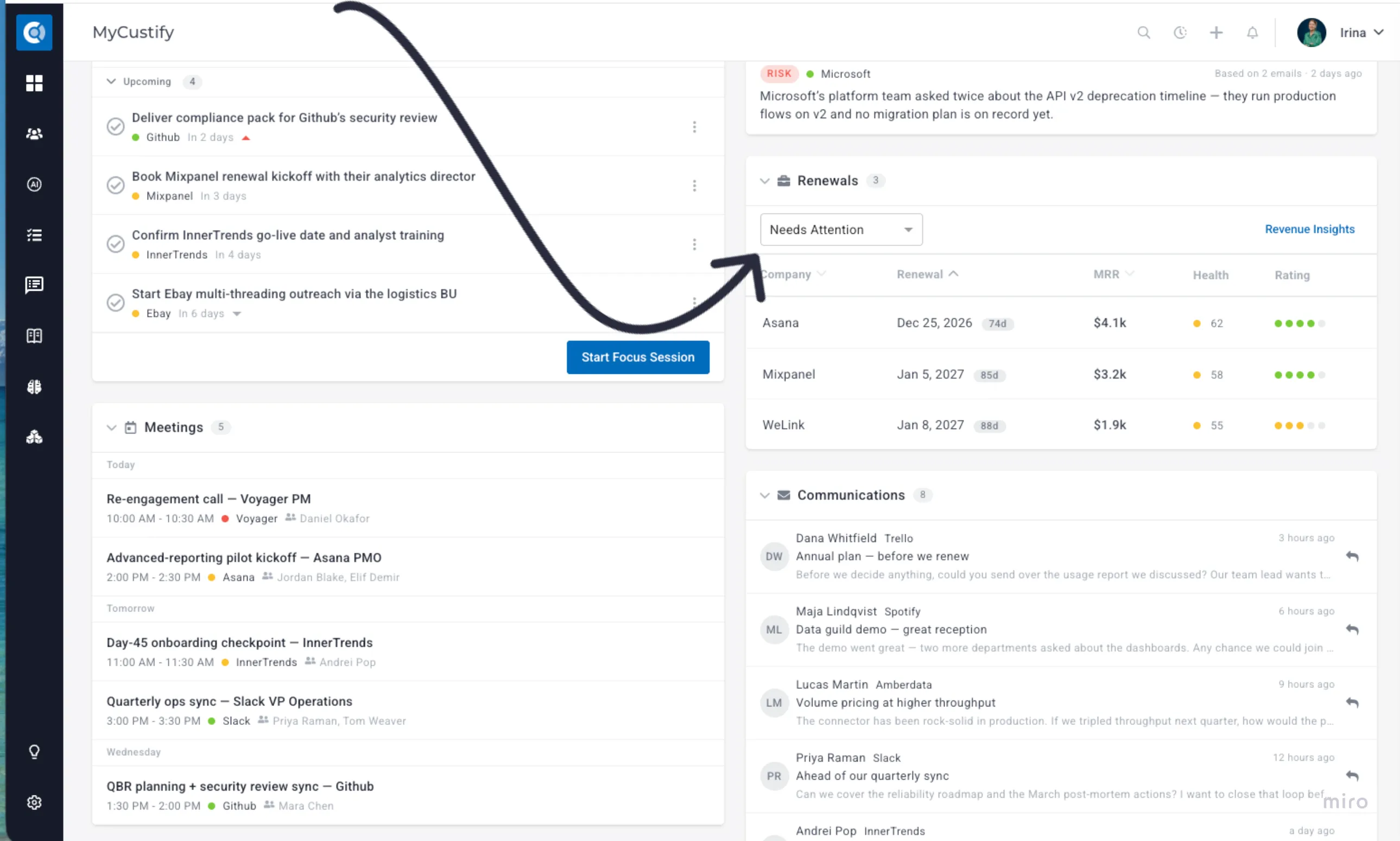
Renewals are where your work pays off, and the ones that need attention should never come as a surprise. MyCustify lists your upcoming renewals with the renewal date, days left, MRR, health score, and CSM rating side by side.
Filter by health to focus on the accounts that need help, sort by date or MRR to prioritize your time, and jump into Revenue Insights when you need the bigger picture.
Custify Tip: If your customers renew yearly but pay monthly or quarterly, an admin can turn on Use a separate renewal date attribute in Settings - General - Revenue, so this section shows the real renewals instead of every upcoming invoice.
Act on signals while they still matter
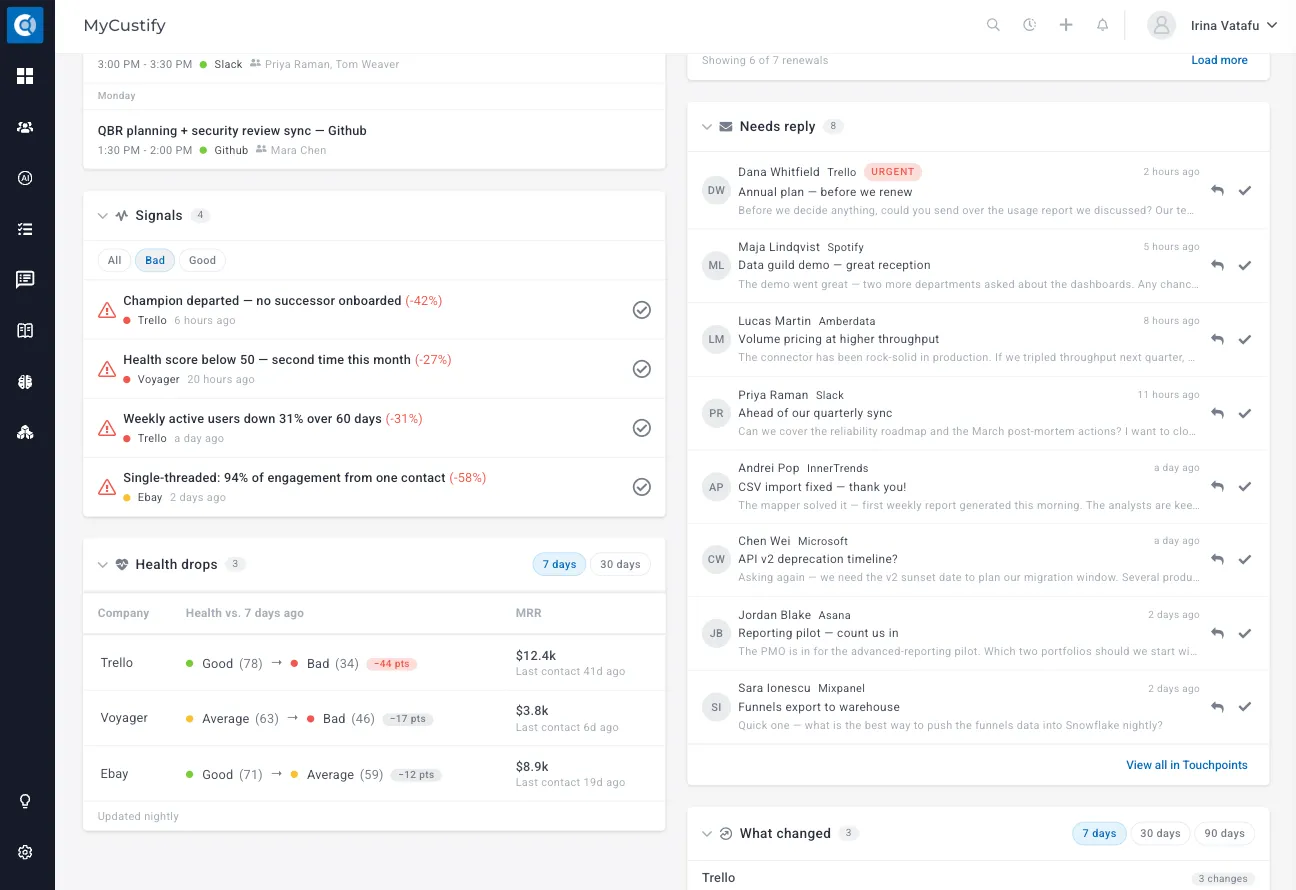
Signals are built on the product usage data you send to Custify, so they reflect what your customers actually do in your product. A drop in weekly active users, a key feature that stopped being used, or a sudden spike in activity: MyCustify shows your open signals in one list, so changes in usage never go unnoticed.
Filter by Bad to focus on the usage drops that could put an account at risk, or by Good to spot the accounts showing strong adoption and possible expansion. Once you’ve handled a signal, acknowledge it directly from the list to keep your view clean and your team aligned.
Reply to customers faster
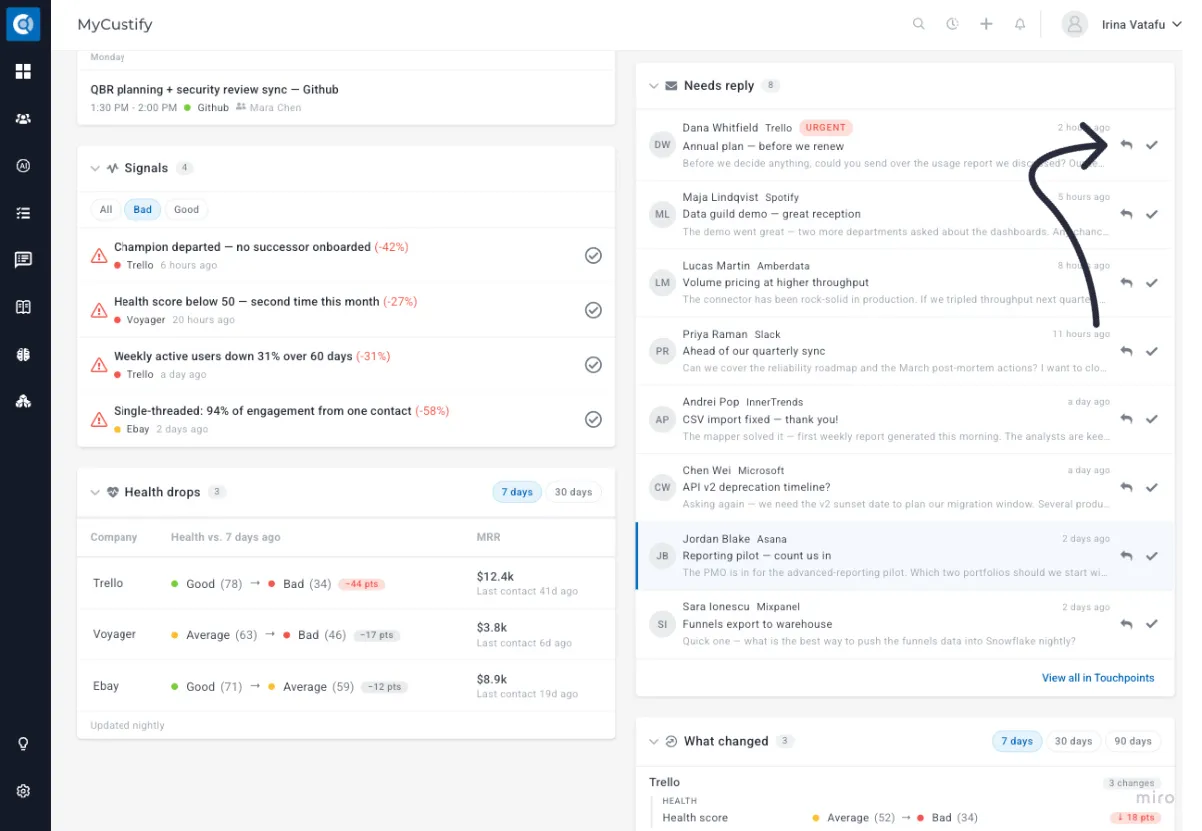
The Needs reply section lists the customer emails your team still owes an answer to. It shows the latest customer email of each thread from the last 7 days that nobody has replied to yet, with urgent emails first and the AI summary on hover. Any reply counts, including playbook and sequence emails, and emails that don’t need an answer (auto replies, or a simple “thanks!”) are left out.
Click reply to answer immediately, without searching through your inbox or opening the full conversation. The email disappears for the whole team as soon as you send, and you are warned if a teammate already replied. For threads that were handled elsewhere, click No reply needed; you’ll find them under Show handled, with an Undo.
Make it yours
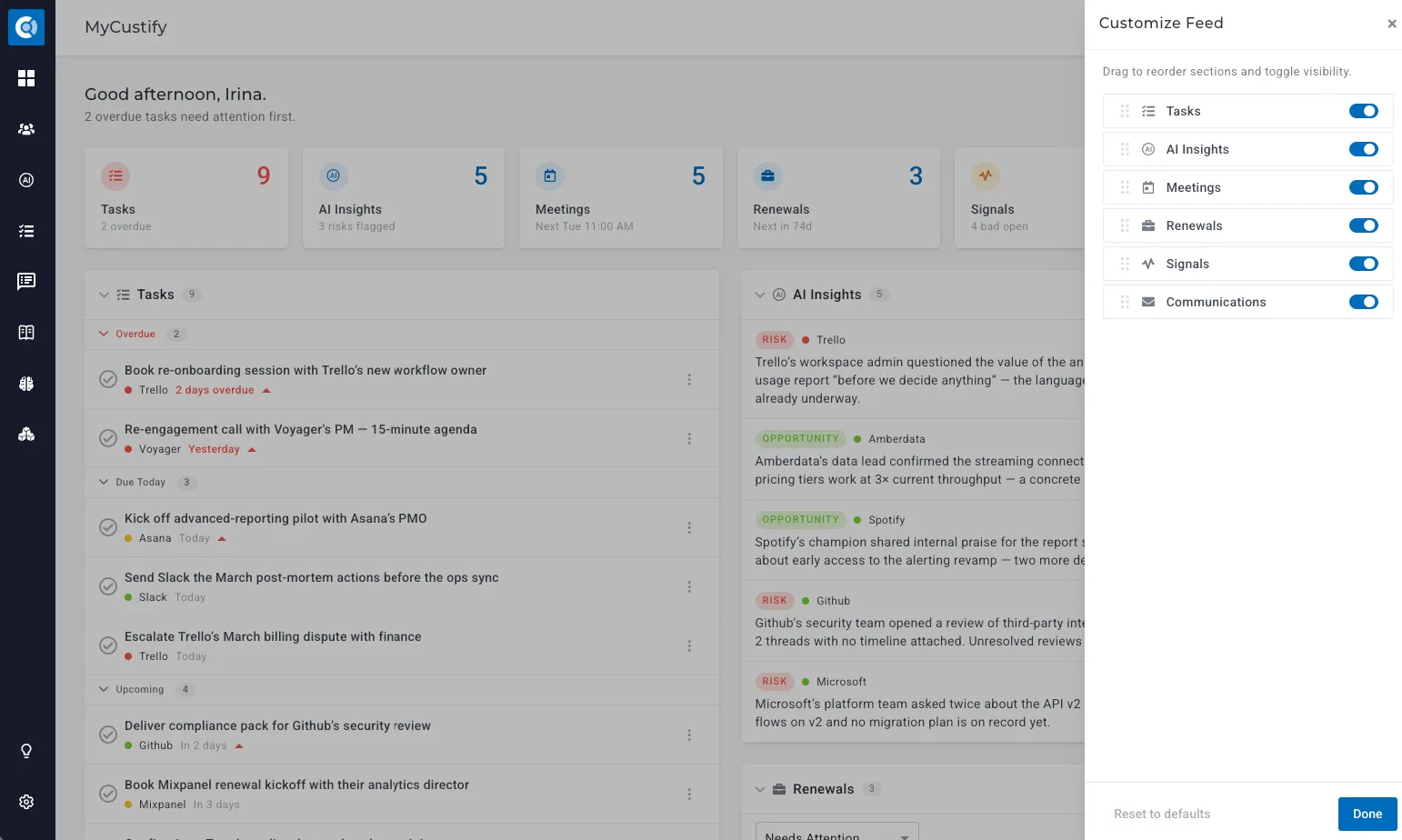
No two CSMs work the same way. Click Customize to reorder the sections so your priorities come first, and hide the ones you don’t use. Changed your mind? Reset to defaults brings back the original layout.
Your layout is personal, so every team member can set up MyCustify their own way.
Getting the most out of MyCustify
MyCustify works for every user from day one, with no setup needed. To unlock its full value:
- Connect your calendar (Google Calendar or Outlook) to see your meetings.
- Connect your inbox (Gmail or Outlook) to see and reply to customer emails.
- Enable CustifyAI to receive AI insights. Insights are generated overnight by the Proactive Insights agent, so they’ll start appearing the day after it’s enabled.
- Set up the Global Health Score in order to populate Health drops.
- Ask an admin to choose what to track to use What changed.
Team leads and admins who don’t own accounts aren’t left out: in that case, MyCustify shows every company they have access to, so it works just as well as a team overview.
Prefer your old home page?
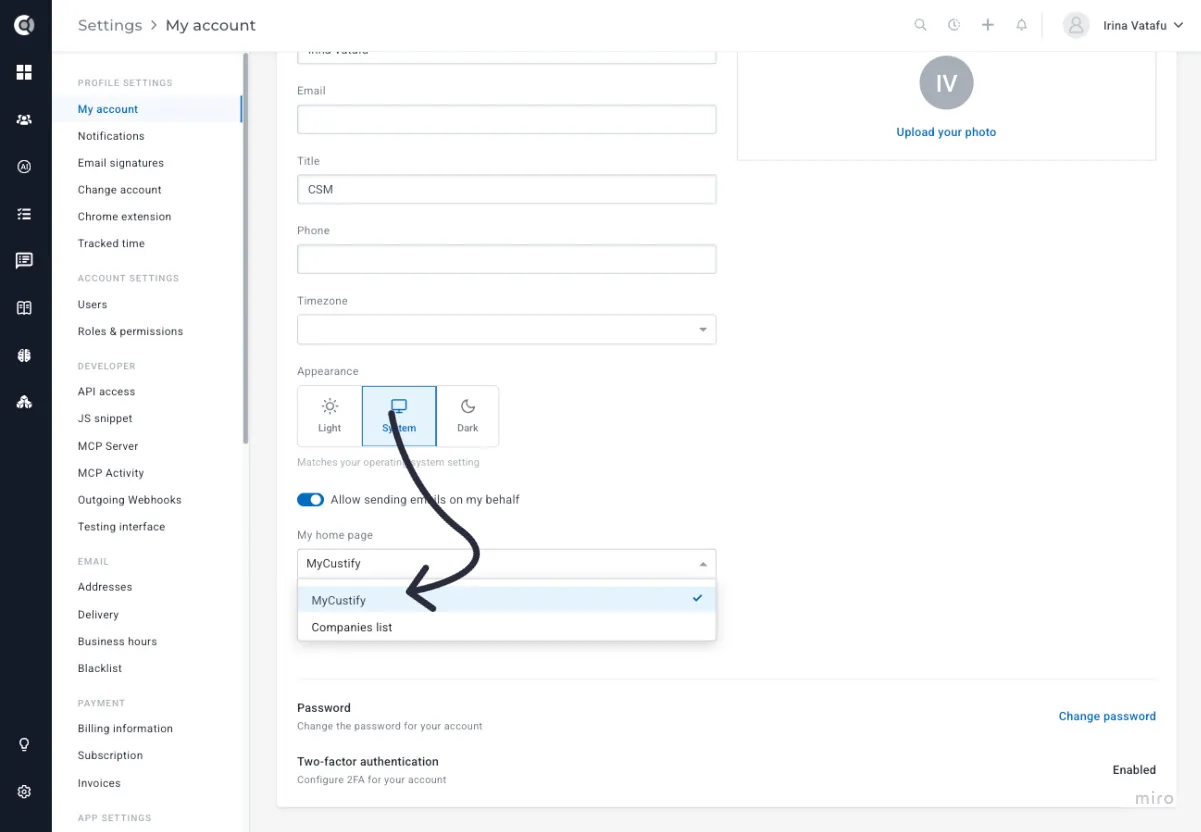
If you’d rather land on the Companies list after login, go to Settings - My account and choose it as your homepage. MyCustify is always one click away on the Custify logo, and you can switch back at any time.
Admins can also choose where everyone lands by default, MyCustify or the Companies list, in Settings - General - Default statuses and formatting - Default homepage. Each user’s own choice in Settings - My account always wins over the account default.
Frequently asked questions
Why don’t I see AI Insights? AI Insights is available when CustifyAI is enabled on your account. Since insights are generated overnight, the section may be empty on the first day.
I dismissed an insight. Why does my colleague still see it? You probably chose Not relevant to me, which hides it only for you. The other reasons, and creating a task, close it for the whole team.
Why are my Meetings or Needs reply sections empty? These sections show data from your connected calendar and inbox. Check that both are connected to Custify.
Why is What changed empty? An admin has to choose the data points to track first, in Settings > App settings > MyCustify.
Will my layout change what my teammates see? No. Your section order, visibility and page filter are saved only for you.