Customer List View
Stop spending 90% of your time gathering information from systems. Supercharge your company by spending that time with your clients instead.
Overview
Get a quick overview of your customers’ attributes with Custify Company and People List View. With just a few clicks, you can:
- Customize and save your own views
- Apply filters
- Sort columns
- Monitor health scores
- Quickly find CSM ratings, MRR and other important account information
- Export your list to Excel
- Apply singular and bulk actions on the accounts
Customers
According to the chosen setup, in Custify you can have:
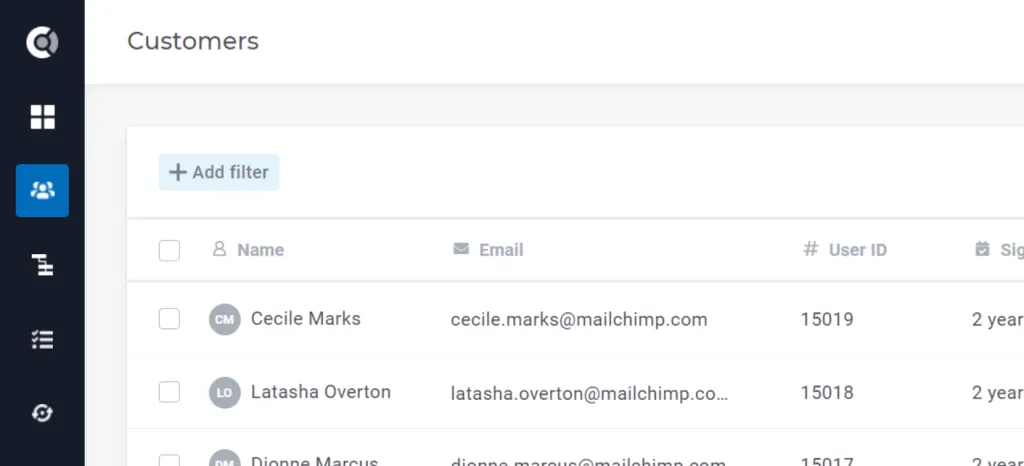
- Customers tab only: corresponds to a one-tier model, where People from your own database are imported as Customers in Custify
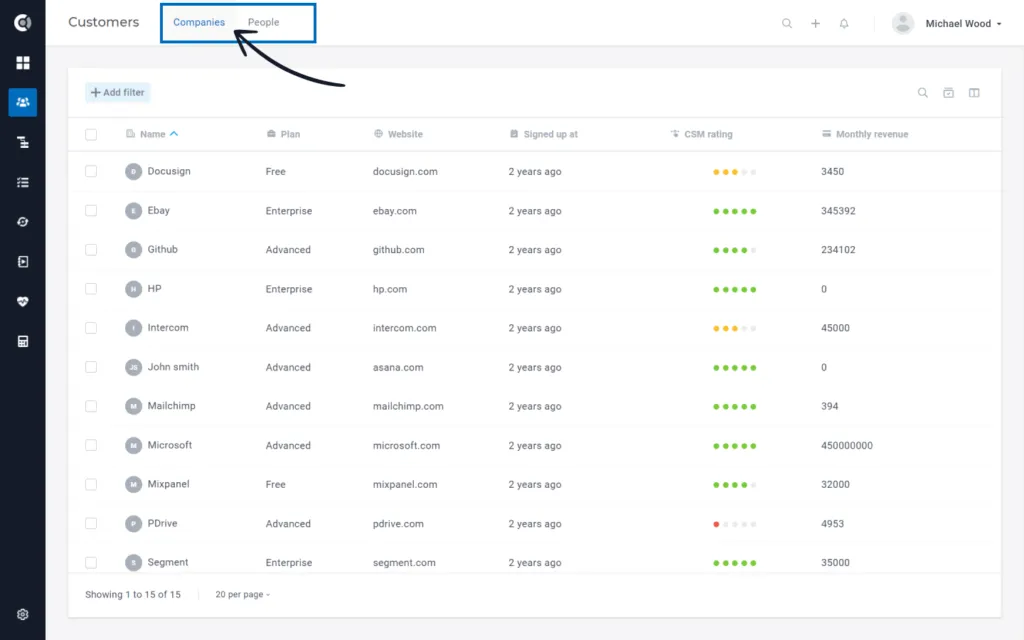
- Company and People tabs: correspond to a two-tier model, where you import both People and Companies in Custify
Managing Customers
The possible actions and tools in the Accounts List View are similar for both Company and People tabs, with some small differences that will be evidentiated in the sections below. On a one-tier model, there is a single section called Customers, that will act like Companies – you will be able to track health scores, lifecycles statuses, calculated metrics, etc. for those accounts in Custify, even if they are seen as People in your own database.
Adding Columns
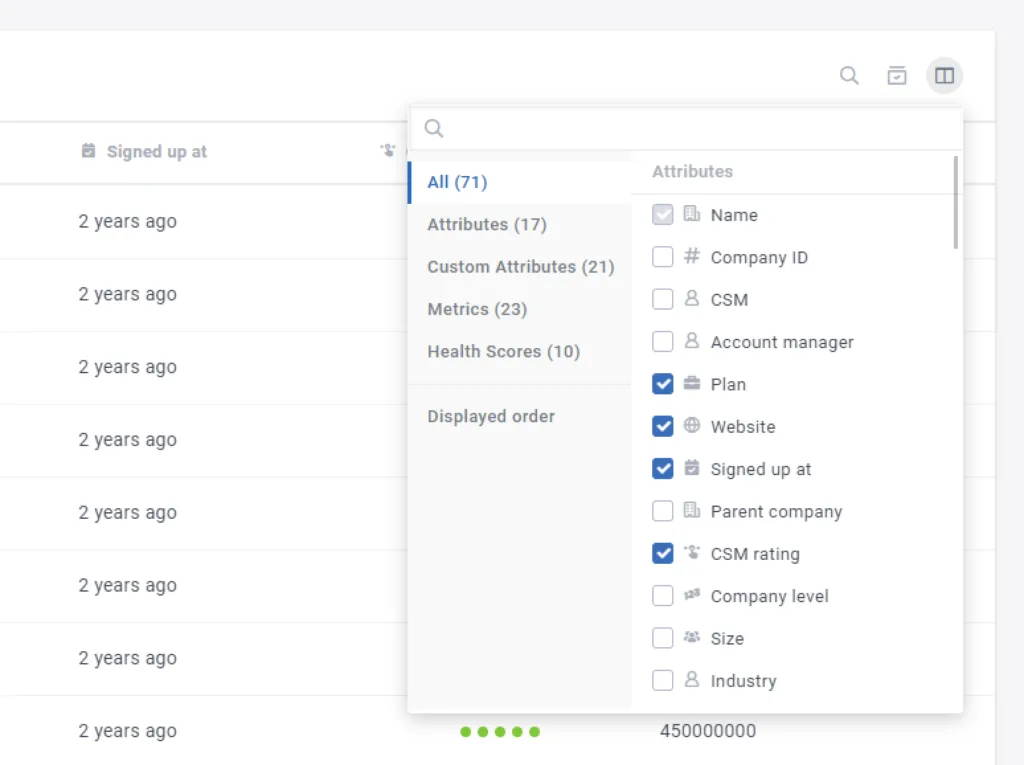
Customize the list view and select what attributes should/should not be displayed by checking or unchecking them in the list. The columns can be:
- Attributes: default attributes in Custify, that can be populated or not – more about those in the technical documentation
- Custom Attributes: attributes that can be sent via API to keep any information you wish about a company/people – more about those in the technical documentation
- Metrics: Custify default metrics or calculated metrics that you create on your account
- Health Scores: Company scores that you will define in Custify
- Attributes coming from Integrations: Once you enable the integration with other tools in Enhance mode, new attribute categories will be created in the list of columns, so you will be able to select specific attributes coming from a specific integration (e.g. Hubspot, Stripe, Chargebee)
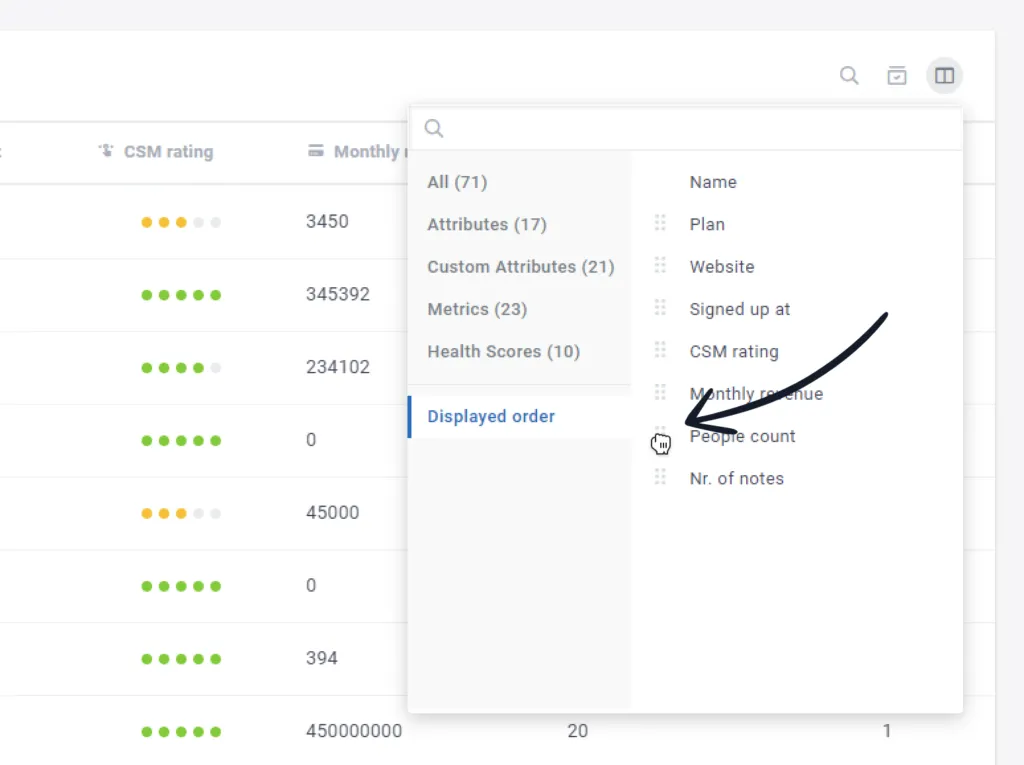
Columns Displayed Order
Quickly rearrange your columns in the list view using the Displayed Order feature. Select first the columns you would like to be displayed, then drag and drop them in the displayed order list.
Sorting
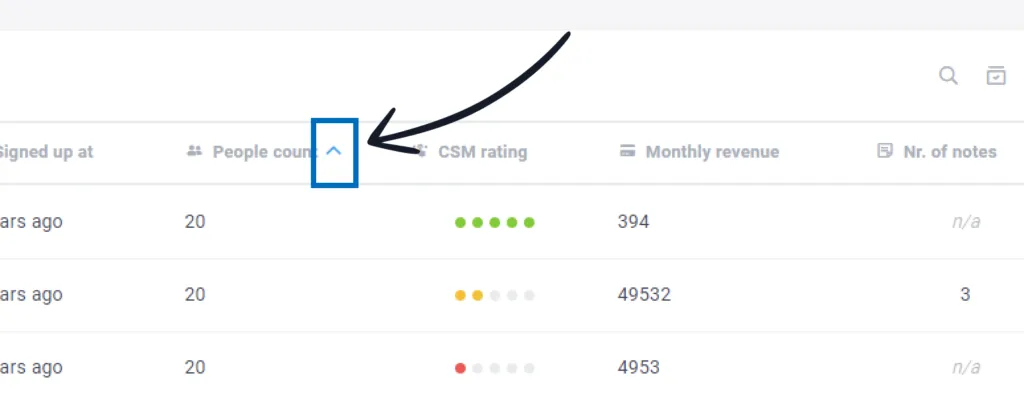
Use the sorting button “^” to sort your columns. Depending on the data type, the sorting can be:
- Ascending or Descending (numerical fields)
- Oldest vs Newest (date fields)
- True vs False (boolean fields)
- Alphabetical (string fields)
Filtering
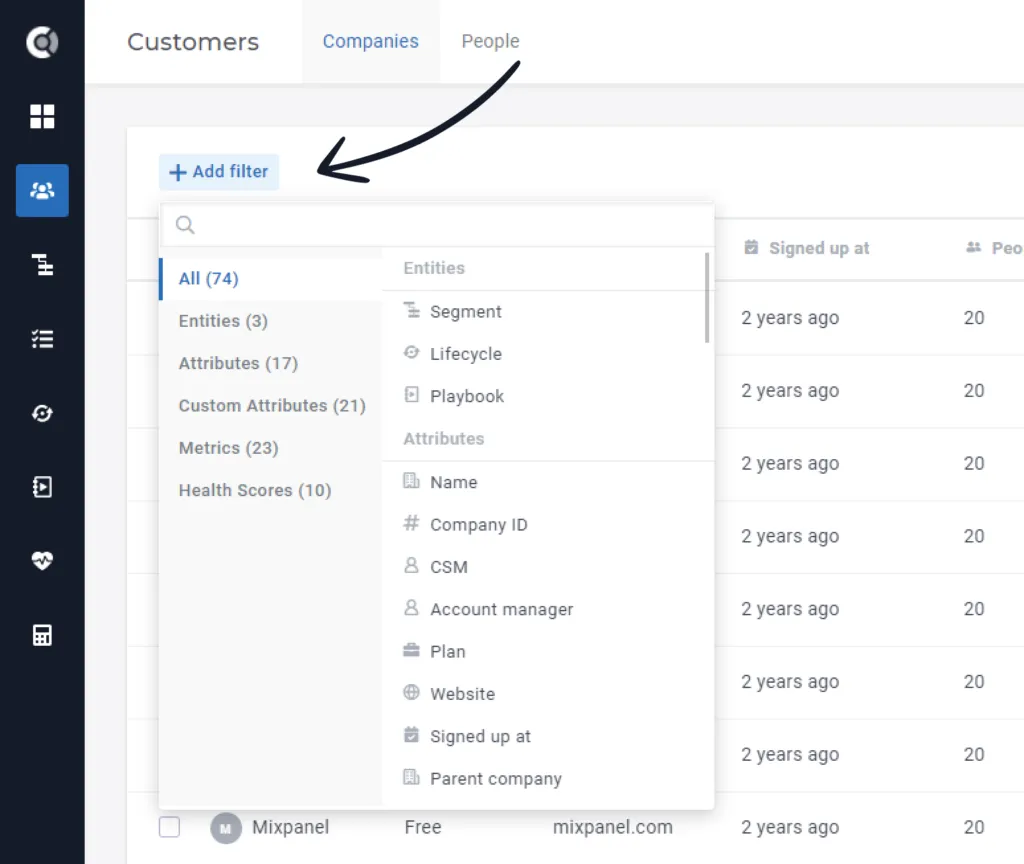
Trying to obtain a list of customers on a specific plan, or return customers with the highest MRR values? Or simply return a list of customers with bad scores for a specific health score you defined? Add as many filters as you need and combine them using the Add filter button.
Filters you can add:
- Entities: filter by segment appearance or by lifecycles/playbooks statuses
- Attributes: filter by specific attributes’ values, including default and custom attributes
- Metrics: filter by specific metrics’ values
- Health Scores: filter by health scores’ values
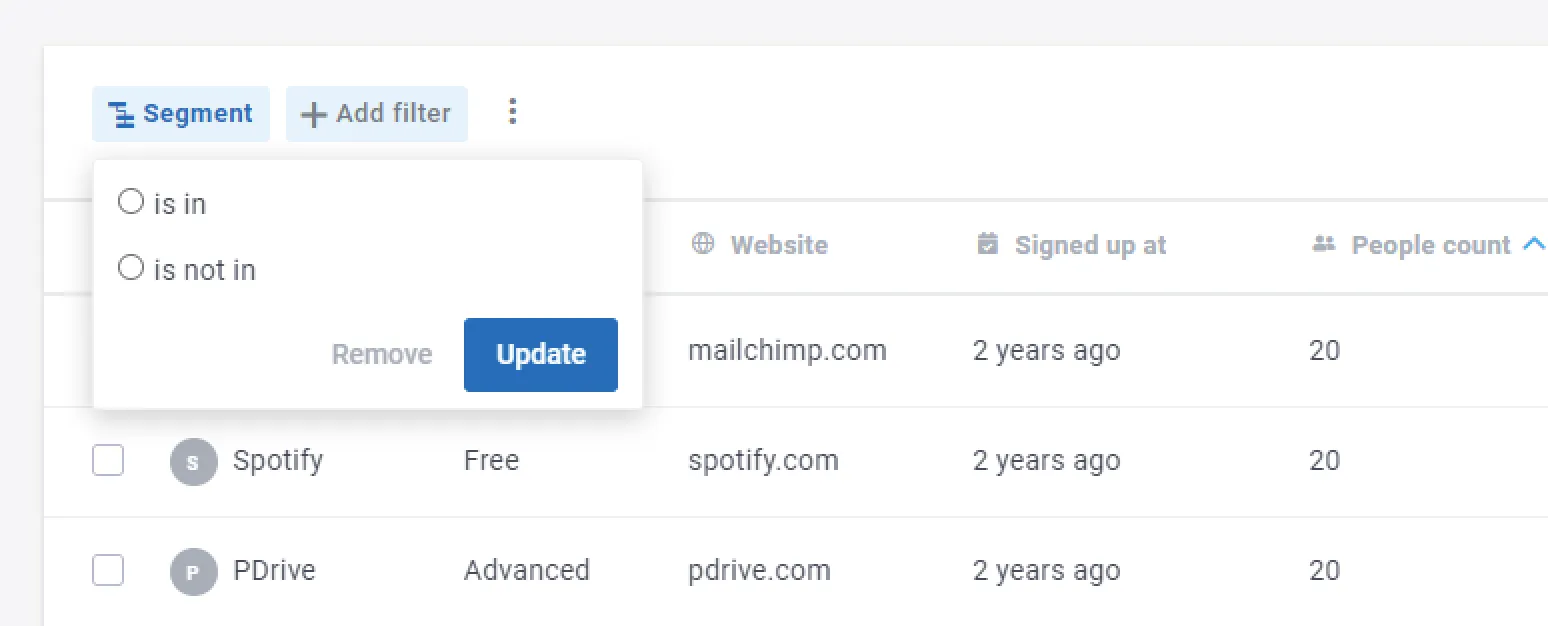
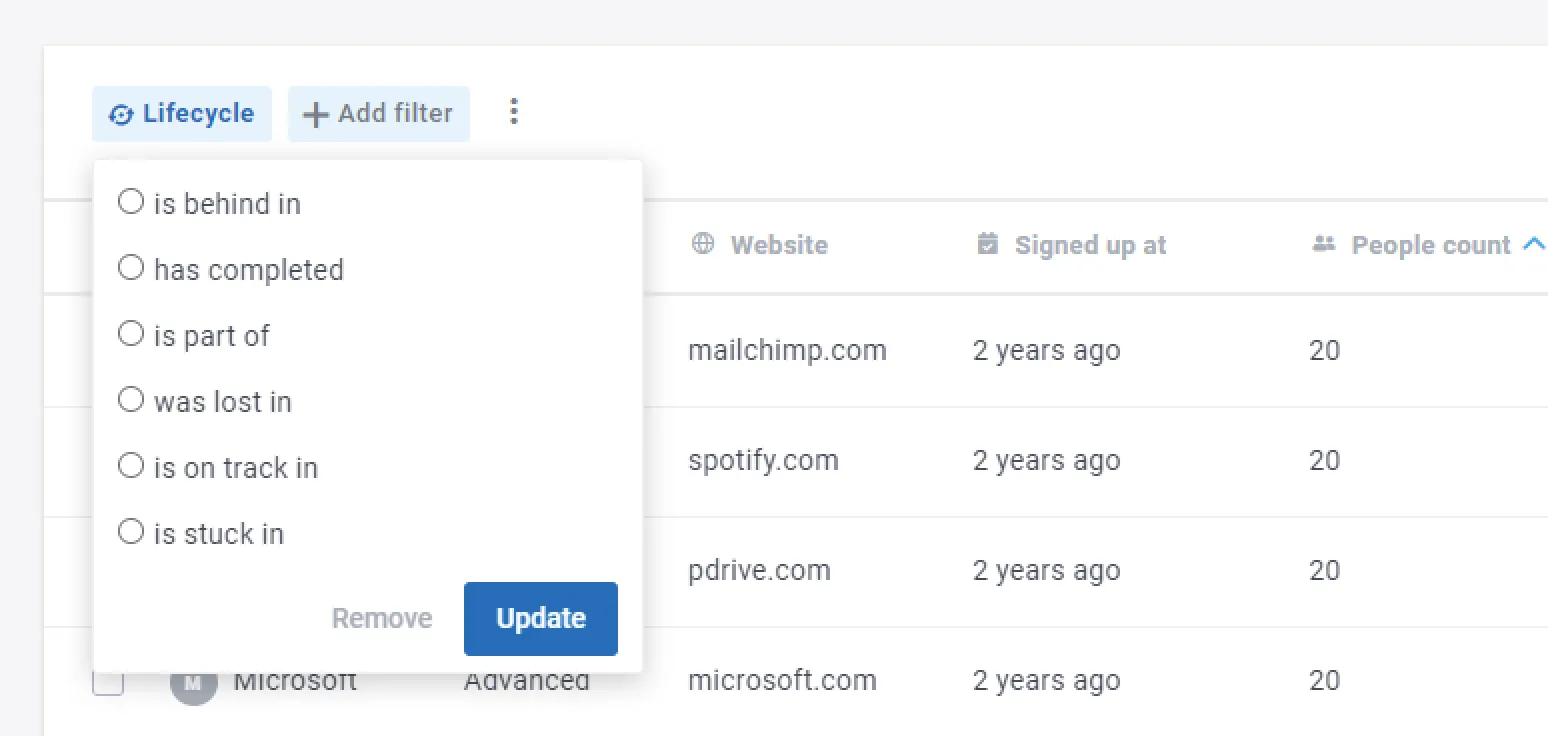
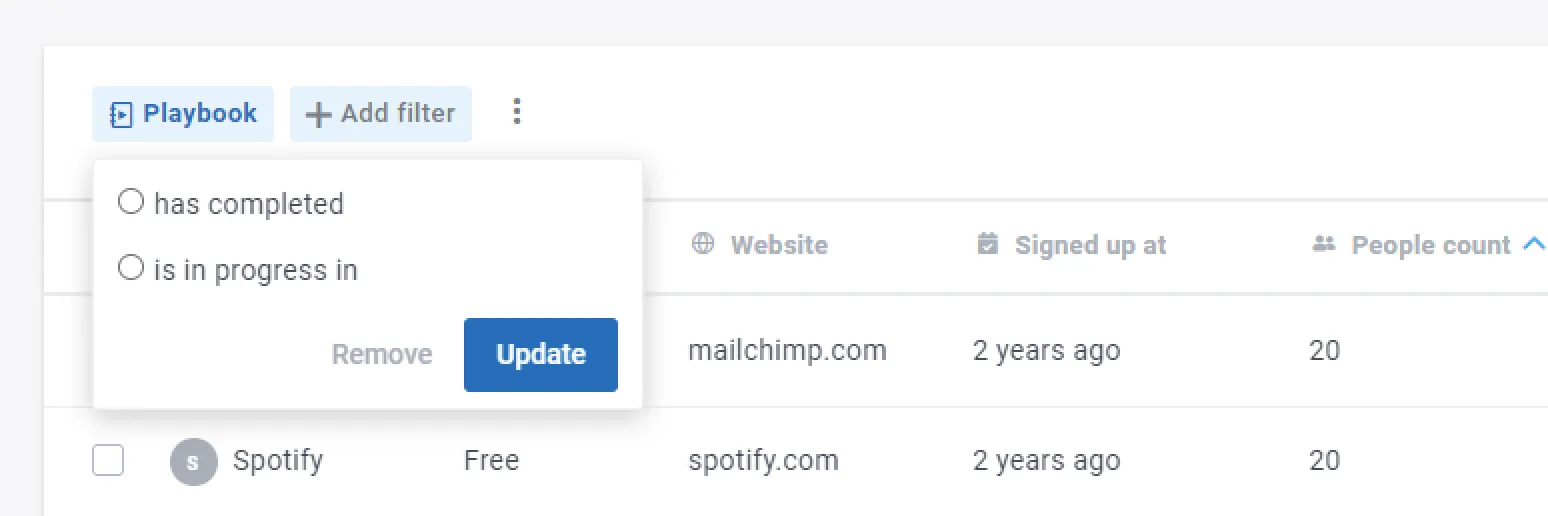
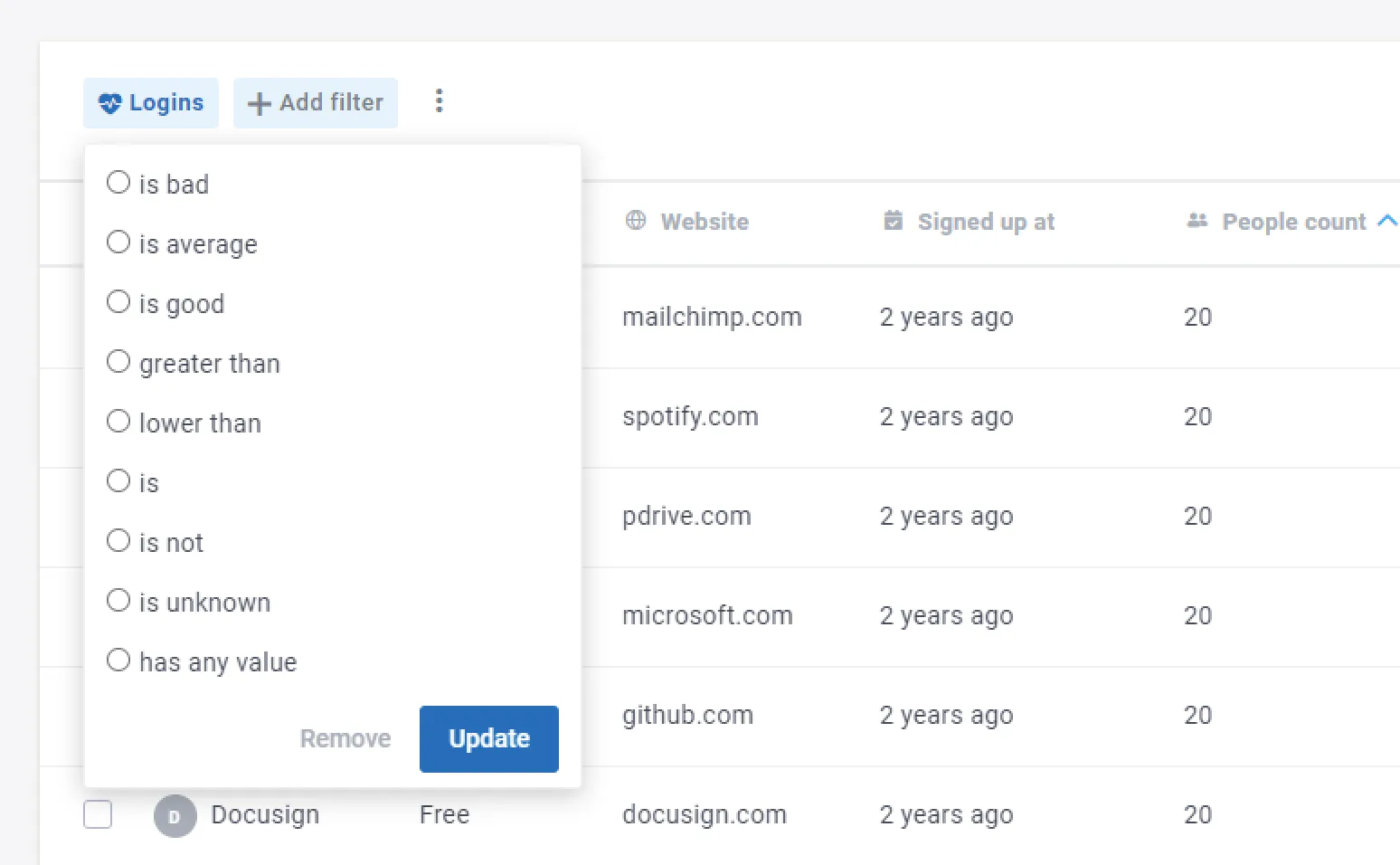
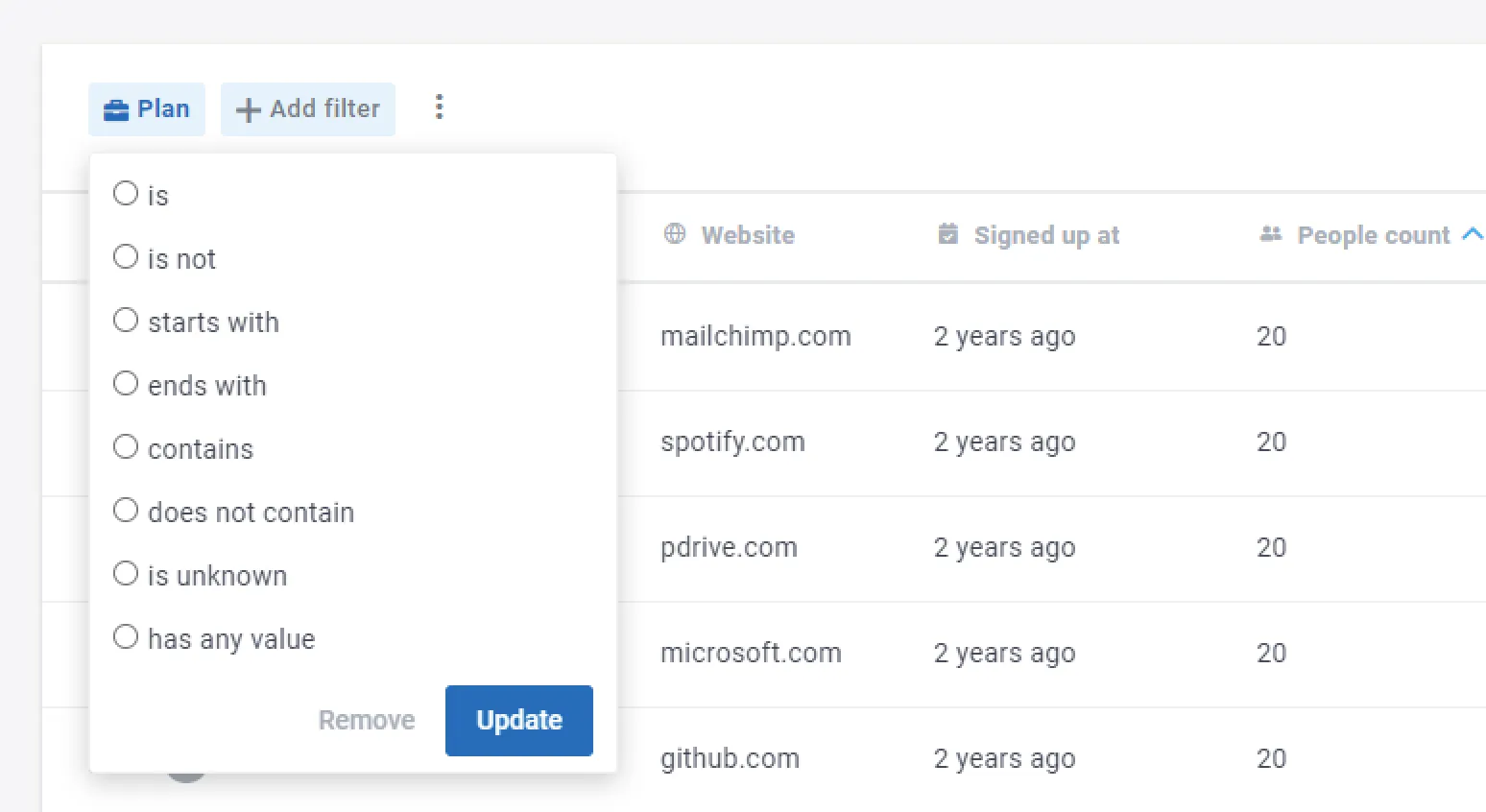
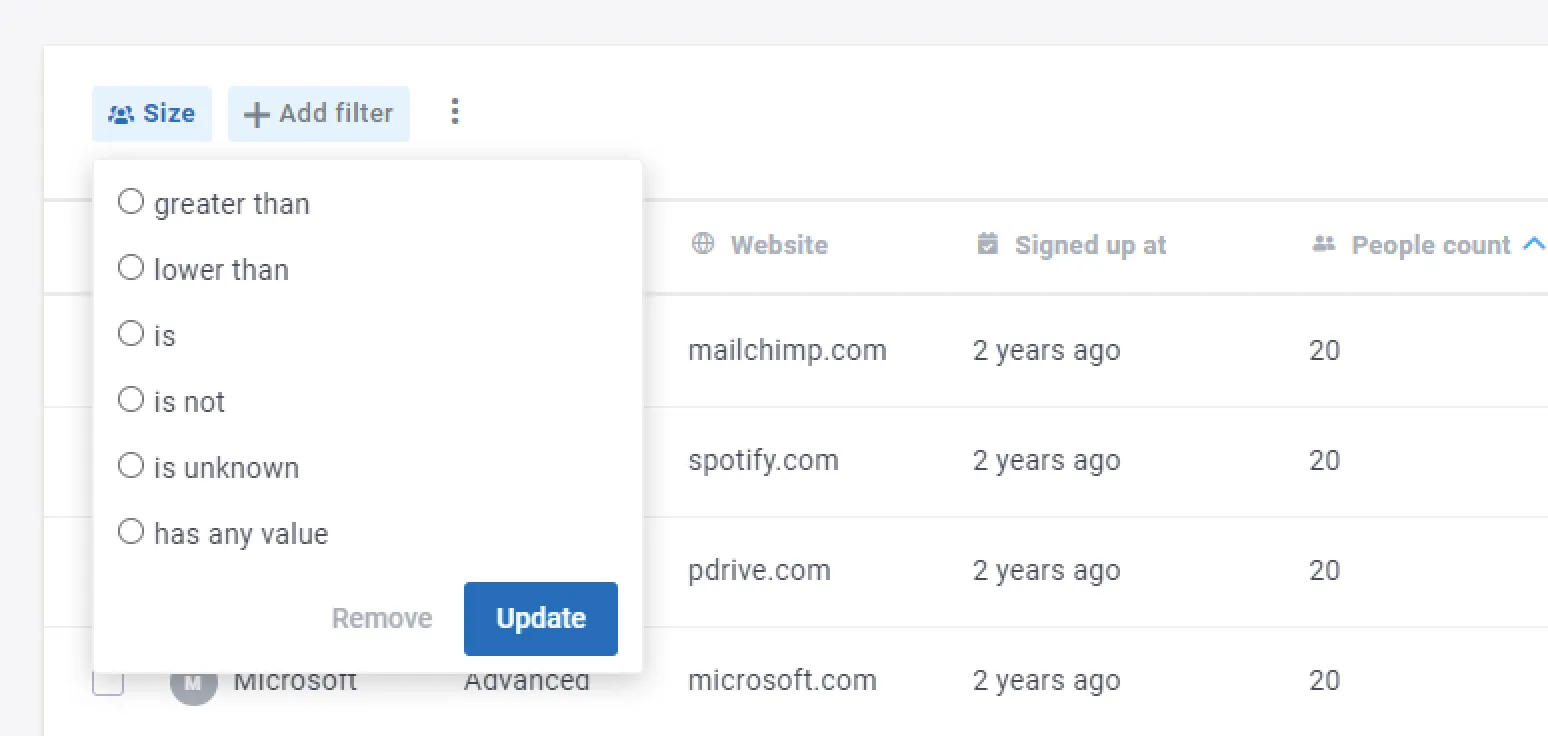
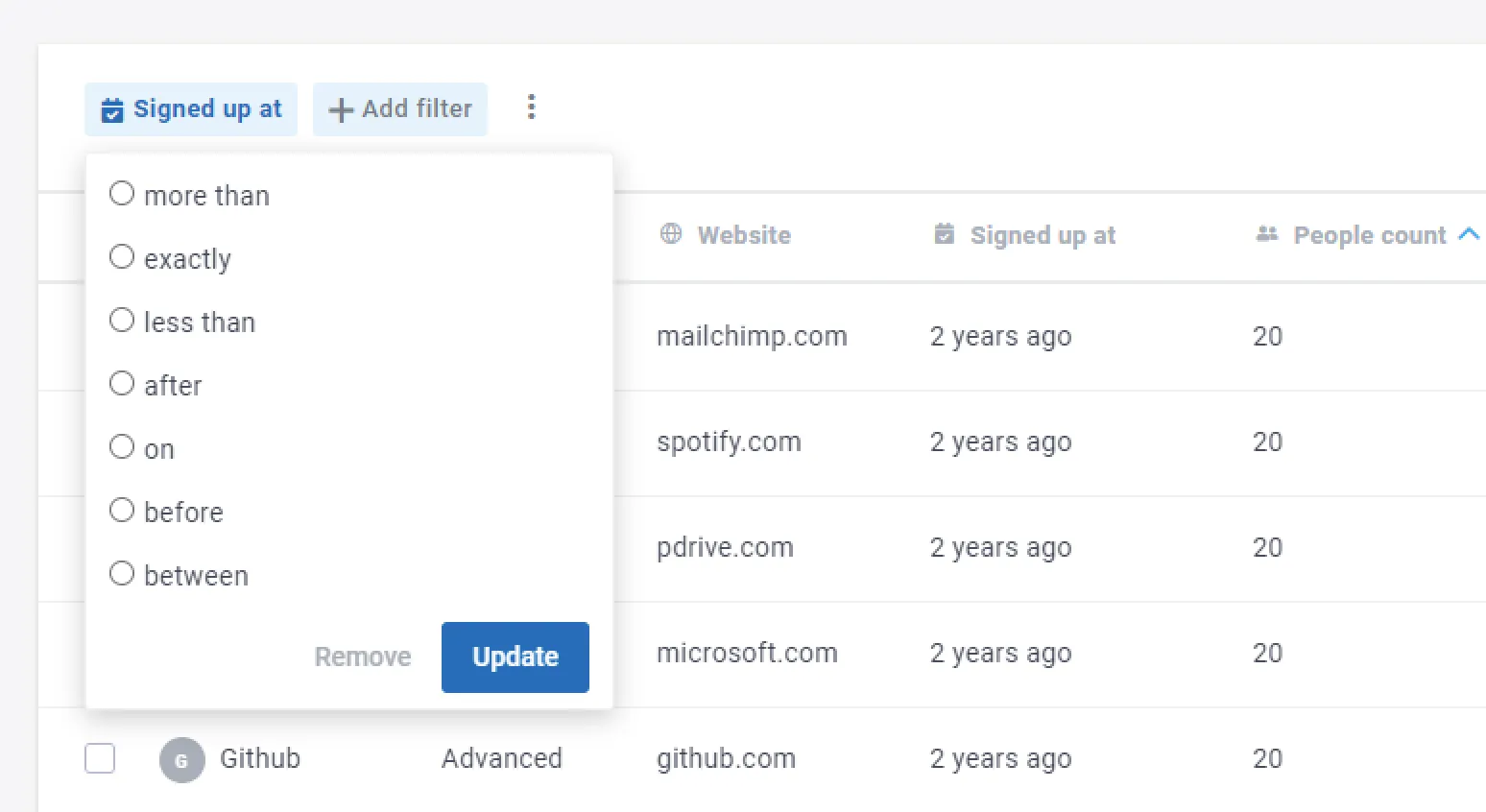
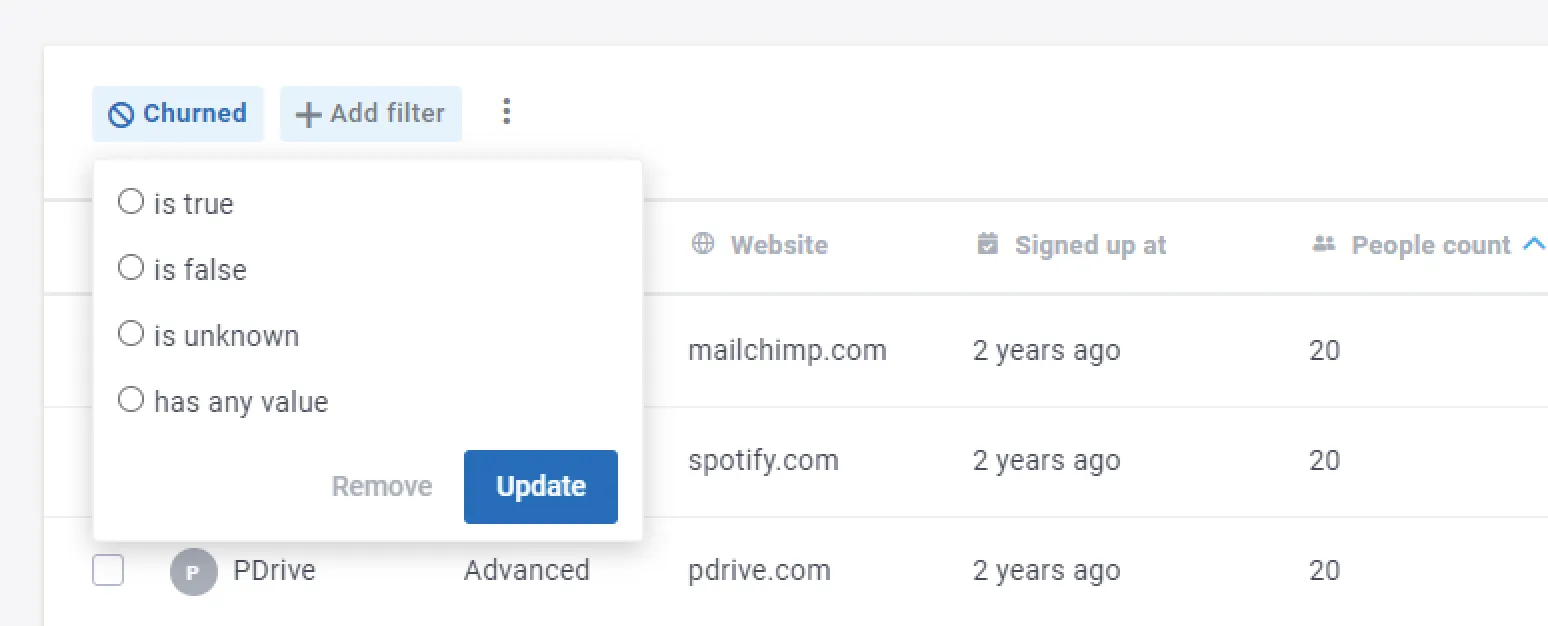
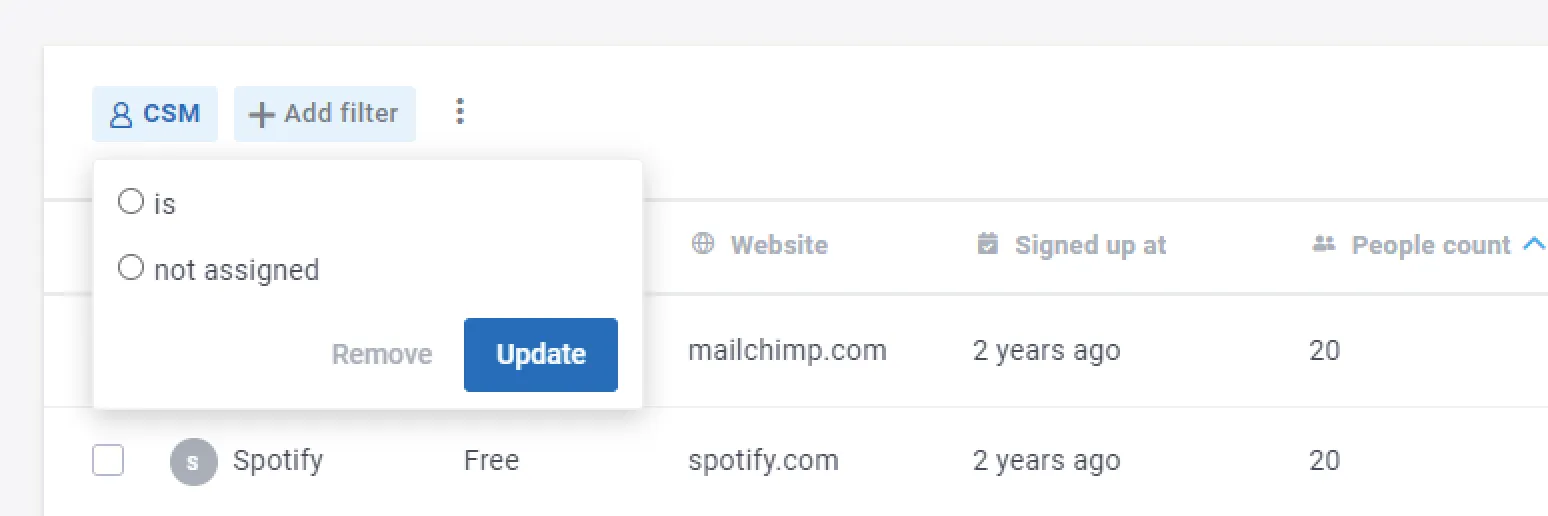
Filtering conditions are different depending on the data type:
Segment
Lifecycle
Playbook
Health Score
String Field
Numerical Field
Date Field
Boolean Field
Person Field
Saving views
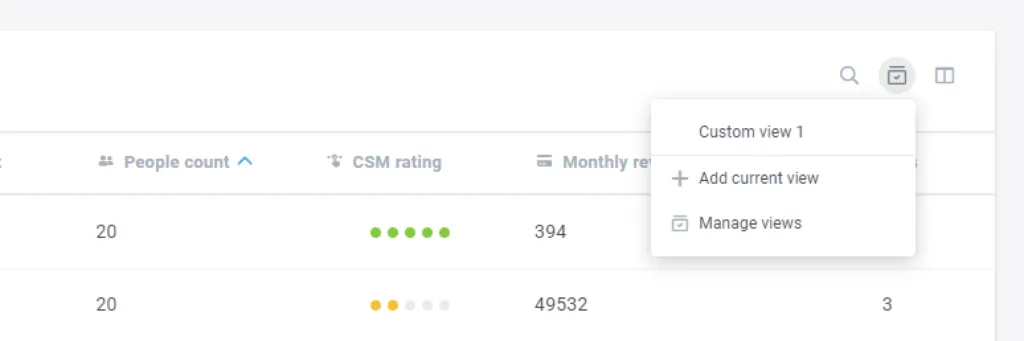
After adding columns, changing the display order and adding filters, you can also save your custom view. Simply click on Add current view and the customized view will be added in the list of available views.
Observation: The views you save will be only visible for your user account – other Custify users will not see them, each user can create his own views.
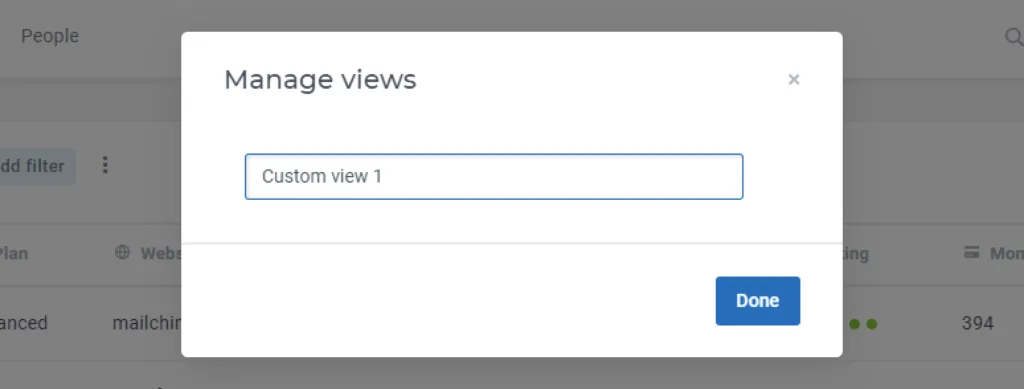
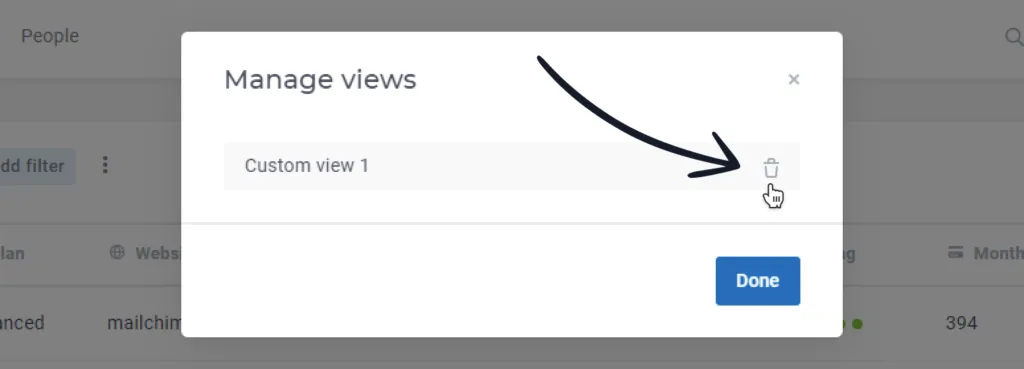
Keep your views’ list clean by deleting the items that are not needed anymore.
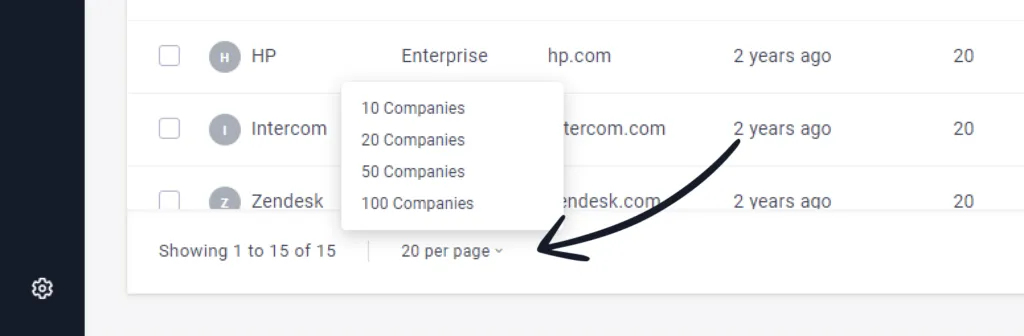
The views you save will also keep the number of displayed accounts per page.
Search
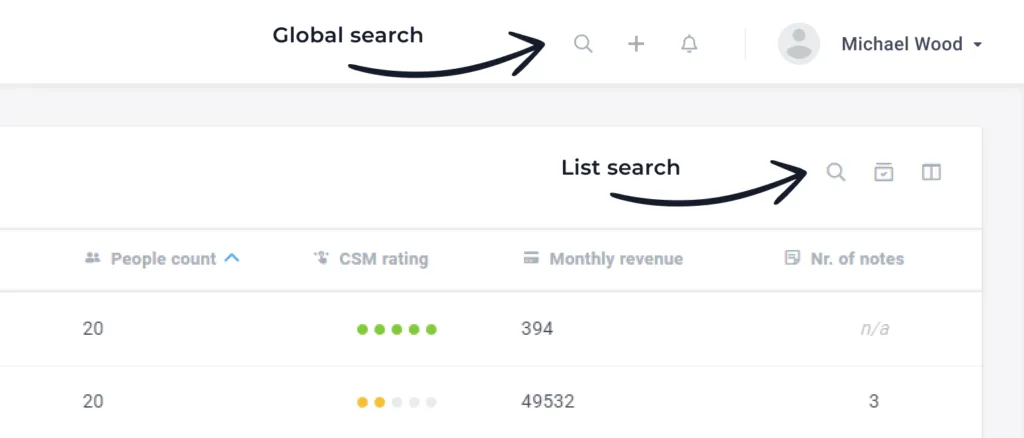
Besides filtering, you can also shrink down the number of results by using keywords and returning specific results. Use the search to find companies/people by their name.
Note: The list view search is different from the global search, that besides companies/people, also returns Segments, Lifecycles, Health Scores and Playbooks containing the keywords you enter.
Action
There are different possible actions you can apply in the list view, depending on the list view tab (Company or People).
Companies Actions
These can be applied to a specific number of selected companies or to all the companies in bulk:
- Export as CSV: export selected companies and columns in a .csv file (max 10.000 companies);
- Export as XLSX: export selected companies and columns in a .xlsx file (max 10.000 companies);
- Add to lifecycle: manually add companies to a lifecycle;
- Remove from lifecycle: manually remove companies from a lifecycle;
- Add to playbook: manually add companies to a playbook;
- Remove from playbook: manually remove companies from a playbook;
- Send email: send an email to the selected companies;
- Assign CSM: assign a Customer Success Manager to the selected accounts;
- Assign Account Manager: assign an Account Manager to the selected accounts;
- Add Parent Company: assign a parent company to the selected accounts;
- Remove Parent Company: remove a parent company from the selected accounts;
- Delete: manually delete the selected companies from Custify.
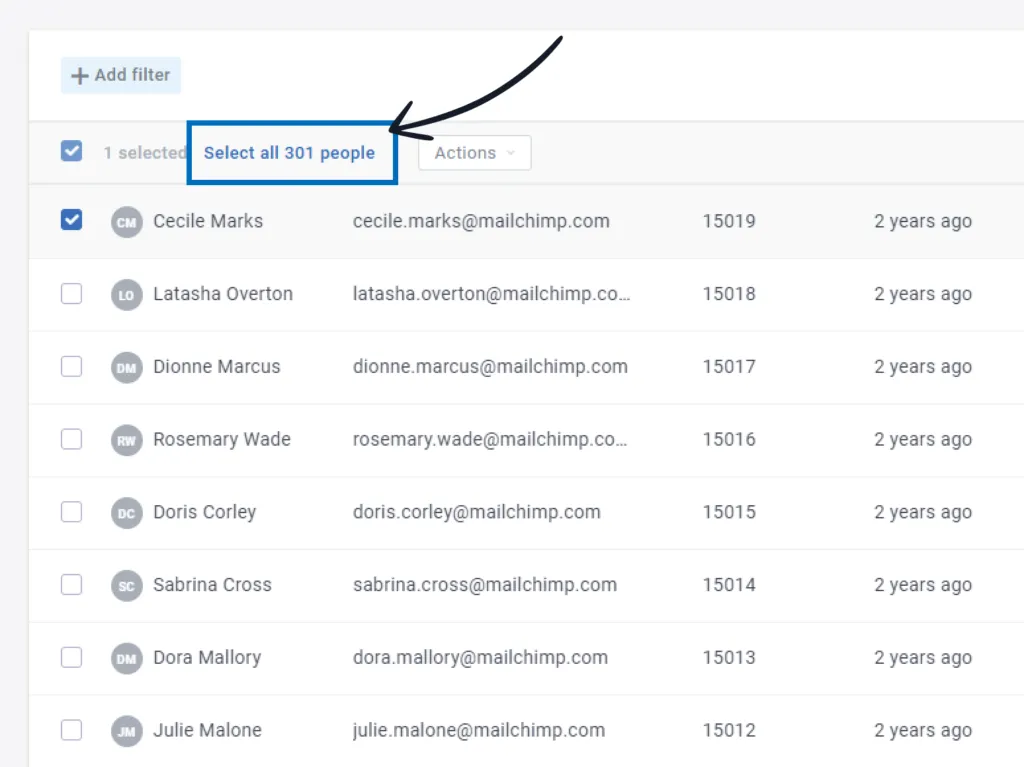
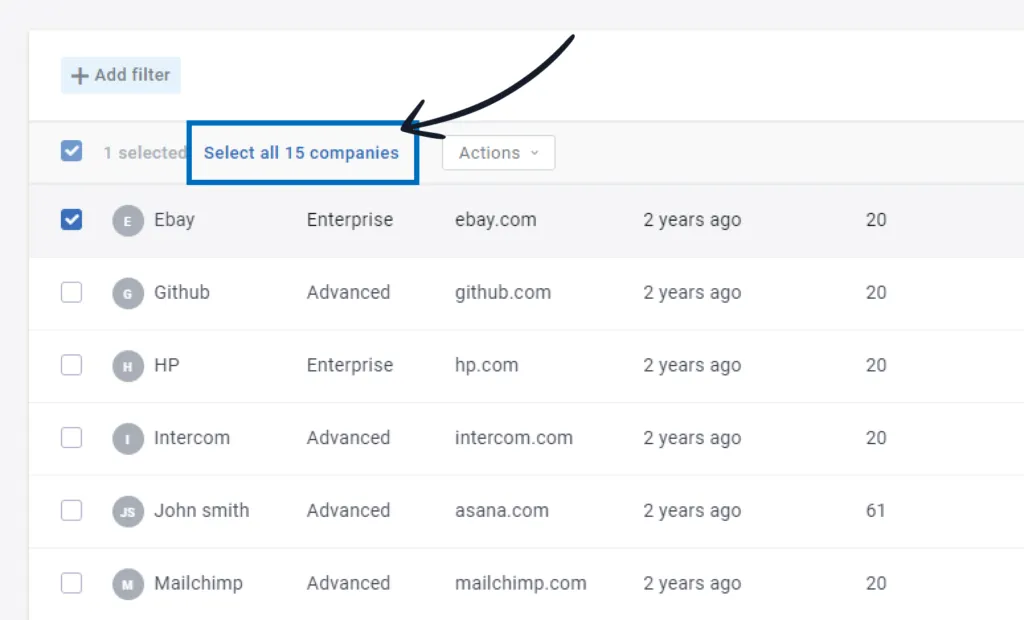
To apply bulk actions to all your companies, you will simply need to select at least one company, then the Select all companies button will be activated.
Observation: when deleting companies, people assigned to those companies will not be automatically removed – you will have to go and manually delete them also. Check the best practices for more details.
Popular use case: exporting a full list of companies in a XLSX file.
People Actions
These can be applied to a specific number of selected people or to all the people in bulk:
- Export as CSV: export selected people and columns in a .csv file (max 10.000 people);
- Export as XLSX: export selected people and columns in a .xlsx file (max 10.000 people);
- Assign to company: assign people to a company;
- Remove from company: remove people from a company;
- Add tag: add specific tags to the selected people;
- Remove tag: remove tags from the selected people;
- Send email: send an email to the selected people;
- Delete: manually delete the selected people from Custify.
To apply bulk actions to all your people, you will simply need to select at least one person, then Select all people button will be activated.