Surveys
Send surveys like NPS and CSAT to your customers and gather real-time feedback.
Overview
Custify’s survey functionality lets you send surveys and gather customer feedback directly from the app. You will see the responses in the Customer 360° Profile as well as at a glance in the survey module.
Creating a new survey
To create a survey, simply navigate to the Survey tile in the main menu, then click on the survey type that you would like to create.
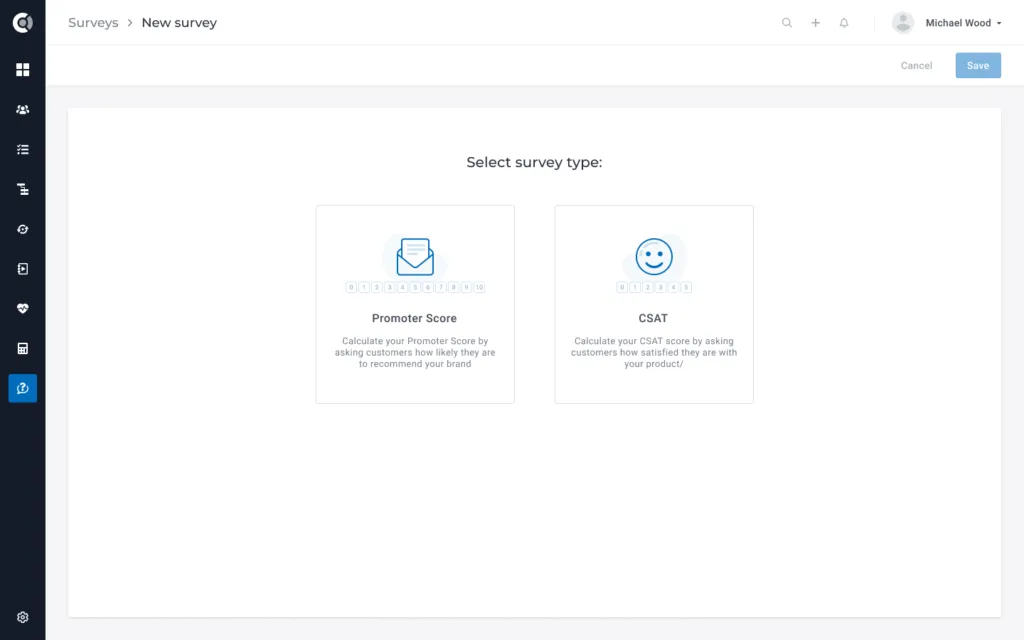
Within the survey, you can customize the look and feel such as the button style or the button shape. You can also add your company logo and define your brand color.
Pro Tip: pick a descriptive name for your survey, so you can easily distinguish later on between the surveys (e.g. name it “CSAT survey with additional comment”).
Besides these style customizations, you can also define the survey question and the responses and therefore influence how they look for the customers that you will survey.
The additional comment, if turned on, gives the questionee the chance to leave a comment once the rating has been given. It is something that can be useful in order to not just collect the rating itself, but also get a deeper understanding behind the rating a customer gave, we would therefore suggest as a best practice to use it, despite it’s not mandatory.
Note that for both, the additional comment as well as the thank you message, the wording can be customized depending on the response. For NPS, you have a different message for people who are “distractors” (rated 1-6), “neutrals” (7-8), and “promoters” (9-10). For CSAT, “satisfied” (the 3 most left answers, however, you named them), “neutral” (the second from the right), and “unsatisfied” (the most right one).
Once you’ve finished all customizations, save the survey and it will be shown in the list view of all surveys.
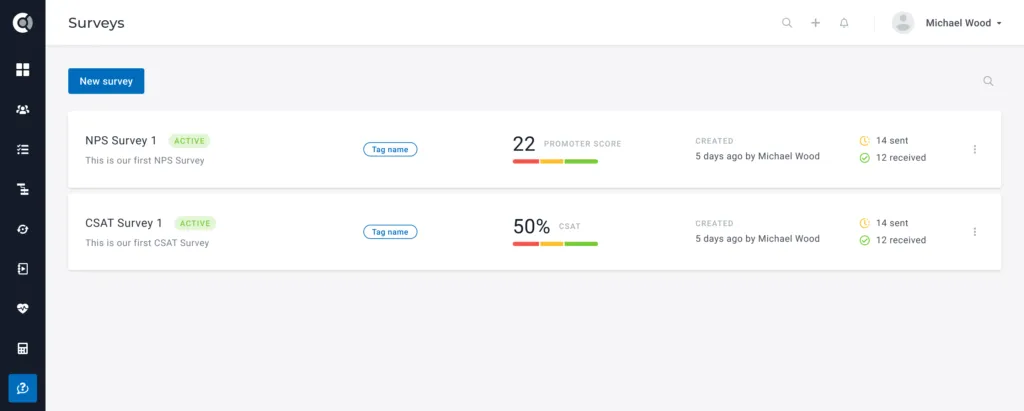
Sending surveys
The actual logic for sending your survey to your customers is created within a Playbook, this means you will need to create one (or multiple) playbooks that determine which of your customers should get the survey.
If you are not yet familiar with Playbooks in general and specifically, start conditions for Playbooks, please have a look at the Playbook section first.
Once the start condition is selected, all you need to do is to pick one of the two options you have for sending surveys:
Email surveys: Select the “Send the survey via email” step from the menu bar and add it as a Playbook step.
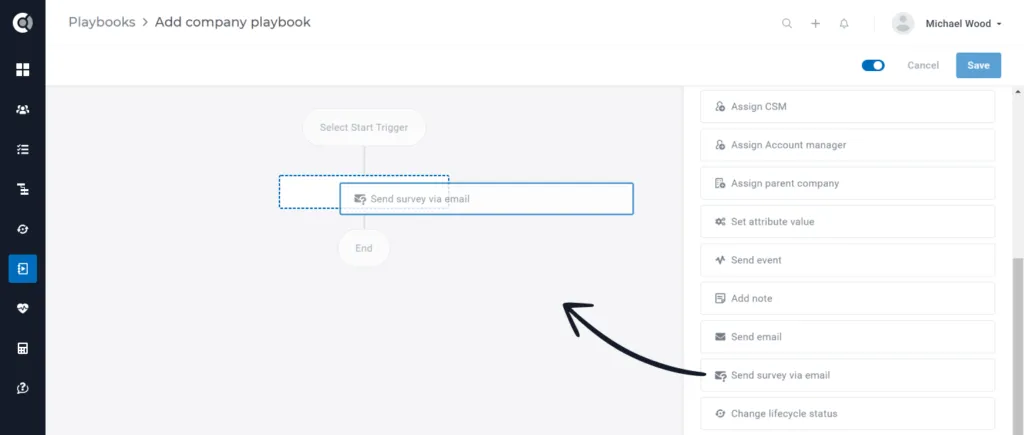
Observation: depending on the logic of your survey, you can use a Company Playbooks or a People Playbook.
The logic within the survey step is similar to the one you use when sending emails, with the exception of the body, as that is basically our survey. Other than that, you need to decide who should be the sender of the survey (via the From dropdown), who you want to send it to (depending on the playbook type you are using, company or people playbook), and the subject of the survey email.
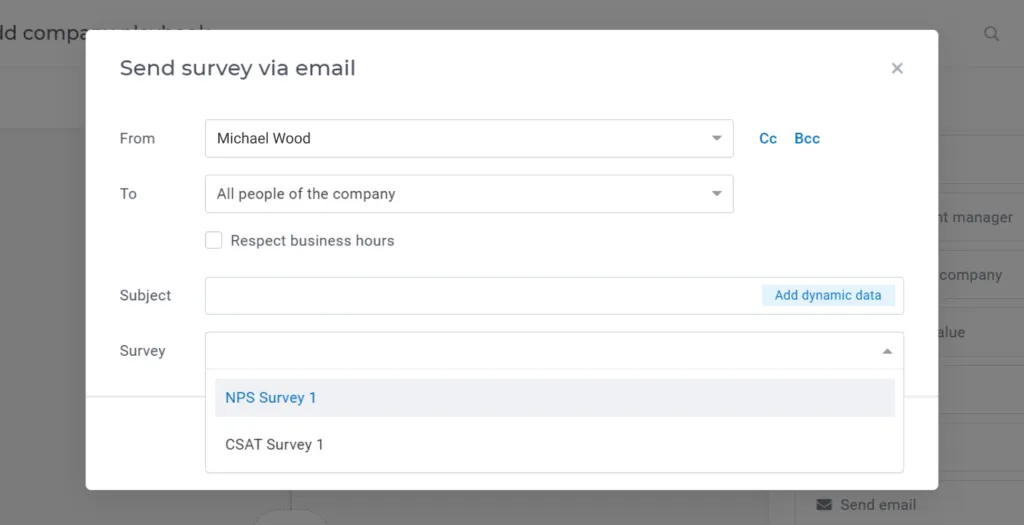
After you have decided who you want to send the survey to, you also need to define the survey from the dropdown. In this dropdown, you will see all the existing surveys, and now it also becomes clear why a descriptive name helps, as here all surveys will show up.
Afterward, the Playbook step is complete and the survey will start to be sent out depending on your start condition of the Playbook.
In-app survey: Use the “Trigger in-app survey” step in order to push the survey you created in Custify directly through your app interface, making them more visible to users.
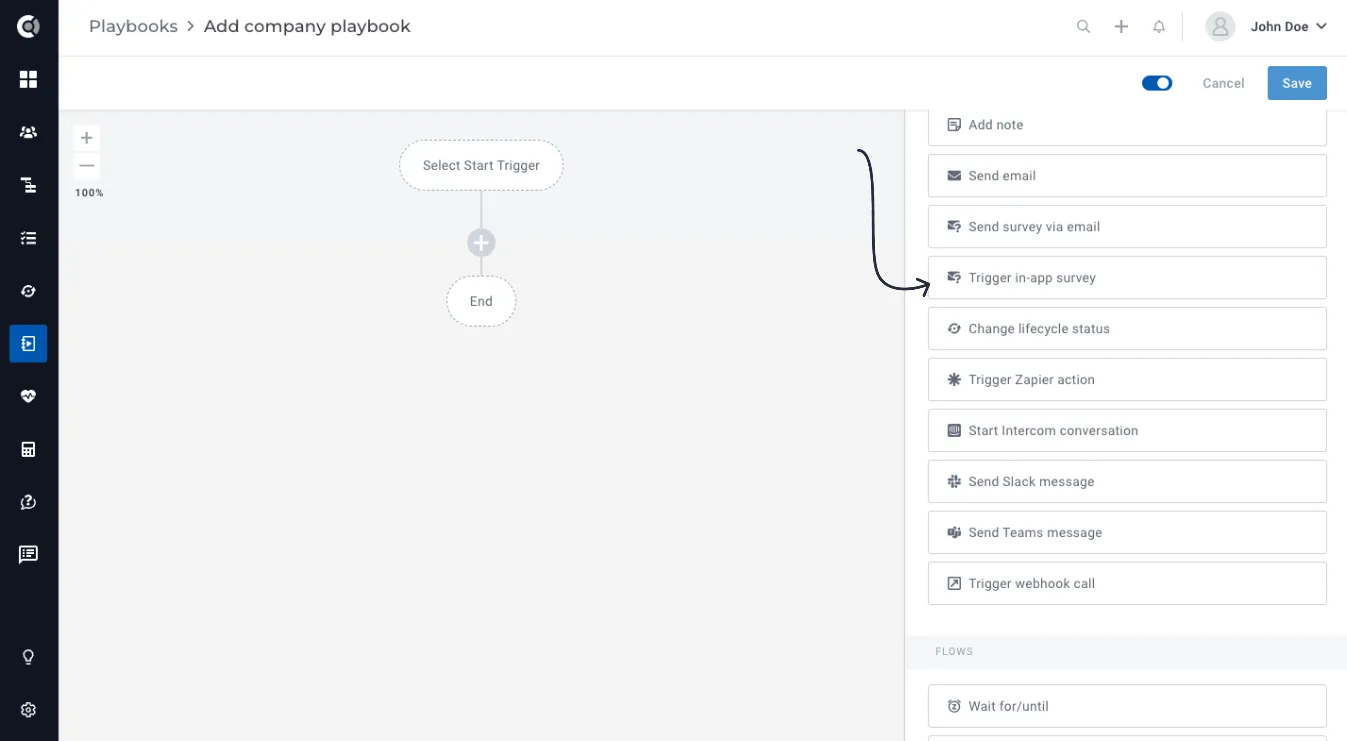
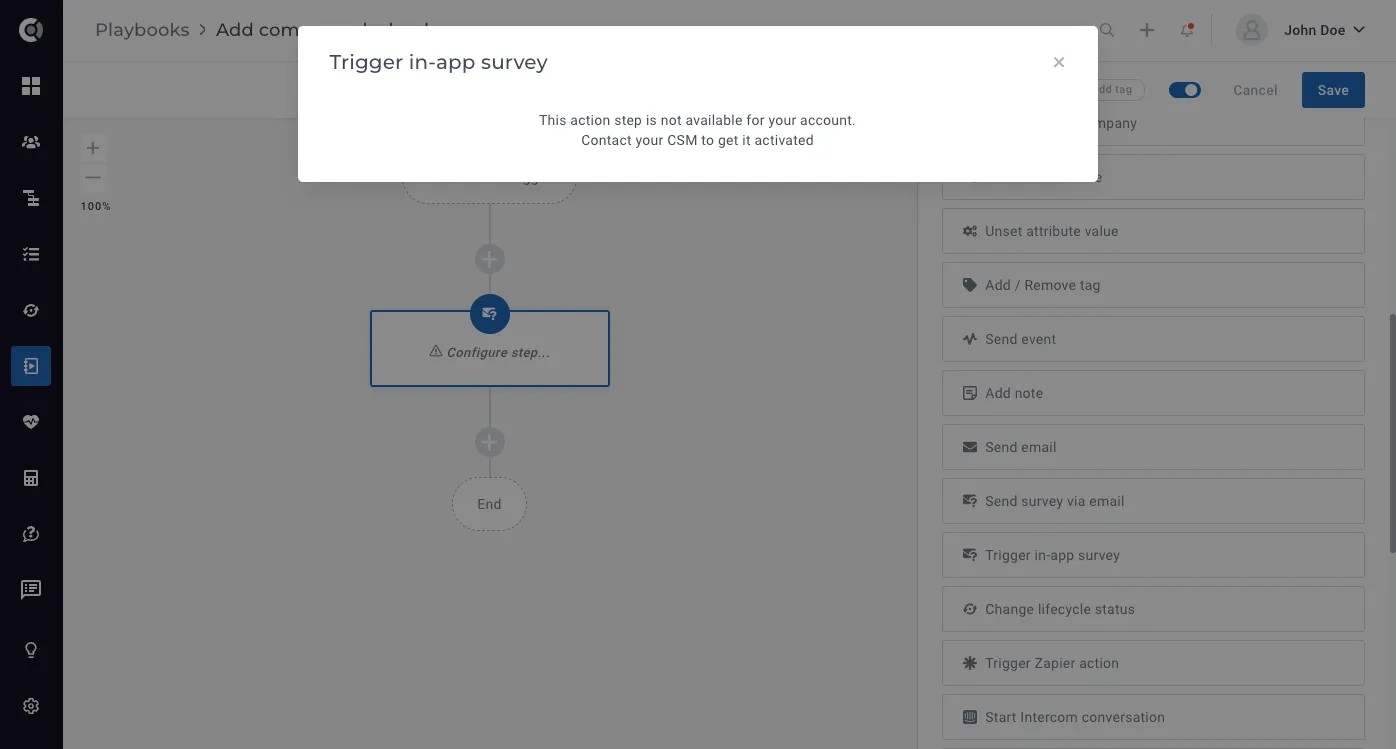
In-app surveys are triggered via a playbook step that is only actionable once we have enabled sending in-app surveys for your account.
Once the in-app survey sending is enabled for your account, the survey setup section will be available in the playbook step.
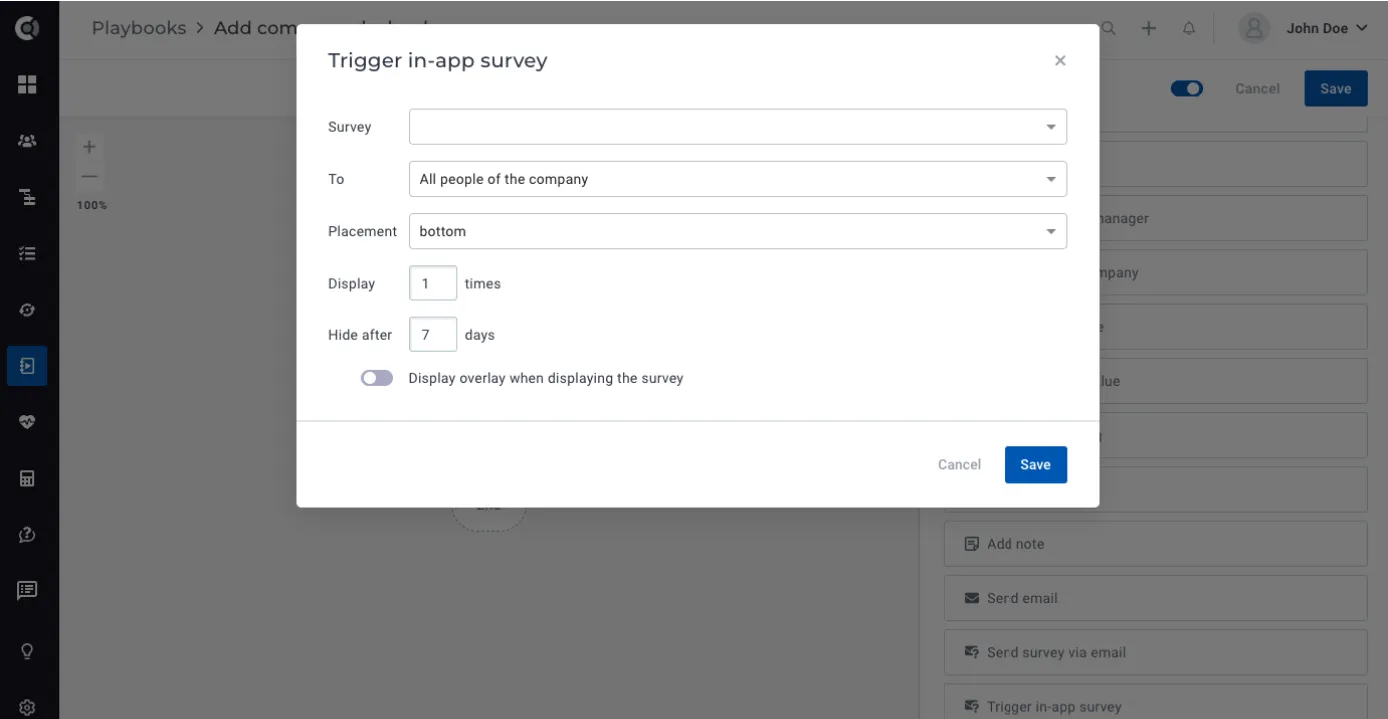
If you are interested in using in-app surveys, please contact your CSM to help you with more details.
Survey results
The survey results will be shown on the 360° Profile of the individual person:
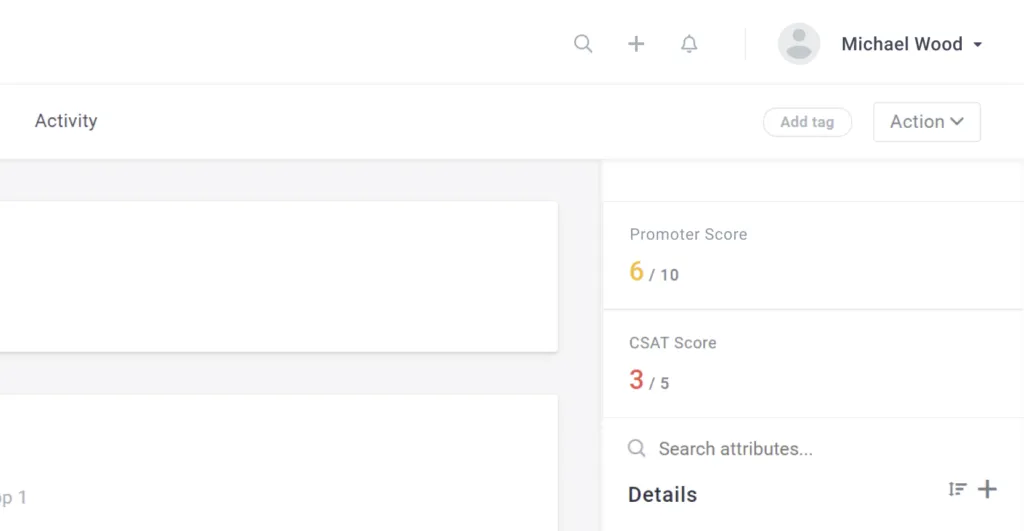
And also accumulated, on the company level (if you are on a 2-tier model in Custify):
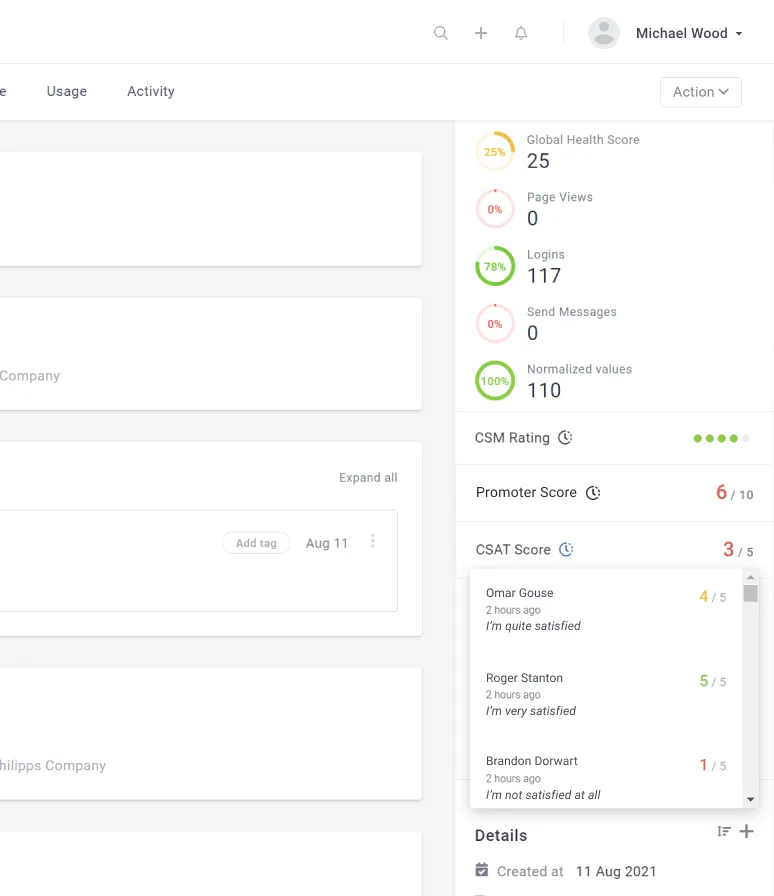
The calculation of the NPS on the company
Should there be multiple responses for a company, you can access them all by clicking on the clock icon.
The overall survey results for all your customers can be accessed by clicking on the individual survey from the list:
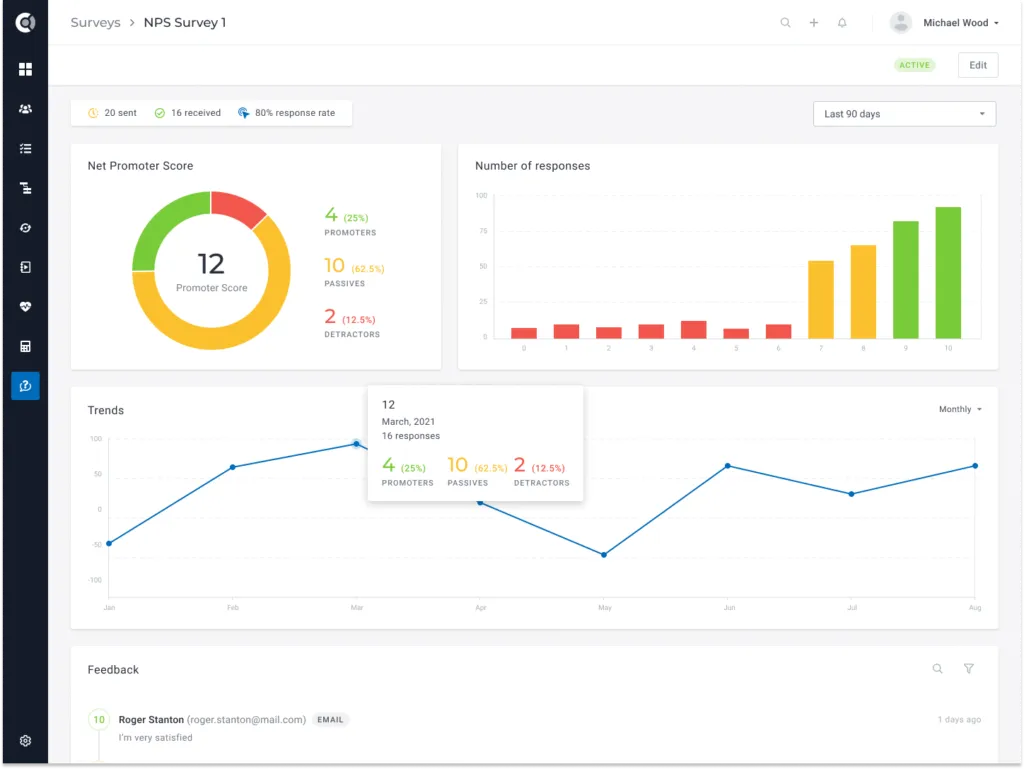
In the top part you can see the overall statistics of the survey, including the number of sent surveys, the responses received so far, and the calculated response rate.
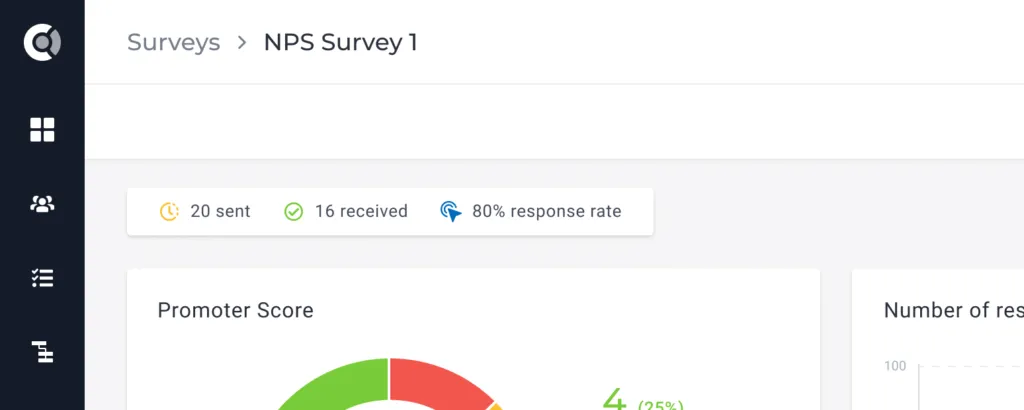
With the time-selector on the right side, you can narrow down your survey results for a specific time frame.