Segments
Slice and dice your list of customers and users to analyze it more closely and deliver the best experience for each segment.
Overview: Segments for companies
No two customers are the same – nor can they be treated in an identical manner. It’s our mission to help you better understand your customers and focus on their unique needs. Our segmentation module allows you to organize your customers into groups based on account details, activities, lifecycle stages, and more.
Segments are a core module of Custify. They can be used standalone – to analyze segment evolution over time, or as part of other modules within Custify, such as:
- Trigger a Playbook automation based on specific segments
- Segment the Health Scores
- Start and end a Lifecycle
- Set Lifecycle goals
- Customize the dashboard reporting
- Narrow down the list view to look at a specific segment of customers
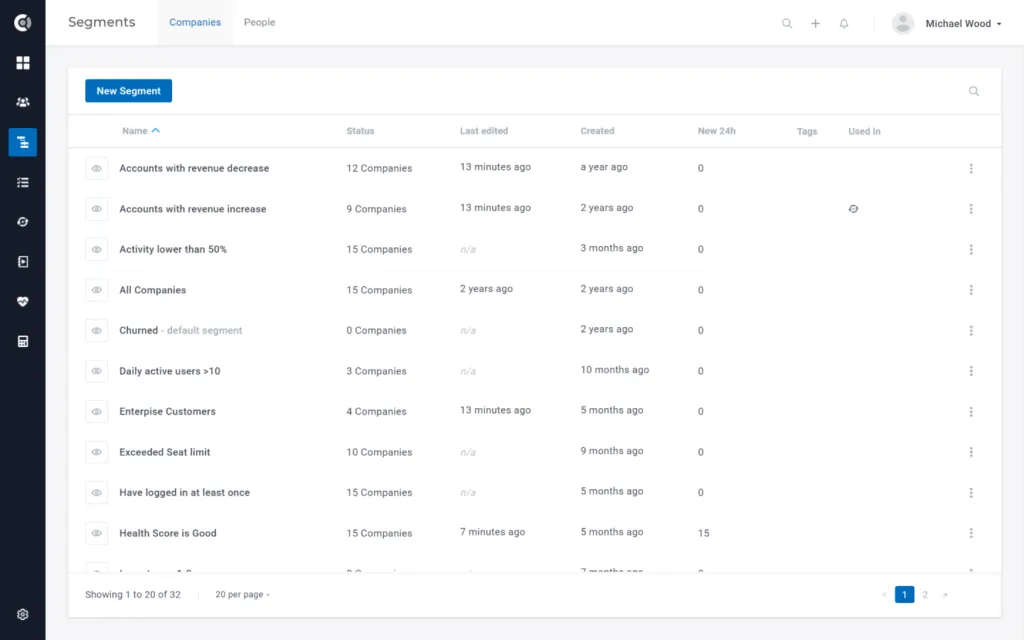
Defining Segments
There are 3 ways to define a segment:
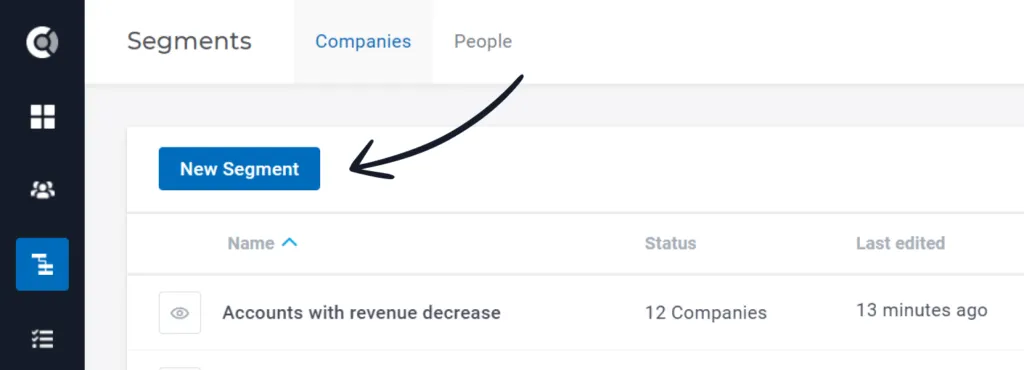
1. Use the side menu bar to select the Segment section and click on the “New Segment” button.
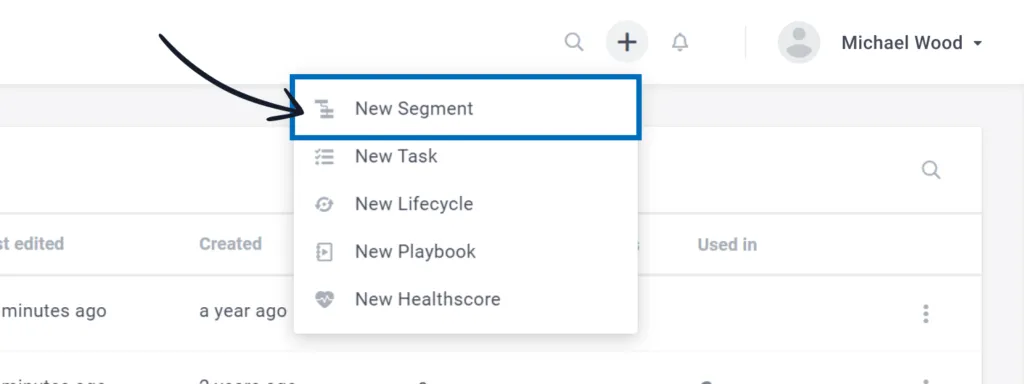
2. Or create a new segment from anywhere in the app by using the global shortcut ( +), than select "New Segment"
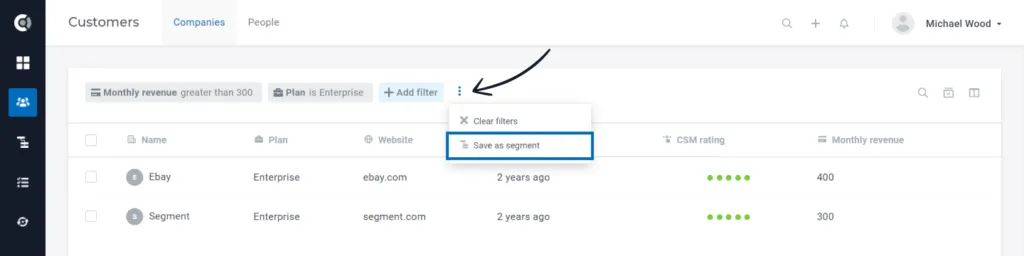
3. The third option gives you the possibility to turn a filtered list of customers into a segment. Once you have a filtered list of customers that you want to analyze and monitor, simply click on the 3 dots and save it as a segment.
To set up a company segment, you will need to define the following:
Choose a unique name and description. The description is optional and can help you distinguish between similar segments or explain the purpose of a more complex segment.
If you want to keep a close eye on the movement within a segment, you can choose to receive a notification 🔔 when a company enters or leaves the segment. Make sure you have notifications enabled for your profile.
Now let’s define the segment logic. You can use multiple criteria where all or at least one of the conditions match. If you select “All”, only the companies that meet all the criteria will be part of the segment and they will leave the segment as soon as one of the conditions is not met.
If you select “At least one”, all companies that meet at least one of the criteria will be part of the segment and they will leave the segment as soon as none of the criteria are met.
To define the criteria, we provide you with a multitude of choices, so you can use any of the data you sent to Custify or the metrics you define. Health Scores, Lifecycles, Tasks, you name it.
Let’s explore each of them.
| Options | Conditions | Example |
|---|---|---|---|
Attribute | Attributes sent via API, integrations or manually defined | Depends on the attribute type. | Premium clients that have a revenue higher than 200. |
Event | Any event sent via API or generated by a Playbook. | Event has (not) been performed, how many times (ever or in a given timeframe). You can also filter by metadata. | Clients that logged in more than 10 times in the last 30 days. |
Metric | Health Scores, Notes, Tasks (by status) or any of the metrics you calculate directly in Custify. | Also depends on the metric type. | Customers with the CSM rating smaller than 3 and the last note added more than 14 days ago. |
Is in segment/ Is not in segment | Any of the segments defined, except those that already have a segment referenced as matching criteria. | | |
Lifecycle status | Any of the lifecycles defined. | On track, behind, stuck, completed. | Customers that are stuck in onboarding. |
Observation: Using segments in other segments A segment that has “Is in segment / Is not in segment” criteria defined cannot be used as part of another segment.
Tracking Segments
Viewing customers that are part of a Segment
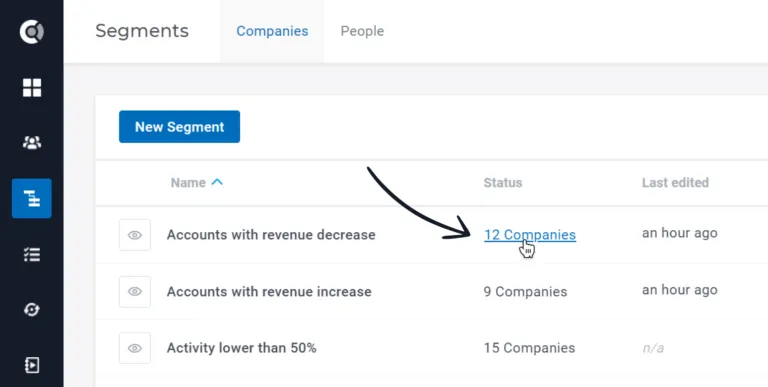
Once you’ve created segments, you can click directly on the Segment status to see the list of customers in a segment.
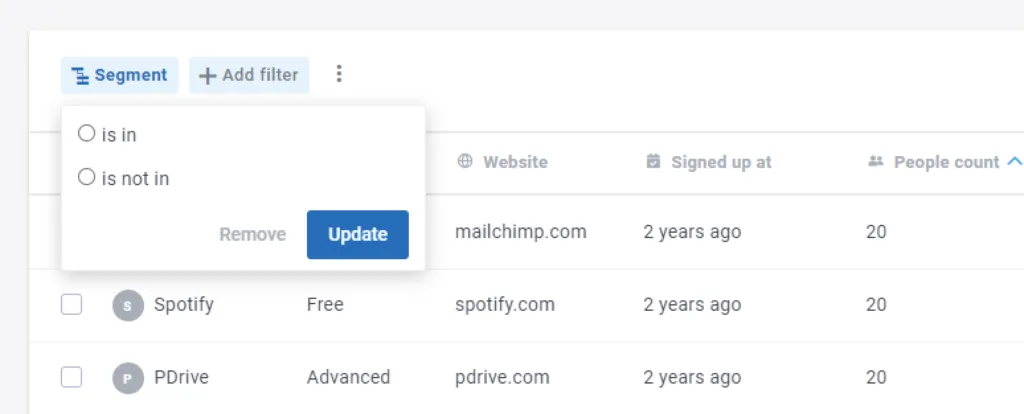
The same results will be displayed if you use one or more segments as filters in the Customer List View.
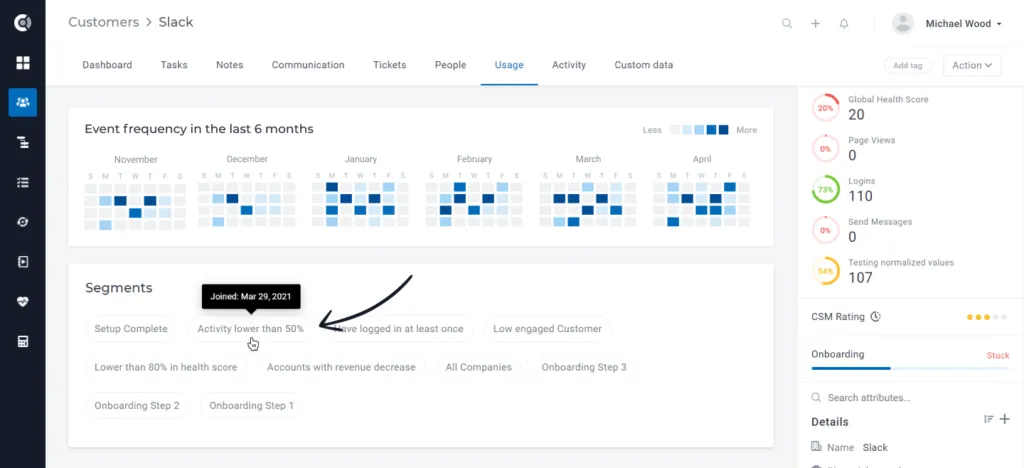
Viewing all current Segments for a customer
The list of segments a company is currently part of can be accessed in the Usage tab on the Customer 360 Profile.
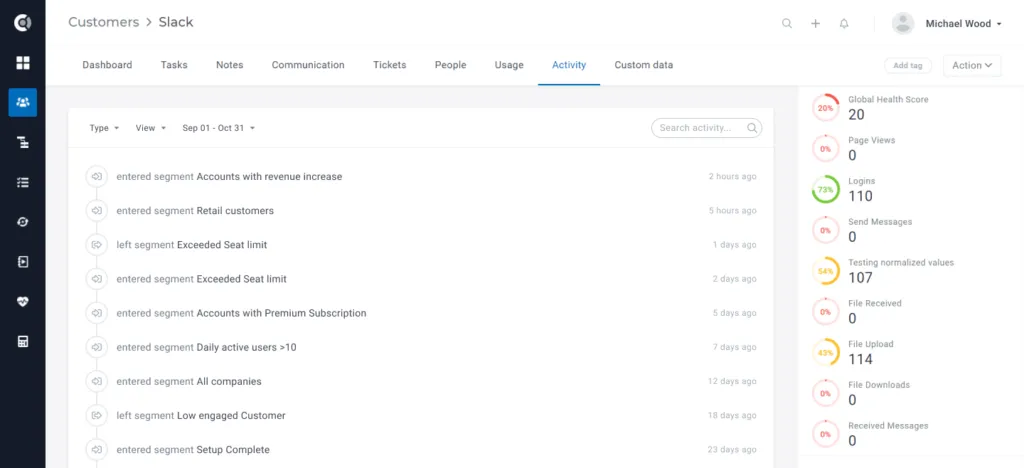
Viewing Segments history for a customer
You can check when a company entered and left a segment by filtering the activity timeline for segments. Navigate to the Activity tab on the Customer 360° Profile.
Removing/adding a company to a segment
Segments are based on rules or groups of rules. Once a company no longer meets the rules of a segment, it leaves the segment. It is not possible to manually add or remove customers from a segment, but you can define new criteria to have them excluded.
Managing Segments
To create, edit, or delete segments, you can navigate to the Segments section from the side menu. There, you’ll see a list of all segments with the ability to edit/delete/duplicate each one. For each segment, we provide you with a list of useful details.
- Status
- Last Edited
- Created
- New 24h
- Tags
- Used in
- Quick preview
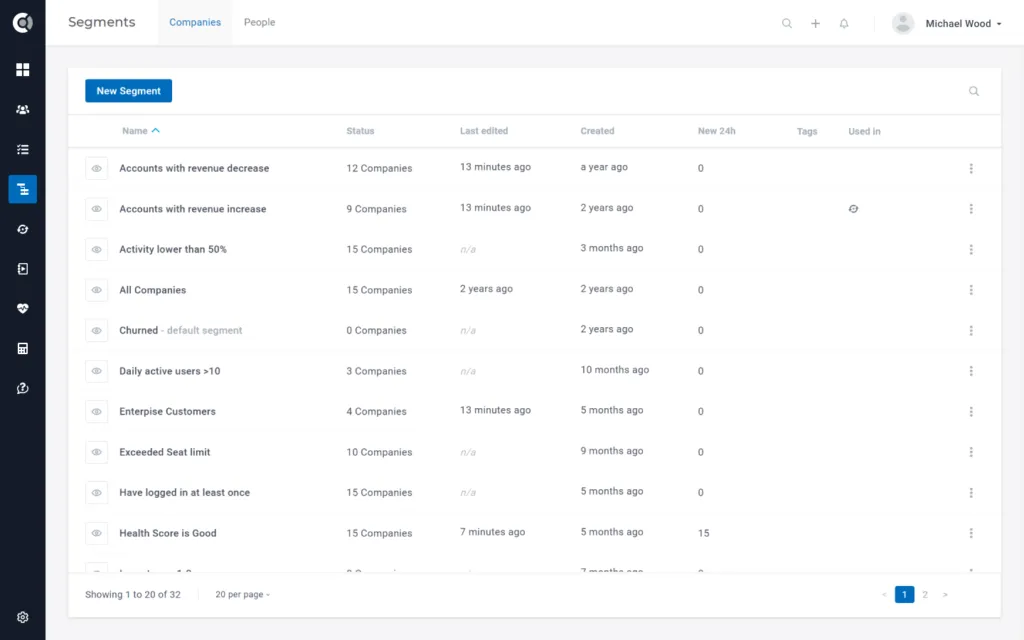
Pro tip: Delete unused or redundant segments to focus on what’s important.
Overview: Segments for people
Very similar to Customer Segments, you can use People Segments to group your users by their personal attributes or behaviors.