Product Updates | June 19th, 2025
Customer 360
Dynamic Customer 360 Views
Dynamic 360 Views empower teams to design and personalize customer profiles tailored to their unique workflows. By customizing tabs, layouts, and content blocks, users can surface the most relevant information for their role, whether it's onboarding details for Customer Success Managers (CSMs), account health metrics for executives, or historical engagement data for support teams.

To start configuring your Views, go to Settings - Customer 360 section. Learn more about this feature in this article.

Merging Companies
The Merge Companies feature allows users to combine two company records directly in the UI, with full control over which data is retained or transferred. It helps resolve duplicates, streamline data, and prevent data loss.
To start the merge, go to the Company 360 page of the Destination company (the one you want to keep in Custify). In the merge modal:
- Select the Source company (the company whose data will be merged and then deleted).
- Review the behavior.
- Choose which data to move.

What happens during the merge:
- The Destination company keeps its ID, name, and website (or uses the Source’s website if missing).
- It also receives selected data from the Source.
- Attributes that only exist on the Destination are preserved.
- Attributes that only exist on the Source are copied over.
- For attributes present on both, you can choose whether to keep the Source or Destination value.
- Company-only events are also moved to the Destination
- The Source company is permanently deleted, along with all of its subentities (e.g., activity, history)
What is not moved:
- Health scores
- Calculated metrics
- Attribute history
- Activity logs.
For all other data types - including notes, tasks, people, child entities, communication, meetings, tickets, files, Custom Data, and Financial Data - you can define the behavior directly in the modal during the merge.
This feature ensures clean, accurate company data with flexible, user-controlled merging.
Segments
Attribute Changes – Refined “Has Changed” Condition
The “Has changed” condition for attributes now includes a Refine option, allowing you to specify a timeframe, similar to event conditions. This lets you track changes within a defined period and create more targeted automation.
For example: Trigger a flow when a customer's plan changes from Standard to Enterprise within a specific timeframe.

Tasks
Bulk Assign Collaborator
You can now bulk assign a collaborator to multiple tasks at once. This is useful for assigning backup teammates or managers efficiently, without updating each task individually.

Edit AI-Generated Tasks
Tasks auto-generated from notes or emails via CustifyAI can now be edited before saving. This streamlines the workflow by allowing quick adjustments without needing to save and edit separately.

Calculated Metrics
New UI for Calculated Metrics Formulas
We've improved the UI for formulas under Calculated Metrics, making them more intuitive and easier to read, as well as making editing a breeze, as you can just click on a formula to open it in an editable window.

First Invoice Value Formula
A new formula is now available to extract the Amount Paid from First Invoice, helping you track initial revenue more accurately.

Count of Open Goals
You can now use a new formula under Entities > Lifecycles to track the count of open or achieved goals. This allows you to turn open goals into measurable metrics and build more advanced workflows.

Playbooks
Filter by Task Name in Playbook Step
You can now filter tasks by name within a playbook step, making it easier to locate and manage specific tasks in complex workflows.

Surveys
Survey Responses Tags
We've introduced tags for Survey Responses to help categorize and analyse feedback more effectively.
The first step is to create the survey tags under Settings - Tags - Survey Response Tags, then add them manually from the Survey page or automatically (through auto-tagging) based on survey comments.

These tags can then be used in filters and exports, making it easier to group and understand key themes in your survey data.
Touchpoints
Company Segment Filters on Pending Approval Emails
You can now filter pending approval emails by company segments, making it easier to review and manage email activity at the account level.
Timeframe Filter for Emails
A new timeframe filter is available for emails, allowing you to narrow down results to a specific date range for more focused analysis.
Insights
More Timeframes and Split Options for Widgets
New options are now available to enhance how data is grouped and compared in widgets:
- New timeframe - Last X months – shows only the last X full months, excluding the current month.
- New group options:
- Quarterly – groups data by quarter (e.g., Q1 2025)
- Month name – groups all data from the same month name across years (e.g., all Februaries together)
- Quarter number – groups all Q1, Q2, etc., regardless of year
- New split option - Split by Year: used with “Month name” or “Quarter number” to show data per group across multiple years (e.g., February split by 2023, 2024, 2025).
-

These changes make it easier to compare consistent periods across different years and ensure cleaner, more accurate time-based analysis.
Customer List Widget – Adjustable Column Widths
You can now change the width of columns in the Customer List widget for better layout control. When hovering over a column header, the full attribute name is displayed, with the description shown on a second line (if available).

Time in Product Widget
The new Time in Product widget helps you track how much time users spend in your product. You can choose between two display modes:
- Detailed – shows a bar chart with more granular data
- Aggregated – shows a pie chart summarizing the overall time.

You can break down the data by module, apply segments, set a timeframe, and group the results as needed. This makes it easy to understand where users spend their time and how usage varies across different parts of your product.
Meetings Widget – Split by Participant
The Meetings widget now supports splitting data by participant, in addition to the existing option to split by organizer. This lets you analyze meeting activity based on who attended, giving you deeper insights into user engagement and participation trends.

Grouping Values into "Others"
The split function on widgets now includes a "Maximum number of splits" setting. This lets you control how many slices are shown. If there are more values than the limit, only the top ones (by value) will be displayed, and the rest will be grouped into a single "Others" slice. This makes charts easier to read and avoids clutter when dealing with many segments, like splitting by company.

Tasks Widget – Custom Chart Color
You can now customize the color of Tasks widgets under Insights when displaying the number of tasks (with no split). This is especially helpful for visually distinguishing task metrics—for example, using red for open tasks linked to at-risk customers and green for healthy ones. The color is manually selected per widget, allowing you to quickly highlight and organize key information without complex rules.
Customer Portal
People List Block
A new People block is now available for the Customer Portal. It allows you to display a list of people along with their associated information. Lists can be filtered by Tags or Segments, making it easy to highlight specific groups, such as onboarded users or power users, directly in the portal.

Custom Data Block
You can now display specific Custom Data tables directly in the Customer Portal, giving your customers access to the information that’s most relevant to them.

Customer Portal Layout: Tabs vs Pages
You can now choose how the Customer Portal is displayed: either with tabs on top or as separate pages.

Your selected layout will be reflected in both the Preview and the live Portal link (changes are not visible in Template Edit Mode).
Next and Previous Buttons for Forms
Forms using save-on-change behaviour now support pagination.
- A new toggle, Pagination, is available in the widget settings (default: off).
- You can define the number of inputs per page.
- Next and Previous buttons appear at the bottom of the form (Previous on the left, Next on the right).
- Button labels support translations.

Settings
Edit Time Tracking Entries
You can now manage the time tracked in a dedicated section under Profile Settings > Tracked Time.
Each entry shows who tracked the time, for which company, the duration, and any associated tags.
Users can edit tracked time and tags, helping correct mistakes (e.g. wrong duration or missing labels).

Access depends on user permissions:
- Manage own tracked time – Users can view and manage only their own time entries.
- View time tracked by others – Users can view time entries tracked by other users, but not edit them.
- Manage time tracked by others – Users can view and manage both their own time entries and those of other users.

General - Prevent Conversation Bubbling to Companies
A new setting under General - Data Handling allows you to prevent emails and meetings from bubbling up to the company level for people tagged with specific tags.
In cases where a person is assigned to multiple companies, unrelated emails or meetings may appear under all those companies, even if they're not relevant. This setting helps avoid that.

How it works: If a person is tagged to prevent conversation bubbling, their emails or meetings (e.g., with internal users) will not be mapped to any company. These emails and meetings will still be imported at the people level, but they will not bubble up to the companies the person is associated with.
Practical example: You are working with Partners who are recorded as People in Custify and are assigned to multiple companies. Their accounts are tagged as "prevent conversation bubbling".
A CSM sends an email to a Partner regarding a company the Partner is assigned to, and CCs a representative from that specific company.
What will happen:
- The email will be mapped to the Partner’s record at the people level.
- The email will not be mapped to any of the companies the Partner is assigned to. This prevents unrelated conversations from appearing in company timelines.
- The email will be mapped to the company's record because another person from that company (not tagged to prevent bubbling) was CC’d. This ensures the relevant context is still captured on the company level.
Users Section - Rearrange or Hide columns
We've added the ability to rearrange or hide columns in the Users section, just like in the Customer List View. Under Account Settings > Users, you can now toggle which user attributes are shown and customize their display order. This makes it easier to focus on the most relevant user data for your workflow.
Data Management
Amplitude Integration
Amplitude is a product analytics platform that helps companies improve products by understanding user behavior. With the new Amplitude <> Custify Integration, Customer Success teams can access usage insights directly in their workflow - making it easier to spot churn risks, drive adoption, and identify growth opportunities based on real product data.
More details about Amplitude can be found here.
New API Endpoints
New API endpoints are available:
- List meetings
- List Calculated Metrics
- List Health Scores
- List Segments.
Pause/Resume Options for Data Warehouse Syncs
Data Warehouse Syncs can now be paused and resumed. This is mostly useful when having active syncs and changes are required on the data warehouse side - so the sync with Custify should be paused until the changes are implemented.

Other enhancements
Save views for Custom Data
Custom Data can be sorted and filtered, and the selection can be saved as a view for further usage, similar to the behavior of Customer List Views.
New Sort By Option under Task Tabs
On the Customer 360, under Task Tabs, there is a new sorting option available - Sort By “Created by”, which will sort the tasks by who/what created them and have one group for each “creator”.
Display all available tags on Notes and Tasks
When having notes and tasks tagged with multiple tags, tags can be all displayed without any extra clicks. In order for all tags to be displayed, the selected behavior needs to be "Show colors only".
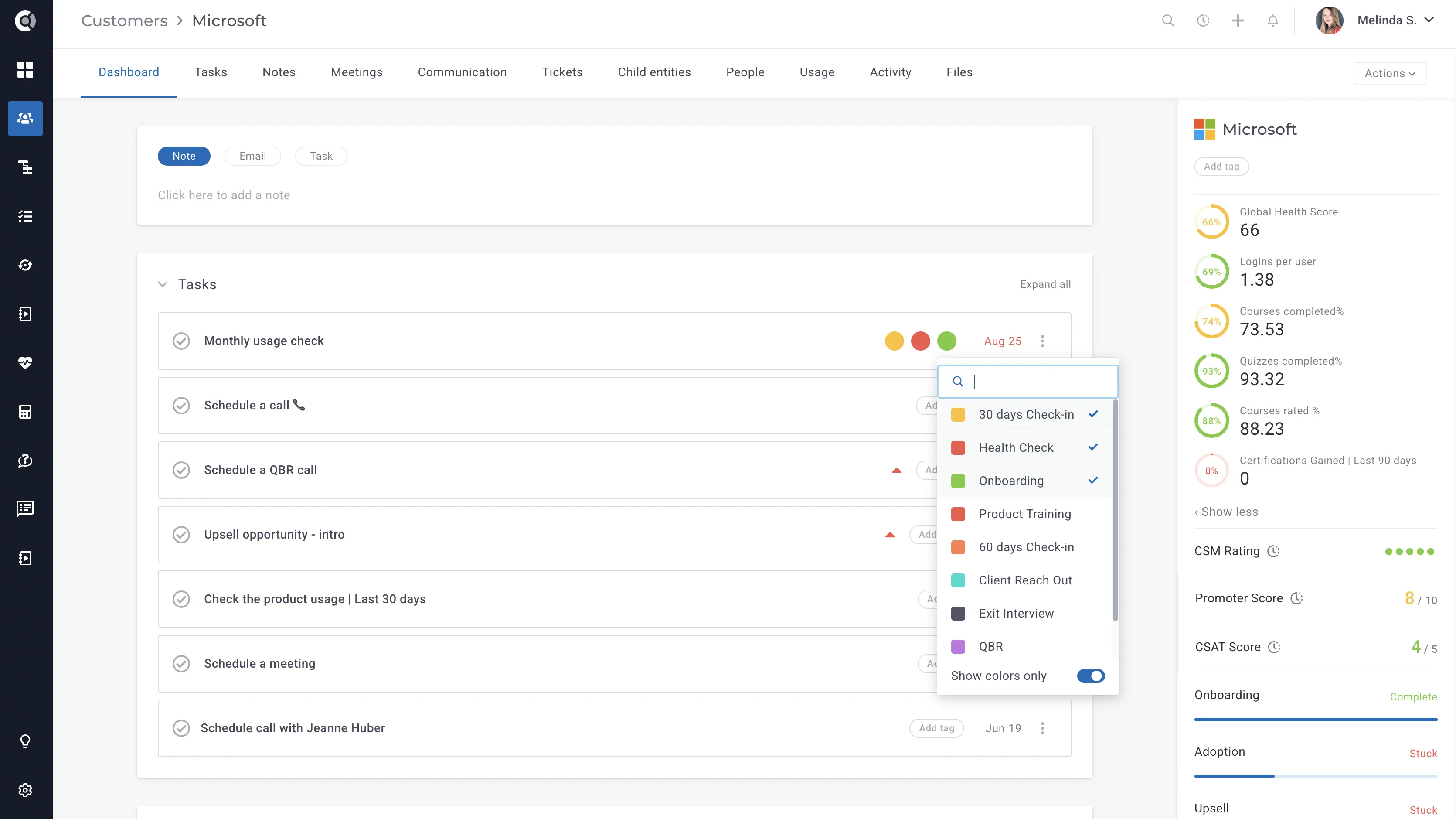
Improved Tag Filtering in Customer List View
The Customer List View now supports multi-tag filtering, allowing you to select and apply multiple tags within a single filter. This replaces the previous behavior, where each tag required a separate filter, making it faster and easier to segment customers based on multiple tag criteria.