Stakeholder Map
See who matters at every account, who has influence, and which relationships are quietly going cold.
Overview
The Stakeholders Map is an automatic relationship graph for every company in Custify. It analyzes the activity data already flowing into your account — emails, meetings, support tickets, and product usage events — and turns that history into a visual map of who you talk to, who carries influence, and how strong each relationship currently is. You do not enter contacts, draw lines, or tag relationships by hand. The map is recalculated nightly, plus on demand via the Refresh button.
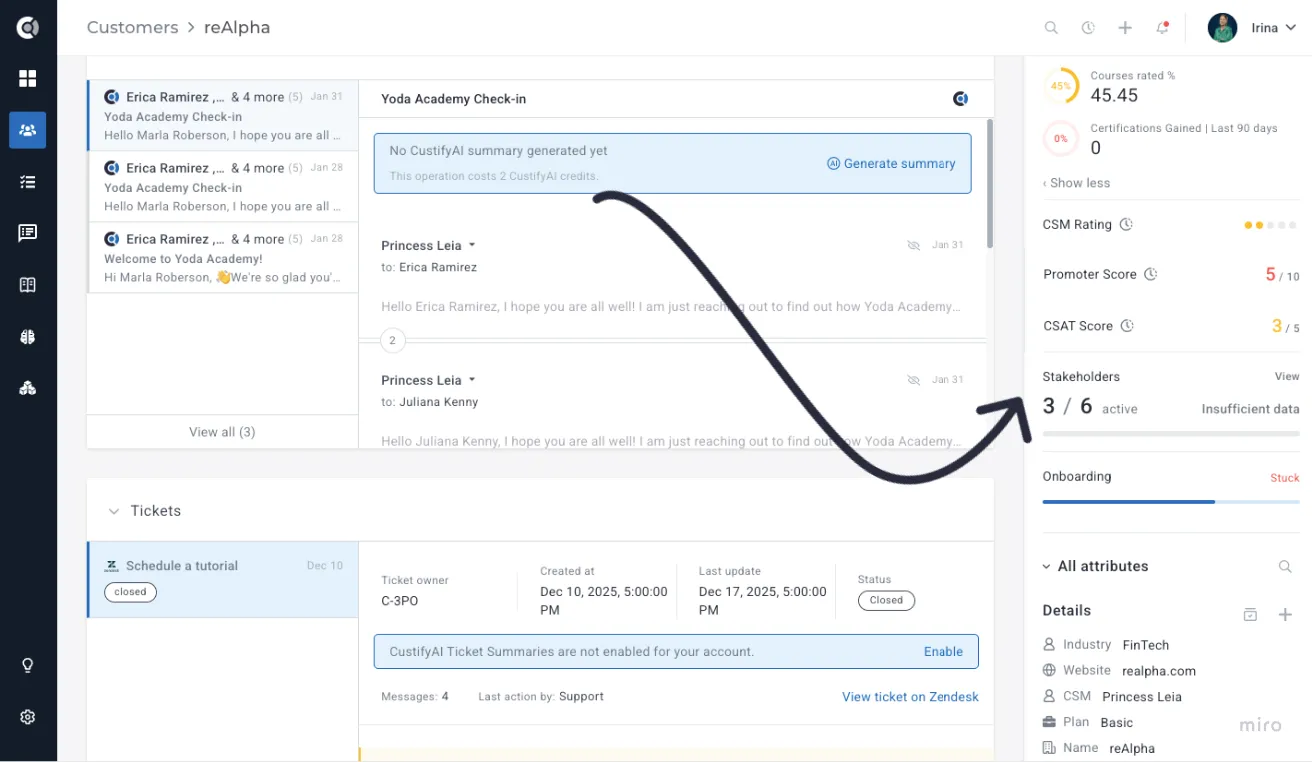
The map opens as a modal from the sidebar widget on the Customer 360° Profile. Inside, you can switch between an interactive graph view and a sortable list view, drill into any contact, and review the account's overall stakeholder relationship health. When the system spots that one person is handling almost every conversation, the default attribute "Stakeholders singleThreaded" becomes true, and can be used in different processes through Playbooks and Health Scores.
The Stakeholders Map gives you the following capabilities at a glance:
- A nightly-recalculated relationship graph that ranks contacts by influence and color-codes each connection by relationship strength.
- An influence score from 0–100 per contact, derived from how often that person appears in real activity rather than from job title alone.
- Relationship strength labels — Strong, Decaying, At Risk, or No Contact — based on how recently and frequently you have interacted with each person.
- Single-threading detection populates the "Stakeholders singleThreaded custify" attribute to true when a configurable share of communication runs through one contact.
- Ghost stakeholder discovery, which surfaces email addresses appearing in CC lines or meeting invites that are not yet tracked as contacts.
- A list view, a context panel, and an account-level relationships score for fast portfolio reviews.
Custify Tip: The Stakeholders Map works automatically once your email, calendar, helpdesk, and product usage data are flowing into Custify. No manual setup is required to start seeing graphs for your accounts.
Reading the Stakeholders Map
To open the map, go to the company's Customer 360 Profile and click the Stakeholders sidebar widget. The map opens in a modal so you can keep the rest of the customer record in context behind it.
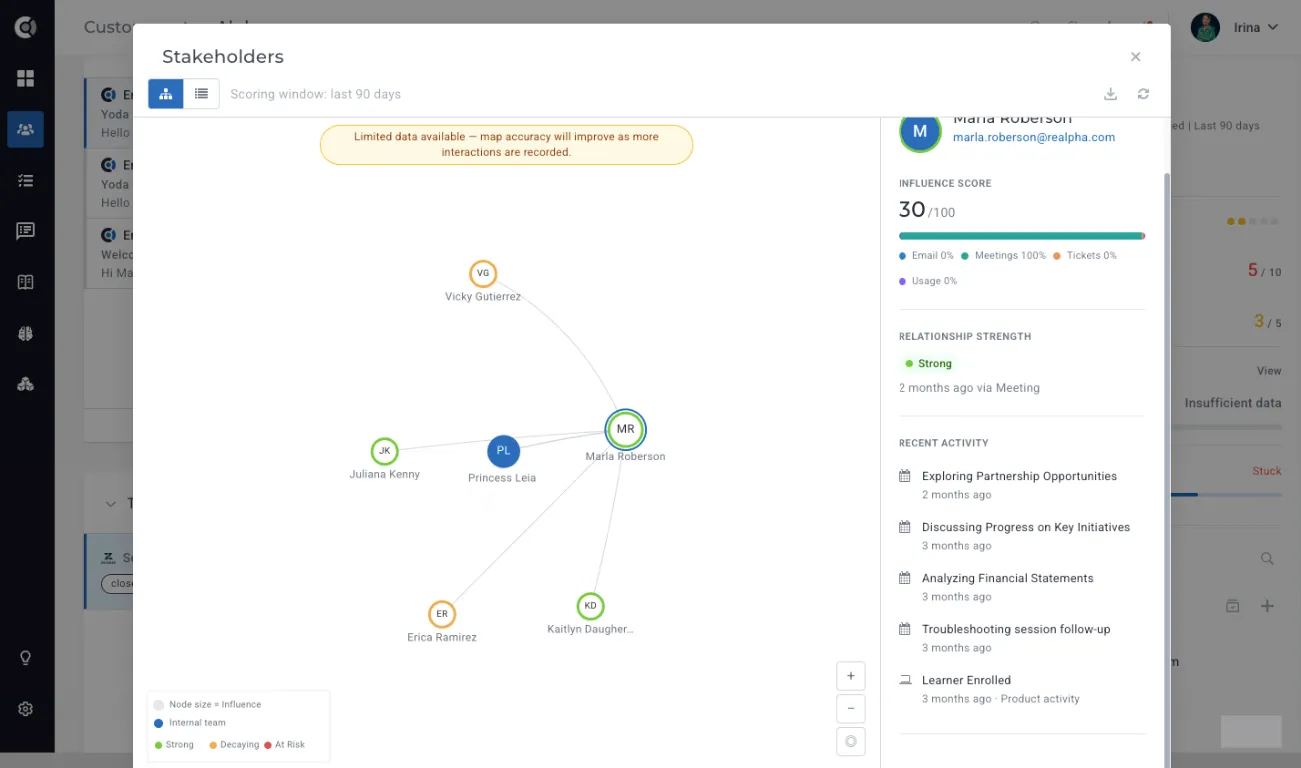
The graph view shows every tracked contact as a circle (a node). Each node carries three pieces of meaning:
- Node size: Larger circles represent contacts with higher influence scores.
- Node position: Your account is at the center; contacts cluster around it based on who they communicate with on your side and on the customer side.
- Node connections: Lines between nodes indicate communication relationships. Lines that connect a contact to your CSM are color-coded by relationship strength — green for Strong, amber for Decaying, red for At Risk, and gray when there has been no contact at all.
The right-hand context panel summarizes the account when nothing is selected — the relationships score, current risks, and a quick read on relationship health. Clicking any node swaps the panel to a contact detail view that breaks influence down by channel, shows the latest interaction date, and surfaces the relationship strength label.
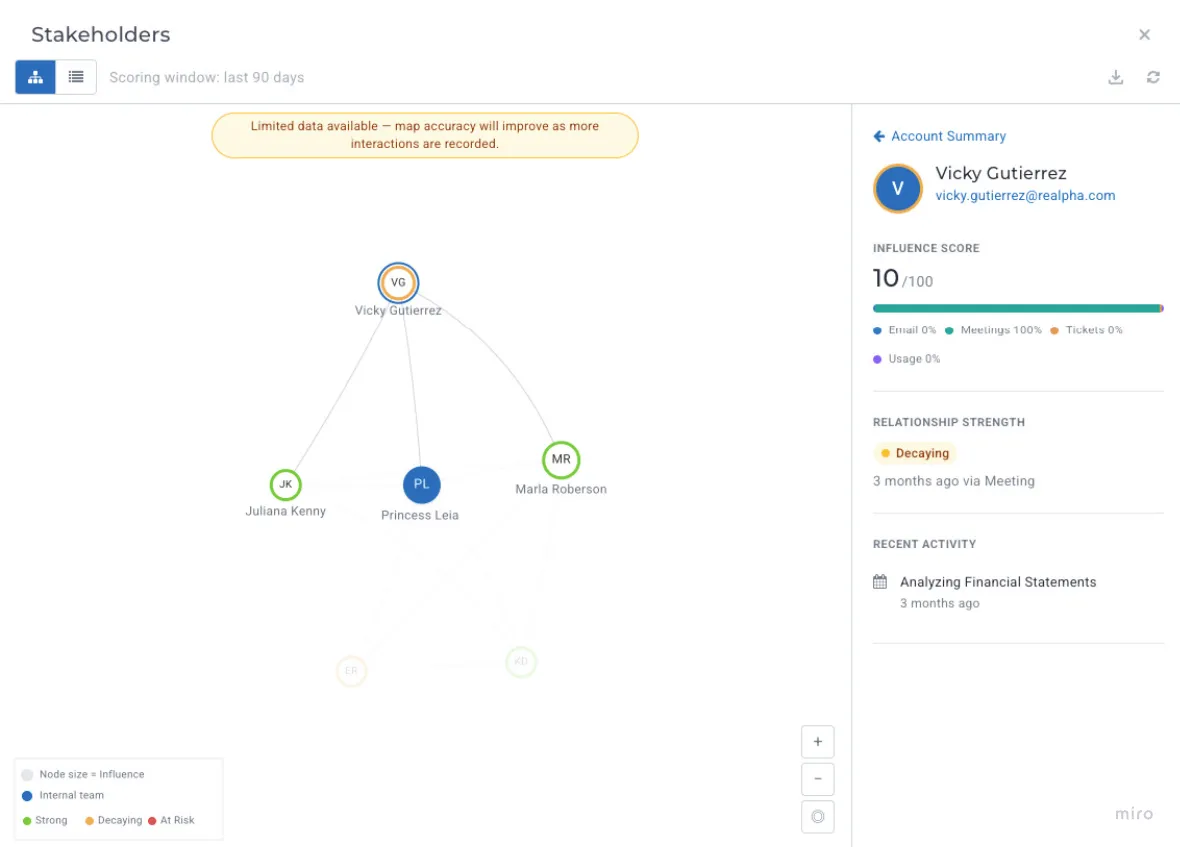
You can refresh the data manually using the Refresh button in the toolbar. Manual refresh is useful right after a meeting sync or a large email import, when you do not want to wait for the next nightly recalculation.
Influence scoring and relationship strength
Influence is scored automatically, on a scale of 0–100, for every tracked contact. The score combines four channels of activity rather than relying on job title or any field a CSM might forget to update:
- Email: How often the contact sends, receives, or is copied on conversations with your team.
- Meetings: Attendance and frequency of calendar events tied to the account.
- Support tickets: How often does the contact appear as the requester or participant on tickets coming through your helpdesk integration?
- Product usage: Login frequency, feature activity, and other events captured against that person.
These four channels each carry a weight that sums to 100. The defaults reflect a balanced communication-and-usage view; if your engagement model is heavier on one channel — for example, a product-led account where usage matters more than meetings — you can adjust the weights in Settings - Stakeholder Map.
Relationship strength is a separate signal from influence. Influence asks "how much does this person matter on this account?" Strength asks "how is your CSM's relationship with this person trending?" The four labels are:
- Strong: Recent, frequent two-way contact with the CSM.
- Decaying: Contact has slowed but not stopped. The relationship is cooling and worth a touch.
- At Risk: Contact has gone quiet long enough to threaten the working relationship.
- No Contact: The CSM has never interacted directly with this contact, or the activity has fallen off entirely.
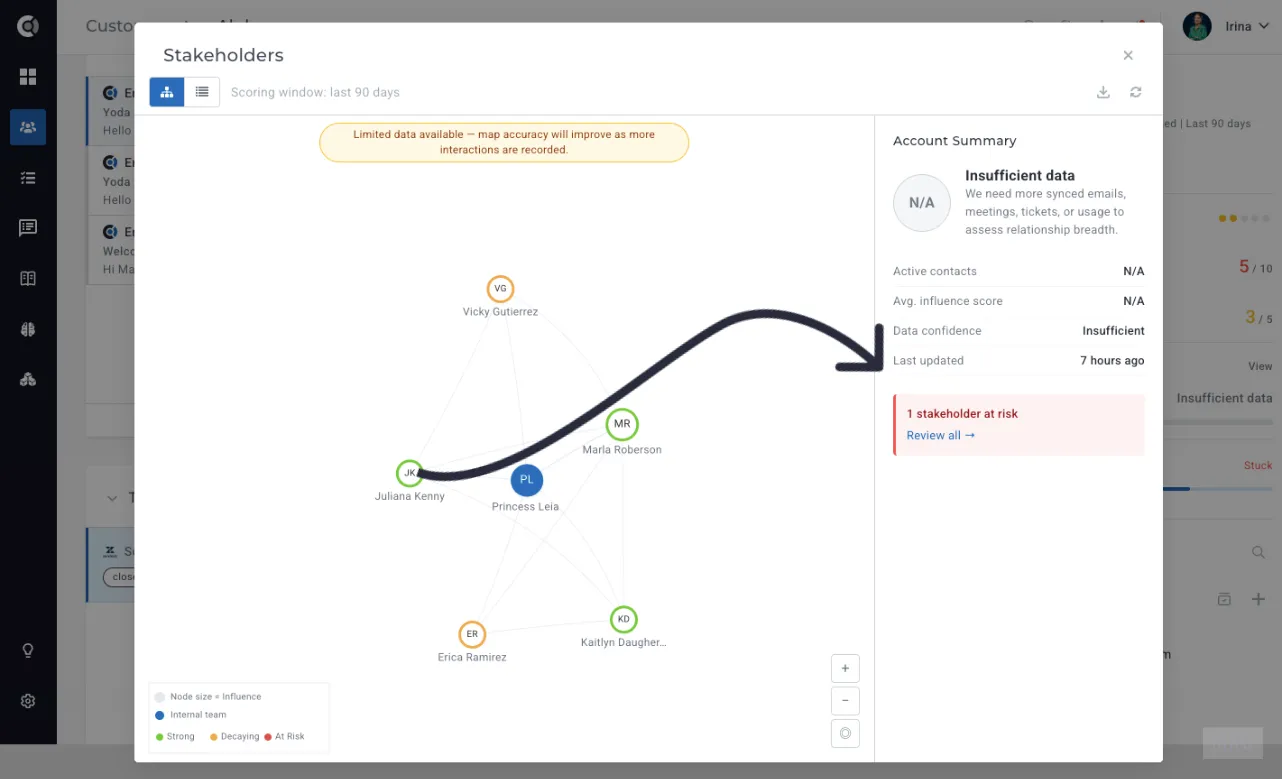
Decay is driven by configurable day thresholds. As soon as a contact crosses the yellow threshold, their connection turns amber; crossing the red threshold flips the connection to At Risk. The influence lookback window is fixed at 90 days and not configurable in v1.
Custify Tip: Use the relationship strength colors as a daily review surface. Open the map for your top accounts and look for amber and red lines on contacts the system has classified as high influence — those are the relationships most worth a proactive touch.
The stakeholder relationship can also be analysed on the Company List View, by filtering and sorting using the dedicated attributes (Stakeholders atRiskContacts, Stakeholders activeContacts, Stakeholders untrackedCont, etc. - default attributes that return the number of contacts in each category for a company).
Single-threading detection
A single-threaded account is one where almost all communication runs through a single contact. If that person leaves, gets reorganized, or simply goes quiet, the relationship can collapse without warning. The Stakeholders Map watches for this pattern automatically.
When one contact is responsible for more than the configured share of total account communication, Custify populates a boolean attribute, "Stakeholders singleThreaded" with the value "true". The default threshold is 80% (but can be adjusted under Settings - App Settings - Stakeholder Map), meaning that the attribute becomes true when 80% or more of the account's emails, meetings, and tickets are tied to a single user.
Ghost stakeholders
A ghost stakeholder is an email address that appears in your activity data — most commonly in CC lines or meeting invites — but does not yet exist as a tracked person on the account. These are the buyers, executives, and influencers who are quietly part of every conversation but invisible to your CS workflows.
The Stakeholders Map surfaces ghost stakeholders in a bar at the bottom of the modal. Each entry shows the email address along with the name of the channel where it was identified, the number of appearances, and the last time it was seen. From the bar, you can promote a ghost into a tracked contact, after which they appear in the graph and start accumulating an influence score like any other person. Promoting a ghost creates a tracked person record on the account — the new contact appears under People with the data signals that triggered the ghost preserved as their initial activity.
Custify Tip: Treat ghost stakeholders as a discovery queue. Reviewing them every few weeks is the fastest way to make sure your account map reflects who is actually involved in the relationship, not just who you have manually added.
Configuring weights and thresholds
Admins can tune the Stakeholders Map for the way your team actually communicates. Go to Settings - Stakeholder Map to access the configuration page.
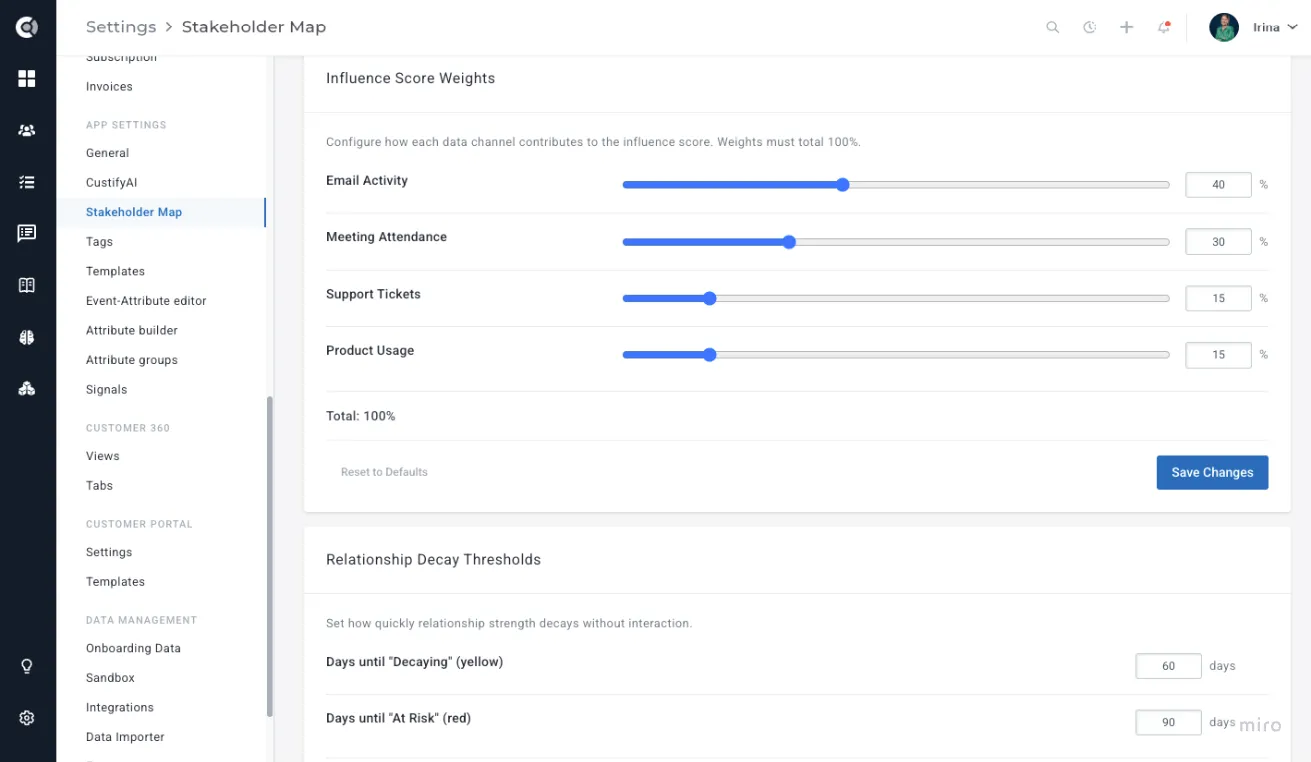
The page exposes four groups of controls:
- Influence channel weights: Set the weight given to email, meetings, support tickets, and product usage. The four weights must total 100. Reducing the weight on a channel where you have little data — for example, support tickets in a non-helpdesk-heavy account — keeps influence scores from being skewed by the absence of data.
- Relationship decay thresholds: Configure how many days of inactivity move a relationship from Strong to Decaying (the yellow threshold) and from Decaying to At Risk (the red threshold). Shorter thresholds suit high-touch enterprise CS; longer ones suit low-touch CS models.
- Stakeholder Inclusion Window: Controls which contacts appear on the Stakeholder Map by filtering out anyone who hasn't had at least one email, meeting, or ticket touchpoint within the defined number of days (default: 365). You can adjust this window to show a broader or narrower set of active stakeholders depending on your engagement tracking needs.
- Single-threading threshold: The percentage of account communication concentrated on one contact that sets the boolean attribute "Stakeholders singleThreaded" to "true".
Click Save to commit your changes. The new settings take effect on the next nightly recalculation, which runs at 3 AM in your account's configured timezone. To see the updated map immediately, open a company and click Refresh in the Stakeholders Map toolbar.
Observation: Influence weights must total 100. If the values do not add up, the Save button stays disabled until they do. This applies to each individual weight change, not just the final save.
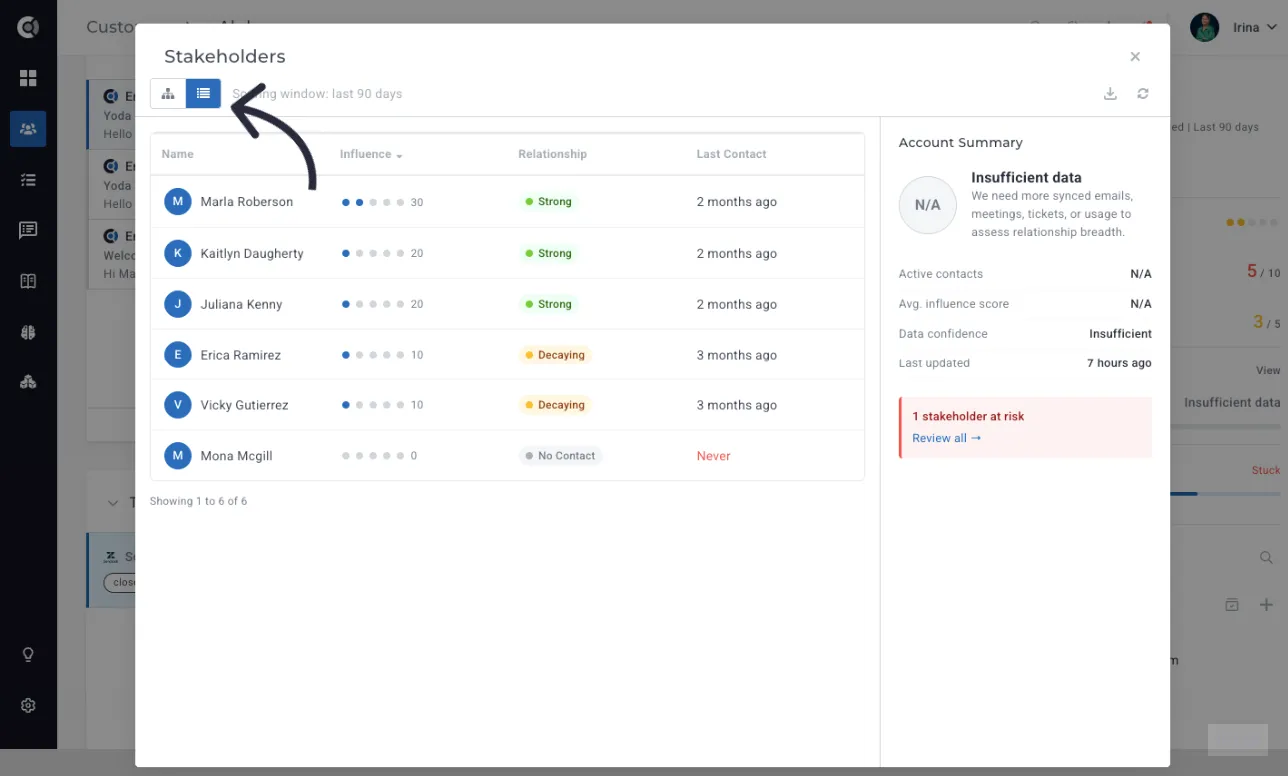
Switching between graph and list views
The graph is the right view for understanding shape — who is central, who is peripheral, and where the connections cluster. For dense portfolios or for sorting by a specific attribute, the list view is faster.
Toggle between views using the Graph / List switch in the toolbar. The list view shows every tracked contact as a row with columns for influence score, relationship strength, last interaction date, and communication share. They can be sorted by influence, communication share, and last contact date.