Customer Evolution Compare
See everything that changed for a customer between two dates in a single scrollable report.
Overview
Customer Evolution Compare is a date-range report that shows you what shifted on an account between any two points in time. Instead of opening multiple tabs, scrubbing through history charts, and stitching the story together yourself, you pick a date range and get a single report covering health, financials, activity, lifecycle changes, signals, objectives, and attribute updates.
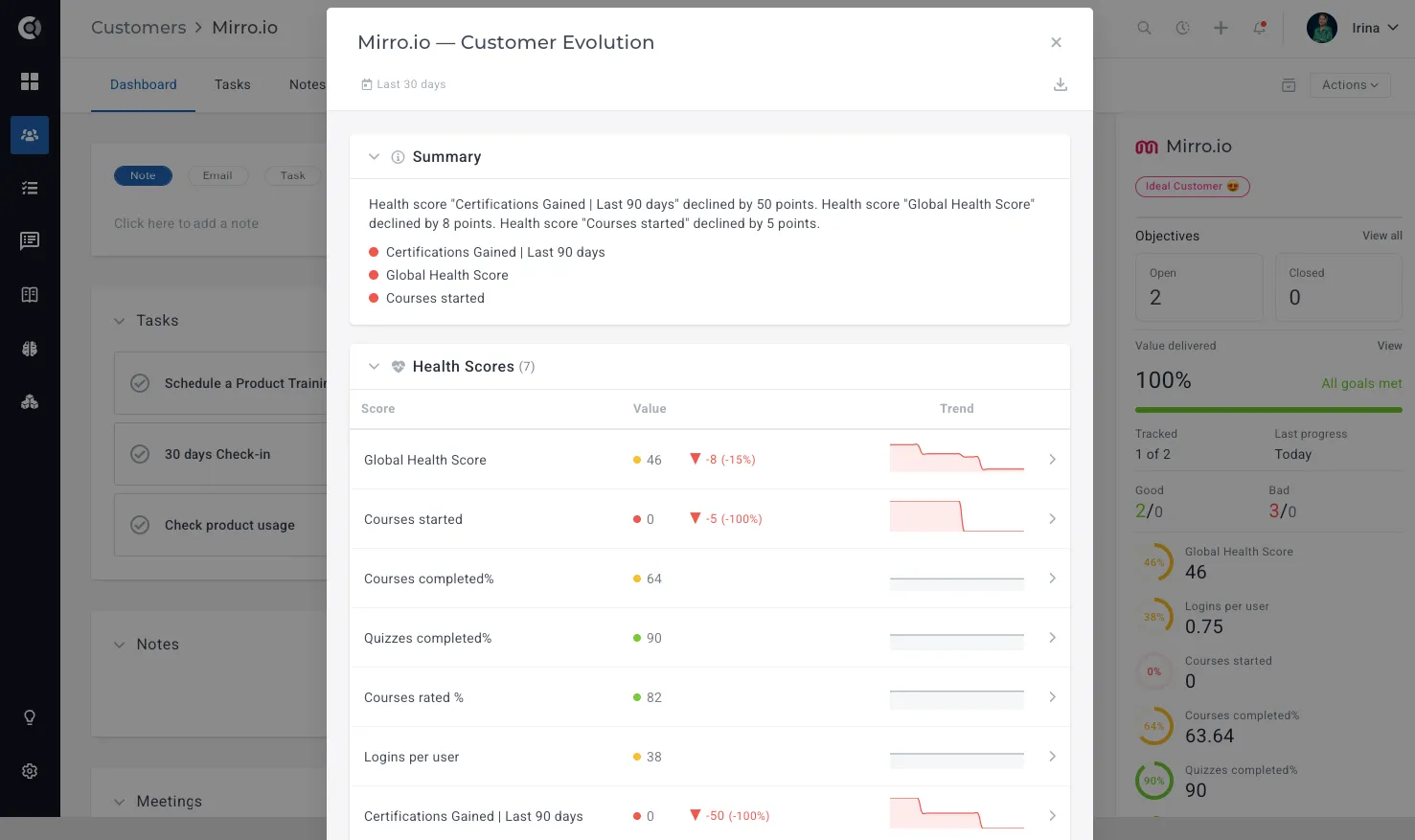
The report runs against the data you already track in Custify, so there is no setup work for accounts to qualify. It is designed to support the moments when a CSM needs to understand "what happened recently" — QBR prep, renewal reviews, churn post-mortems, escalation diagnosis, and stage-transition reviews. Sections are generated independently and load progressively, so the most important context surfaces first.
Customer Evolution Compare runs from the Customer 360 Profile Actions menu and produces a report that includes:
- An auto-generated executive summary that highlights the most significant changes with clickable severity badges.
- Start vs. end values for every Health Score, with sparklines and color-coded deltas.
- Financial movement, including MRR changes, expansion and contraction events, renewal proximity, and deal pipeline shifts.
- Activity counts by type compared to the equivalent prior period, with communication-gap detection and top Touchpoints.
- Stage transitions from Lifecycles and Signals events on a compact timeline.
- Progress on active Customer Objectives with status and completion changes.
- CSV export of the full report.
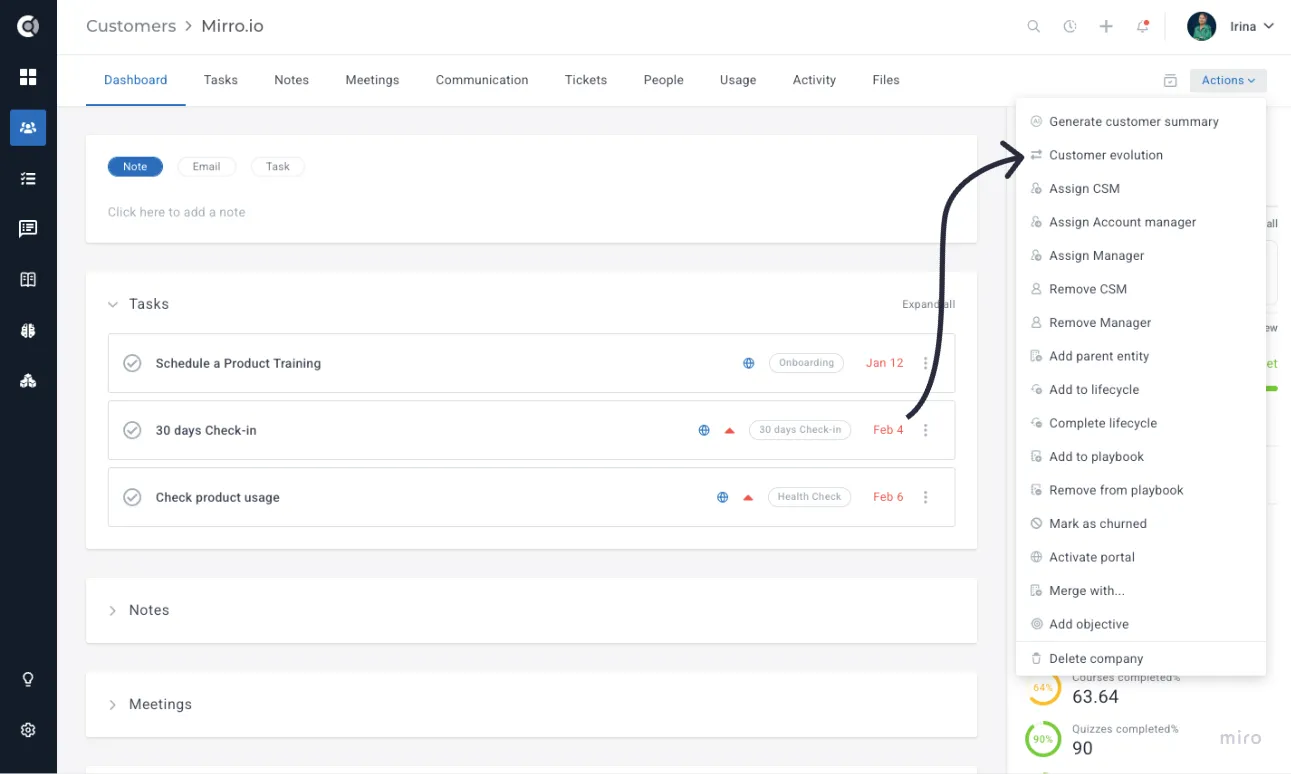
Custify Tip: If you generate a report on an account with sparse historical data, sections with nothing to show will display the message "No data available".
Choosing a date range
The date-range toolbar offers presets for the most common comparison windows, plus a custom date picker for arbitrary ranges. Selecting a preset auto-generates the report immediately. For a custom range, you click Apply after entering both dates.
The available timeframes are:
- Last 30 days — compares the most recent 30 days against the preceding 30 days.
- Last 90 days — compares the most recent 90 days against the preceding 90 days.
- Last 180 days — compares the most recent 180 days against the preceding 180 days.
- Last 365 days — compares the most recent 365 days against the preceding 365 days.
- This year — compares the MoM evolution of data for the current year to date Since last QBR — runs from the date stored in the last_qbr_at custom attribute through today.
- Custom — pick any start and end date.
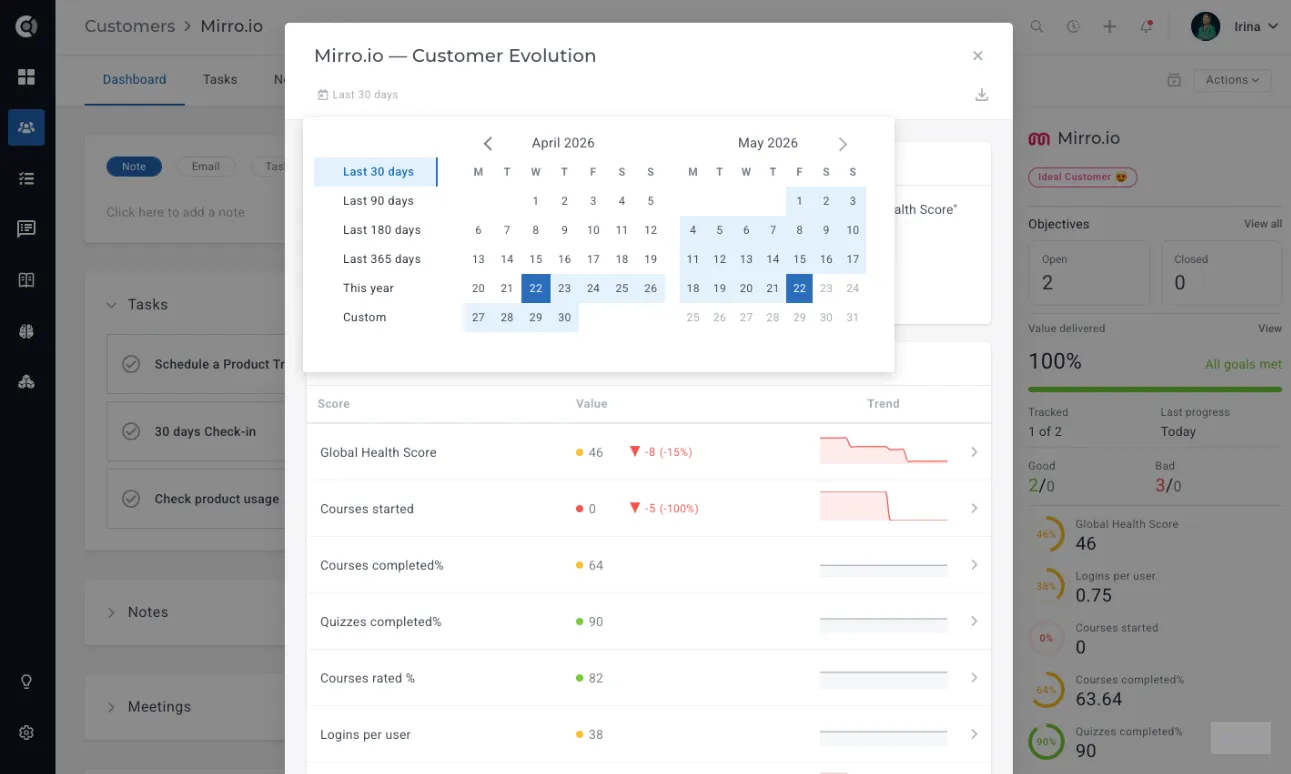
Observation: The Since last QBR preset only appears in the toolbar for accounts that have a value populated in the last_qbr_at custom attribute. If you want this preset available for all accounts, populate last_qbr_at either manually, through a Playbook step, or through your data integration. Without a value, the preset is hidden for that customer.
If you enter an invalid range (for example, a start date after the end date), the toolbar shows an inline validation error and does not run the report. Adjust the dates, and the report regenerates.
Reading the report sections
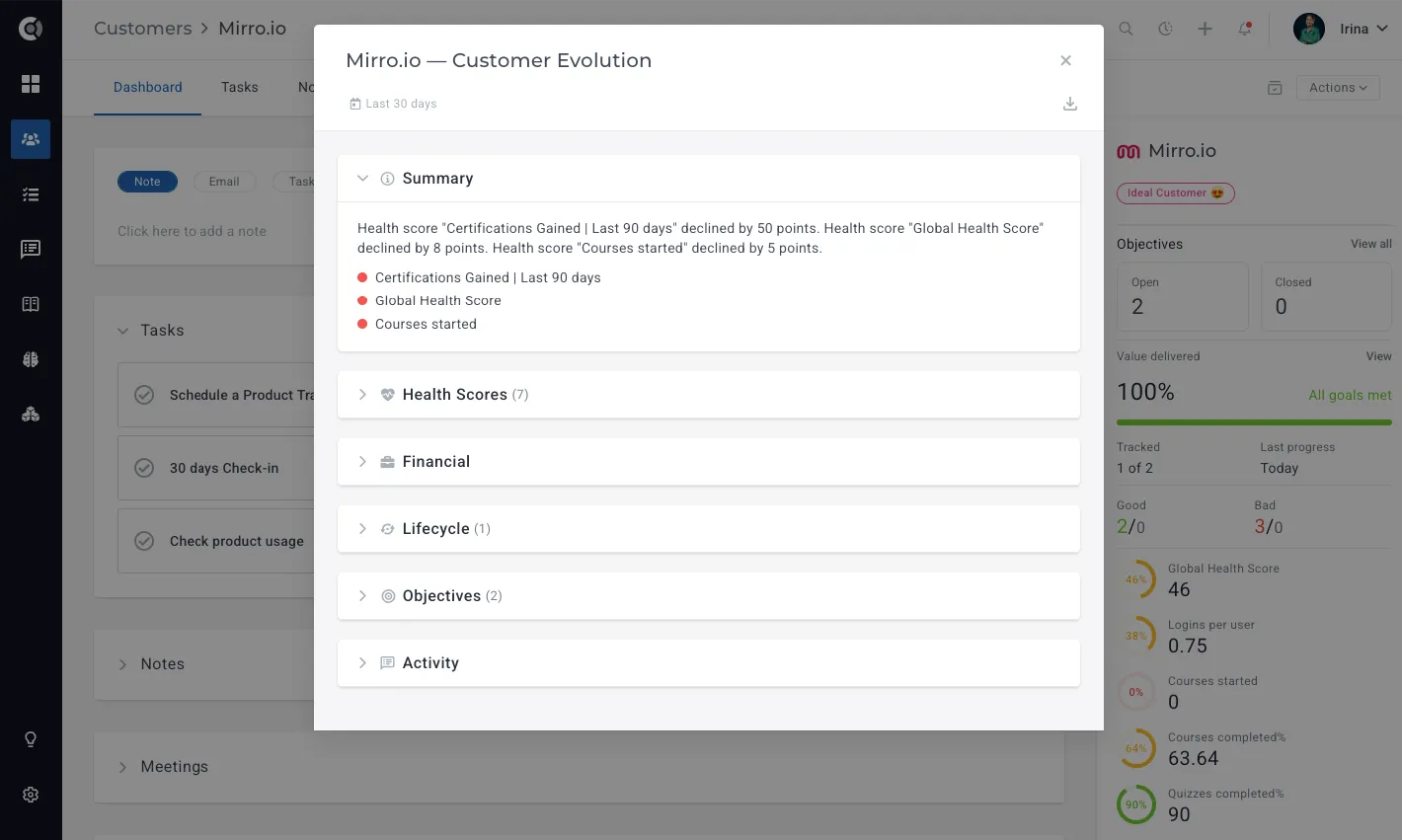
The report is divided into seven progressively loaded sections. Each one is self-contained, so you can jump to whichever block answers your question first. The order is fixed: top-of-report sections summarize the account, and detail sections sit underneath.
Executive Summary
The Executive Summary is the first section to appear and the highest level view of what changed. CustifyAI generates a single-paragraph narrative highlighting the most significant changes during the period, with severity badges color-coded green (positive change), red (negative change), or amber (mixed or notable).
Each badge is clickable. Selecting one scrolls the report to the underlying section, so you can drop straight from the summary into the supporting detail. This is the fastest way to skim a long report and identify only the parts you want to read in full.
Health Score Delta
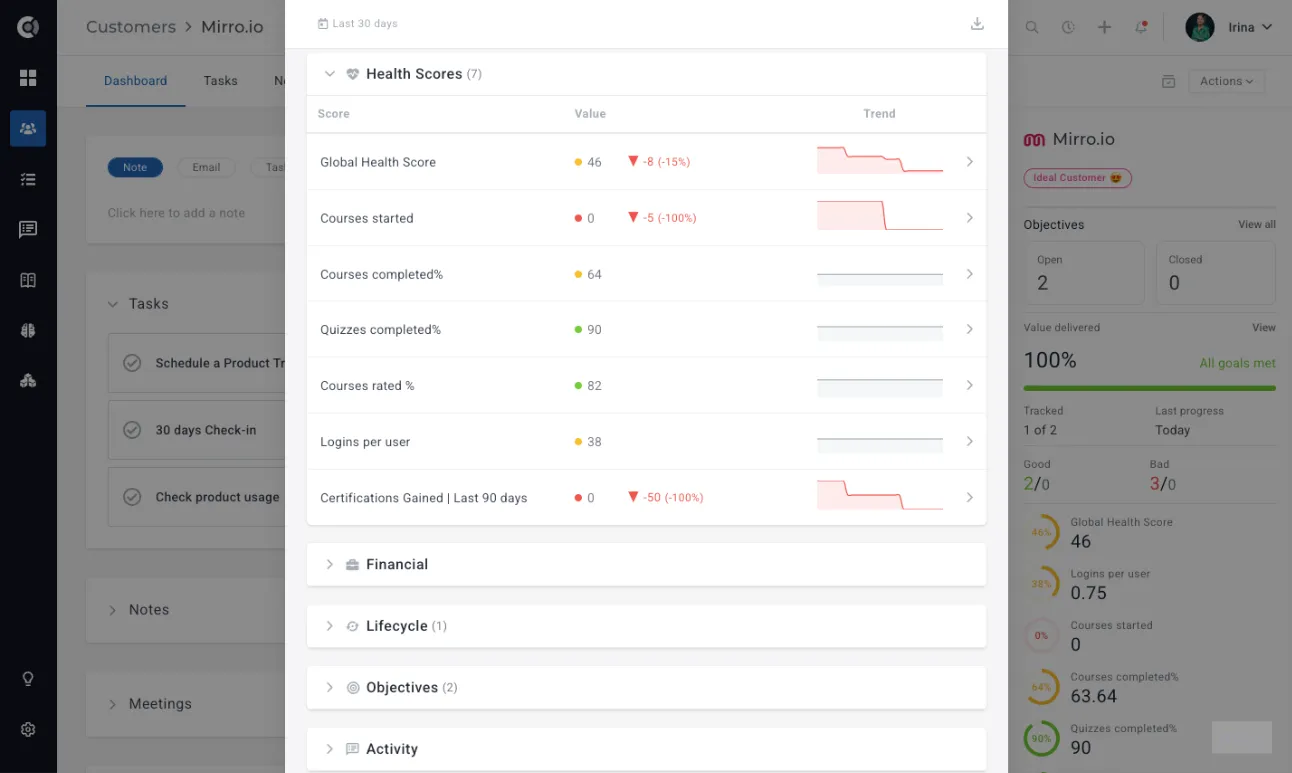
The Health Score Delta section lists every Health Score configured on the account, with the start value, end value, and a color-coded delta showing the change. A small sparkline next to each row visualizes the trend across the date range.
The Global Health Score sits at the top of the section, followed by individual Health Scores in the same order they appear on the Customer 360 sidebar. Scores that did not change still appear in the section so you can confirm stability — they show a delta of 0 and a flat sparkline.
Financial Changes
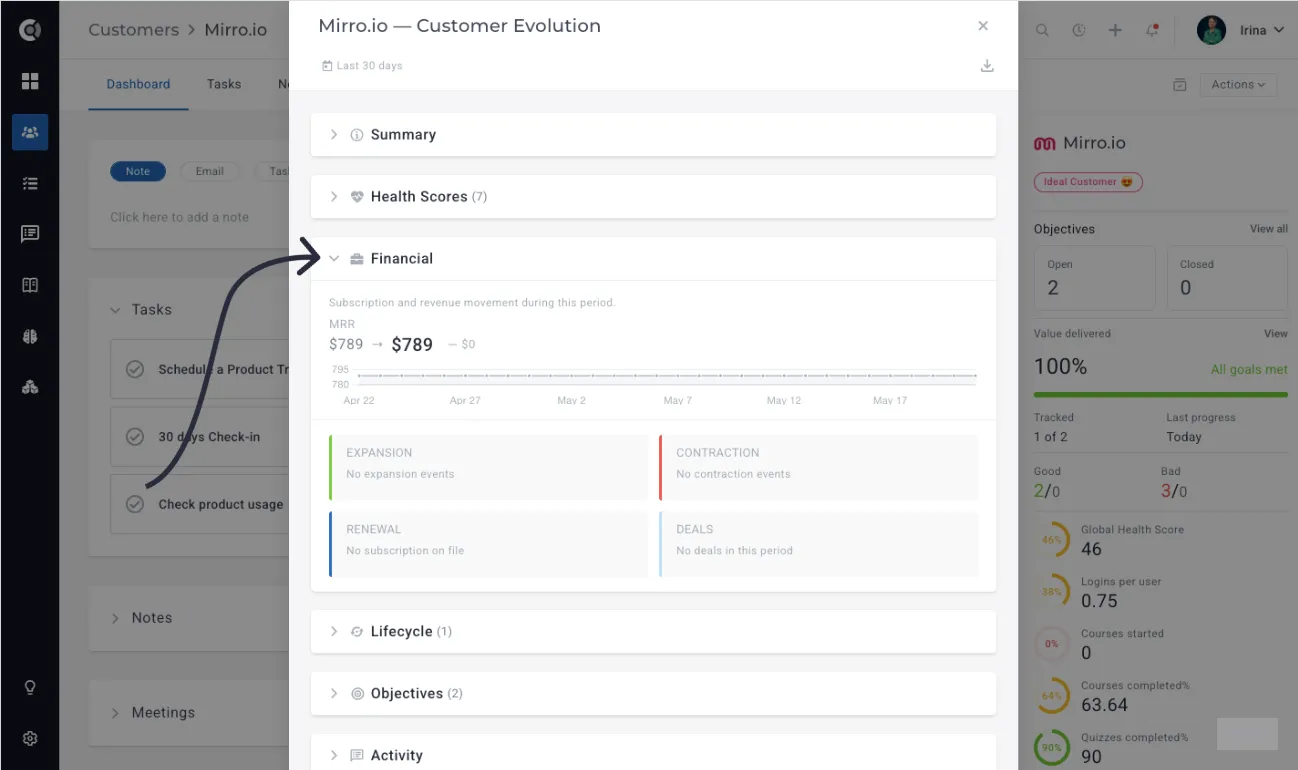
Financial Changes summarizes everything that moved the account's revenue position. The block covers:
- MRR at the start of the range vs. the end, with the delta in absolute currency and percentage terms.
- Expansion or contraction events that occurred inside the range, with date and amount.
- Renewal proximity at the start vs. the end of the range, so you can see whether the account moved closer to or further from a renewal date.
- Deal pipeline changes — any deals created, advanced, lost, or won during the range.
This section is most useful for renewal preparation and for understanding whether a specific intervention had a financial impact.
Lifecycles
The Lifecycles section shows each lifecycle stage the account was in during the period, along with its current status (e.g. Stuck), the date it started, and a detailed log of goal completions and milestones in chronological order. This makes it easy to spot at a glance whether an account is progressing as expected or has stalled mid-onboarding.
Objective Progress
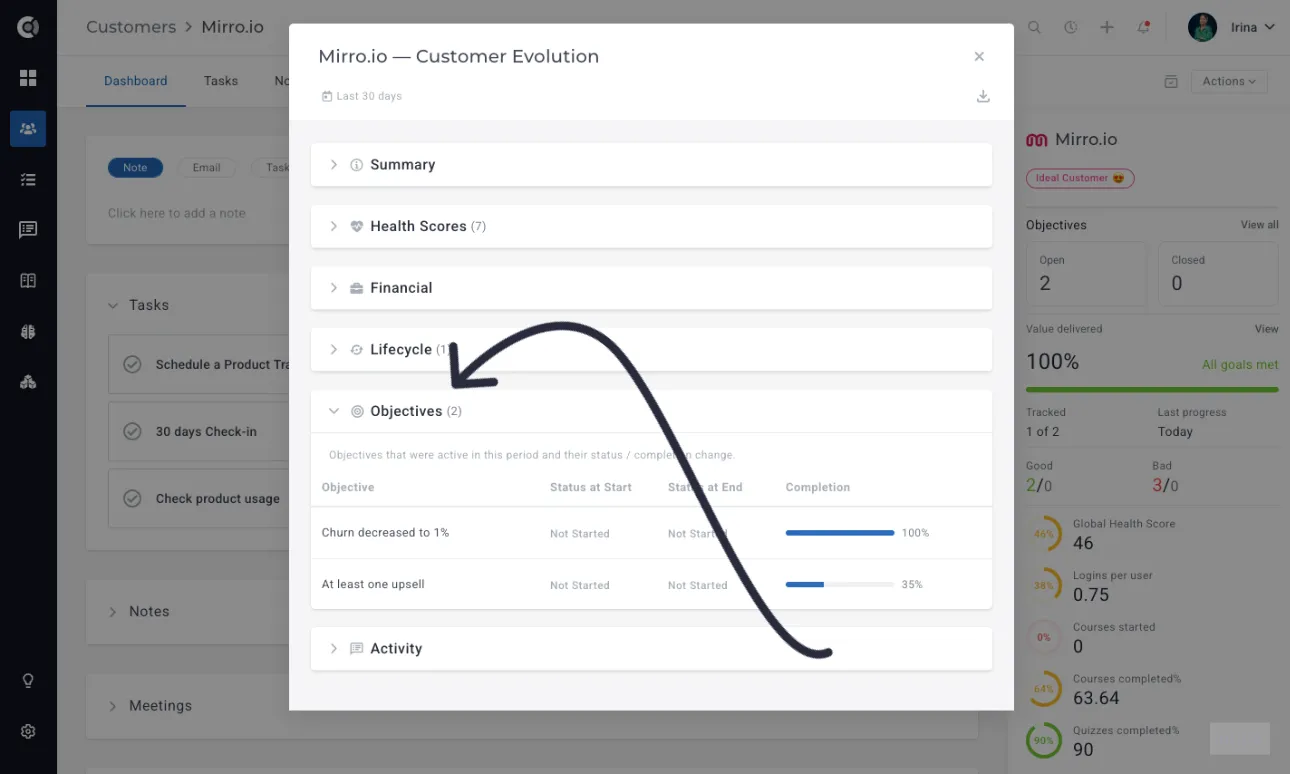
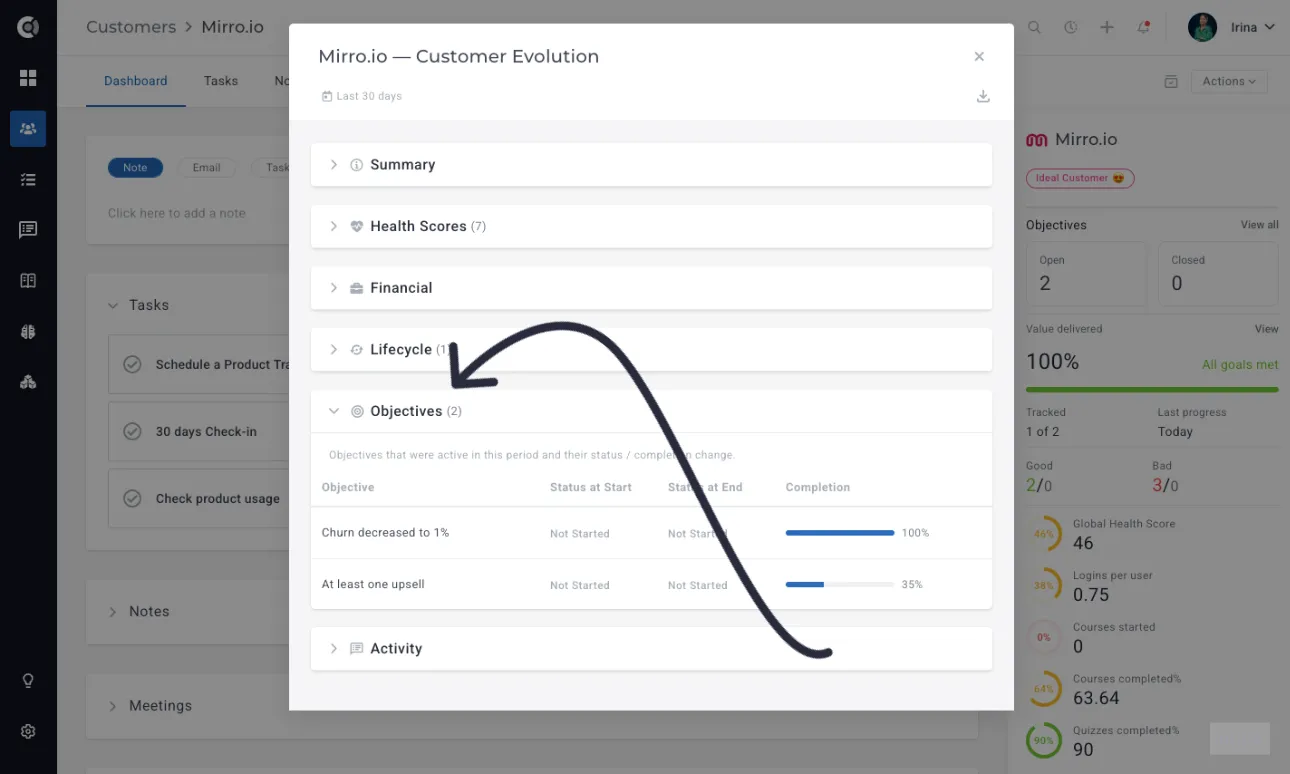
Objective Progress lists every active Customer Objective on the account, along with the status and completion percentage at the start of the range and at the end. Objectives that were closed during the range (completed or abandoned) also appear here, with their final status.
For accounts that share objectives with the customer through the Customer Portal, this section is a quick way to see which objectives have moved and which have stalled — useful both for internal QBR prep and for shaping the conversation with the customer.
Activity Digest
Activity Digest counts customer activity by type — emails sent, emails received, meetings, notes, tasks completed, tickets, calls — and compares each count to the equivalent prior period of the same length. So a 30-day window is compared to the preceding 30 days, a renewal-period window is compared to the same length immediately before it, and so on.
Underneath the activity counts, the section calls out two specific patterns:
- Communication gaps: any periods of more than seven consecutive days with no recorded activity.
- Top Touchpoints: the most active threads or interactions during the range, ranked by message count.
Exporting the report
You can export any generated report as a CSV from the Export dropdown at the top of the report. The export contains the full data behind every section: each Health Score row, every financial event, every activity count, every Lifecycle and Signal event, every objective row, and every changed attribute.
Important Note! CSV is the only available export format. Customer Evolution Compare does not currently produce a PDF version of the report. If you need a shareable formatted document for QBR delivery, generate the report inside Custify and use the CSV as the underlying data, or screenshot the relevant sections.
The CSV is delivered as a single file with one tab-style block per section, so you can paste sections individually into a spreadsheet or import the whole file into your reporting tool. Exports include the date range used, the timestamp of generation, and the customer ID for traceability.
Common use cases
Customer Evolution Compare is a general-purpose diff tool, but a few workflows are especially well-suited to it.
QBR preparation. Run the Since last QBR preset (or, if you do not track last_qbr_at, Last 90 days) before any quarterly business review. The Executive Summary and Objective Progress sections give you the talking points; Health Score Delta and Financial Changes give you the data to back them up. Pair this with an AI-generated customer summary for full QBR prep in a few minutes.
Churn diagnosis. When an account churns or signals churn risk, run a comparison from the start of the relationship — or the start of the current renewal period — through today. The Lifecycle & Signals timeline often reveals an inflection point you missed in real time, and the Activity Digest's communication-gap detection surfaces periods where engagement dropped.
Post-mortems on stage transitions. Use the Since stage entry preset on accounts that have stalled in a Lifecycle stage. The report tells you what changed since the customer entered the stage and what has not, which is exactly the input you need to decide whether to escalate, adjust the playbook, or extend the timeframe.
Renewal reviews. Run this renewal period in the weeks before a renewal date. Financial Changes shows you the trajectory of the account's revenue, Health Score Delta shows you whether health has moved in the right direction, and Objective Progress shows you whether the value commitments you made at the last renewal have been delivered.
Escalation handoffs. When you escalate an account to a manager or hand it off to a different CSM, generate a comparison report from the start of the issue period and share the CSV. It gives the receiving team the same context you have, in a structured form, without requiring them to dig through the account themselves.
For more detailed account analysis beyond what Customer Evolution Compare provides, look at the Insights module for portfolio-level reporting and Calculated Metrics for building custom KPIs from the same underlying data.