Onboarding Data Wizard
Set up a brand-new Custify account in the right order, with progress that reflects what your account actually contains.
Overview
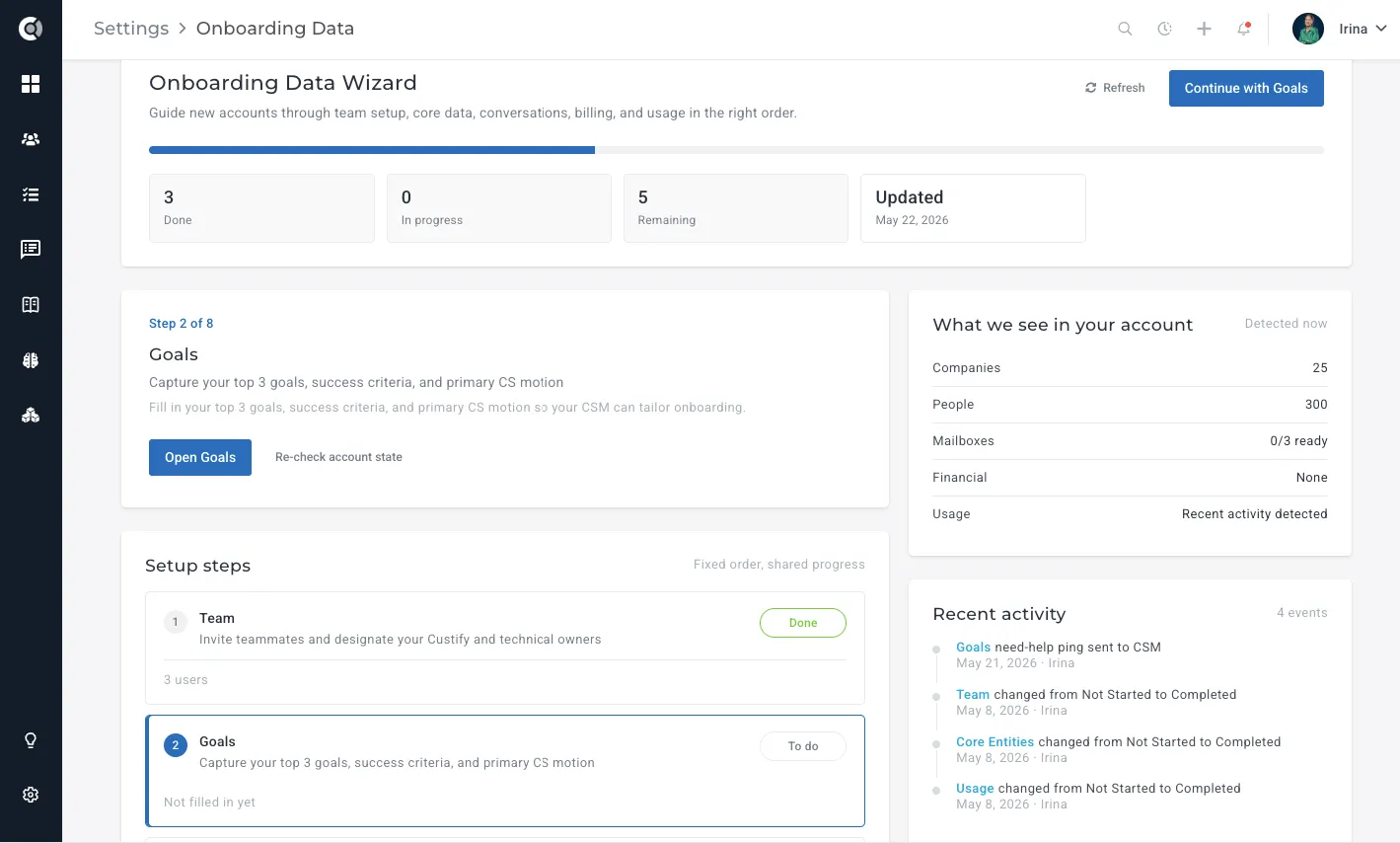
The Onboarding Data Wizard is the guided setup surface for new Custify accounts. When your team adopts Custify for the first time, the wizard walks the customer admin and the assigned Custify CSM through every data area Custify needs in order to be useful, in a fixed order, and tracks progress against what is actually live in your account rather than against a manual checklist.
The wizard doesn't replace any of the existing setup pages — SettingsSettings, IntegrationsIntegrations, Data Importer, or the JS Snippet flow all work exactly as they do today. What it adds is a guided layer on top: it surfaces those pages in the right order, tracks what you've completed, and reflects your progress each time you come back to it.
The wizard surfaces the same view to two audiences working on the same setup:
- The customer admin, or any teammate with data-management permissions, who is configuring the account.
- The Custify Superadmin or assigned Custify CSM, who can review the same wizard inside your account context to coach the rollout.
Key capabilities include:
- Live status detection for every step, based on the data Custify can see in your account.
- A persistent top-in-app prompt for accounts that have not finished setup yet.
- A fixed flow with an overview page, per-step workspaces, recommended next action, and a recent activity timeline.
- Direct links out to the existing setup pages for Users, Integrations, API access, JS snippet, Data Importer, Data Warehouses, and My Account, with a return prompt back to the wizard.
- Skip with a reason, unskip later, full restart, and regression detection if data later becomes incomplete.
The onboarding steps
The wizard always shows the same eight steps in the same order. Each step focuses on one slice of your data setup, explains why that slice matters, surfaces the live evidence Custify has, and links you to the setup page where you can finish it.
You open the wizard either from the top in-app prompt or from Settings - Data management - Onboarding Data. The overview highlights the earliest step that still needs work, summarizes how many steps are complete, in progress, skipped, or missing, and shows a recent activity timeline so the customer admin and the Custify CSM can see what changed and when.
The eight steps cover these areas:
- Team — invite the teammates who will work in Custify.
- Goals — define the outcomes you want to drive and the KPIs you'll track.
- Core Entities — bring your company and contact records into Custify.
- Conversations — connect Gmail or Outlook for each eligible teammate, with email import enabled.
- Financial — import recent billing and subscription data.
- Usage — confirm that recent product activity is being captured.
- What to Track — best practices generated based on your goals and KPIs.
- What's Next — a summary of remaining steps and how to move forward.
Team
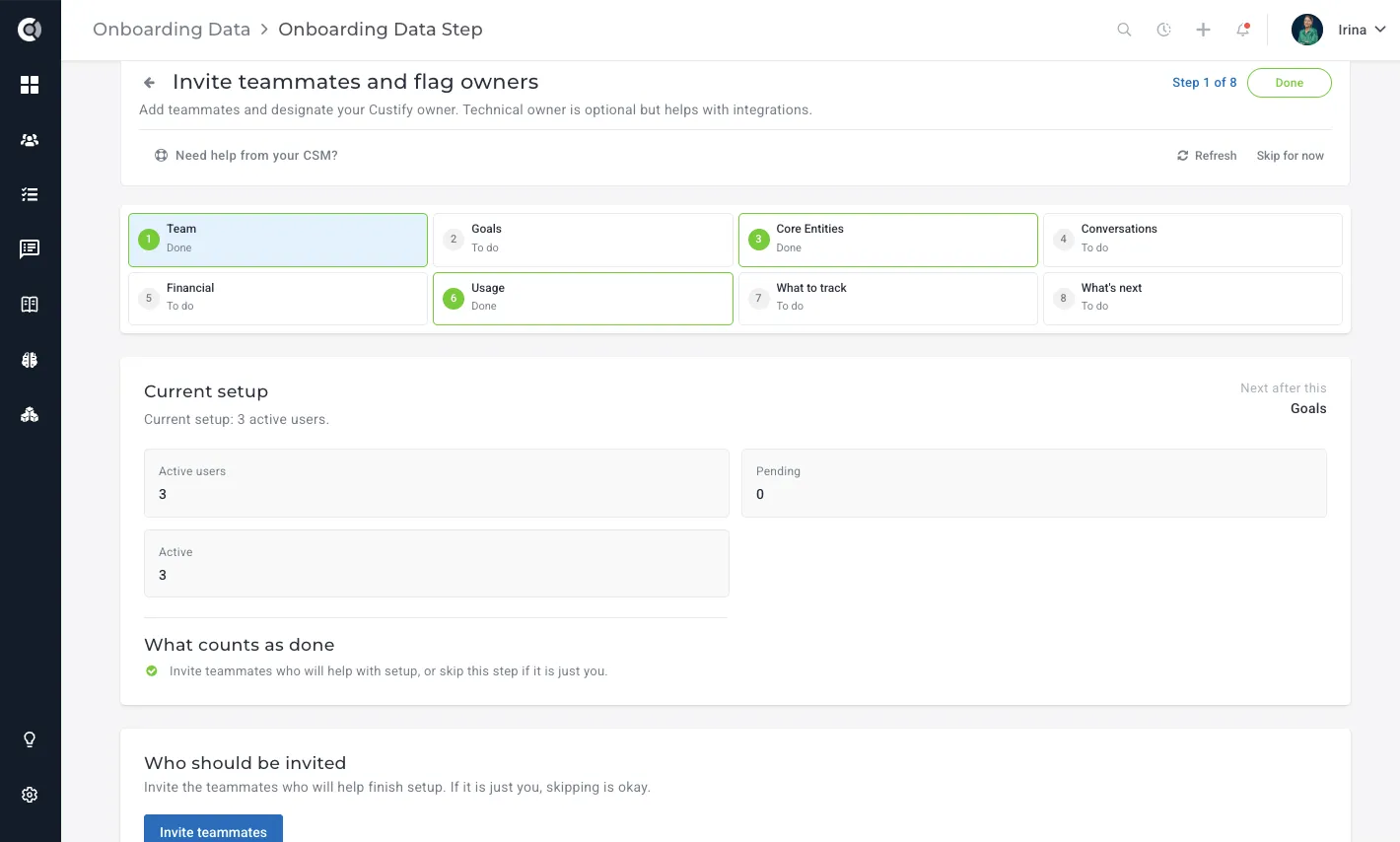
The Team step is about inviting the teammates involved in onboarding. From this step you jump out to Settings - Users, where you create accounts for the people who will be configuring Custify, working customer accounts, or sending email from the platform. The wizard considers Team complete once the Users page reflects an active onboarding team.
For details on adding teammates and permissions, see Settings.
Goals
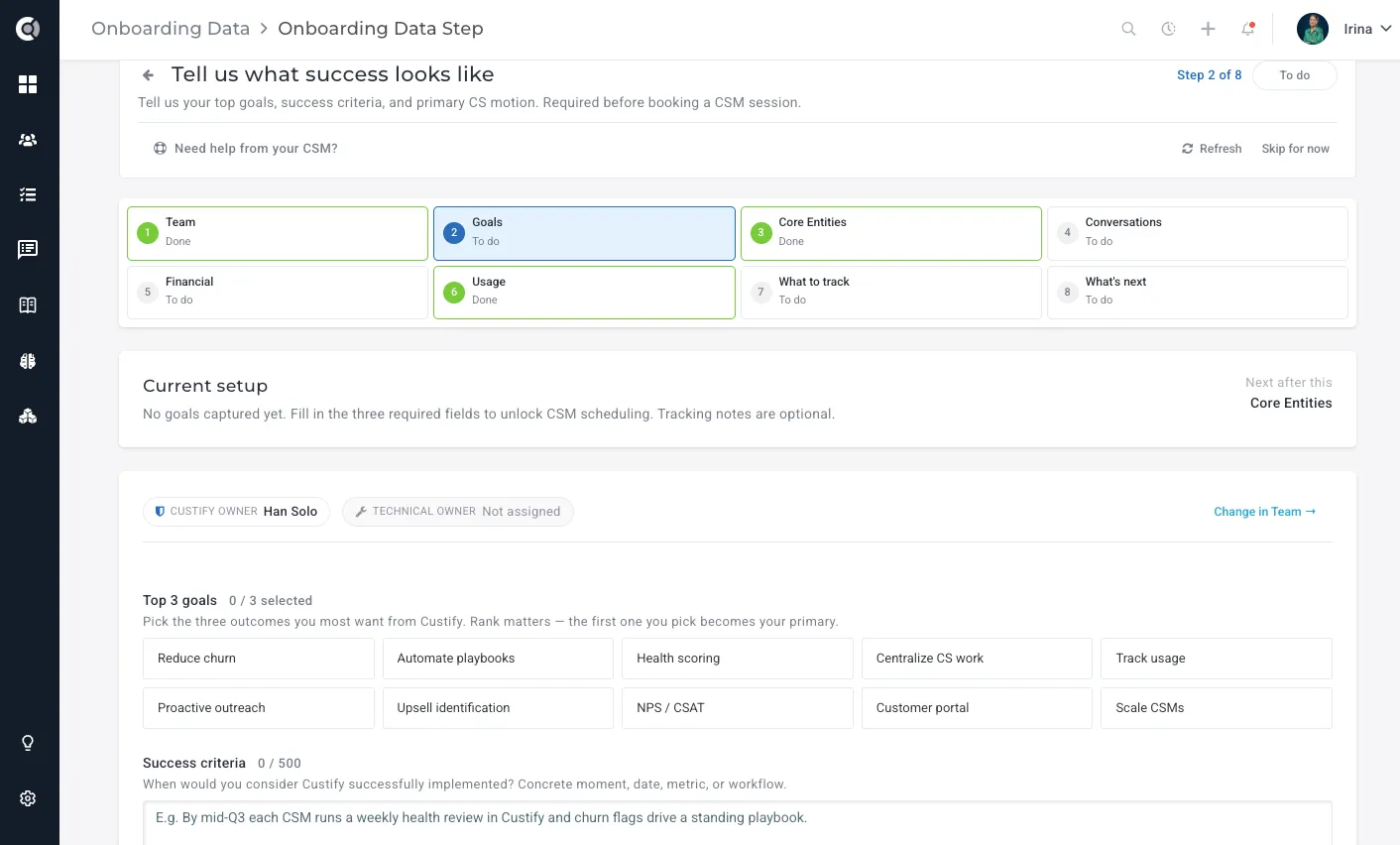
The Goals step is about telling Custify what you're actually trying to achieve. You pick your top three outcomes — such as reducing churn, automating playbooks, or identifying upsells — and rank them in order of priority. The first one you select becomes your primary goal and shapes how your CSM tunes your onboarding track. You also define your success criteria: a concrete moment, metric, or workflow that tells you Custify is working. An optional field lets you jot down anything specific you want to track later — these notes get pre-seeded as draft entries in the What to Track step. The wizard considers Goals complete once all three required fields are filled in.
Core entities
The Core entities step is about getting your company and people data into Custify. The wizard does not care which path you choose — it watches the result. You can finish this step by:
- Connecting a CRM or warehouse from the Integrations page.
- Bulk-uploading via the Data Importer.
- Pushing through the API.
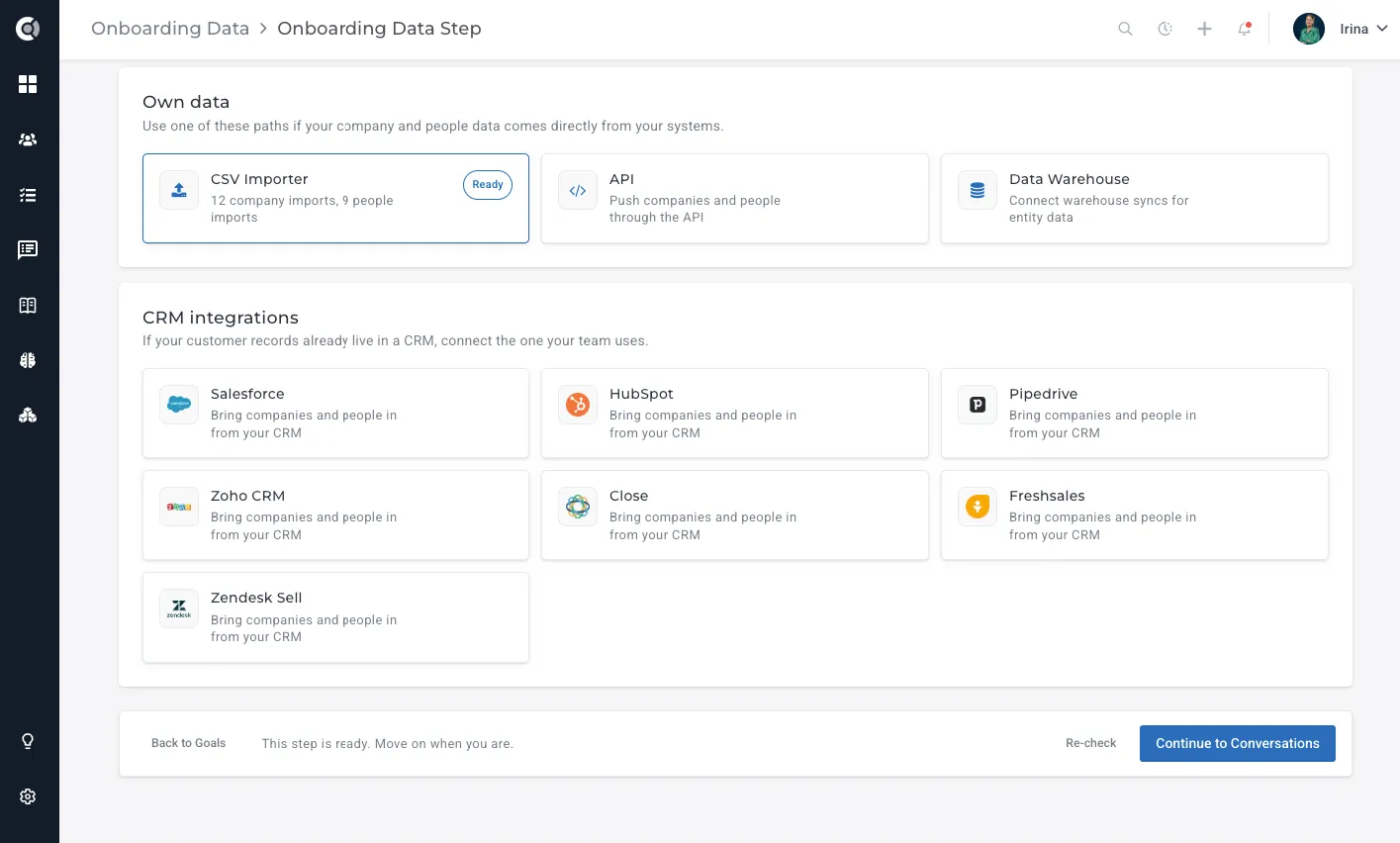
Connection alone is not enough. Custify has to actually be receiving usable company and people data before the step flips to complete. For a full breakdown of every supported method, see Sending Data to Custify.
Custify Tip: If you are evaluating Custify, you can start the Core entities step with a small Data Importer upload, then move to a live integration before going into production. The wizard will pick up the integration the next time it refreshes the step.
Communication
The Communication step is per-teammate, not per-account. Each eligible teammate connects either Gmail or Outlook from Settings - My Account and keeps email import turned on. The wizard considers Communication:
- Incomplete — no eligible teammate has connected a mailbox yet.
- In progress — some teammates are connected, others are not.
- Complete — all eligible teammates have a mailbox connected with email import enabled.
A mailbox connected with an email import turned off does not count as complete. The teammate has to keep import enabled so threads actually flow into Custify.
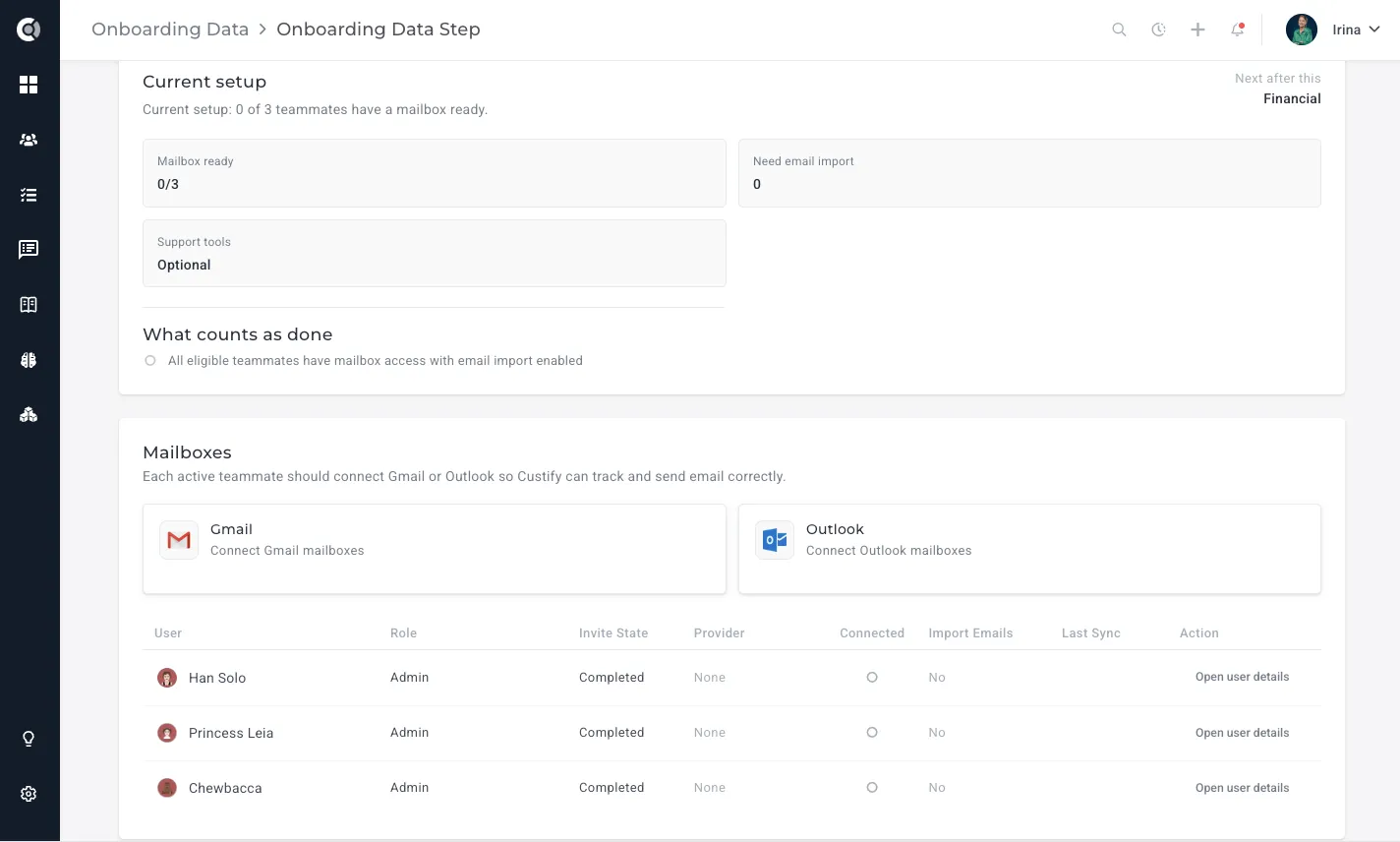
Each teammate has to connect their own mailbox from their own My Account page. An admin cannot connect a mailbox on behalf of someone else.
Financial
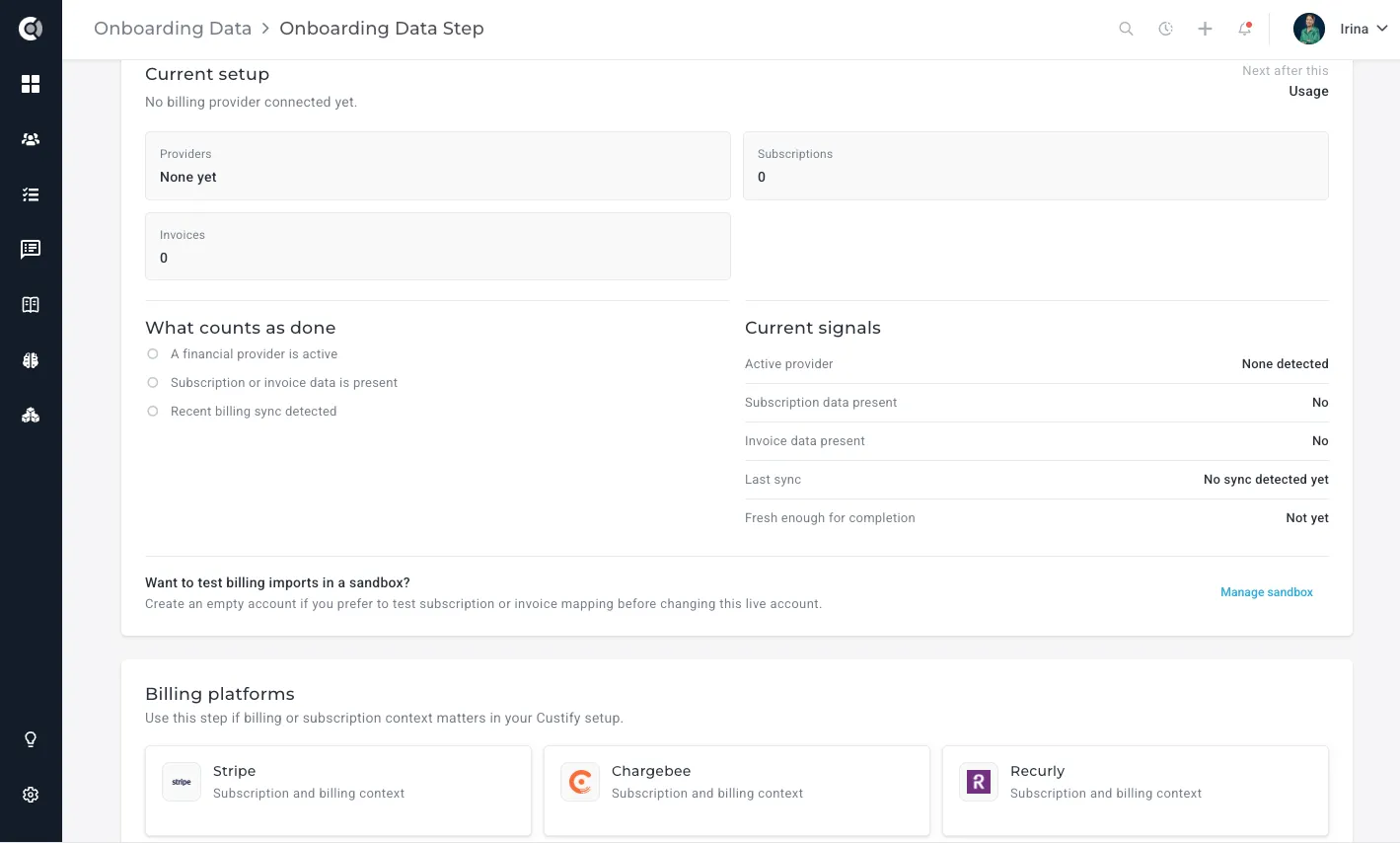
The Financial step covers billing data. You connect a billing system through the Integrations page — for example Stripe, Chargebee, or Recurly — and the wizard watches for recent invoices, subscriptions, or MRR data flowing in. As with Core entities, an integration that is connected but not returning recent data does not yet mark the step complete.
If your billing data is not in any supported tool, you can skip the step (see Skipping a step below) and revisit it later.
Usage
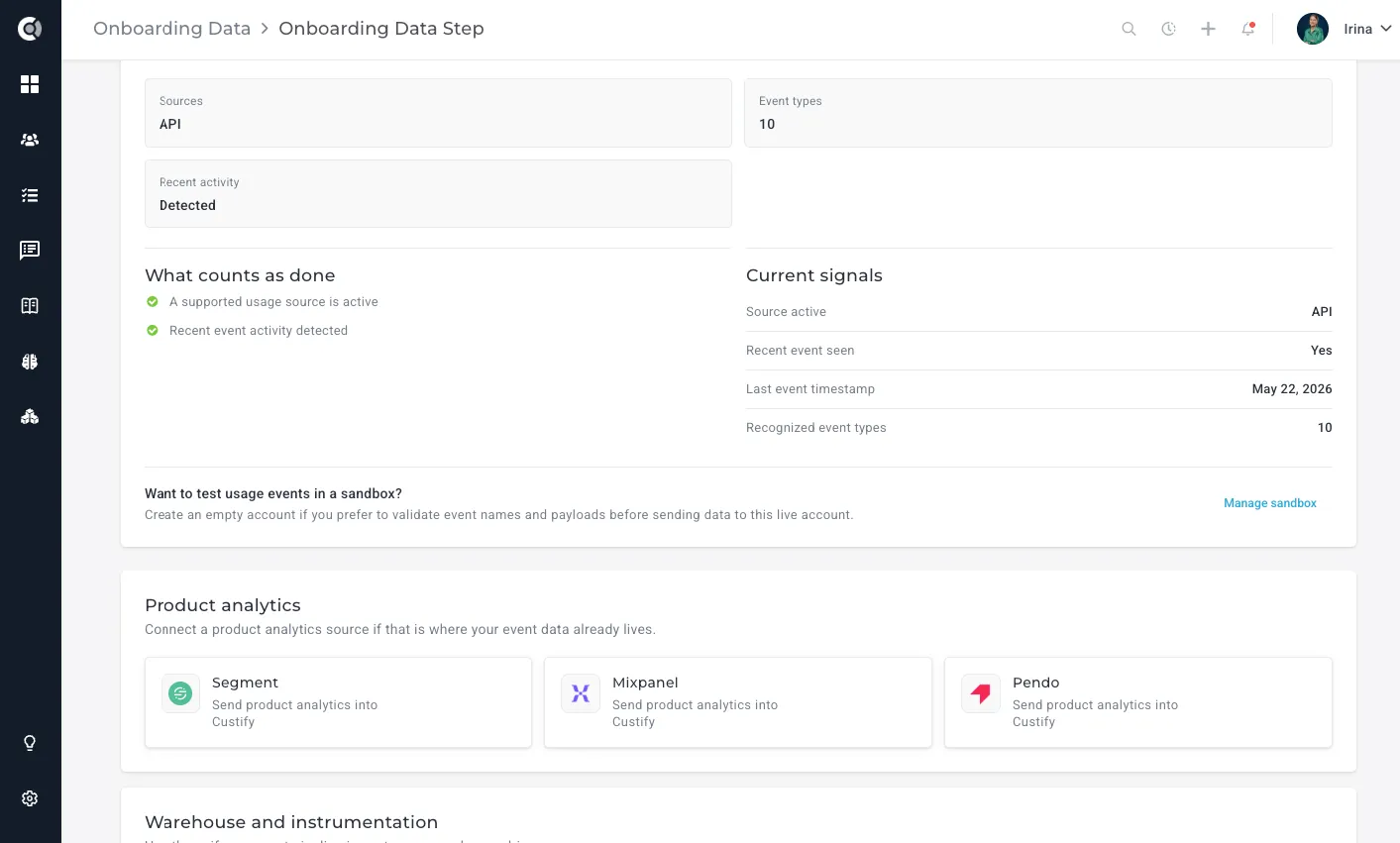
The Usage step covers product activity. The wizard expects recent usage events from a supported source: the JS snippet on your application, the events API, or events imported from a Data Warehouse or analytics integration. Once Custify detects recent activity for your accounts, the step is marked complete.
What to Track
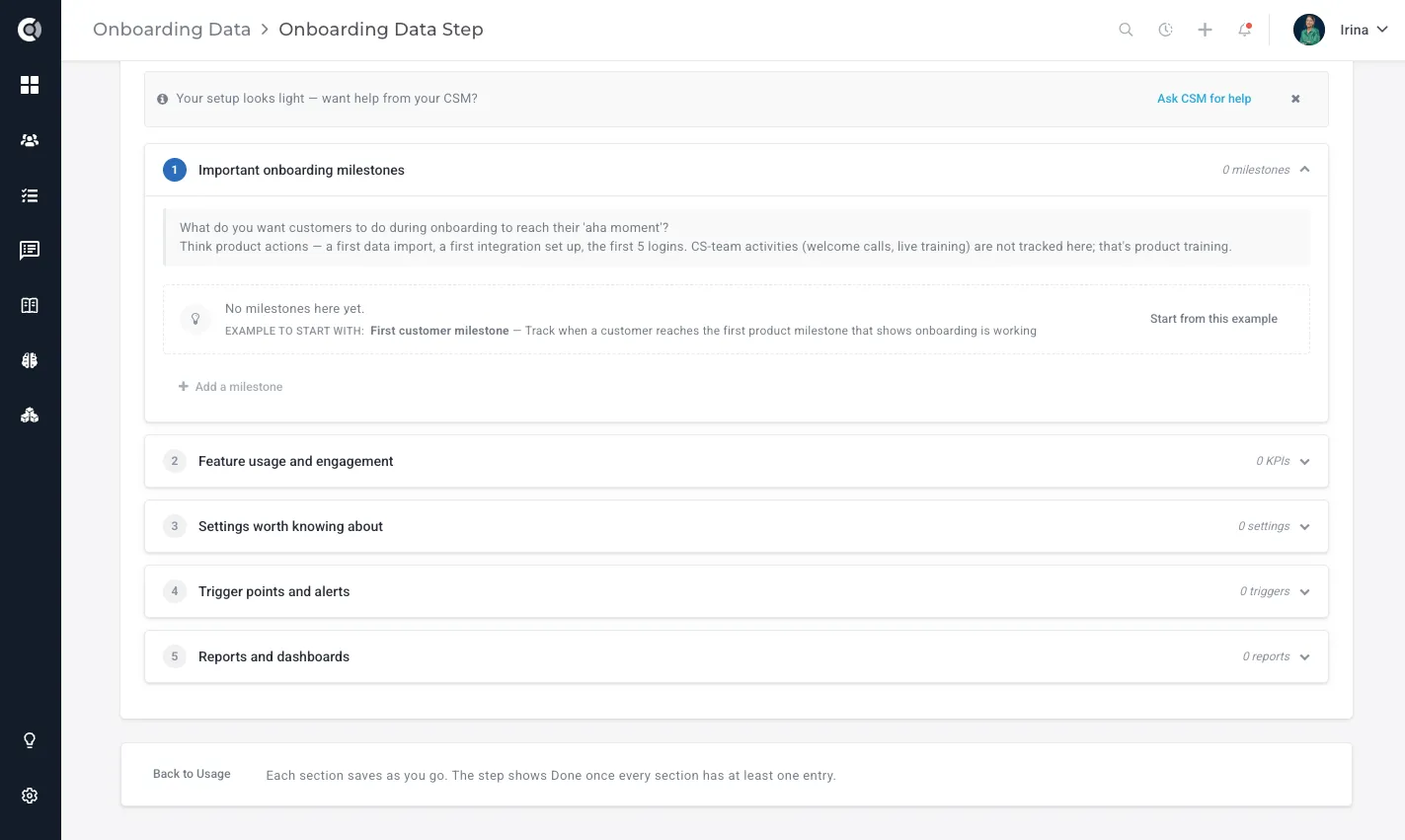
The What to Track step is where your goals turn into a structured tracking plan. It is organized into five sections: important onboarding milestones, feature usage and engagement, settings worth knowing about, trigger points and alerts, and reports and dashboards. Each section saves as you go, and the step marks as Done once every section has at least one entry. The content here is generated based on what you selected in Goals — so the more specific your goals and KPIs, the more relevant the suggestions will be.
What's Next
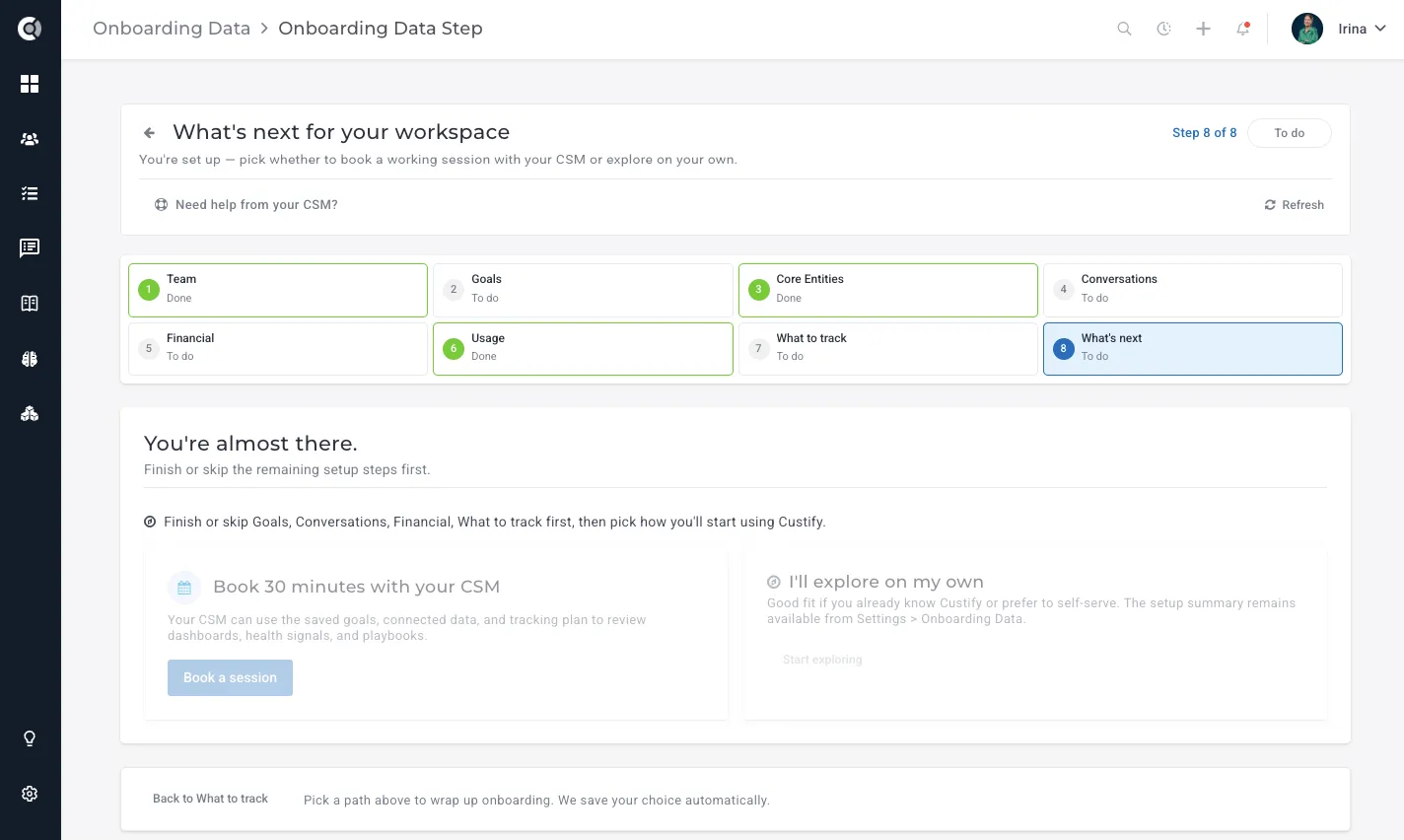
The What's Next step is the final stop in the wizard. By the time you reach it, Custify has collected your goals, your connected data, and your tracking plan — and uses all of it to present two paths forward. You can book a 30-minute working session with your CSM, who will use what you've set up to walk through dashboards, health signals, and playbooks with you. Or, if you already know Custify or prefer to self-serve, you can start exploring on your own. Either way, everything you've configured remains accessible from Settings → Onboarding Data. The step becomes available once all other required steps are finished or skipped.
Skipping a step
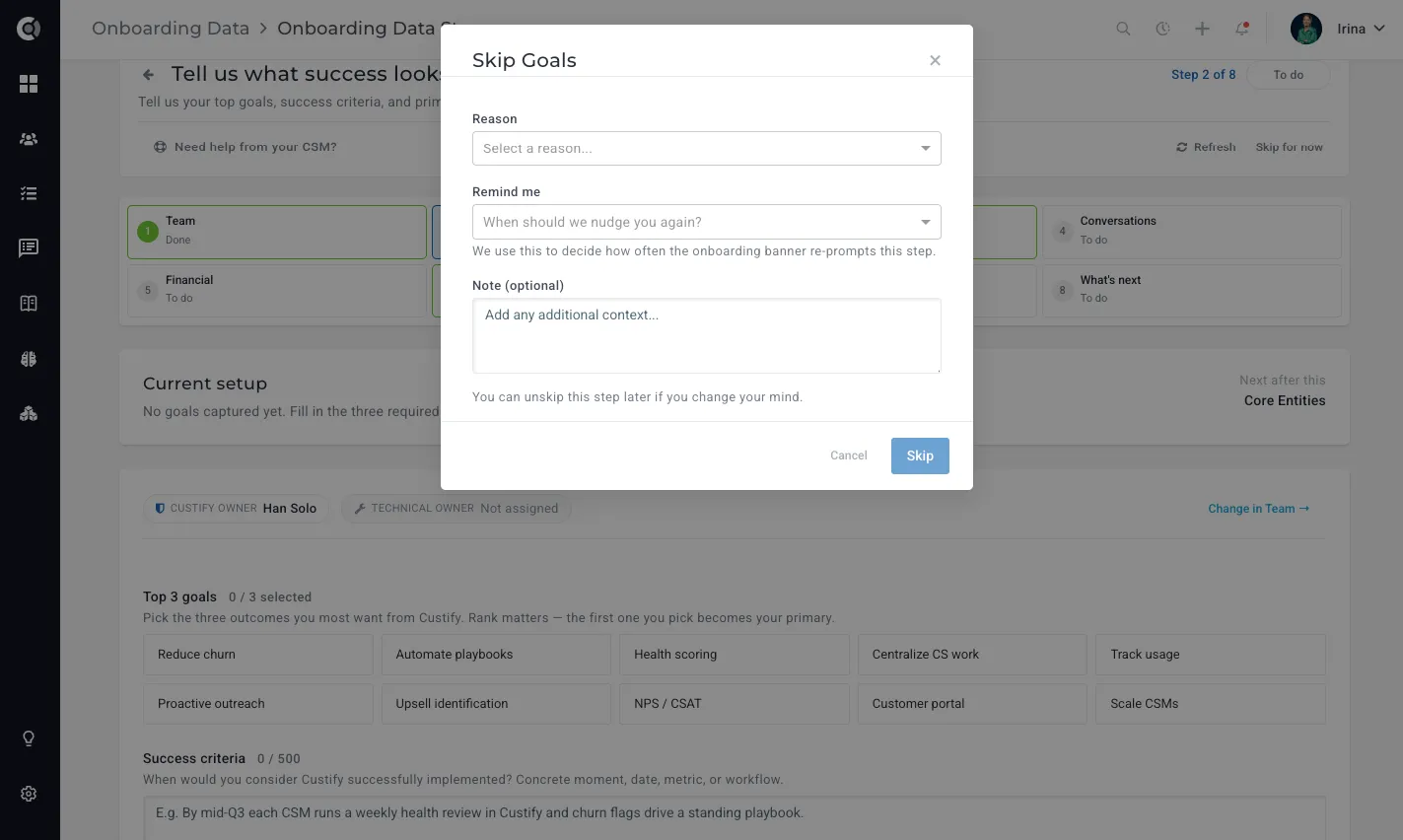
Not every step applies to every customer. If a step does not fit your stack — for example, a free product with no billing system — you can skip it from the step page.
When you skip a step:
- You are asked for a reason and an optional note.
- The reason and note appear on the step, so anyone reviewing the wizard understands why it was skipped.
- Skipping does not disconnect any integration, mailbox, or data source.
- The step still counts toward overall progress, marked as Skipped rather than Missing.
You can unskip the step later from the same step page. When you do, the wizard immediately rebuilds the live status from whatever Custify can detect in your account at that moment.
Pro tip: Use the note field to record what would have to change for the step to apply. For example, "no billing system today, revisit if we adopt Stripe."
Returning to the wizard from a setup page
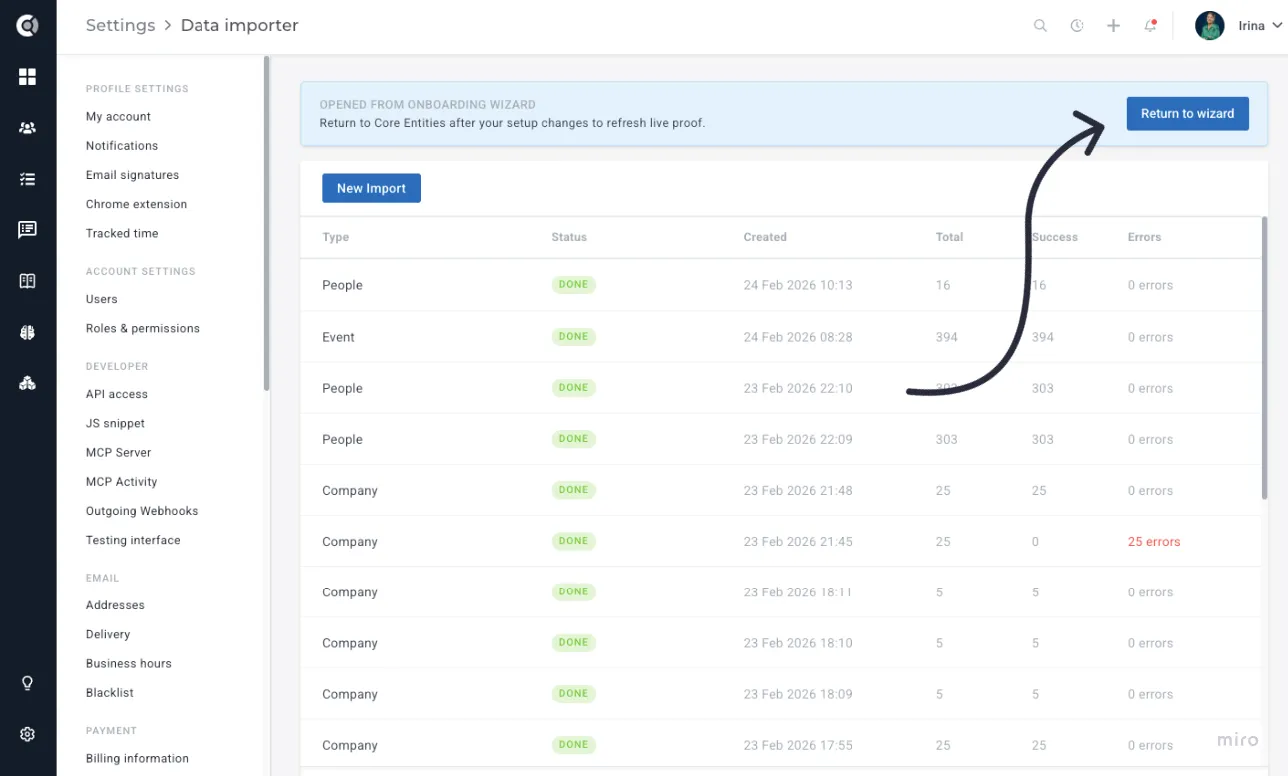
Most steps send you out to an existing setup page — Users, Integrations, API access, JS snippet, Data Importer, Data Warehouses, or My Account — to actually do the work. While you are on that page, Custify shows a Return to wizard prompt at the top so you can come back to the same step you were working on.
The prompt is shown to anyone who arrived at the setup page from the wizard. Closing the prompt only hides it for the current page; opening another setup page from the wizard shows it again.
Restart and refresh
The wizard exposes two ways to re-evaluate the account.
Refresh rebuilds the status of one step against live account data. Use it when you have just finished work on a setup page and want the wizard to pick up the change without waiting.
Restart resets the entire wizard. After a restart:
- All eight steps go back to their live detected status.
- Any skipped step is unskipped.
- No integration, mailbox, or data source is disconnected — Restart only touches the wizard, not your data.
- The wizard immediately rebuilds the status of every step from what is currently live in the account.
[Screenshot: Wizard overview with the Refresh and Restart actions in the menu]
Observation: If your account regresses after a finished pass — for example, a teammate disconnects their mailbox, or recent usage events stop flowing — the wizard will warn on the overview that onboarding is no longer fully complete and point you back to the affected step.
Permissions and Superadmin access
The wizard is visible to anyone in your account with data-management permissions. That includes the customer admin and any teammate granted those permissions in Settings - Users. Teammates without data-management permissions do not see the wizard at all.
For Custify staff, the same wizard is available inside your account context to assigned Superadmins and your Custify CSM. They see the same steps, the same live status, the same recent activity timeline, and the same skip reasons. This is what makes the wizard a shared workspace for the rollout — both sides are looking at one source of truth.
The top in-app prompt with Start data setup, Resume data setup, and Hide behaves the same way for everyone who can see the wizard. Hide only hides the prompt for the current session. Once anyone with access opens the wizard, the prompt is replaced by the regular Settings entry, but the wizard itself stays available from Settings - Data management - Onboarding Data for as long as you need it.