Slack
Slack is a web-based messaging service that forms a common workspace for teams where all communication is organized, managed, and made accessible to everyone. In addition to messages, users can share photos, GIFs, Word files, and other documents with individuals, groups, or channels.
What can you do with Slack in Custify:
- Notify your team or a specific CSM when someone enters a segment or moves through lifecycle stages.
- Send a notification when a particular health score drops under a specified level.
- Get notified if there’s a drop in a certain metric like average daily sign-ins per user or an increase in open support tickets.
- Send a private message to whoever is the CSM or Account Manager of each company, with one playbook for all your accounts.
- Post automatic updates in each customer’s own shared channel, with their data filled in.
- See the conversations from your shared customer channels next to your emails, in the company’s Communication tab, on the Customer 360 and in MyCustify.
- Get a weekly digest of the companies that entered or left a segment, or an alert when many companies enter a segment on the same day.
- Keep a channel up to date on your team’s notes, tasks, and assignments, filtered by tag if you only want some of them.
- See a rich preview of a company or a person when a Custify link is shared in Slack.
- Ask CustifyAI questions about your customers directly from a Slack channel.
Activation
- You can connect to Slack directly from Custify; no other prerequisites are needed.
- Go to Settings - Integrations - Slack - Add integration.
- Press the “Connect to Slack” button. You will then be redirected to the Slack login page.
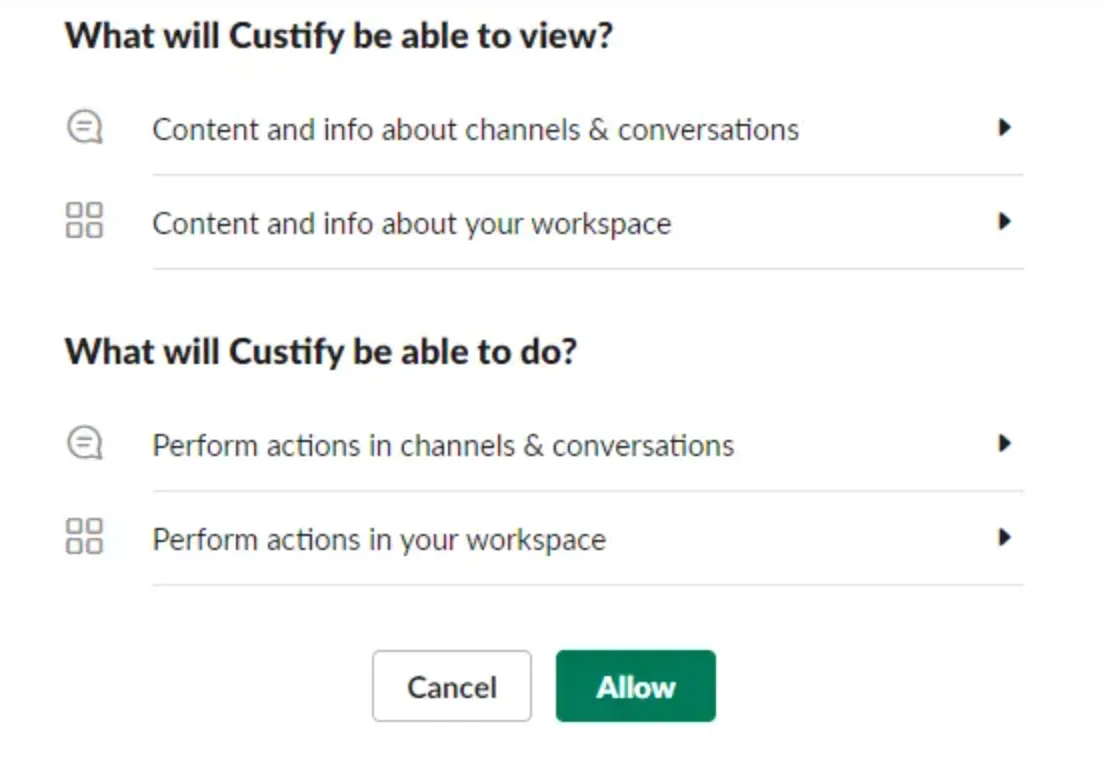
- Click “Allow” to give the Custify application permission to access your Slack data.
Custify Tip: To post in a private channel or a Slack Connect channel, or to import its conversations, invite the Custify app to that channel first.
Notify your team about notes, tasks, and assignments
Keep your team in the loop without anyone having to share updates manually. In the integration settings, you can turn on:
- Notify about notes activity in: posts new notes in the channel you choose. Use Filter by tag (optional) to share only the notes with certain tags, for example, Risk or QBR.
- Notify about tasks activity in: posts task activity in the channel you choose, with the same optional tag filter.
- Notify about assignments in: lets a channel know when companies are assigned or reassigned.
Custify Tip: A channel used only for team activity keeps these updates in one place without crowding your team’s main channels. For alerts that should reach only one person or follow specific conditions, use a playbook instead (see Send Slack messages from playbooks below).
Link previews
When someone shares a link to a Custify company or person in Slack, it opens as an inline card with the key account or contact details: the name, the owner, the CSM rating, the Global Health Score, objectives, and the risk score. Your team sees how an account is doing without leaving the conversation.
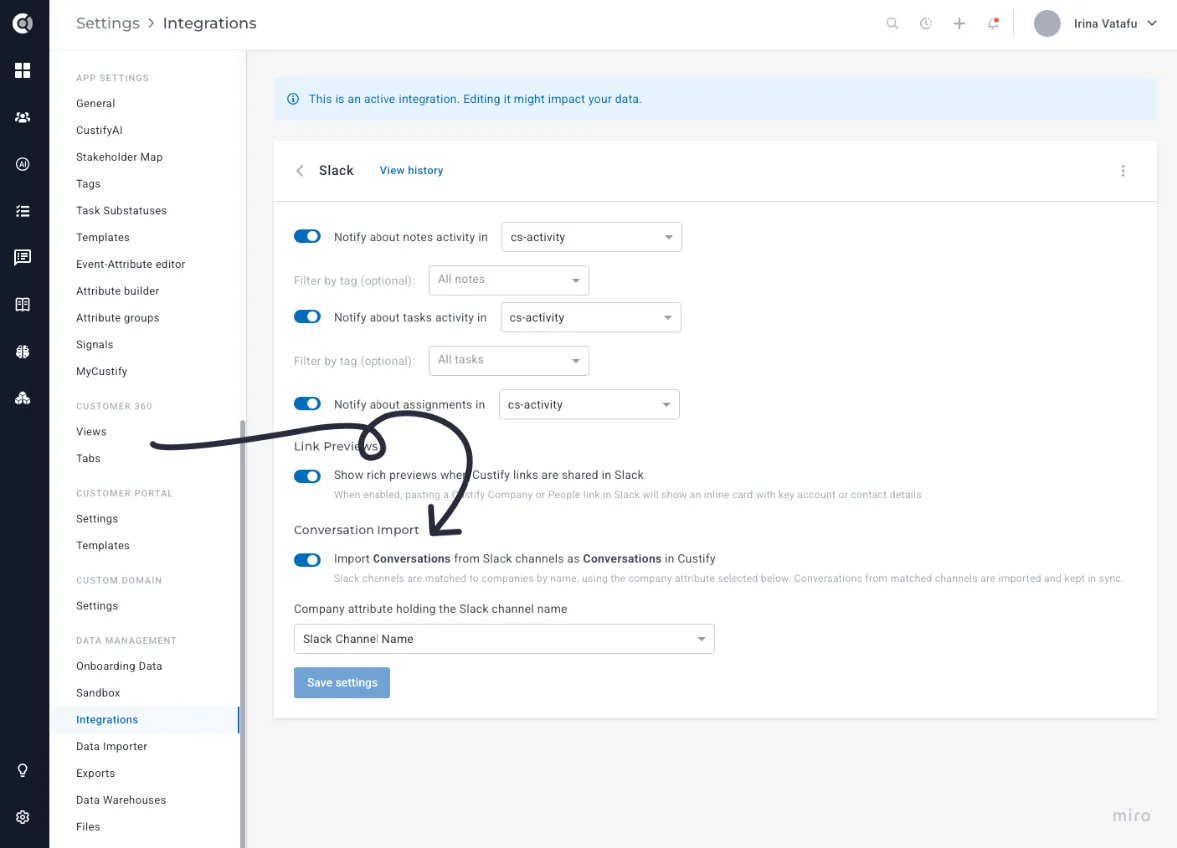
To use it, turn on Show rich previews when Custify links are shared in Slack in the integration settings.
Import Slack conversations
Many customer relationships live in shared Slack channels, where only the people in the channel can see them. Custify can import these conversations, so your email and Slack history for an account sit side by side for the whole team.
Messages from a company’s Slack channel appear as conversations in the company’s Communication tab, in the Communication block on the Customer 360 and in MyCustify. Each Slack thread is its own conversation, and Slack is available in the Source filter. When you turn it on, it imports the last 90 days, and new messages arrive within seconds.
How to use it:
- Go to Integrations - Slack and turn on Conversation Import.
- Make sure the Slack channel attribute is selected in the integration settings.
- Fill in the attribute for each company with the name of its channel.
- For private and Slack Connect channels, invite the Custify app to the channel first.
Send Slack messages from playbooks
Use the Send Slack message step in a playbook to send instant notifications when one of your customers is at risk or has just reached an important milestone. Besides a channel or a specific user, you can now choose two new recipients:
- The account owner: the message goes privately to whoever holds a role in the company, such as its CSM or Account Manager, so one playbook alerts the right owner for every account. Just add the Send Slack Message step and select the dynamic recipient.
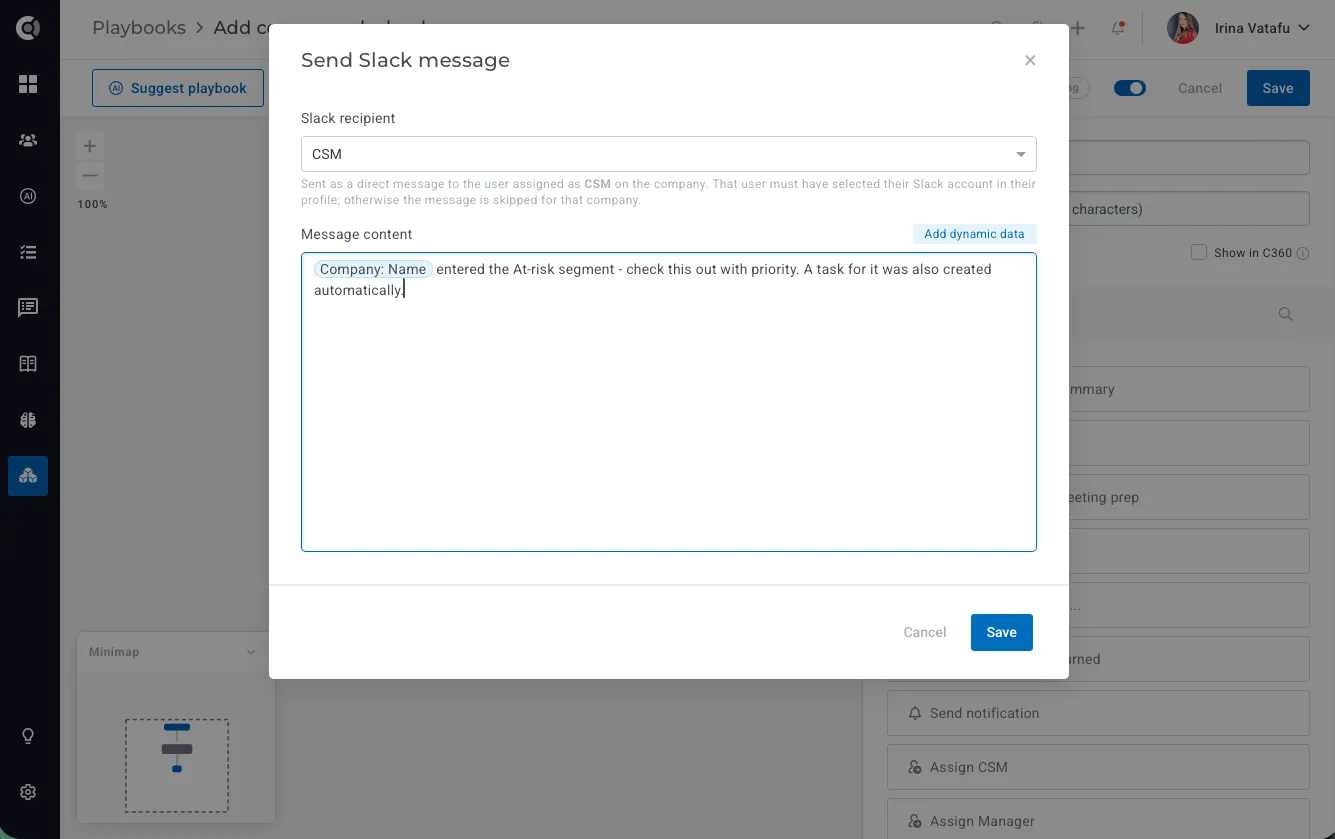
If nobody is assigned, or the person hasn’t linked their Slack account in Custify, the message is skipped, and the timeline explains why.
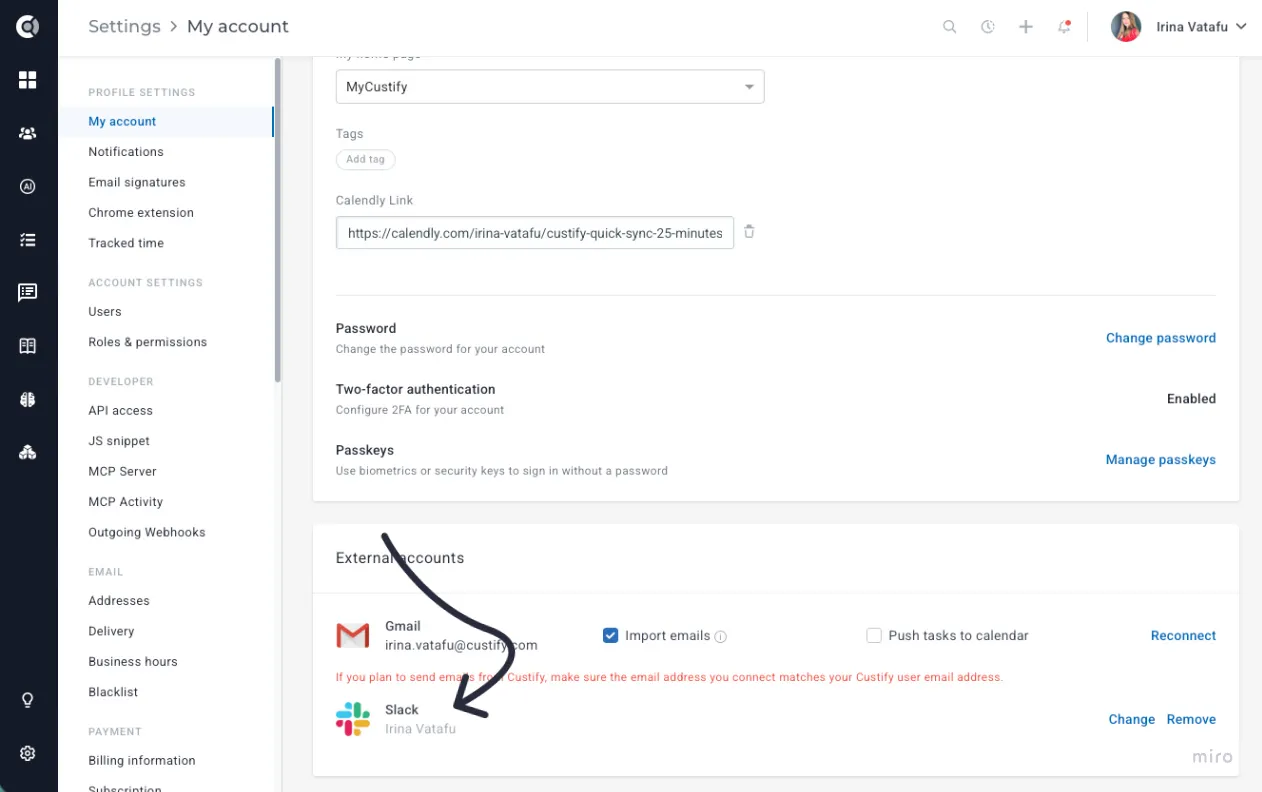
For this option to work, every Custify user should go to Profile Settings - My Account - External Accounts - Connect to Slack (this is how the pairing happens at the user level; then the automations will recognise the Slack entity that corresponds to each internal user).
- Company channel (from attribute): the message goes to each customer’s own channel, saved in the Slack channel attribute, with dynamic data filled in. If a company has no channel, the step is skipped for it, and the step shows how many messages were sent and skipped.
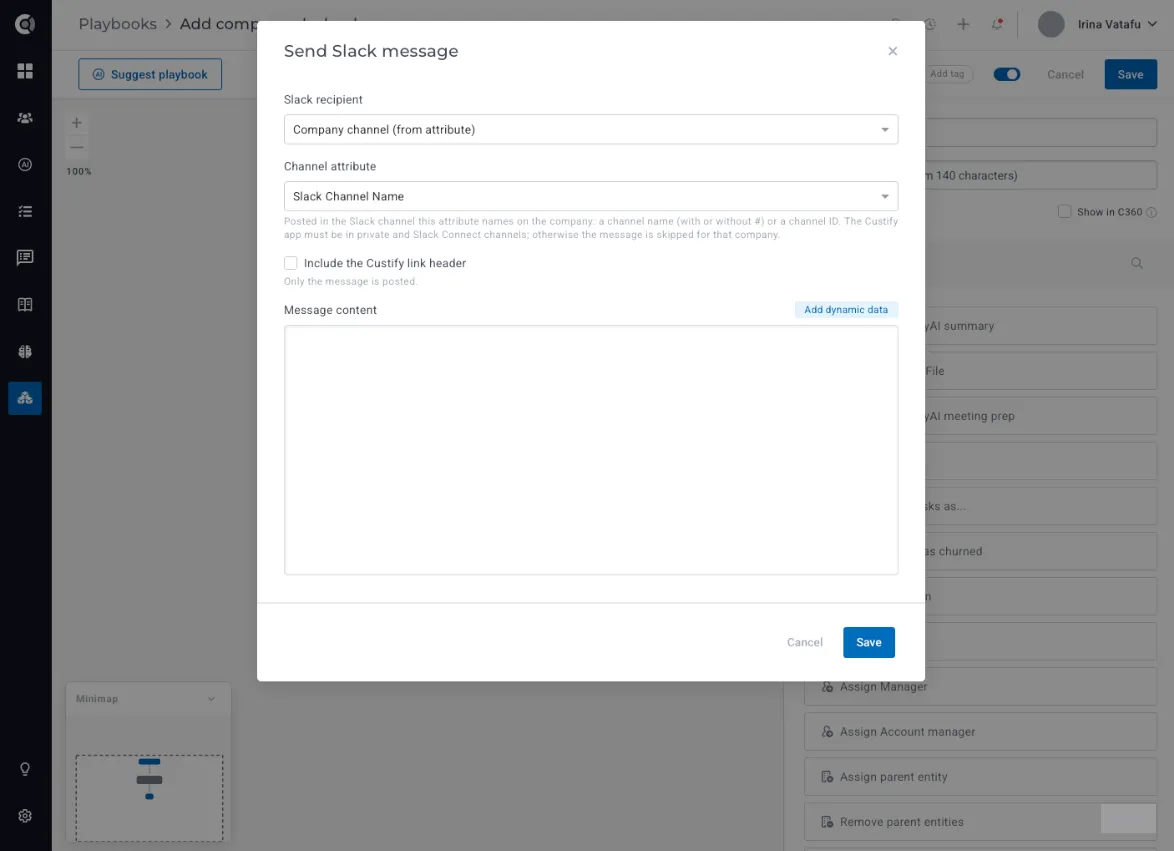
Custify Tip: Messages sent to a customer’s channel are read by your customers, so test the playbook on an internal channel first and check how the dynamic data is filled in.
Ask CustifyAI from Slack
For teams using CustifyAI, you can ask questions about a customer or a segment directly from your Slack channels, during internal discussions, and get the answer without switching back to Custify. To enable it, make sure the Slack integration is active and add the CustifyAI bot to the channel where you want the answers to appear.
Use case idea: before a renewal meeting, ask CustifyAI: “Give me a quick summary of this customer, key risks, and any open issues that might impact renewal.”
Observation: Each question uses 1 CustifyAI credit.