Portfolio Playbooks
Playbooks for Multiple Companies and Multiple People
Turn your Custify data into automated reports and team updates.
Every CS team has recurring questions: Which accounts are at risk this week? How much new MRR did we bring in this month? Who are our largest customers right now, and how are they doing? Answering them usually means exporting lists, building spreadsheets, and sending the same kind of update over and over.
Playbooks for Multiple Companies and Multiple People automate this for you. Instead of running separately for each customer, one playbook run works over a whole group of companies or people and uses their combined data. You define what to look at and what to share, and Custify sends the update on time, every time.
What you can build
A few examples of what teams automate with these playbooks:
- Weekly at risk digest: every Monday, send your team leads a table of the accounts with low activity or a poor health score, so the week starts with clear priorities.
- Monthly new customers summary: on the 1st of each month, share with leadership how many companies signed up, the new MRR they bring, and who their CSM is.
- Portfolio snapshot: send a regular overview of active customers, total and average MRR, and your largest accounts.
- Team workload check: count overdue tasks across your portfolio and alert the team in Slack or Teams when the number gets too high.
How it differs from regular playbooks
Regular (Single Company) playbooks run separately for each company that enters them, usually through a segment or a trigger. They’re built for customer journeys like onboarding, renewals, or health alerts.
Multiple Companies and Multiple People playbooks work differently:
- No segment or customer needed to start them. They simply run as you’ve defined them.
- One run covers a whole group. Their actions use the combined data of all the companies or people included.
- They’re made for internal communication and reporting. The results go to your team, for example by email to every user with a specific role, or to a Slack or Teams channel.
How it works
Every playbook of this type follows the same logic:
- Decide when it runs: manually or on a schedule.
- Define your data set: the group of companies or people the playbook looks at. This always comes first, because every other step builds on it.
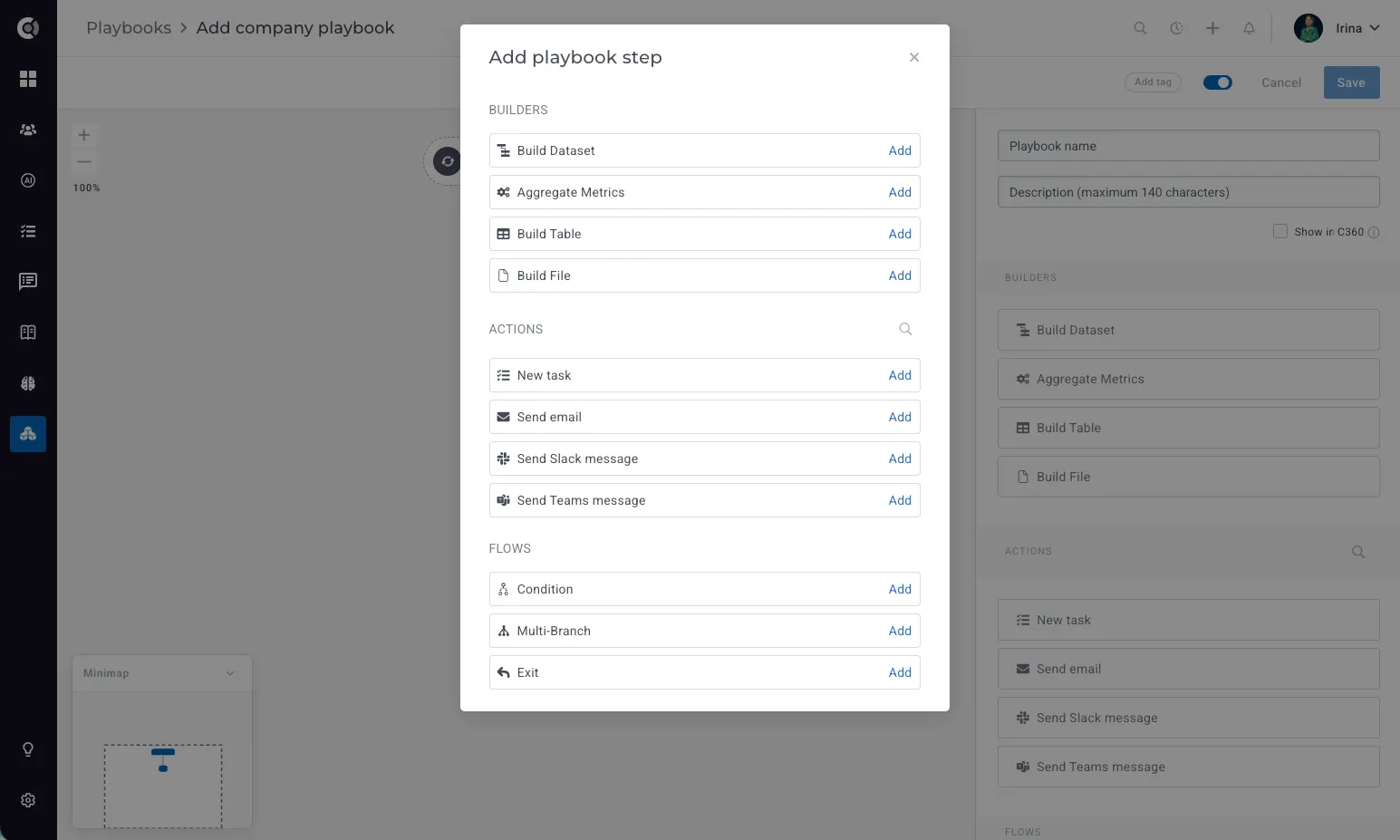
- Build on your data set: calculate metrics, create tables, or generate files.
- Share the results: send an email, a Slack or Teams message, or create a task. You can also add conditions to change what happens based on the numbers.
Step by step
1. Create the playbook
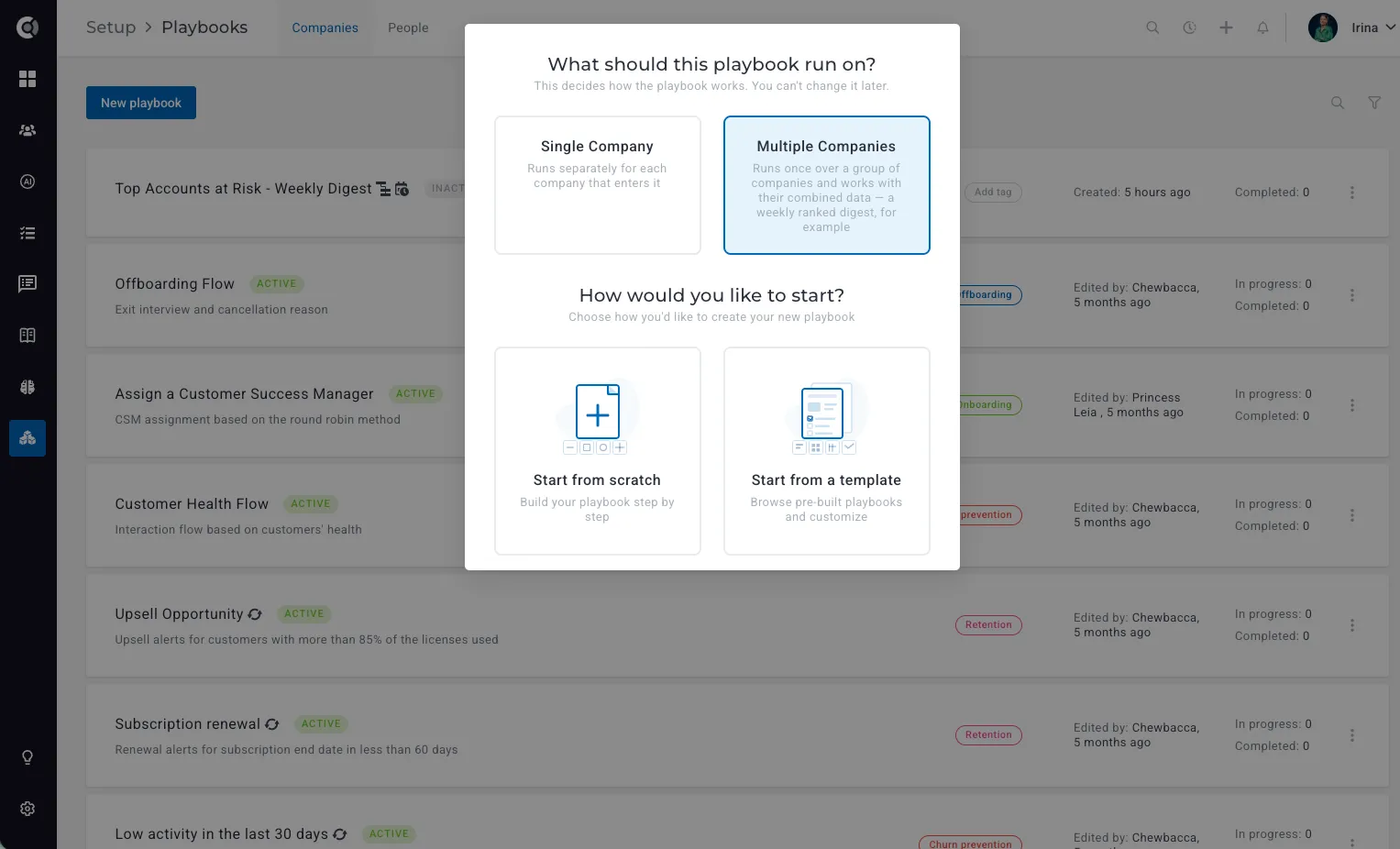
Go to Playbooks and click New playbook. When asked What should this playbook run on?, select Multiple Companies. For people-based reports, start from the People tab and select Multiple People.
Then choose how you’d like to start:
- Start from scratch to build your playbook step by step.
- Start from a template to begin with a ready-made playbook and adjust it to your needs.
Good to know: The playbook type can’t be changed after creation, so choose Multiple Companies or Multiple People from the start.
2. Choose when it runs
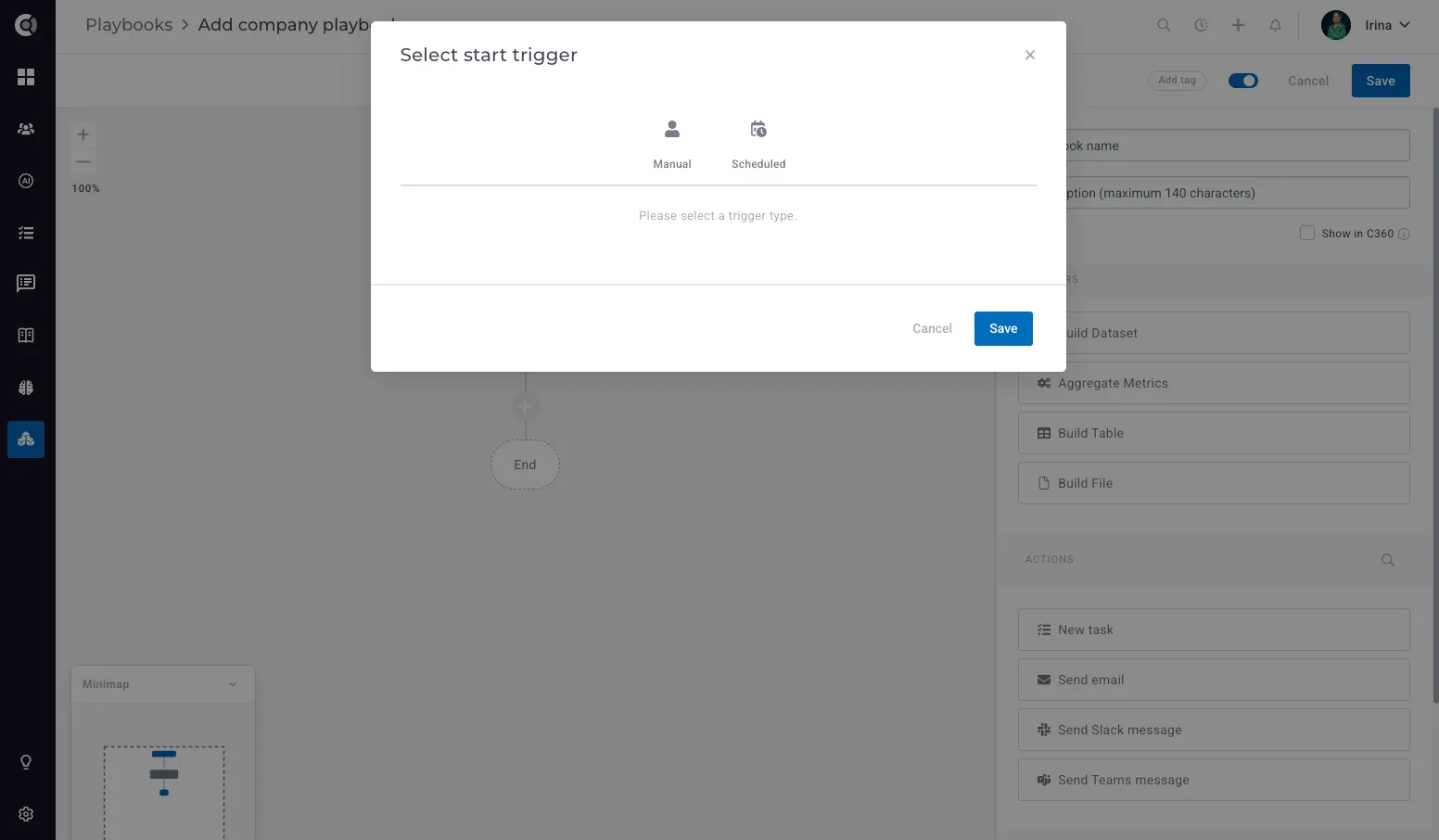
Select the start trigger:
- Manual: the playbook runs whenever you start it. Perfect for reports you need on demand, like before a team meeting or a quarterly review.
- Scheduled: the playbook runs automatically on the schedule you set, for example every Monday morning or on the 1st of each month.
3. Define your data set
Add a Build Dataset step. This is the foundation of your playbook: every metric, table, and file you create later uses this data set.
- Name the data set so it’s easy to recognize later, for example, “Top Accounts at Risk”.
- Start with the companies you want to include, such as all companies.
- Filter companies to narrow down the group, either by segment (for example, a “Low activity” segment) or with filters on attributes.
- Sort and limit the results to focus on what matters most. Sort by any attribute, choose the sort direction, and limit the data set to several companies, for example, your top 10 by MRR. Leave the limit empty to keep every company that matches.
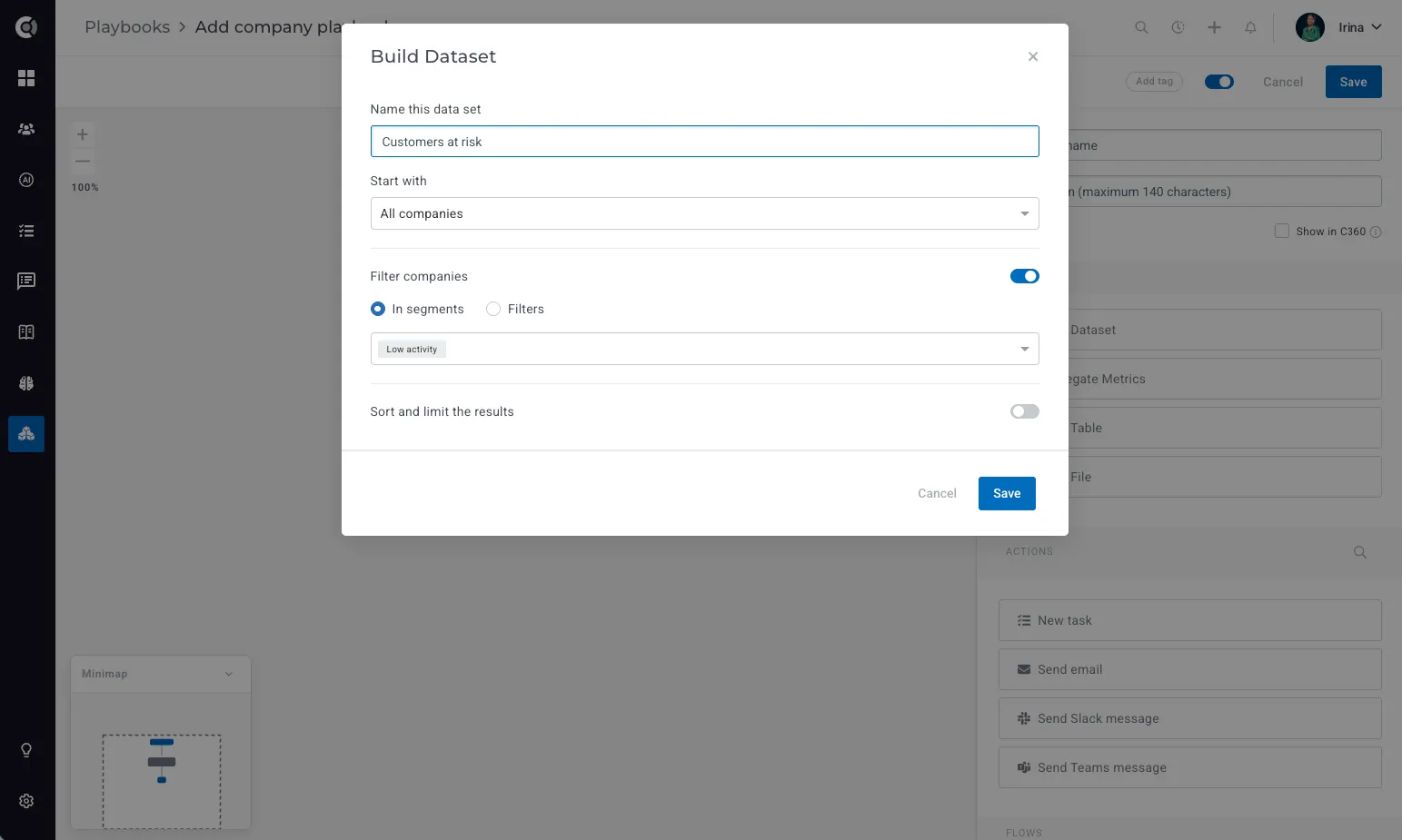
You can create more than one data set in the same playbook, for example one for at risk accounts and one for upcoming renewals.
4. Calculate metrics
Add an Aggregate Metrics step to calculate numbers across your data set: a count, sum, average, minimum, or maximum. For example, the total MRR of your at-risk accounts, the average health score of new customers, or the number of overdue tasks. You can add conditions to each metric and give it a clear label for your messages.
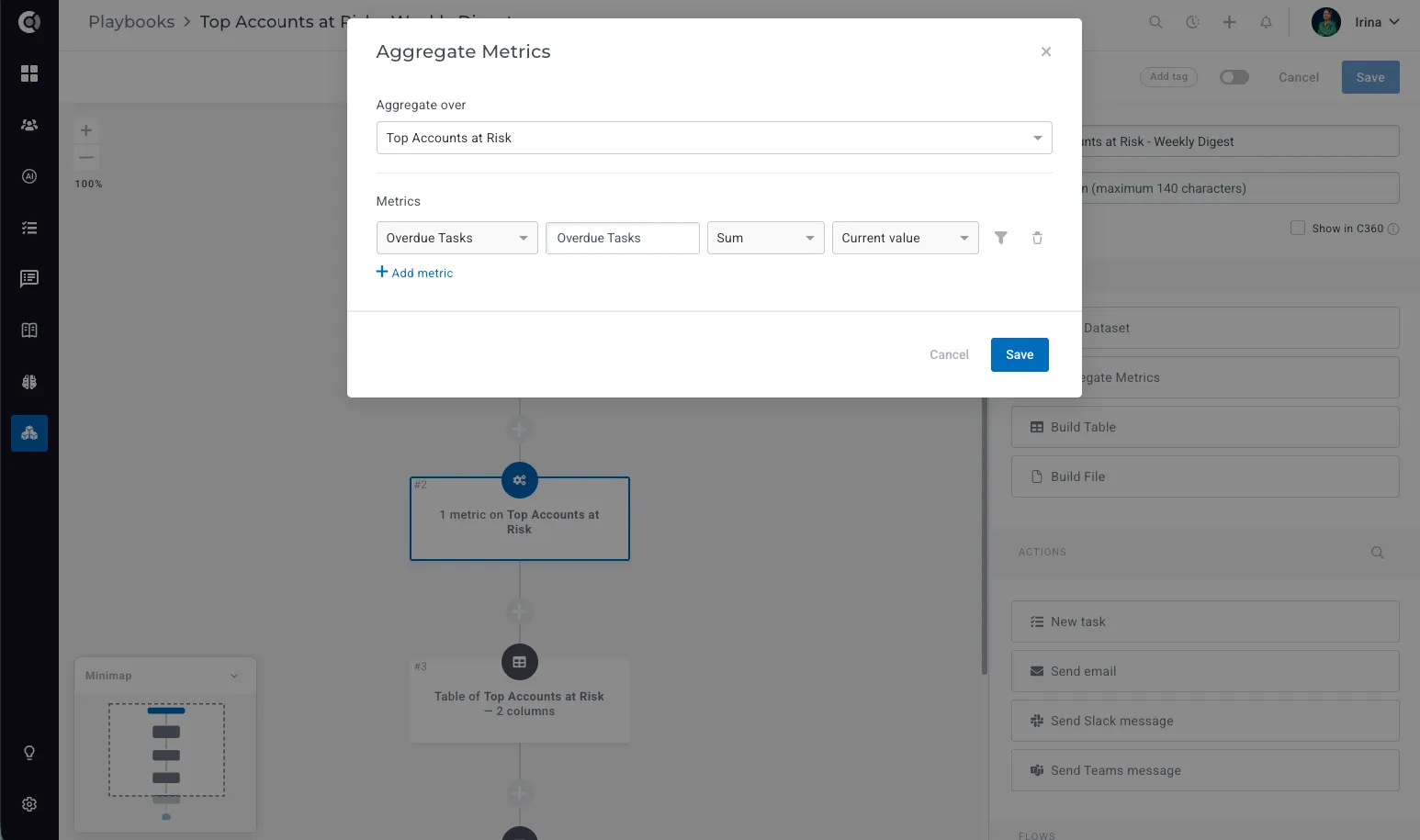
5. Build a table
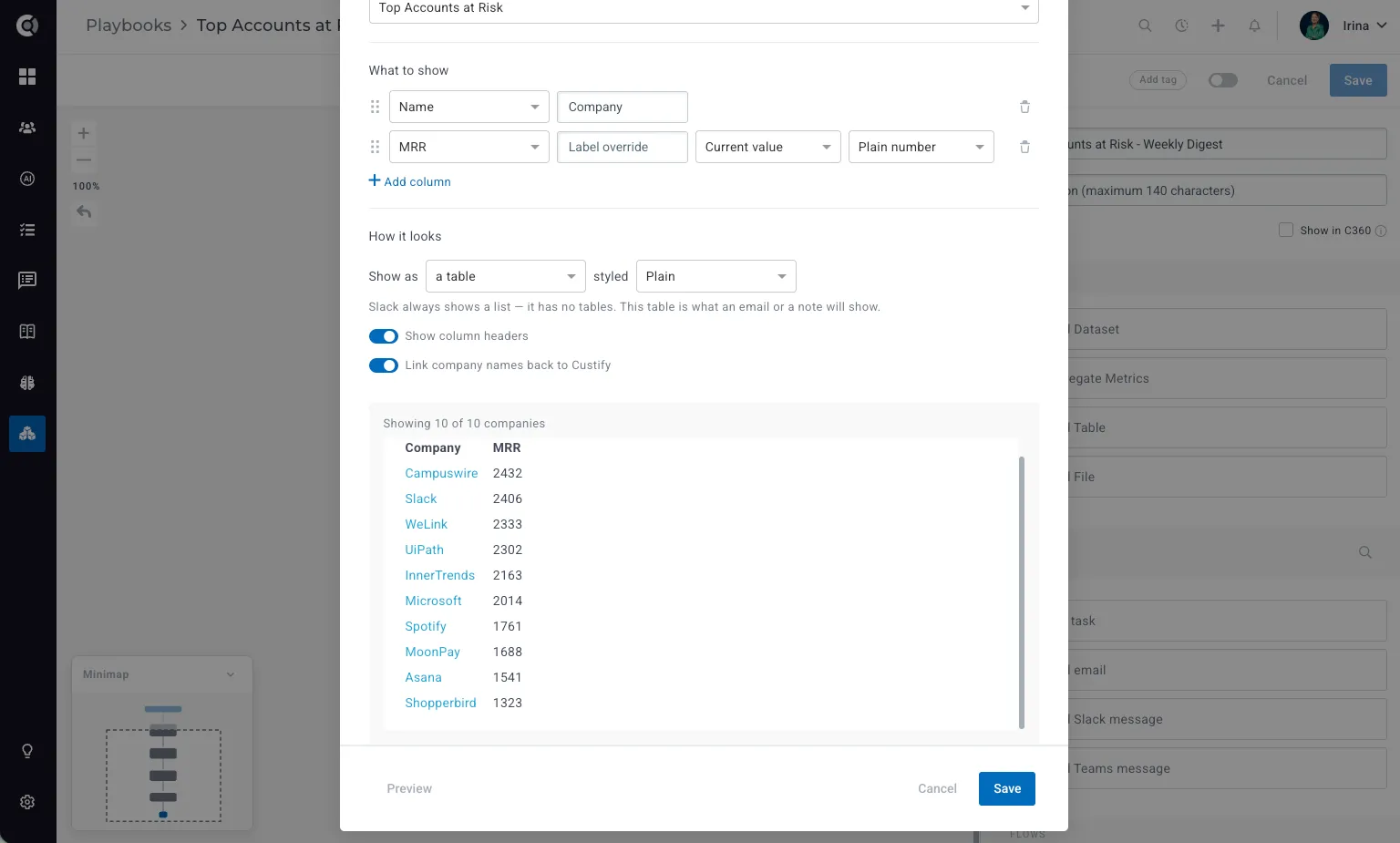
Add a Build Table step to turn your data set into a table you can include in a message.
- Choose what to show: add a column for each attribute you need, give each column a clear name, and drag columns to reorder them.
- Choose how it looks: pick the table style, and decide whether to show column headers.
- Turn on Link company names back to Custify, so anyone reading the report can open an account in one click.
Click Preview to check the result before saving.
Good to know: Slack doesn’t support tables, so in Slack messages your table is shown as an easy-to-read list. Emails and notes show the full table.
6. Create a file
Add a Build File step to generate a CSV file from your data set. Attach it to an email so recipients can explore the data in their own spreadsheet tool.
7. Share the results
Add the action that delivers your report:
- Send email
- Send Slack message
- Send Teams message
- New task
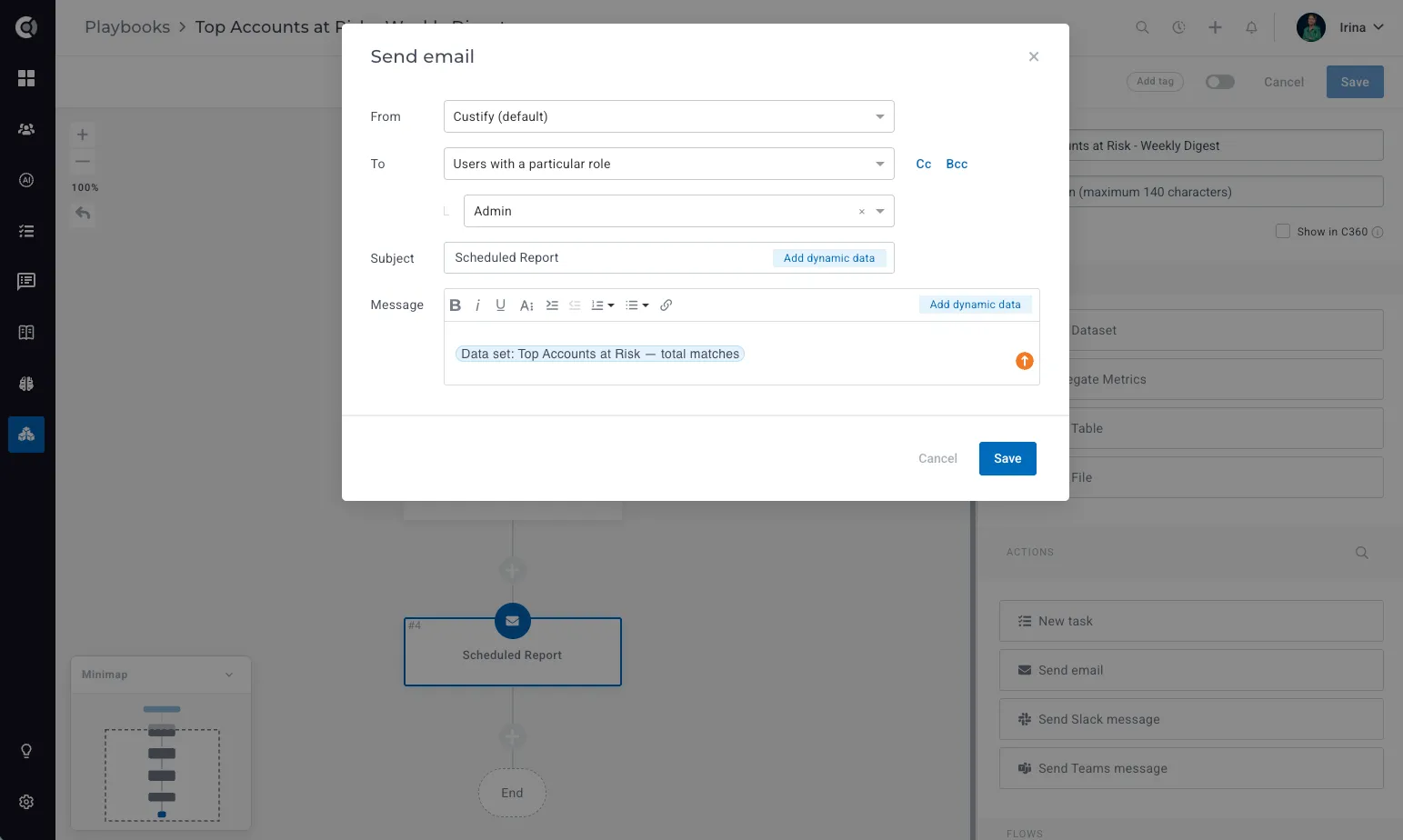
In your email, you can send the report to your team in a few clicks. For example, send it to users with a particular role, such as every Admin. Then click Add dynamic data to insert anything your builder steps produced: the table, a metric such as Overdue Tasks, the number of companies in the data set, or the total number of matches.
8. Add conditions (optional)
Conditions let your playbook react to the numbers in your data. Instead of sending the same update every time, you can decide what happens based on what the data set contains. For example, you can send an alert only when there’s something to act on, or skip the report entirely when the list is empty.
How a condition works
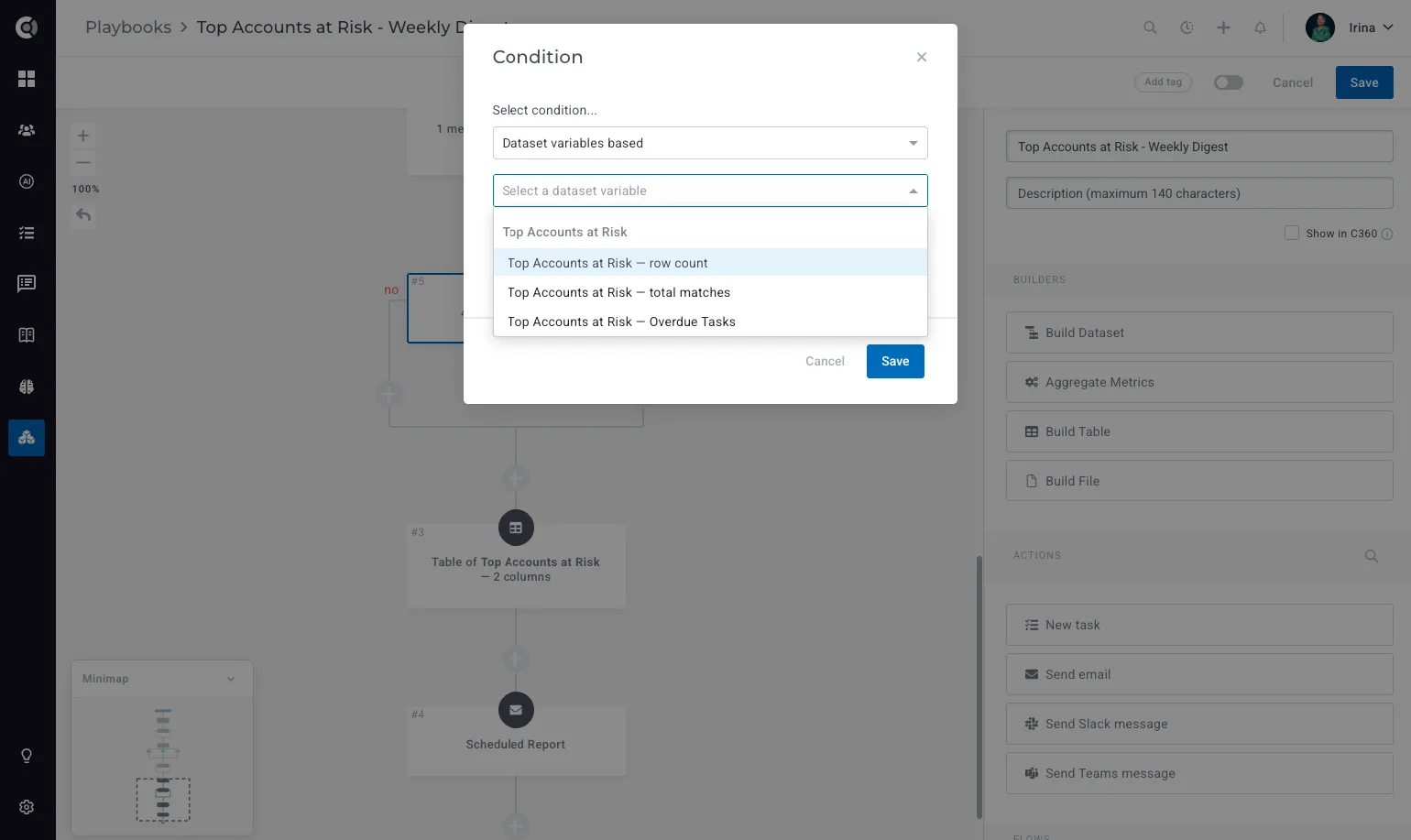
Add a Condition step to your flow. Dataset variables based on is already selected, so you can go straight to choosing the variable you want to check. Variables are grouped by data set, so if your playbook has more than one data set, you’ll see each one with its own variables:
- Row count: the number of companies or people included in the data set, after your sorting and limit are applied.
- Total matches: the total number of companies or people that matched your filters, before the limit is applied.
- Your metrics: every metric calculated in an Aggregate Metrics step earlier in the flow, such as Overdue Tasks or total MRR.
For example, if your data set shows your top 10 accounts at risk but 23 accounts match the filters, the row count is 10 and total matches is 23.
Next, choose how to compare the value: is, is not, greater than, lower than, is in, is not in, or is unknown, and enter the value to compare with.
The condition splits your flow into two paths. Companies or people don’t move through these paths individually: the whole playbook run follows the yes path when the condition is met, and the no path when it isn’t. Add the steps you want on each path, such as a Slack alert on one side and an Exit step on the other.
Good to know: a metric is only available in a condition if its Aggregate Metrics step comes before the Condition step in your flow. Add your metrics first, then the condition that uses them.
Combining several conditions
Turn on Condition based on multiple variables to check more than one value at once, then click Add condition for each extra rule. Choose how the rules work together:
- All: every condition must be met for the run to follow the yes path.
- At least one: the yes path is followed as soon as one of the conditions is met.
Examples
- Only send when there’s something to report: if total matches is greater than 0, send the weekly at-risk digest. Otherwise, exit the playbook, so your team doesn’t receive empty reports.
- Escalate when the numbers get high: if total matches is greater than 10, also send a Slack message to your team leads, and keep the regular email for everyone else.
- Combine signals: with All selected, alert your team only when there are accounts at risk and their combined MRR is above a certain amount. With At least one, alert them when either the number of at-risk accounts or the number of overdue tasks gets too high.
Need more than two paths? Use a Multi Branch step to route the run into several tracks, for example, one message when everything looks healthy, another when a few accounts are at risk, and an escalation when many are.
9. Activate
Name your playbook, save it, and turn it on. Scheduled playbooks run automatically from then on. Manual playbooks are ready whenever you need them.
Start faster with templates
Two ready-made templates help you get started in minutes:
- Weekly Portfolio Digest: a weekly snapshot of your whole customer base, with active customers, total and average MRR, and a table of your 10 largest accounts.
- New Customers Summary: a monthly summary of companies that signed up in the last 30 days, including how many joined, the new MRR they bring, and the most recent ones with their CSM and MRR.
Pick a template, add your recipients in the email step, adjust anything you like, and activate it.
Good to know
- These playbooks don’t use segments or triggers to decide who enters. The data set defines which companies or people are included. You can still use segments as a filter inside your data set.
- They’re built for internal reporting and team communication. Because of that, you can’t add individual companies or people to them from the Customer 360 or from customer lists.
- You can’t change the playbook type after it’s created.
Frequently asked questions
Do I need a segment to use these playbooks? No. These playbooks run on a schedule or manually, and the data set defines who is included. You can still filter your data set by segment if you want to.
Can I send the report to my whole team? Yes. In the email step, you can send to users with a particular role, add specific recipients, or post the update to a Slack or Teams channel.
Why does my table look different in Slack? Slack doesn’t support tables, so the table is shown as a list. Emails and notes display the full table.
Can I test the playbook before scheduling it?
Yes. Use the Preview in the Build Table step to check your table, or create the playbook with a manual trigger first and switch to a schedule once you’re happy with the result.